Windows Freezing Randomly How to Fix: Easy Steps to Solve Now
Is your Windows computer freezing randomly and leaving you frustrated? You’re not alone, and the good news is that you don’t have to live with this problem.
Imagine working smoothly without those annoying pauses or sudden stops. You’ll discover simple, effective ways to fix your freezing Windows and get back to using your PC with ease. Keep reading, because the solution might be easier than you think—and your computer will thank you for it.
Credit: www.drivereasy.com
Common Causes Of Windows Freezing
Windows freezing randomly can disrupt your work and cause frustration. Understanding common causes helps fix these issues quickly. Freezing happens when your system stops responding to input or commands. Several factors can lead to these freezes, from hardware to software problems. Identifying the cause is the first step to solving the problem.
Hardware Issues
Faulty hardware often causes Windows to freeze. Overheating parts like the CPU or GPU can slow down your system. Bad RAM or a failing hard drive may also create freezes. Loose cables or power supply problems affect stability too. Checking hardware health can prevent many freezes.
Software Conflicts
Conflicting software can make Windows stop working properly. Running many programs at once may overload your system. Some apps may clash with each other or with Windows itself. Outdated or buggy software often causes these conflicts. Keeping programs updated helps reduce freezing.
Driver Problems
Drivers help hardware communicate with Windows. Outdated or corrupted drivers cause system freezes. Graphics, sound, and network drivers often create issues. Installing the correct driver versions fixes many problems. Regular driver updates improve system stability.
Malware And Viruses
Malware and viruses slow down Windows or cause freezes. They use system resources and block normal processes. Some malware damages important system files. Running antivirus scans helps detect and remove threats. Keeping your system clean prevents many issues.
System Overload
Too many tasks running can overload your system. Low memory or disk space causes Windows to freeze. Background processes may consume CPU power without notice. Closing unused programs frees up resources. Monitoring system load keeps Windows running smoothly.
Initial Troubleshooting Steps
When Windows freezes randomly, start with some simple checks. These steps often solve the problem quickly. They help you find the cause and fix it without stress.
Restart Your Computer
Restarting your PC clears memory and stops background tasks. It often fixes freezing issues fast. Save your work and restart to see if the problem goes away.
Check For Updates
Windows updates fix bugs and improve system stability. Open Settings and check for updates. Install any available updates to keep your PC running smoothly.
Run A Virus Scan
Malware can slow down or freeze your computer. Use Windows Defender or another antivirus to scan your PC. Remove any threats found to improve performance.
Close Unnecessary Programs
Too many open programs can use up your memory. Close apps you do not need. This frees resources and helps your PC run without freezing.
Advanced Fixes For Freezing
Advanced fixes target deeper issues causing Windows to freeze randomly. These steps help find and fix problems drivers, system files, disk errors, and memory settings cause. They require a bit more focus but often solve persistent freezing problems.
Update Or Reinstall Drivers
Outdated or corrupted drivers often cause system freezes. Check Device Manager for any warning signs on hardware. Update drivers from the manufacturer’s website or Windows Update. Reinstall drivers if updates do not fix the issue. This ensures hardware communicates properly with Windows.
Perform System File Check
Corrupt system files can cause random freezes. Use the System File Checker tool to scan and repair files. Open Command Prompt as admin and run sfc /scannow. Wait for the process to finish. It replaces damaged files with healthy copies from Windows cache.
Check Disk For Errors
Bad sectors or disk errors can slow down your PC and cause freezes. Run the Check Disk tool to find and fix these errors. Open Command Prompt with admin rights and type chkdsk /f /r. Restart your PC to allow it to scan and repair the disk fully.
Adjust Virtual Memory Settings
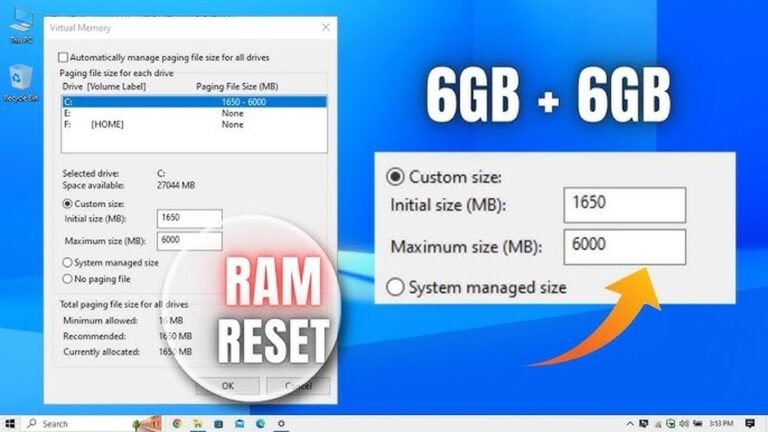
Virtual memory acts as extra RAM for your PC. Incorrect settings can lead to freezing. Open System Properties and go to Performance Options. Adjust the paging file size to be managed by Windows or set a custom size. This helps maintain smooth system performance.

Credit: www.youtube.com
Optimizing System Performance
Optimizing system performance helps prevent Windows from freezing randomly. It ensures your computer runs smoothly and responds quickly. Small tweaks can make a big difference in how your PC works. Focus on managing startup programs, cleaning disk space, and using built-in tools.
Manage Startup Programs
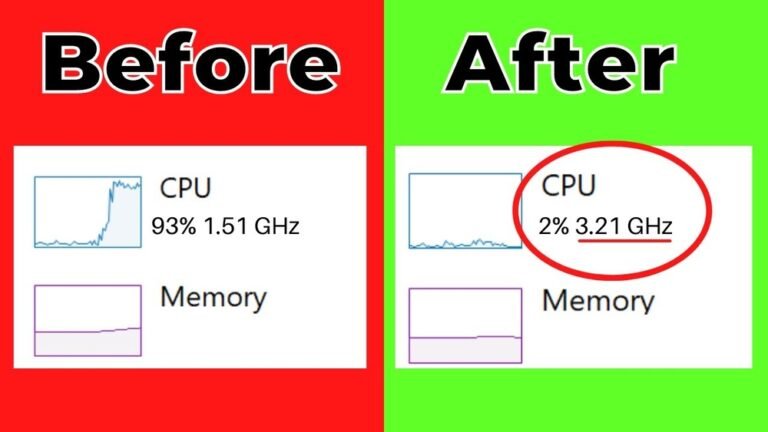
Too many programs start when Windows boots. This slows your computer and causes freezing. Open Task Manager by pressing Ctrl + Shift + Esc. Click on the Startup tab. Disable programs you do not need right away. This frees up memory and speeds up your PC.
Clean Up Disk Space
Low disk space can cause Windows to freeze. Delete old files and uninstall unused apps. Use the Disk Cleanup tool to remove temporary files. Access it by typing “Disk Cleanup” in the search bar. This clears space and helps your system run faster.
Use Performance Troubleshooter
Windows has a built-in tool to fix performance issues. Search for “Troubleshoot settings” in the Start menu. Select “Additional troubleshooters” and find “Performance.” Run the troubleshooter to detect and fix problems. This tool can improve system stability and reduce freezing.
When To Seek Professional Help
Windows freezing can be frustrating and slow down your work. Sometimes, basic fixes do not solve the problem. Knowing when to ask for expert help can save time and prevent damage. This section guides you on when to seek professional support for freezing issues.
Persistent Freezing Issues
If your computer freezes often and basic fixes fail, it needs expert care. Professionals can find hidden software conflicts or deep system errors. Persistent freezing could mean a serious problem. Experts use tools to diagnose and fix these complex issues safely.
Hardware Replacement Options
Freezing might come from failing hardware parts like RAM or hard drives. Professionals can test and replace faulty components correctly. Trying to replace hardware without knowledge can cause more damage. Experts ensure your computer gets the right parts and works well again.
Backup And Recovery Solutions
Data loss risks increase with freezing problems. Professionals help create backups and recover lost files safely. They use reliable methods to keep your data secure. Getting expert help protects your important information from permanent loss.
Credit: www.drivereasy.com
Frequently Asked Questions
Why Does Windows Freeze Randomly?
Windows may freeze due to hardware issues, outdated drivers, or software conflicts. Overloaded system resources and malware can also cause freezing. Identifying the root cause helps in applying the correct fix and improving system stability.
How Can I Fix Windows Freezing Without Losing Data?
Restart your PC in Safe Mode, update drivers, and run a virus scan. Check for system updates and free up disk space. These steps often resolve freezing without risking your data.
Does Windows Update Cause Random Freezing?
Yes, sometimes Windows updates can cause temporary freezing due to driver incompatibility or incomplete installation. Ensure all updates are fully installed and drivers are updated to avoid freezing issues.
Can Overheating Cause Windows To Freeze Randomly?
Overheating can cause Windows to freeze as it throttles performance to cool down. Clean fans and ensure proper ventilation to prevent heat-related freezing problems.
Conclusion
Random Windows freezing can be frustrating and slow your work. Regularly updating your system helps keep it smooth. Check for software conflicts and remove unnecessary programs. Scan your computer for viruses and malware often. Keep your drivers up to date to avoid crashes.
Restart your PC when it acts strange. Simple steps like these improve performance and reduce freezes. Stay patient and follow these tips to fix issues. Your computer will run better and feel faster soon.