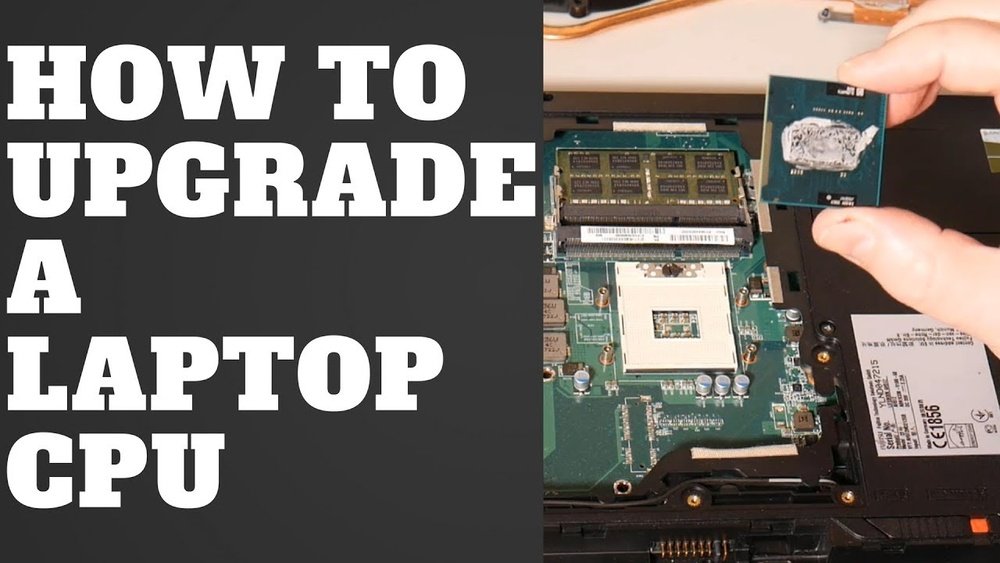
How to Replace Cpu on Laptop: Step-by-Step Easy Guide
Replacing the CPU on your laptop might sound tricky, but it’s easier than you think. If your laptop is running slow or struggling with tasks, upgrading the processor can give it new life.
You don’t have to be a tech expert to do this. In this guide, you’ll find simple, step-by-step instructions to replace your laptop’s CPU safely and effectively. Keep reading to discover how you can boost your laptop’s performance and save money without buying a new one.
Preparing Your Workspace
Preparing your workspace is the first step in replacing a CPU on a laptop. A clean and organized area helps you work safely and efficiently. It also prevents losing small parts or tools. Taking time to set up properly can save frustration later.
Gathering Necessary Tools
Collect all tools before starting the process. You will need a small screwdriver set, usually Phillips-head. An anti-static wrist strap protects your laptop from static electricity. A plastic pry tool helps open the laptop case without damage. Have a clean cloth or mat to place screws and parts on.
Ensuring Proper Safety Measures
Turn off your laptop and unplug it from power. Remove the battery if possible. Wear an anti-static wrist strap to avoid damaging components. Work in a dry area to prevent moisture harm. Keep liquids far away from your workspace. Good lighting helps you see small details clearly.
Backing Up Important Data
Save all your important files before starting. Use an external hard drive or cloud storage. This prevents data loss in case something goes wrong. Backing up gives peace of mind and protects your work. Double-check your backup before proceeding with the CPU replacement.

Credit: www.youtube.com
Identifying Your Laptop’s Cpu
Identifying your laptop’s CPU is the first step in the replacement process. It helps to find the right part that fits and works well. Knowing the exact model and compatibility saves time and money.
This step also avoids damage to your laptop. It ensures the new CPU matches the laptop’s design and power needs. Careful identification is key to a smooth upgrade.
Checking Cpu Compatibility
Not all CPUs fit every laptop. Check the laptop’s manual or website for supported CPU types. Look for socket type, power limits, and chipset compatibility. These details guide your choice. Using an incompatible CPU can stop the laptop from working.
Locating The Cpu Model
Find the current CPU model before buying a new one. Use system tools like Task Manager or System Information on Windows. On Mac, check the About This Mac section. The CPU model appears as a name or number. Write this down for reference.
Disassembling The Laptop
Disassembling a laptop is the first step to replace the CPU. It needs careful handling to avoid damage. Follow each step slowly and check your work.
Removing The Battery
Start by turning off the laptop completely. Unplug the charger and any connected devices. Flip the laptop over to find the battery compartment. Slide the battery release latch and gently remove the battery. This step prevents any power flow during the repair.
Unscrewing The Back Panel
Use a small screwdriver to remove all screws on the back panel. Keep the screws in a safe place to avoid losing them. Carefully lift the panel off. Some laptops may need a plastic tool to pry open the back cover without scratching.
Accessing The Cpu Compartment
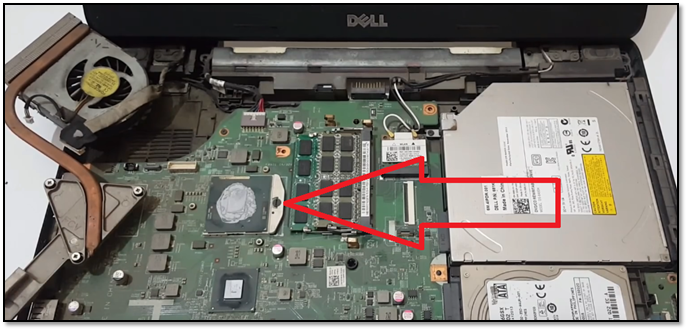
Locate the CPU under a metal or plastic shield. Remove any screws holding the shield in place. Lift the shield carefully to expose the CPU. Now you have clear access to the processor for replacement.

Credit: www.hp.com
Removing The Old Cpu
Removing the old CPU from a laptop is a careful process. It requires patience and attention to detail. Each step must be done gently to avoid damage. Start by preparing your workspace and tools. Keep small parts safe during the process.
Follow each step below to detach the cooling system, unlock the CPU socket, and remove the CPU carefully. This will help you replace the CPU safely and correctly.
Detaching The Cooling System
The cooling system keeps the CPU from overheating. It usually has a fan and heat sink attached. First, unplug the fan cable from the motherboard. Then, unscrew the screws holding the heat sink. Do this slowly to avoid breaking any parts.
Lift the heat sink gently. Sometimes, it sticks due to thermal paste. Wiggle it lightly to loosen. Keep the cooling system aside safely for reinstallation.
Unlocking The Cpu Socket
The CPU sits in a socket on the motherboard. To remove it, you must unlock this socket. Look for a small lever or latch next to the CPU. Carefully lift or slide it to release the CPU.
Do not force the lever. Use slow, steady movements. This prevents damage to the socket pins or motherboard.
Extracting The Cpu Carefully
Once unlocked, the CPU can be lifted out. Hold the CPU by its edges only. Avoid touching the gold pins or contacts underneath.
Lift the CPU straight up with steady hands. Place it on an anti-static surface or protective case. This protects it from static damage and dirt.
Installing The New Cpu
Installing the new CPU on your laptop requires care and focus. This step is key for your laptop’s performance. Follow these steps carefully to avoid damage and ensure the CPU fits perfectly.
Aligning The Cpu Correctly
Locate the small triangle on one corner of the CPU. Match it with the triangle on the socket. The pins must fit into the holes perfectly. Do not force the CPU. It should drop in gently and sit flat.
Securing The Cpu In Socket
Lower the locking arm or mechanism slowly. This holds the CPU firmly in place. Make sure the arm clicks or locks without using too much force. A loose CPU can cause errors or damage.
Reapplying Thermal Paste
Clean the old thermal paste from the CPU and heat sink. Use a soft cloth with isopropyl alcohol. Apply a small pea-sized drop of new thermal paste on the CPU center. Spread it evenly when you reattach the heat sink. This helps keep the CPU cool during use.
Reassembling The Laptop
After replacing the CPU, reassembling the laptop carefully is essential. This step protects the new CPU and ensures the laptop works correctly. Proper reassembly helps avoid damage and overheating problems.
Reattaching The Cooling System
Start by placing the cooling system back on the CPU. Align it carefully to match the screw holes. Tighten the screws evenly to avoid pressure on the CPU. Connect the fan cable to the motherboard securely. This step keeps your laptop cool and prevents overheating.
Closing The Back Panel
Put the back panel in its place gently. Check all edges to make sure it fits well. Tighten all screws firmly but do not overtighten. Loose screws can cause parts to move, while too tight screws may damage the panel.
Reinserting The Battery
Slide the battery back into its slot. Make sure it clicks or fits snugly. Connect any battery cables if needed. A secure battery connection provides stable power for your laptop.
Testing The New Cpu
Testing the new CPU is a key step after installation. It confirms the processor works correctly and the laptop runs smoothly. Skipping this step might cause unnoticed problems later. Careful testing helps catch issues early, saving time and effort.
Booting Up The Laptop
Turn on the laptop after installing the new CPU. Watch for any error messages or unusual sounds. The system should start normally and reach the desktop screen. If it does, the CPU is likely seated correctly. If not, check the installation and connections again.
Checking System Performance
Run basic programs to test speed and responsiveness. Open apps like a web browser or text editor. Notice any delays or crashes. Use system tools to check CPU usage and clock speed. The new CPU should perform better or the same as before.
Monitoring Temperature And Stability
Use software to monitor CPU temperature during use. Keep the laptop on a flat surface to avoid overheating. Watch for sudden shutdowns or freezes. High temperatures or instability may mean poor cooling or a bad CPU. Adjust cooling or recheck installation if needed.
Troubleshooting Common Issues
Replacing a CPU on a laptop can sometimes lead to problems. Troubleshooting common issues helps fix these quickly. Knowing what to check saves time and frustration.
This section covers three main problems: boot failures, overheating, and compatibility troubles. Each problem has simple steps to follow. These tips help your laptop run smoothly after the CPU swap.
Handling Boot Failures
Boot failures happen when the laptop does not start after CPU replacement. First, check if the CPU is seated correctly in the socket. A loose CPU can stop the laptop from booting.
Make sure all power cables and connectors are secure. Clear any dust or debris in the CPU area. Reset the BIOS by removing the CMOS battery for a few minutes. This can fix boot errors caused by new hardware.
Dealing With Overheating
New CPUs may cause overheating if not installed properly. Apply thermal paste evenly between the CPU and heatsink. Too much or too little paste reduces cooling efficiency.
Check the cooling fan and air vents for blockages. Clean them if needed to improve airflow. Keep the laptop on a hard surface to avoid blocking vents. Use a cooling pad if overheating continues.
Resolving Compatibility Problems
Not all CPUs work with every laptop model. Check the laptop’s motherboard specifications before buying a new CPU. BIOS updates may be required to support the new processor.
Verify the CPU socket type matches the new CPU. Incompatible CPUs cause errors or failure to boot. Consult the laptop manual or manufacturer’s website for compatible CPU lists.
Credit: www.easeus.com
Frequently Asked Questions
How Do I Know If My Laptop Cpu Is Replaceable?
Not all laptop CPUs are replaceable. Check your laptop’s manual or manufacturer website. Some CPUs are soldered directly to the motherboard, making replacement impossible.
What Tools Are Needed To Replace A Laptop Cpu?
You typically need a small screwdriver set, thermal paste, and an anti-static wrist strap. These tools help safely remove and install the CPU without damage.
How To Apply Thermal Paste When Replacing A Laptop Cpu?
Apply a small pea-sized amount of thermal paste on the CPU’s center. Spread it evenly when you reattach the heat sink to ensure proper heat dissipation.
Can Replacing My Laptop Cpu Improve Performance Significantly?
Yes, upgrading to a faster CPU can boost performance. However, ensure compatibility with your motherboard and cooling system before upgrading.
Conclusion
Replacing a CPU on a laptop can seem tough but is doable. Take your time and follow each step carefully. Use the right tools and handle parts gently. Always check compatibility before buying a new CPU. Testing the laptop after replacement ensures everything works fine.
With patience, you can improve your laptop’s speed and performance. Keep safety in mind to avoid damage. This task helps you learn more about your device. Ready to give your laptop a fresh start?