Windows Not Installing on New Pc Fix: Easy Solutions to Try Today
Are you struggling to get Windows installed on your new PC? It’s frustrating when you’re excited to start using your computer, but the installation just won’t go through.
You might feel stuck, wondering if something is wrong with your hardware or the installation files. Don’t worry—you’re not alone, and the fix may be simpler than you think. You’ll discover clear, easy steps to solve the Windows installation problem and get your new PC up and running fast.
Keep reading, and you’ll be back on track before you know it.
Credit: www.youtube.com
Check Hardware Compatibility
Checking hardware compatibility is a key step when Windows won’t install on a new PC. Your computer parts must work well with the Windows version you want to install. Problems often happen if the hardware is not ready or does not meet the system needs.
Careful checking can save time and avoid errors during installation. It also helps you know if any part needs an upgrade or adjustment before trying again.
Verify System Requirements
Start by checking the Windows system requirements. Look for the minimum CPU speed, RAM size, and storage space. The motherboard and graphics card should also support the Windows version.
Compare these details with your PC parts. Your processor should be fast enough. RAM must be enough for smooth installation. Storage should have free space beyond just the Windows files.
Older hardware might not work with the latest Windows. If your parts are too old, consider updating them first.
Inspect Hardware Connections
Loose or wrong hardware connections can stop Windows from installing. Check all cables and parts inside your PC case.
Make sure the hard drive or SSD is plugged in firmly. RAM sticks should fit tight in their slots. Graphics cards need to be seated properly on the motherboard.
Remove dust and dirt from connectors. Dirty contacts cause poor signals and errors. Reconnect parts carefully and try the installation again.

Credit: www.reddit.com
Prepare Installation Media
Preparing installation media is a key step to fix Windows not installing on a new PC. This process lets you create a tool that installs Windows smoothly. A proper installation media avoids errors during setup. It also ensures your PC recognizes the installation files correctly. Below, learn how to create and test this media for a hassle-free install.
Create Bootable Usb Drive
First, get a USB drive with at least 8 GB of space. Download the official Windows ISO file from Microsoft’s website. Use a tool like Rufus or the Windows Media Creation Tool. These programs help copy the ISO to your USB and make it bootable. Follow the tool’s instructions carefully. This step is critical. It prepares your USB to start the Windows installation process.
Test Installation Media
Testing your installation media confirms it works before you use it on your PC. Insert the USB into a working computer. Restart the computer and open the boot menu. Choose the USB drive as the boot device. If the Windows setup screen appears, the media works. If not, recreate the USB drive. Testing saves time and prevents installation errors later.
Adjust Bios Settings
Adjusting BIOS settings is essential to fix Windows installation issues on a new PC. BIOS controls how your computer starts and works with your hardware. Incorrect BIOS settings can stop Windows from installing correctly. Follow these simple steps to adjust your BIOS and prepare your PC for a smooth Windows installation.
Enable Uefi Mode
UEFI mode supports modern hardware and faster boot times. It replaces the old BIOS system. Enabling UEFI helps Windows recognize your hard drive and install properly. To enable it, enter BIOS setup and find the boot options. Change the boot mode from Legacy to UEFI. Save changes and exit BIOS to continue.
Disable Secure Boot
Secure Boot protects your PC from unauthorized software. Sometimes, it blocks Windows installation on new hardware. Disabling Secure Boot allows Windows to install without interruptions. In BIOS, locate the Secure Boot option under security settings. Switch it off and save your changes. This step is often necessary for installing some Windows versions.
Set Boot Priority
Boot priority tells your PC where to start the system from. For Windows installation, set your USB or DVD drive as the first option. Go to the BIOS boot menu and reorder devices. Place your installation media at the top of the list. This change ensures your PC boots from the Windows installer first.
Troubleshoot Installation Errors
Windows installation errors can stop your new PC setup. These errors often block progress and cause frustration. Troubleshooting these issues can help you finish the installation smoothly. Simple fixes might solve common problems quickly.
Fix Disk Partition Issues
Disk partition problems often cause installation failures. The installer might not find the right space to install Windows. Use the setup tool to delete old partitions. Create a new partition for a clean install. Ensure the partition format is compatible with Windows. Use NTFS instead of FAT32 for better support. Check if the drive uses GPT or MBR. The wrong format can prevent installation.
Handle Missing Drivers
Missing drivers can stop Windows from installing. The system needs drivers for storage devices and other hardware. Download the latest drivers from your PC manufacturer’s website. Copy them to a USB drive before installation. During setup, load these drivers manually. This step helps the installer recognize all hardware. Without drivers, installation may freeze or fail.
Resolve Installation Freezes
Installation freezing is a common problem. It often occurs due to hardware conflicts or corrupted files. Disconnect all extra devices like printers and USB drives. Restart the installation after removing these devices. Use a different USB port for the installation media. Check the installation media for damage or corruption. Replace the media if needed. Clean the PC’s RAM and hard drive connections. Loose parts can cause freezes too.
Use Advanced Installation Options
Using advanced installation options can solve many Windows setup problems. These options give you more control over the installation process. You can fix errors that stop Windows from installing on your new PC. This section covers two key methods to try.
Perform Clean Installation
A clean installation removes all files and settings from the PC. This method installs Windows fresh without old data. It helps avoid conflicts caused by previous installations or corrupted files. To do this, boot from the Windows installation media. Choose “Custom: Install Windows only” when prompted. Delete all existing partitions and create a new one. Follow the on-screen instructions to complete the clean install. This process ensures a fresh start and often fixes installation problems.
Try Safe Mode Installation
Safe Mode loads only essential drivers and services. Installing Windows in Safe Mode can bypass hardware or software issues. Start your PC and press the appropriate key (like F8) to open the boot menu. Select “Safe Mode with Networking” and press Enter. Run the Windows setup from this mode. Safe Mode helps if normal installation fails due to driver conflicts. This method reduces errors and allows a smoother installation experience.
Credit: support.microsoft.com
Seek Additional Help
Sometimes fixing Windows installation problems on a new PC can be tricky. You might try many solutions but still face issues. Seeking extra help is a smart step. It gives you access to expert advice and useful resources. This can save time and reduce frustration.
There are many places to find help. Official support and tech forums are two great options. Both offer valuable information and guidance for your specific problem.
Consult Official Support
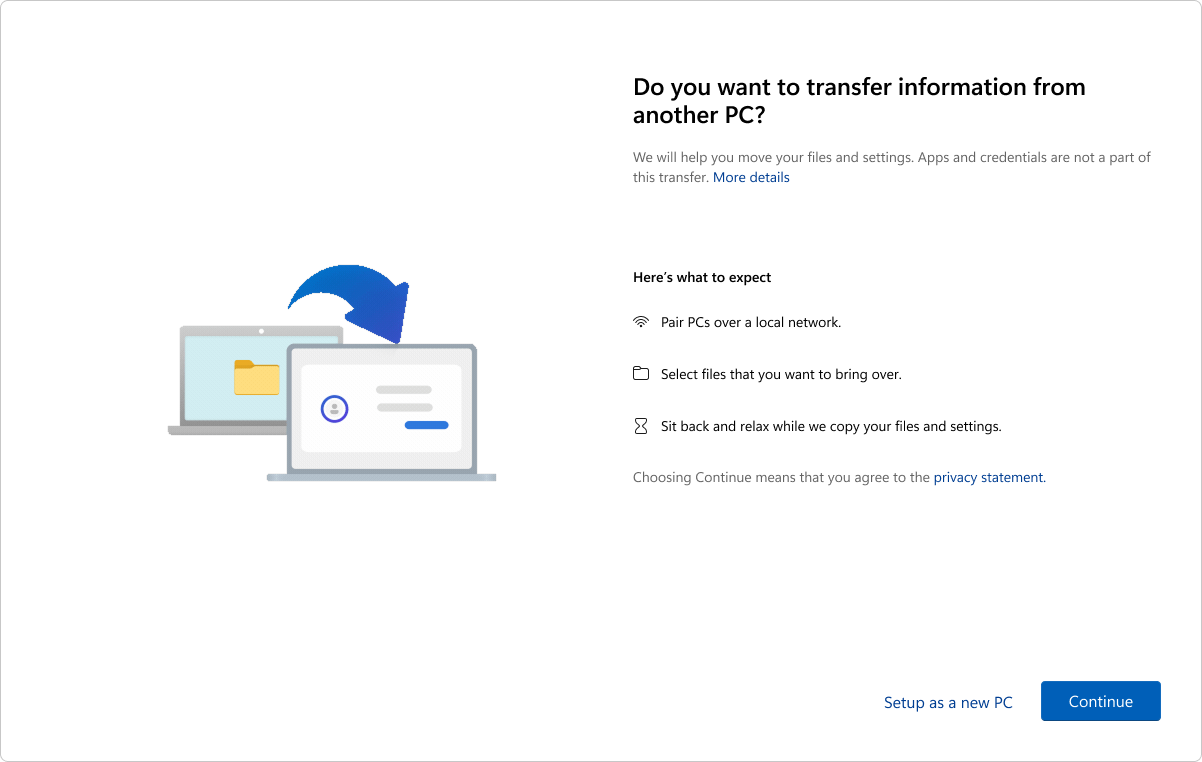
Microsoft offers official support for Windows installation issues. Their website has detailed guides and troubleshooting tools. You can also contact support agents through chat or phone. They provide clear instructions tailored to your PC model and Windows version. This helps solve problems safely and quickly. Using official support ensures you get reliable and updated information straight from the source.
Visit Tech Forums
Tech forums host communities of users and experts who share solutions. Sites like Reddit, Tom’s Hardware, or Microsoft Community have many active members. You can post your problem and get advice from people with similar experiences. Forum answers often include step-by-step fixes and tips. Reading through discussions helps you learn more about common Windows installation issues. Forums offer a friendly place to ask questions and find practical help.
Frequently Asked Questions
Why Is Windows Not Installing On My New Pc?
Windows may not install due to hardware issues, BIOS settings, or corrupted installation media. Check USB drive, update BIOS, and ensure hardware compatibility before retrying the installation.
How Can I Fix Windows Installation Errors On New Pc?
Fix errors by verifying BIOS settings, using a different USB port, and creating a fresh installation USB. Also, disable Secure Boot and enable Legacy Mode if necessary.
What Bios Settings Affect Windows Installation Success?
Key BIOS settings include disabling Secure Boot, enabling Legacy/CSM mode, and setting the correct boot priority to your installation media. Incorrect settings can block Windows installation.
Can Faulty Hardware Cause Windows Installation Failure?
Yes, faulty RAM, SSD, or motherboard can stop installation. Run hardware diagnostics to identify and replace defective components for a smooth Windows setup.
Conclusion
Fixing Windows installation issues on a new PC can feel tough. Simple checks often solve common problems fast. Make sure your hardware is compatible and connected right. Use official Windows tools to avoid errors during setup. Take it step by step, and don’t rush.
Small mistakes cause big headaches. Patience helps, and soon your PC will run smoothly. Keep this guide handy for any future installs. Your new computer deserves a clean, working system. Getting Windows installed is possible with the right approach.