How to Get More Gpu Memory: Boost Performance Fast
Are you running out of GPU memory right when you need it the most? Whether you’re gaming, creating digital art, or working with heavy software, limited GPU memory can slow you down and hold back your performance.
But what if you could easily boost your GPU memory without buying a new graphics card? You’ll discover simple and effective ways to get more GPU memory and keep your system running smoothly. Keep reading to unlock tips that can make a real difference for your computer’s speed and power.
Check Current Gpu Memory Usage
Checking your current GPU memory usage helps you understand how much memory your graphics card is using. This step is important before trying to get more GPU memory. It shows which tasks need the most memory and helps you decide what to close or change. Monitoring GPU memory helps keep your system running smoothly and avoids slowdowns.
Use System Monitoring Tools
System monitoring tools show real-time GPU memory usage. On Windows, Task Manager gives a quick view of GPU usage. Open it by pressing Ctrl + Shift + Esc and then go to the Performance tab. You can see how much GPU memory is in use.
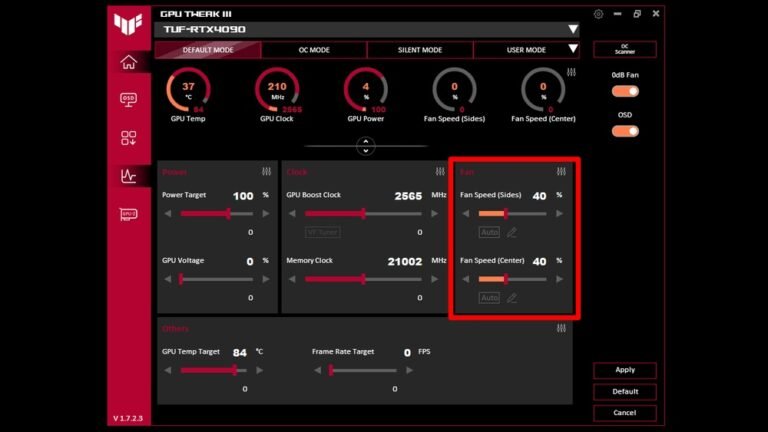
For detailed information, use tools like GPU-Z or MSI Afterburner. These tools show memory load, temperature, and clock speeds. They help track GPU memory over time and spot issues early.
Identify Memory-heavy Applications
Some applications use more GPU memory than others. Games, video editors, and 3D software often need large amounts of GPU memory. Identify these memory-heavy apps by checking the process list in Task Manager or your monitoring tool.
Close or reduce settings in apps that use too much GPU memory. This frees up space for other tasks. Knowing which apps use the most memory helps you manage your GPU better and improve performance.

Credit: www.youtube.com
Upgrade Your Gpu Hardware
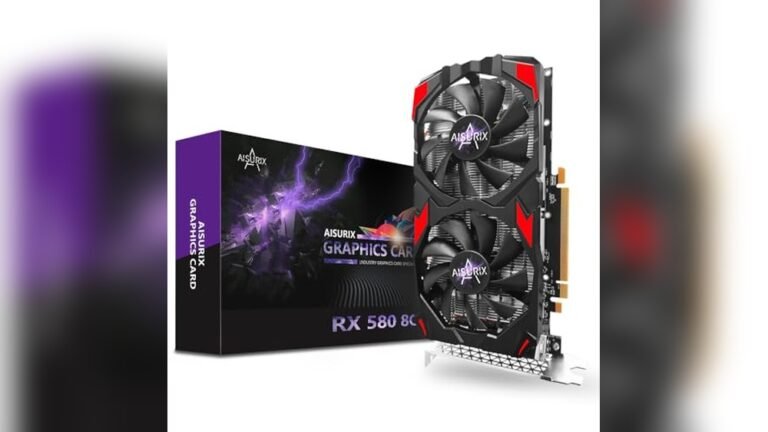
Upgrading your GPU hardware is the most direct way to get more GPU memory. More memory means better performance for games and creative work. It helps your computer handle large files and complex graphics smoothly.
Choosing the right GPU and ensuring it fits your system are key steps. These steps make sure you get the best value and avoid issues with installation or performance.
Choose A Gpu With Higher Vram
VRAM is the memory on your GPU. It stores textures, frames, and data for quick access. A GPU with higher VRAM supports better graphics quality and larger workloads.
Look for GPUs with at least 6GB VRAM for gaming or design. For heavy tasks, consider 8GB or more. This helps reduce lag and improve smoothness.
Consider Gpu Compatibility
Not all GPUs fit every computer. Check your motherboard and power supply before buying. Make sure the GPU size matches your case space. Confirm your power supply can handle the new GPU’s needs.
Also, check if your operating system supports the GPU drivers. This avoids software conflicts and keeps your system stable.
Optimize Gpu Settings
Optimizing GPU settings helps you get the most from your graphics card. It improves performance and frees up memory. Simple changes in settings can reduce memory use without hurting visual quality. This allows your GPU to handle more tasks smoothly.
Adjust Graphics Quality
Lowering graphics quality saves GPU memory. Reduce texture details, shadows, and effects. Choose medium or low settings instead of high. This cuts the load on your GPU. Games and apps run faster with less memory use.
Turn off unnecessary features like anti-aliasing. It smooths edges but uses extra memory. Adjust resolution to a level your GPU can handle. Smaller resolution means less memory needed for images.
Manage Gpu Memory Allocation
Some GPUs allow manual memory allocation. Check your GPU control panel or software. Allocate more memory to important tasks. Reduce memory use for background apps.
Close unused programs to free GPU memory. Disable apps running in the background. This reduces memory strain on your GPU. Keeping memory free helps maintain stable performance.
Credit: www.liftingitalia.com
Use Virtual Memory Techniques
Virtual memory techniques help increase the effective GPU memory. This is useful when your GPU runs low on its own memory. These methods let your system use extra memory from the hard drive or system RAM. This way, your GPU can handle larger tasks without crashing or slowing down.
Enable Pagefile For Gpu
The pagefile acts as extra memory space on your hard drive. It stores data when the GPU memory is full. To enable this, open your system settings and find the pagefile options. Set the pagefile size to be large enough for your needs. This allows your GPU to access additional memory from the hard drive. It is slower than real GPU memory but helps prevent crashes.
Leverage Shared System Memory
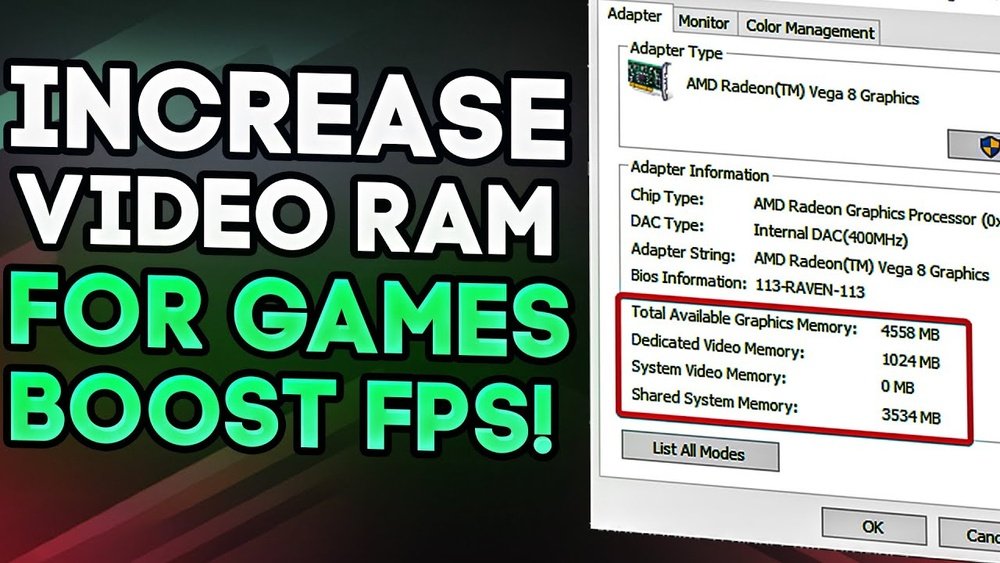
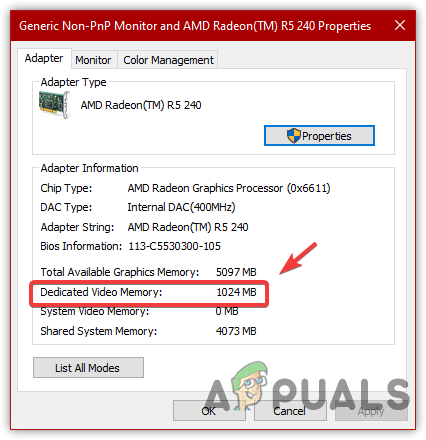
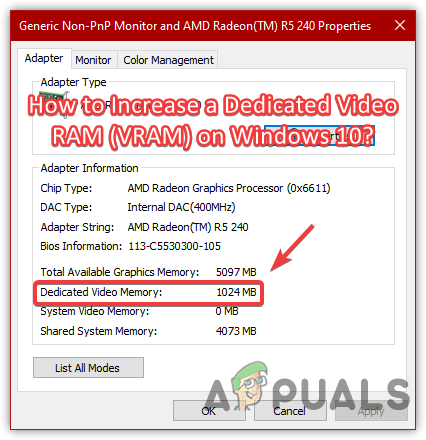
Some GPUs can use part of the system RAM as extra memory. This is called shared system memory. You can enable this in your BIOS or system settings. Increasing shared memory gives your GPU more space to work with. It helps improve performance in memory-heavy tasks. Keep in mind, shared memory is slower than dedicated GPU memory.
Update Drivers And Software
Updating your GPU drivers and software plays a key role in managing GPU memory effectively. New updates often improve memory handling and boost performance. Keeping your system up to date helps avoid bugs and glitches that waste memory.
Regular updates ensure your GPU works well with the latest apps and games. This process can free up memory and make your graphics run smoother. It is a simple step that can lead to noticeable improvements.
Install Latest Gpu Drivers
Check the official website of your GPU maker for the newest drivers. Download and install the latest version that matches your GPU model. These drivers fix bugs and improve memory use.
Many GPU manufacturers offer tools to auto-update drivers. Use them to save time and keep your system current. Always restart your computer after installing new drivers.
Use Optimized Software Versions
Use the latest versions of software that rely on your GPU. Software updates often include better memory management. This helps programs use GPU memory more efficiently.
Older software may not support new GPU features. Updating software can reduce memory errors and crashes. Regularly check for updates to keep your apps running well.
Close Unnecessary Background Processes
Closing unnecessary background processes helps free up GPU memory. Many apps run quietly in the background. They use GPU power without your knowledge. Stopping these apps can improve your GPU’s performance. Your system will have more memory available for important tasks.
Identify Resource-heavy Tasks
Check which tasks use the most GPU memory. Use your system’s task manager or resource monitor. Look for apps with high GPU usage. Games, video editors, and browsers often use a lot of GPU memory. Note these apps to decide if you need them running.
Free Up Gpu Memory
Close the apps that drain your GPU memory. Right-click the app in the task manager and select “End Task.” This stops the app from using GPU resources. Avoid closing system processes to keep your computer stable. Freeing memory helps your main programs run faster and smoother.
Use External Gpu Solutions
Using external GPU solutions is a smart way to increase your computer’s graphics power. It adds more GPU memory without changing your internal hardware. External GPUs, or eGPUs, connect to your laptop or desktop and boost performance. This method works well for creative work, gaming, and heavy graphics tasks.
Explore Egpu Options
Several eGPU models exist to fit different needs and budgets. Choose one with enough GPU memory for your tasks. Check compatibility with your computer’s ports, like Thunderbolt 3 or USB-C. Look for eGPUs that support popular graphics cards from NVIDIA or AMD. Consider the size and cooling system of the eGPU for better performance.
Set Up External Gpu Properly
Start by connecting the eGPU to your computer using the right cable. Install the latest drivers for the external graphics card. Adjust your computer’s display settings to use the eGPU for heavy tasks. Some systems need you to enable eGPU in the BIOS or system settings. Test the setup with graphics software to ensure it works well.
Adjust Application Settings
Adjusting application settings is a simple way to free up GPU memory. Many apps use more memory than needed by default. Changing some settings reduces memory use without much loss in quality.
Lower memory use helps apps run smoother and prevents crashes. It also lets your GPU handle bigger tasks. Focus on key settings like texture quality and frame rate to save memory effectively.
Reduce Texture Quality
Textures take up a lot of GPU memory. Lowering texture quality reduces the size of textures used in the app. This frees up memory for other tasks.
Most apps let you choose texture quality in options. Select medium or low instead of high. The visuals will still look good but use less memory.
This change helps especially in games and 3D apps. It reduces memory load and improves performance on GPUs with limited memory.
Limit Frame Rate
Frame rate affects how many images your GPU processes each second. Higher frame rates need more memory and power. Limiting frame rate reduces memory use and heat.
Set frame rate caps in app settings. Choose 30 or 60 frames per second based on your needs. This keeps memory use steady and prevents spikes.
Lower frame rates save GPU memory and improve stability. Your app still runs smoothly but uses fewer resources.
Credit: www.liftingitalia.com
Frequently Asked Questions
How Can I Increase My Gpu Memory Size?
You can increase GPU memory by upgrading to a graphics card with more VRAM. Adjusting shared memory in BIOS may help but has limits. Optimizing software settings also improves memory efficiency without physical upgrades.
Does Adding Virtual Memory Improve Gpu Performance?
Virtual memory can support GPU tasks but does not replace VRAM. It helps when VRAM runs low, reducing crashes. However, relying on virtual memory may lower performance compared to having more dedicated GPU memory.
Can I Use System Ram As Gpu Memory?
Some integrated GPUs share system RAM as video memory. This is slower than dedicated VRAM and impacts performance. Dedicated graphics cards have their own VRAM, providing faster memory access and better gaming or rendering experience.
What Software Settings Optimize Gpu Memory Usage?
Lowering texture quality and resolution reduces VRAM demand. Closing background apps frees up GPU resources. Updating GPU drivers ensures efficient memory management. These settings optimize GPU memory without hardware changes.
Conclusion
Getting more GPU memory helps your computer run better and faster. You can upgrade hardware or adjust settings to increase memory. Choosing the right method depends on your needs and budget. Small changes often improve performance without big costs. Keep your system clean and updated to avoid problems.
Try these tips step by step for the best results. More GPU memory means smoother games, faster editing, and better work. Start today and enjoy a better computer experience.