How to Find What Cpu I Have: Quick & Easy Steps to Discover
Are you curious about what CPU powers your computer but don’t know where to start? Knowing exactly which processor you have can help you understand your device’s speed, compatibility, and potential for upgrades.
Whether you want to boost your gaming, improve work performance, or just satisfy your tech curiosity, this guide will show you simple and quick ways to find out your CPU details. Keep reading, and you’ll discover easy steps anyone can follow—no tech expertise needed.

Credit: www.corsair.com
Check System Information
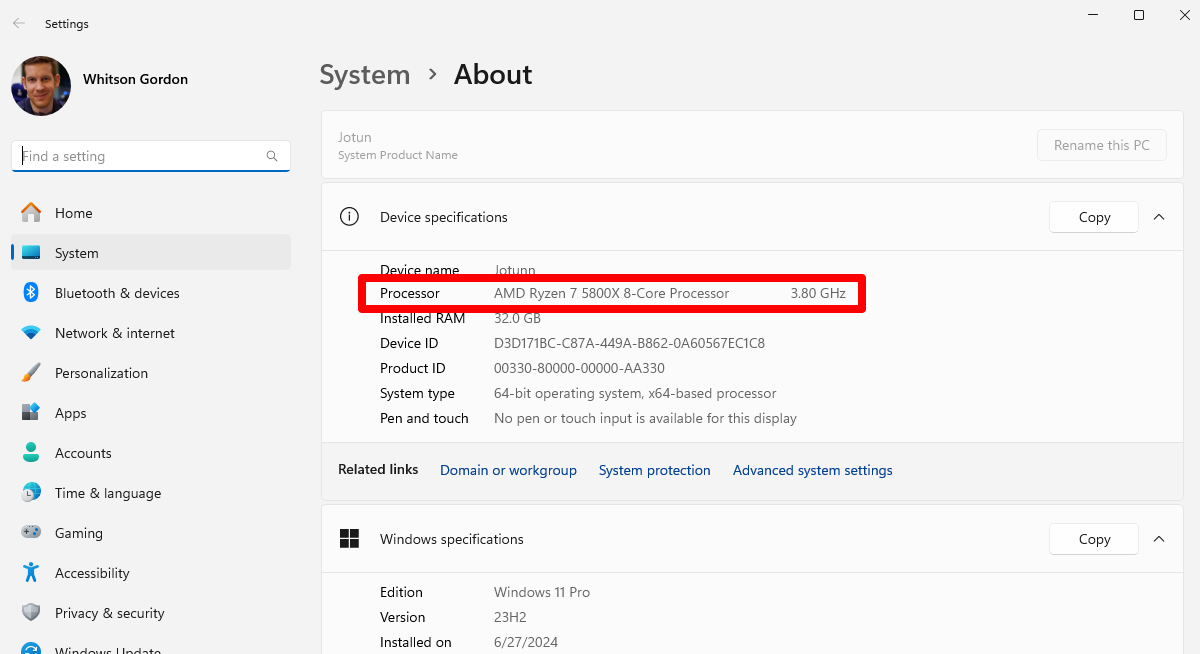
Checking your system information is a quick way to find out what CPU you have. This method works without opening your computer or using extra software. Both Windows and macOS have built-in tools that show detailed CPU information. These tools are easy to use and give accurate results.
Use Windows System Info
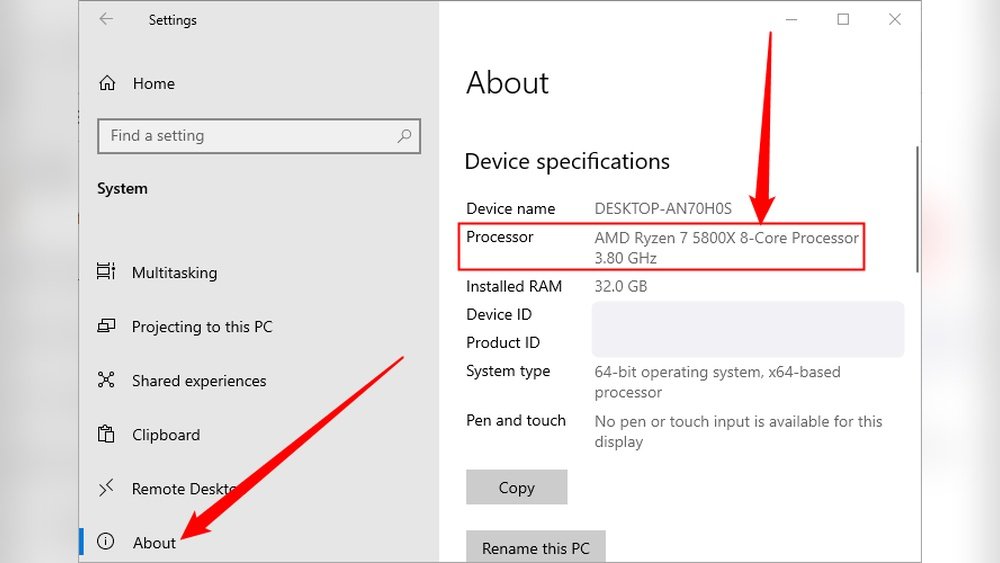
To find your CPU on Windows, open the System Information tool. Press the Windows key and type “System Information.” Select the app from the list. In the window, look for the “Processor” entry. It shows the CPU name, speed, and number of cores. This method is fast and reliable. You get all the details in one place.
Find Cpu On Macos About This Mac
On a Mac, click the Apple icon in the top-left corner. Choose “About This Mac” from the dropdown menu. A window appears with an overview of your Mac. The CPU type and speed show near the top. This simple step tells you the exact processor model. It works for all recent macOS versions.
Use Command Prompt Or Terminal
Using Command Prompt or Terminal is a quick way to find your CPU details. These tools show system information without extra software. Both Windows and macOS have simple commands for this task. Just type a command, and you get your CPU name and specs instantly.
Windows Command Prompt Commands
Open Command Prompt by typing cmd in the Start menu search. Then enter the command wmic cpu get name. This command displays the CPU model name directly. It works on most Windows versions.
Another useful command is systeminfo. It provides detailed system info, including the processor. Scroll to the “Processor” line to see your CPU details. These commands do not need admin rights.
Macos Terminal Commands
Open Terminal from Applications > Utilities or use Spotlight search. Type sysctl -n machdep.cpu.brand_string and press Enter. This shows the exact CPU model name on your Mac.
You can also use system_profiler SPHardwareDataType. It gives a detailed hardware report. Look for the “Processor Name” and “Processor Speed” lines. Both commands work on all recent macOS versions.
Use Third-party Software
Using third-party software is an easy way to find out what CPU you have. These tools give detailed information about your processor. They show the model, speed, and other features. Most programs are free and simple to use. You do not need technical skills to get accurate data.
Popular Cpu Identification Tools
Many tools help identify your CPU quickly. CPU-Z is a favorite for many users. It shows all CPU details clearly. Speccy is another option. It provides information about your whole system, including the CPU. HWMonitor helps check CPU temperature and performance. These tools work on most Windows computers. They give reliable and easy-to-read results.
How To Download And Use Tools
First, visit the official website of the tool. Avoid downloading from unknown sites. Click the download button to save the file. Open the file and follow the setup instructions. After installation, run the program. The software will scan your system automatically. Look for the CPU section to see details. You can save or screenshot this info for later. Using these tools takes only a few minutes.
Check Cpu Physically
Checking your CPU physically is a straightforward way to find out what processor you have. It involves opening your computer and looking directly at the CPU chip. This method works well when software tools are not available or you want to double-check the CPU model. Always be careful and gentle to avoid damaging any parts inside your computer.
Opening Your Computer Case
First, turn off your computer and unplug all cables. Place it on a clean, flat surface with good lighting. Use a screwdriver to remove the screws holding the case side panel. Slide or lift the panel off to reveal the inside of your computer. Keep the screws safe for later. Avoid touching other parts to prevent static damage.
Identifying Cpu Model On The Chip
Look for a large square or rectangular chip on the motherboard under a cooling fan. This is the CPU. Carefully remove the fan or heatsink if needed, but only if you know how. On the CPU surface, you will see printed text with the model number and brand. Write down this information. This will help you identify your CPU quickly and accurately.
Understand Cpu Specifications
Understanding your CPU specifications helps you know what your computer can do. This knowledge is useful for choosing software, games, or upgrades. Key specs include core count, threads, clock speed, and cache. Each affects how fast and efficient your CPU works.
Core Count And Threads
The core count shows how many processing units your CPU has. More cores mean your CPU can handle many tasks at once. Threads are the virtual parts that help each core work better. CPUs with more threads can run more applications smoothly. For example, a quad-core CPU with eight threads is good for multitasking.
Clock Speed And Cache
Clock speed measures how fast your CPU runs, shown in gigahertz (GHz). Higher clock speeds mean the CPU can process data quicker. Cache is a small memory inside the CPU. It stores important data to speed up tasks. Larger cache sizes improve performance by reducing wait times for data.
Credit: www.howtogeek.com
Credit: rog.asus.com
Frequently Asked Questions
How Can I Check My Cpu Model On Windows?
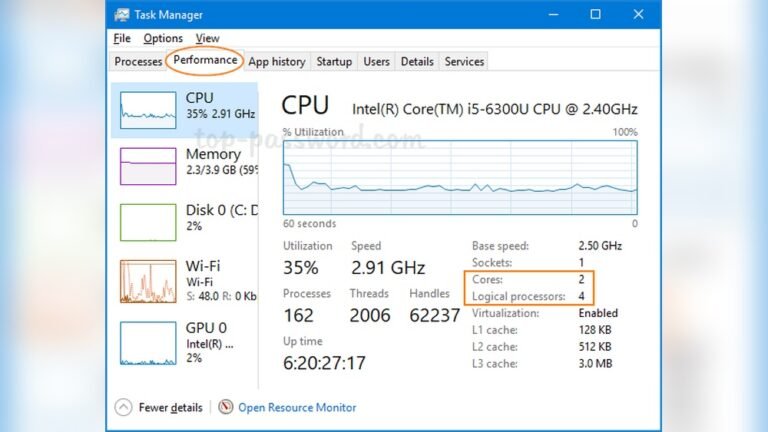
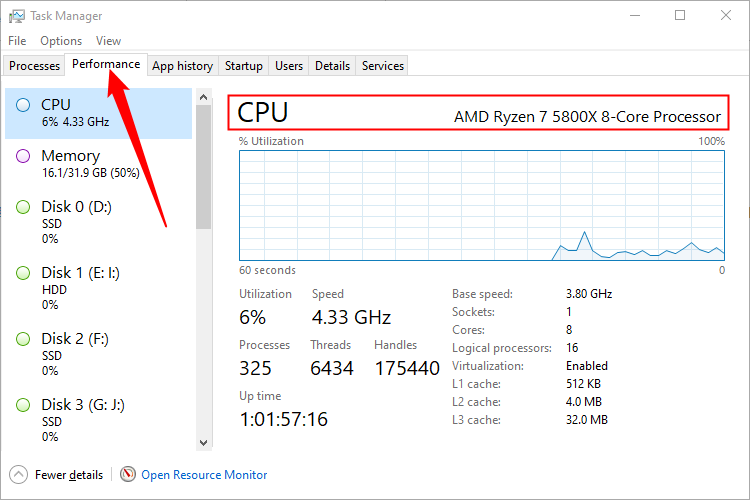
To check your CPU model on Windows, open Task Manager using Ctrl+Shift+Esc. Click the “Performance” tab and select “CPU. ” Your CPU model appears at the top-right corner, showing its name and speed.
What Is The Easiest Way To Find Cpu Type?
The easiest way to find your CPU type is using system information tools. On Windows, type “System Information” in the Start menu and check the “Processor” field.
Can I Identify My Cpu Without Opening My Pc?
Yes, you can identify your CPU without opening your PC by using software tools like CPU-Z or built-in system info utilities.
How Do I Find My Cpu On A Mac?
On a Mac, click the Apple logo, select “About This Mac,” and view your CPU details under the “Overview” tab.
Conclusion
Knowing your CPU helps you understand your computer better. It guides you in choosing software or upgrades. Use simple tools like system settings or free apps. These methods work on most Windows and Mac devices. Keep your CPU info handy for troubleshooting or buying parts.
Now, finding your CPU is quick and easy. Take a few minutes to check it today. It saves time and avoids confusion later. Simple steps make a big difference.