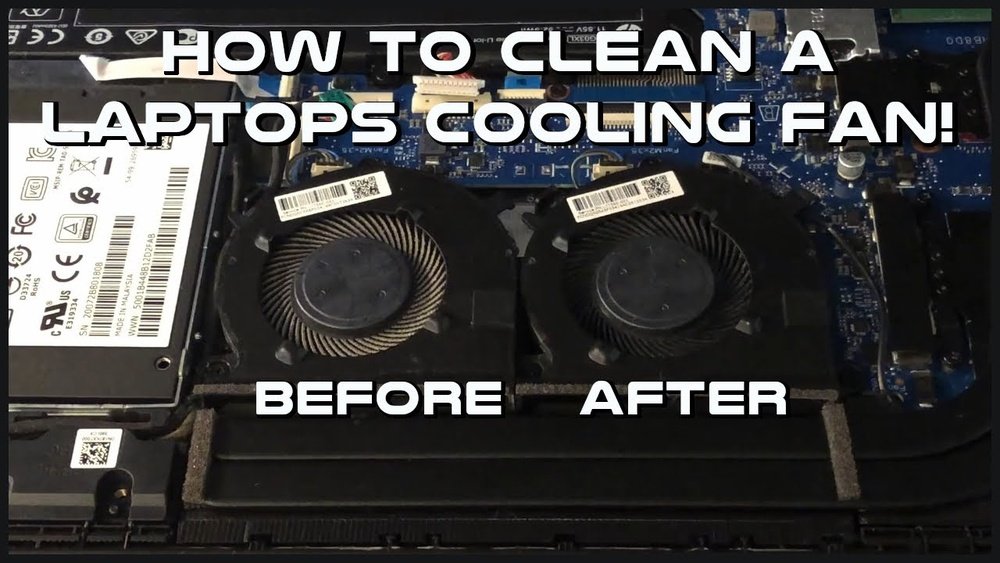
How to Clean Cpu Fan Laptop: Easy Steps for Optimal Cooling
Is your laptop getting hotter than usual or making loud noises? That’s often a sign your CPU fan needs cleaning.
You might think it’s complicated, but cleaning your laptop’s CPU fan is easier than you expect. Doing this can help your laptop run cooler, faster, and last longer. In this guide, you’ll learn simple steps to clean your CPU fan safely and effectively.
Stick with me, and you’ll keep your laptop in top shape without spending a dime on repairs. Ready to give your laptop the care it deserves? Let’s get started!

Credit: www.wikihow.com
Signs Of A Dirty Cpu Fan
A dirty CPU fan can cause many problems for your laptop. Dust and debris build up over time and block airflow. This stops the fan from cooling the CPU well. Knowing the signs of a dirty CPU fan helps you act fast. It keeps your laptop safe and working well. Below are key signs to watch for.
Overheating Symptoms
Your laptop feels hot even after short use. The bottom or keyboard gets warm quickly. It may shut down suddenly to avoid damage. Overheating means the fan is not cooling properly. Dust on the fan blades often causes this.
Unusual Fan Noise
The fan makes loud or strange sounds. It may buzz, rattle, or spin unevenly. Noise happens because dust clogs the fan or the motor. A clean fan runs quietly and smoothly.
Performance Slowdowns
Your laptop runs slower than usual. Programs take longer to open or freeze. The CPU slows down to reduce heat. This happens when the fan cannot cool the processor well. Cleaning the fan can improve speed.

Credit: www.instructables.com
Tools Needed For Cleaning
Cleaning your laptop’s CPU fan needs the right tools. These tools make the job easier and safer. Using proper items also helps avoid damage to your laptop parts.
Gathering the right tools before starting saves time. It ensures you clean the fan thoroughly and carefully.
Compressed Air Can
A compressed air can blows dust from tight spaces. It reaches inside the CPU fan without touching it. This tool removes dirt without causing harm. Use short bursts of air to avoid moisture buildup.
Soft Brushes
Soft brushes help clean dust stuck on fan blades. They are gentle and do not scratch the parts. Use small brushes to reach narrow spaces. This keeps the fan blades smooth and clean.
Screwdrivers And Anti-static Gear
Screwdrivers open the laptop casing safely. Choose the right size to avoid stripping screws. Anti-static gear protects your laptop from electric damage. Wear an anti-static wristband or use a mat to stay safe.
Preparing Your Laptop
Preparing your laptop before cleaning the CPU fan is essential. It keeps you safe and protects your device. Taking simple steps helps avoid damage and electric shocks.
Follow these steps carefully. They make the cleaning process smooth and safe.
Power Off And Unplug
Turn off your laptop completely. Do not put it in sleep or hibernate mode. Unplug the power cable from the laptop and the wall socket. This stops electricity from flowing and reduces risk.
Remove Battery If Possible
Take out the laptop battery if your model allows it. This cuts off all power sources. Removing the battery adds an extra layer of safety during cleaning. Check your laptop manual for battery removal instructions.
Ground Yourself
Static electricity can harm laptop parts. Touch a metal object or use an anti-static wrist strap. This discharges static from your body. Grounding yourself protects delicate internal components while cleaning.
Accessing The Cpu Fan
Accessing the CPU fan in your laptop is the first step to cleaning it properly. This part helps keep your laptop cool and stops it from overheating. Knowing how to reach the fan safely is important to avoid damage. Take your time and follow each step carefully.
Locating The Fan
The CPU fan is usually near the center of the laptop’s base. It sits close to the heat sink and vents. Look for small vents or grills on the bottom or sides of your laptop. These allow air to flow and help you find the fan location quickly.
Removing The Back Panel
Turn off your laptop and unplug all cables. Flip it over and find the screws holding the back panel. Use a small screwdriver to remove them one by one. Keep the screws safe to avoid losing them. Gently lift the panel to expose the inside parts.
Handling Internal Components
Inside, you will see delicate parts including the CPU fan. Avoid touching other components like the motherboard or RAM. Use a soft brush or compressed air to clean the fan carefully. Handle everything with care to prevent any damage or static shocks.
Cleaning The Fan
Cleaning the CPU fan in a laptop is important to keep it running cool and fast. Dust and dirt can block the fan and cause the laptop to overheat. This can slow down your laptop or even cause damage. Regular cleaning helps the fan work well and extends the laptop’s life.
Here are easy ways to clean the fan safely and effectively.
Using Compressed Air
Compressed air is a simple tool to blow dust from the fan. Hold the can upright and spray short bursts into the fan area. This pushes out dirt and dust without touching the fan blades. Keep the laptop open and use compressed air from different angles. Avoid using too much force or spraying too close. This could harm the fan or other parts.
Brushing Dust Away
A small, soft brush works well for dust stuck on fan blades. Gently brush the blades to loosen dust and dirt. Use a clean brush and move slowly to avoid bending the blades. Brush around the fan and vents to clear hidden dust. This method is good for removing stubborn dirt after using compressed air.
Avoiding Damage
Be very careful while cleaning the fan. Do not touch the fan blades with your fingers. Avoid using water or liquid cleaners near the fan. Use gentle tools and light pressure to prevent breaking parts. Always turn off the laptop and unplug it before cleaning. These steps keep your laptop safe and working well after cleaning.
Credit: www.reddit.com
Reassembling The Laptop
Reassembling the laptop is a careful step after cleaning the CPU fan. It restores your laptop to working condition. Take your time and follow each step carefully. This prevents damage and ensures everything fits correctly.
Securing The Back Panel
Place the back panel gently on the laptop. Align all screw holes with the frame. Use the right screwdriver to tighten screws firmly. Do not overtighten to avoid cracking the panel. Make sure the panel sits flush without gaps.
Reinstalling The Battery
Slide the battery back into its slot carefully. It should click or fit snugly without force. Check that the battery locks or latches hold it in place. A loose battery can cause power issues. Handle the battery with clean, dry hands.
Final Checks
Turn the laptop over and open the lid. Power on the device to test if it starts well. Listen for fan noise to confirm it spins properly. Check keyboard, screen, and ports for function. If all works fine, your reassembly is successful.
Maintaining Optimal Cooling
Maintaining optimal cooling is key to keeping your laptop fast and safe. Dust and heat can slow down your CPU fan. This can cause your laptop to get hot and even crash. Taking steps to keep your laptop cool helps it work better for longer.
Regular Cleaning Schedule
Set a plan to clean your CPU fan often. Dust builds up inside and blocks airflow. Use compressed air to blow out dust every few months. This stops the fan from working too hard. A clean fan keeps your laptop cool and quiet.
Using Cooling Pads
Cooling pads help lower your laptop’s temperature. They have extra fans that push air under your laptop. This helps the CPU fan stay cool and work well. Use a cooling pad during heavy tasks like gaming or video editing.
Managing Laptop Placement
Place your laptop on hard, flat surfaces. Soft surfaces block air vents and trap heat. Avoid using laptops on beds or couches. This allows air to flow freely around your laptop. Good airflow keeps the fan running smoothly and cools your CPU.
Frequently Asked Questions
How Often Should I Clean My Laptop Cpu Fan?
Cleaning your laptop CPU fan every 3 to 6 months prevents dust buildup. This helps maintain optimal cooling and performance. Frequent cleaning avoids overheating and potential hardware damage.
What Tools Do I Need To Clean A Laptop Cpu Fan?
You need a small screwdriver, compressed air can, and a soft brush. These tools help safely remove dust without damaging the fan or internal components.
Can I Clean The Cpu Fan Without Opening The Laptop?
Using compressed air through the vents can remove some dust. However, opening the laptop allows thorough cleaning and better results. Always power off and unplug before cleaning.
What Risks Are Involved In Cleaning A Laptop Cpu Fan?
Improper cleaning can damage fan blades or internal parts. Static discharge may harm components. Use proper tools, work gently, and follow safety guidelines to avoid damage.
Conclusion
Cleaning your laptop’s CPU fan keeps it running cool and fast. Dust and dirt block airflow and cause overheating. Regular cleaning prevents damage and improves performance. Use gentle tools like a soft brush or compressed air. Take care not to break any parts inside.
Clean your fan every few months for best results. A clean fan means a longer laptop life. Small steps make a big difference in laptop health. Stay safe and keep your device working well.