How to Find My Cpu Temperature: Quick & Easy Monitoring Guide
Are you worried that your computer might be overheating? Knowing how to find your CPU temperature is key to keeping your device running smoothly and avoiding costly damage.
Whether you’re a gamer pushing your system to the limit or just want to make sure your laptop stays cool during everyday use, understanding your CPU’s temperature can save you from unexpected crashes and slowdowns. You’ll discover simple ways to check your CPU temperature quickly and easily—no tech jargon, no complicated steps.
Keep reading to protect your computer and boost its performance!
Credit: www.alcpu.com
Why Monitor Cpu Temperature
Monitoring your CPU temperature is important for your computer’s health. The CPU works hard to run programs and games. This work creates heat. Too much heat can cause problems. Knowing the temperature helps you avoid damage and keep your computer running smoothly.
Risks Of Overheating
High CPU temperature can cause serious damage. The CPU might shut down suddenly to protect itself. This can lead to lost work or data. Overheating can also harm other parts of your computer. Long exposure to heat can melt or break components. Avoiding overheating prevents costly repairs.
Impact On Performance
When a CPU gets too hot, it slows down. This process is called throttling. Throttling reduces the CPU speed to lower heat. Your computer will feel slower and less responsive. Games may lag and programs can freeze. Keeping the temperature low keeps your CPU fast and smooth.
Extending Cpu Lifespan
Heat shortens the life of your CPU. Constant high temperatures wear out the processor over time. Cooling the CPU well helps it last longer. A longer lifespan means fewer replacements. Monitoring temperature helps you protect your investment. It keeps your computer working well for years.
Signs Of High Cpu Temperature
High CPU temperature can cause many problems for your computer. It affects how well your system works. Knowing the signs helps you fix issues early. Keep your CPU cool to avoid damage.
System Slowdowns
Your computer may run very slow. Programs take longer to open. Tasks that were quick become frustrating. This happens because the CPU reduces speed to cool down.
Unexpected Shutdowns
The system may turn off without warning. This protects the CPU from overheating. Losing work is common when this happens. Watch for sudden shutdowns during use.
Unusual Fan Noise
The fan might sound louder than usual. It runs faster to cool the CPU. Constant loud noise means the CPU is hot. Listen carefully for changes in fan sounds.
Built-in Tools To Check Cpu Temperature
Checking your CPU temperature helps keep your computer safe from overheating. Many computers have built-in tools to see this important data. These tools show CPU temperature clearly and fast. You do not need extra software. Just follow simple steps for your system type.
Using Bios/uefi
Enter your BIOS or UEFI settings during startup. Usually, press keys like F2, Delete, or Esc right after turning on your PC. Look for a section called “Hardware Monitor” or “PC Health.” Here, you find the CPU temperature listed. It updates in real time. This method works without any software inside your operating system.
Windows Task Manager Options
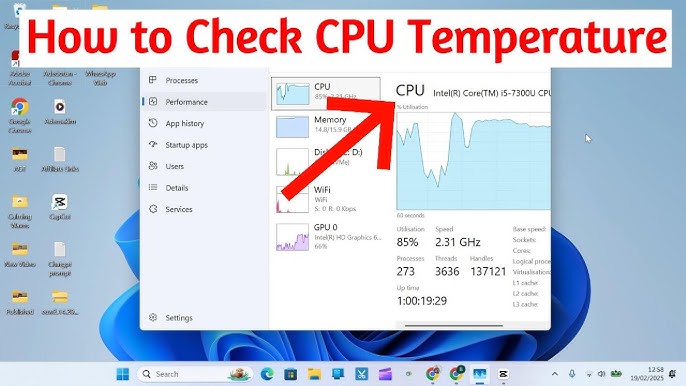
Windows 10 and 11 Task Manager shows CPU usage but not temperature directly. Instead, use Windows built-in app called “Windows Security” or “Performance Monitor.” These tools display detailed hardware info, including temperature on some devices. Access Performance Monitor by typing “perfmon” in the search bar. Check “Hardware Sensors” or similar sections to see CPU temperature data.
Mac Activity Monitor Features
Mac’s Activity Monitor tracks CPU performance but lacks direct temperature readout. To check CPU temperature, use the Terminal app with specific commands. For example, type “sudo powermetrics” to get CPU temperature info. This tool provides accurate data but requires basic command line use. It’s a built-in way to monitor your Mac’s heat without extra apps.
Credit: www.avast.com
Third-party Cpu Temperature Apps
Third-party CPU temperature apps help monitor your processor’s heat easily. These apps provide detailed temperature readings in real time. They also offer additional information like fan speed and voltage. Using these tools ensures your CPU runs within safe temperature limits. This prevents overheating and potential damage to your computer.
Popular Software Options
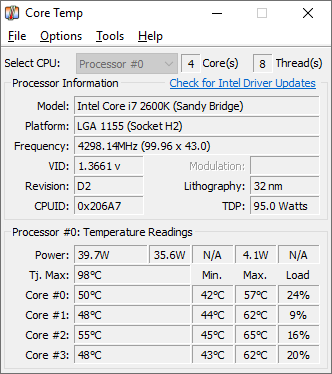
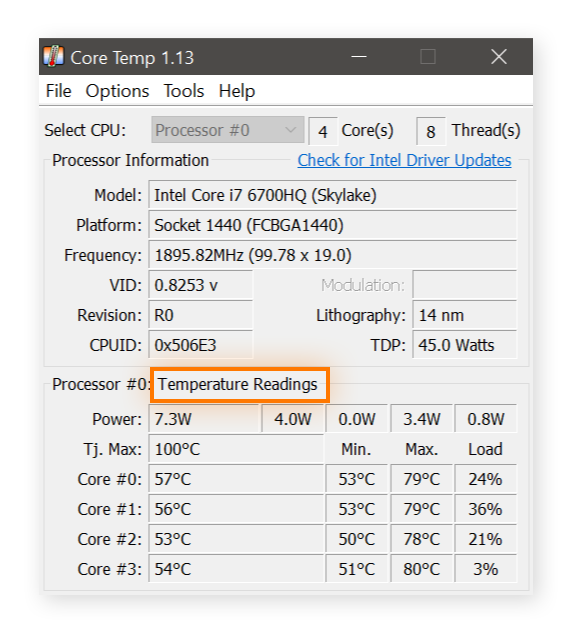
Several apps are popular for checking CPU temperature. Core Temp shows temperature for each CPU core. HWMonitor tracks temperatures, voltages, and fan speeds. SpeedFan offers temperature monitoring plus fan control. Real Temp works well with Intel processors. These apps are trusted by many users worldwide.
Free Vs Paid Tools
Free CPU temperature apps cover basic monitoring needs. They show temperature and some extra details. Paid tools offer advanced features like alerts and detailed reports. Some paid apps also provide better support and updates. Choose a tool based on your needs and budget. Free apps work well for most everyday users.
How To Install And Use
Download the app from the official website. Run the installer and follow on-screen instructions. Open the app to see your CPU temperature readings. Keep the app running to monitor temperature continuously. Set alerts if the app supports them. Always update the app for best performance and accuracy.
Steps To Monitor Cpu Temperature
Monitoring your CPU temperature is important to keep your computer safe. High temperatures can cause damage or slow down your PC. Checking the temperature helps you spot problems early. Follow simple steps to monitor your CPU temperature easily.
Download And Install Software
First, find a reliable CPU temperature monitoring tool. Many free programs are available online. Examples include HWMonitor, Core Temp, and SpeedFan. Download the software from the official website to avoid malware. After downloading, run the installer and follow the instructions carefully.
Running The Monitoring Tool
Open the software after installation. It will start showing your CPU temperature right away. Some tools may need you to click “Start” or “Scan.” Keep the program running in the background to track temperature while you use your PC. This helps you see if the CPU gets too hot during work or gaming.
Interpreting Temperature Readings
Look at the temperature numbers shown in the software. Normal CPU temperature usually ranges between 30°C and 50°C. Temperatures above 70°C can be risky. If the temperature hits 90°C or more, stop using the PC and cool it down. High temperatures may mean a cooling problem or dust inside the computer.
Tips To Lower Cpu Temperature
Keeping your CPU cool is important for your computer’s health and performance. High CPU temperatures can cause slowdowns and damage parts. You can lower the temperature with some simple steps. These tips help your CPU run smoothly and last longer.
Improving Airflow
Good airflow moves hot air out of your computer case. Arrange cables neatly to avoid blocking air paths. Place fans to pull cool air in and push hot air out. Open space around your computer also helps air flow better.
Cleaning Dust And Debris
Dust can block fans and vents, trapping heat inside. Use a soft brush or compressed air to clean dust from fans and vents. Clean your computer regularly to keep it running cool. Do this gently to avoid damaging parts.
Upgrading Cooling Systems
Stock coolers may not be enough for heavy use. Consider buying better air coolers with larger fans. Liquid cooling systems offer more efficient heat removal. Check compatibility before upgrading to avoid problems.
Credit: www.youtube.com
Frequently Asked Questions
How Can I Check My Cpu Temperature On Windows?
You can check CPU temperature using software like HWMonitor or Core Temp. These tools display real-time temperature readings easily.
What Is A Safe Cpu Temperature Range?
A safe CPU temperature is typically between 30°C to 70°C under normal use. Temperatures above 80°C may risk damage.
Why Is My Cpu Temperature Suddenly High?
High CPU temperature may result from poor cooling, dust buildup, or heavy tasks. Cleaning and better ventilation can help reduce heat.
Can Bios Show My Cpu Temperature?
Yes, most BIOS setups have a hardware monitor section showing CPU temperature. Access BIOS during startup to check it.
Conclusion
Knowing your CPU temperature helps keep your computer safe and fast. Use simple tools to check the heat inside your PC. Watch the temperature often, especially during heavy use. If it gets too hot, take steps to cool it down.
Good airflow and clean fans can help a lot. Keeping an eye on CPU heat can prevent damage and improve performance. Stay aware, and your computer will work better for longer. Simple checks make a big difference.