Gpu Causing No Signal Issue How to Fix: Quick and Easy Solutions
Is your screen going black with a “No Signal” message right after you turn on your PC? If your GPU is causing the no signal issue, it can be super frustrating and leave you stuck without knowing what to do next.
But don’t worry—you’re not alone, and this problem is fixable. You’ll discover simple and effective steps to identify what’s wrong with your graphics card and how to get your display back up and running quickly. Keep reading, because the solution might be easier than you think!
Common Causes Of Gpu No Signal
GPU causing no signal is a common problem for many PC users. Understanding the reasons helps fix it fast. Several issues can stop the GPU from sending a signal to the monitor. These problems can be simple or technical. Troubleshooting starts by checking the most common causes. Below are the main reasons why your GPU might show no signal.
Loose Or Damaged Cables
Cables connect your GPU to the monitor. If these cables are loose, the signal may not pass through. Damaged cables can break the connection. Check HDMI, DisplayPort, or DVI cables for any bends or cuts. Make sure all cables fit tightly into the ports. Sometimes, swapping cables can solve the problem.
Faulty Gpu Installation
The GPU must sit firmly in the PCIe slot on the motherboard. A loose or incorrect installation blocks the signal. Remove and reseat the GPU carefully. Look for dust or debris in the slot. Ensure the GPU clips lock properly. A bad connection stops the GPU from working well.
Power Supply Issues
The GPU needs enough power to function. A weak or failing power supply unit (PSU) can cause no signal. Check the power cables connected to the GPU. Use a PSU that meets your GPU’s power requirements. Without enough power, the GPU will not start.
Driver Conflicts
GPU drivers control how the card works with your system. Old or corrupted drivers can stop the GPU from sending a signal. Updating drivers often fixes this. Remove old drivers before installing new ones. Use official drivers from the GPU maker’s website.
Bios And Firmware Problems
BIOS controls hardware at a basic level. Outdated or wrong BIOS settings can block the GPU signal. Check for BIOS updates on your motherboard’s website. Reset BIOS settings to default if needed. Firmware updates help fix compatibility issues too.

Credit: videocardz.com
Initial Troubleshooting Steps
When your GPU causes a no signal issue, start with simple checks. These first steps can often solve the problem quickly. Avoid jumping to complex solutions at once. Follow these easy actions to find the cause and fix it fast.
Check Cable Connections
Loose or damaged cables often cause no signal errors. Turn off your PC and monitor. Unplug the video cables from both ends. Look for bent pins or frayed wires. Reconnect the cables firmly. Use the correct port on both the GPU and monitor. Power on the devices and check the display again.
Reseat The Gpu
Sometimes the GPU is not fully seated in its slot. Turn off the PC and unplug it from power. Open the computer case carefully. Find the graphics card and remove it gently. Check for dust or debris in the PCIe slot. Clean if needed with a soft brush or compressed air. Place the GPU back firmly until it clicks. Close the case and power on the PC.
Test With Another Monitor Or Cable
The problem might be the monitor or cable, not the GPU. Connect your PC to a different monitor using a different cable. Make sure the new setup works. If the signal appears, your original monitor or cable may be faulty. Replace the faulty part to fix the issue.
Power-related Fixes
Power issues often cause the GPU no signal problem. The graphics card needs steady power to work correctly. Checking power connections and supply helps fix this problem fast. This section covers simple power-related fixes to try.
Verify Power Connectors
Check all power connectors attached to the GPU. Make sure they are firmly plugged in. Loose or disconnected cables cause no signal problems. Look for 6-pin or 8-pin connectors. Some GPUs need more than one connector. Push each connector until it clicks into place.
Test The Power Supply Unit
The power supply unit (PSU) must provide enough power. Use a PSU tester or swap with a known good PSU. Low or unstable power output stops the GPU from working. Make sure the PSU wattage meets the GPU’s needs. Replace the PSU if it cannot deliver enough power.
Use A Different Power Cable
Try a different power cable connected to the PSU. Damaged or faulty cables cause power issues. Using a new cable can restore power flow. Avoid using cheap or worn-out cables. Use cables recommended by the PSU manufacturer for best results.

Credit: softwareg.com.au
Driver And Software Solutions
Driver and software problems often cause the GPU no signal issue. Faulty or outdated drivers can stop the GPU from working properly. Fixing these software issues can restore your display quickly. Follow simple steps to solve the problem without technical hassle.
Boot Into Safe Mode
Safe Mode starts Windows with minimal drivers. It helps to fix driver-related problems safely. To enter Safe Mode, restart your PC and press the F8 key repeatedly. Choose “Safe Mode” from the menu. This prevents faulty GPU drivers from loading. You can then troubleshoot or fix driver issues easily.
Reinstall Or Update Gpu Drivers
Old or corrupted drivers cause many GPU signal problems. Removing the current driver first is important. Use Device Manager to uninstall the GPU driver. Then, download the latest driver from the GPU maker’s website. Install it and restart your computer. Updated drivers improve GPU performance and fix bugs.
Rollback To Previous Driver Version
New driver updates may cause no signal errors. Rolling back to an older driver can help. Open Device Manager and find your GPU. Right-click and select “Properties”. Go to the Driver tab and click “Roll Back Driver”. This restores the previous working driver. Restart your PC to see if the signal returns.
Bios And Firmware Adjustments
BIOS and firmware settings control how your computer hardware works. Sometimes, these settings cause your GPU to show no signal. Fixing these issues often involves resetting or updating BIOS. Changing GPU-related settings in BIOS can also help. These steps improve communication between your motherboard and GPU.
Reset Bios To Default
Resetting BIOS to default clears all custom settings. This can fix errors that block the GPU signal. To reset, restart your computer and enter BIOS setup by pressing a key (usually Delete or F2). Look for the option labeled “Load Setup Defaults” or “Reset to Default”. Save changes and exit. Your system will reboot with default BIOS settings.
Update Motherboard Bios
Outdated BIOS can cause hardware conflicts and signal issues. Updating BIOS helps your motherboard recognize new GPUs. Visit your motherboard maker’s website. Download the latest BIOS version for your model. Follow the update instructions carefully to avoid damage. After update, restart your PC and check if the GPU signal returns.
Adjust Gpu Settings In Bios
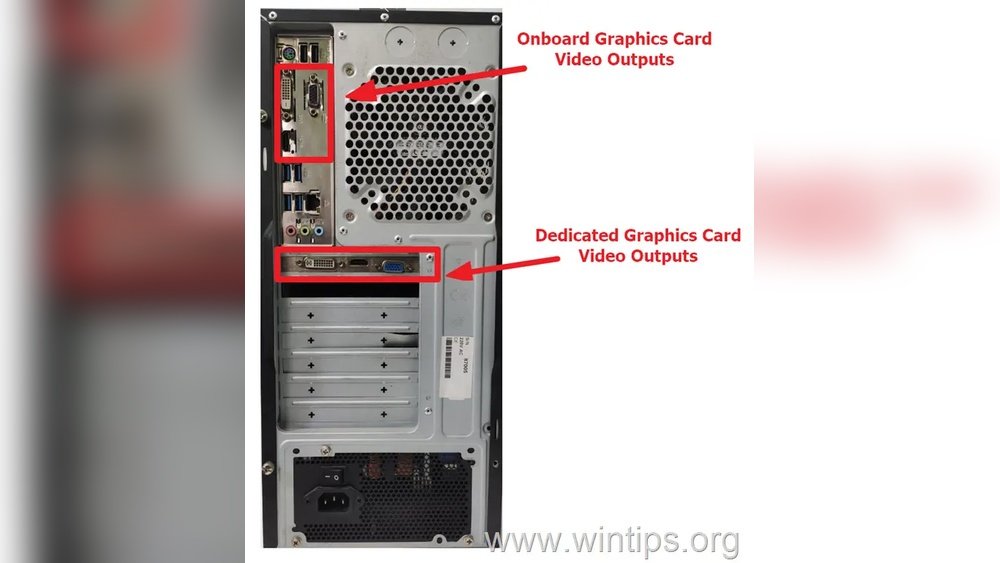
Some BIOS versions let you change GPU settings manually. Look for options like “Primary Display” or “Init Display First”. Set your dedicated GPU as the primary device. Disable onboard graphics if your CPU or motherboard has one. This ensures the system uses the correct GPU for output. Save changes and reboot to see if the no signal issue resolves.
Advanced Fixes And Testing
Advanced fixes and testing help solve the no signal issue from your GPU. These steps dig deeper than basic checks. They find hidden problems and confirm if the GPU is the cause. Follow these methods carefully to avoid damage.
Test Gpu In Another System
Remove the GPU from your computer. Install it in a different system that works fine. This test shows if the GPU itself has a problem. No signal in the second system means the GPU may be faulty. A working signal points to other parts in your original computer.
Check For Overheating
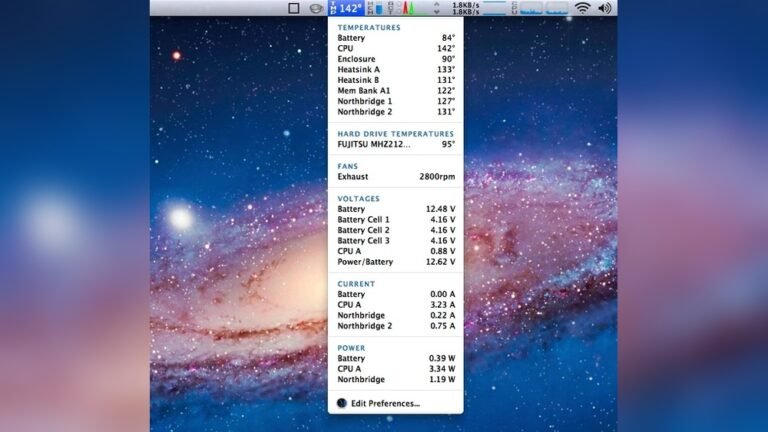
Overheating can stop your GPU from sending a signal. Use software tools to monitor the GPU temperature. High heat means the cooling system is failing. Clean dust from fans and heatsinks. Replace thermal paste if it has dried out. Keep the GPU cool for stable signals.
Inspect For Physical Damage
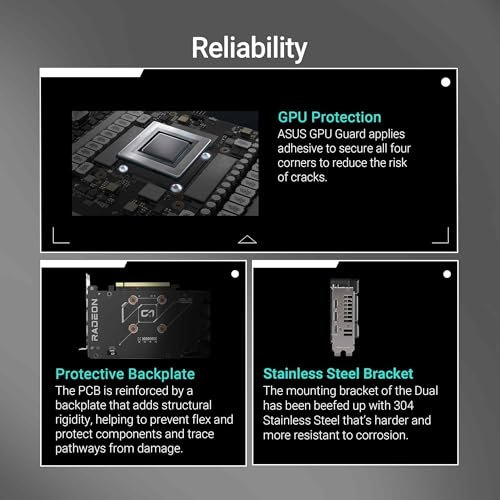
Look closely at the GPU for visible damage. Check the circuit board for cracks or burns. Examine the pins and connectors for bends or corrosion. Broken parts can cause no signal issues. If you find damage, repair or replace the GPU. Physical damage often needs professional help.
When To Seek Professional Help
Sometimes, fixing a GPU no signal issue is not simple. Problems can hide inside the hardware. Knowing when to call a professional saves time and stress. Experts have tools and skills to find deep issues. Avoid risking more damage by trying complex repairs alone.
Identifying Hardware Failure
Hardware failure signs are clear but subtle. The GPU may show no picture despite power. Fans might spin but no display appears. Your PC might beep or show error codes. Try basic checks first, like cable and monitor tests. If these fail, hardware likely needs expert inspection. Professionals can test the GPU and other parts safely.
Warranty And Repair Options
Check if your GPU is still under warranty. Manufacturers often repair or replace faulty GPUs for free. Avoid opening the GPU yourself if it is under warranty. Doing so can void coverage. Contact the seller or manufacturer for support. Authorized repair centers offer safe and reliable service. Repairs by experts ensure your GPU works well again.

Credit: www.youtube.com
Frequently Asked Questions
Why Does Gpu Cause No Signal Issue?
GPU can cause no signal if it’s improperly seated, has faulty cables, or driver issues. Power supply problems also contribute.
How To Fix Gpu No Signal Problem Quickly?
Reseat the GPU, check cable connections, update drivers, and ensure PSU meets GPU power needs. Restart and test again.
Can Outdated Gpu Drivers Cause No Signal?
Yes, outdated or corrupted GPU drivers often lead to no signal issues. Updating drivers usually resolves this.
Is Gpu Overheating Responsible For No Signal?
Overheating can cause GPU to shut down, resulting in no signal. Ensure proper cooling and clean fans regularly.
Conclusion
Fixing a GPU no signal issue is often simple. Check all cables and connections first. Make sure the GPU is seated well in its slot. Test with another monitor or cable to rule out other problems. Update your graphics drivers regularly for smooth performance.
Keep your system clean from dust to avoid overheating. These steps help bring your display back quickly. Stay patient and follow each fix carefully. Your screen will show the signal again soon.