How to See Macbook Cpu Temperature: Easy Steps to Monitor Heat
Are you worried your MacBook might be running too hot? Knowing your MacBook’s CPU temperature can help you avoid slowdowns, unexpected shutdowns, and even hardware damage.
But how do you check it? Don’t worry—you don’t need to be a tech expert to find out. You’ll discover simple and effective ways to monitor your MacBook’s CPU temperature. By the end, you’ll have the confidence to keep your device running smoothly and safely.
Keep reading to learn how!
Why Monitor Macbook Cpu Temperature
Monitoring your MacBook’s CPU temperature helps keep your device safe and fast. The CPU works hard and gets hot. Watching its temperature stops problems before they start. It keeps your MacBook running well every day.
Impact Of High Temperature On Performance
High CPU temperature makes your MacBook slow down. The system lowers speed to cool the CPU. This slows your apps and tasks. Heat also causes freezing or crashing. Keeping temperature low helps your MacBook work smoothly.
Risks Of Overheating
Overheating can damage your MacBook’s hardware. The CPU and other parts may fail early. Overheat can also shorten battery life. In extreme cases, it can cause data loss. Watching temperature helps avoid these risks.
Benefits Of Regular Monitoring
Checking CPU temperature regularly keeps your MacBook healthy. It lets you spot problems early. You can clean dust or fix fans before damage. It helps maintain good speed and battery life. Regular checks give peace of mind about your device.
Signs Of Overheating On Macbook
MacBooks can get hot during heavy use. Overheating can damage your device over time. Recognizing signs of overheating helps protect your MacBook. Watch for these common symptoms.
Unexpected Shutdowns
Your MacBook may suddenly turn off without warning. This happens to stop internal damage. Frequent shutdowns mean your CPU is too hot. Avoid using your MacBook until it cools down.
Slow Performance
Overheating causes the processor to slow down. You may notice apps lagging or freezing. Tasks take longer to complete than usual. This is your MacBook’s way to reduce heat.
Excessive Fan Noise
The fans run loudly to cool the system. Constant loud noise means the CPU is very hot. Dust or blocked vents can make this worse. Clean your MacBook and check its airflow regularly.
Built-in Tools To Check Cpu Temperature
Checking your MacBook’s CPU temperature helps you keep it cool and running well. MacOS has built-in tools that offer some system details. These tools give basic info about your Mac’s performance and hardware. They do not show exact CPU temperature but hint at how hard your Mac is working. These tools are easy to use and need no extra software.
Using Activity Monitor
Activity Monitor shows how much CPU your Mac uses. It lists all running apps and processes. You can see which apps use the most CPU power. If the CPU usage is very high, your Mac might be hot inside. This tool helps spot apps that slow down your Mac. To open it, find Activity Monitor in the Utilities folder or use Spotlight search.
System Information App
System Information gives detailed hardware and software data. It shows your Mac’s model, memory, and battery health. This app does not show CPU temperature directly. It helps check if your Mac’s hardware works well. Open System Information from the Apple menu by selecting About This Mac, then System Report. This tool is good for quick system checks.
Third-party Apps For Temperature Monitoring
Third-party apps provide a simple way to monitor your MacBook’s CPU temperature. These tools offer clear readings and extra features. They help you keep your MacBook safe from overheating. Many apps are easy to use, even for beginners.
Popular Free Apps
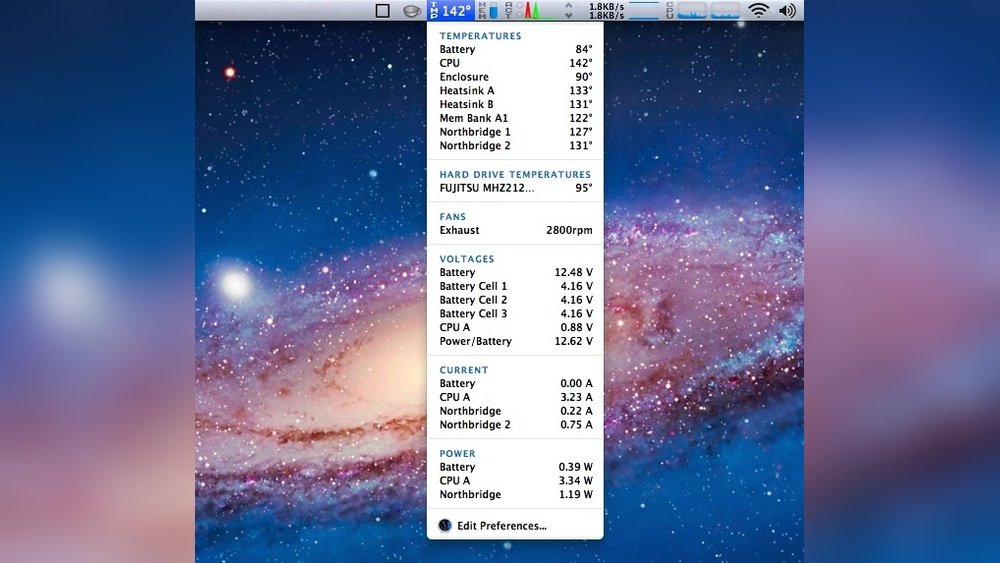
Several free apps show your MacBook’s temperature. “iStat Menus” offers detailed system stats. “Macs Fan Control” lets you see temperatures and control fans. “Intel Power Gadget” works well on Intel Macs for CPU monitoring. These apps give basic temperature info with no cost.
Paid Options With Advanced Features
Paid apps give more features for serious monitoring. “TG Pro” shows detailed temps, fan speeds, and alerts. “HWMonitor” tracks many sensors and logs data. These apps help spot overheating early. They provide better control for power users.
How To Install And Use These Apps
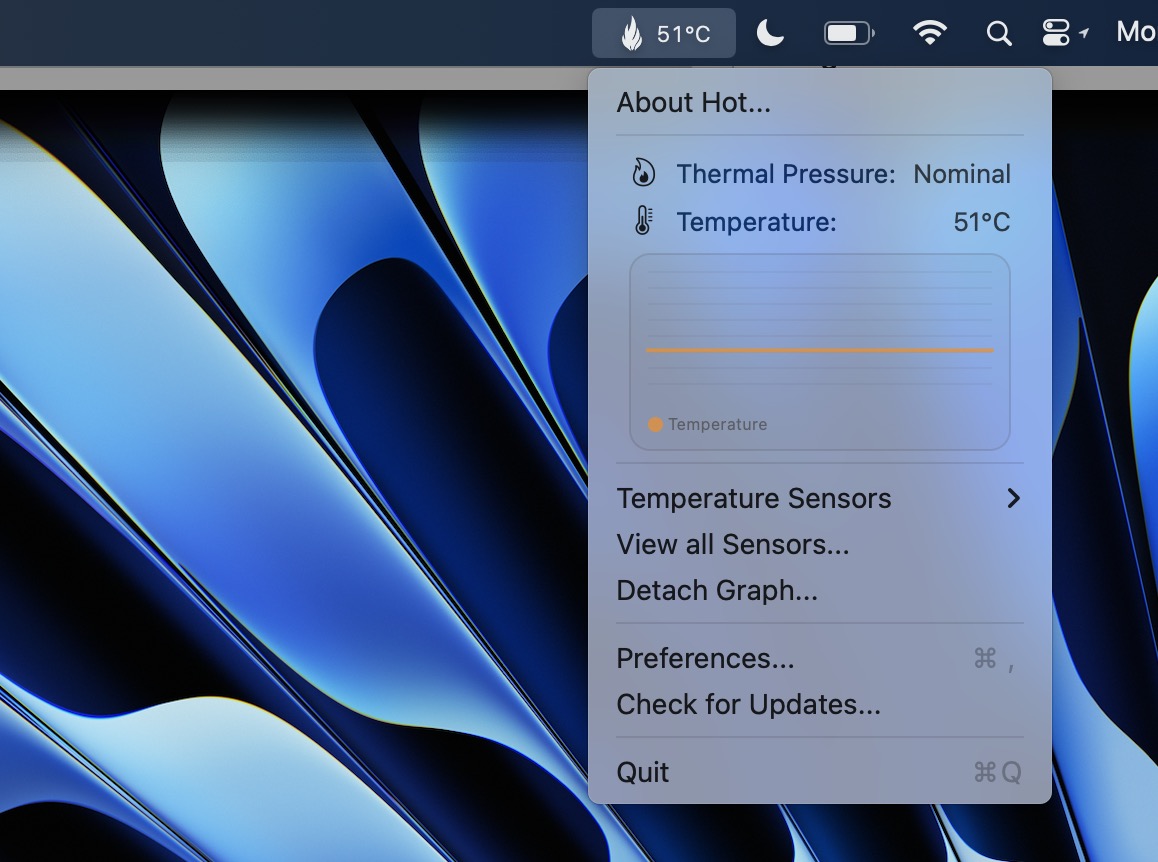
Download apps from official websites or the App Store. Open the installer and follow simple steps. Launch the app to see your CPU temperature. Most apps display data in the menu bar or main window. Set alerts if the app supports it. Check temps regularly to avoid overheating problems.
Step-by-step Guide To Monitor Cpu Temperature
Keeping an eye on your MacBook’s CPU temperature helps avoid overheating. High temperatures can slow down your computer or damage parts. This guide breaks down the process. Follow easy steps to check your CPU temperature and keep your MacBook safe.
Download And Install Monitoring Software
Start by choosing a reliable app to monitor CPU temperature. Popular options include iStat Menus, Intel Power Gadget, and Macs Fan Control. Visit the official website to download the software. After downloading, open the file and follow the instructions to install it on your MacBook.
Running The App And Interpreting Data
Open the installed app. Look for the CPU temperature section. It usually shows real-time data in degrees Celsius or Fahrenheit. Normal temperatures range from 30°C to 50°C during light use. Temperatures above 80°C may indicate overheating. Watch the readings while using your MacBook to understand normal and high values.
Setting Alerts For High Temperature
Many apps allow you to set alerts for high CPU temperatures. Locate the alert or notification settings inside the app. Set a temperature limit, such as 85°C, to receive a warning. This helps prevent damage by notifying you early. Adjust the alert based on your MacBook model and typical usage.
:max_bytes(150000):strip_icc()/how-to-check-macbook-temperature-51841464-3aa2d26ccbe9448fa74f087e753e4dd0.jpg)
Credit: www.lifewire.com
Tips To Reduce Macbook Cpu Heat
Keeping your MacBook cool helps it run faster and last longer. High CPU temperature can slow down your device and damage parts. Follow these simple tips to reduce heat and protect your MacBook.
Keeping Vents Clear
MacBooks have vents that let heat escape. Blocked vents trap heat inside. Always place your MacBook on a hard, flat surface. Avoid soft surfaces like beds or couches. Clean vents regularly to remove dust and dirt.
Managing Background Apps
Many apps running at once make your CPU work hard. Close apps you don’t use. Check the Activity Monitor to find apps using much CPU. Reducing background apps lowers heat and saves battery.
Using Cooling Pads
Cooling pads help move air around your MacBook. They keep the device cooler during heavy work. Use a cooling pad with fans to improve airflow. This simple tool can reduce CPU temperature significantly.
When To Seek Professional Help
Knowing your MacBook’s CPU temperature is useful. Sometimes, the heat may not go away even after trying simple fixes. That is the moment to think about professional help. Experts can find hidden problems and fix them safely. This part explains when to seek expert advice to protect your MacBook.
Persistent Overheating Issues
When your MacBook keeps getting too hot often, it is a sign to act. Simple steps like closing apps or cleaning vents do not help. The device may shut down or slow down. This shows the problem is serious. Persistent overheating can harm your MacBook’s parts. Professionals can check inside your Mac and find the cause.
Hardware Repair Options
Sometimes, your MacBook needs hardware repair to stop heating problems. Experts can fix or replace fans, thermal paste, or sensors. They use special tools to open your Mac without damage. Hardware repair makes your Mac cool and fast again. Do not try to fix these parts alone. Let trained technicians handle the repairs for safety and best results.

Credit: beebom.com
Credit: osxdaily.com
Frequently Asked Questions
How Can I Check Macbook Cpu Temperature?
You can check MacBook CPU temperature using third-party apps like iStat Menus or Intel Power Gadget. These tools display real-time temperature readings and system stats, helping you monitor your MacBook’s health and performance effectively.
Is Monitoring Macbook Cpu Temperature Important?
Yes, monitoring CPU temperature is vital to avoid overheating. Overheating can cause slowdowns, hardware damage, and reduced lifespan. Regular checks help maintain optimal performance and prevent potential issues before they escalate.
What Is A Safe Cpu Temperature For Macbook?
A safe CPU temperature for MacBook usually ranges between 30°C to 60°C during normal use. Temperatures above 90°C can indicate overheating and may require immediate attention to prevent damage or thermal throttling.
Can Macbook Temperature Affect Performance?
Yes, high MacBook temperatures can cause thermal throttling. This slows down the CPU to reduce heat, resulting in decreased performance. Keeping temperatures in check ensures smooth and efficient operation of your MacBook.
Conclusion
Checking your MacBook’s CPU temperature helps keep it safe and fast. You can use simple tools or built-in apps to see the temperature. Watch for high numbers to avoid overheating problems. Regularly checking stops your MacBook from slowing down or breaking.
Keep your Mac clean and cool for better performance. Staying aware of temperature helps your laptop last longer. Simple steps make a big difference in device health. Take a moment to check—it’s easy and useful.