How to Upgrade a Laptop Gpu: Ultimate Guide to Boost Performance
Are you tired of your laptop struggling to run the latest games or graphic-heavy programs? Upgrading your laptop’s GPU can be the game-changer you need to boost performance without buying a brand-new device.
But how exactly can you do this? You’ll discover simple, clear steps to upgrade your laptop GPU, saving you money and unlocking smoother, faster graphics. Keep reading, and you’ll soon have the power to transform your laptop into a true powerhouse.
Credit: www.shoshitamam.com
Laptop Gpu Upgrade Basics
Upgrading a laptop GPU can improve gaming and graphic performance. Knowing the basics helps you decide if an upgrade is possible. This guide explains types of laptop GPUs, differences, and upgrade options.
Types Of Laptop Gpus
Laptops use two main GPU types: integrated and dedicated. Integrated GPUs share memory with the CPU. Dedicated GPUs have their own memory and power. Dedicated GPUs offer better performance for games and design work.
Integrated Vs Dedicated Gpus
Integrated GPUs are built into the CPU. They save battery but are less powerful. Dedicated GPUs are separate chips installed on the motherboard. They use more power but handle heavy tasks smoothly. Knowing your GPU type is key before upgrading.
Gpu Upgrade Possibilities
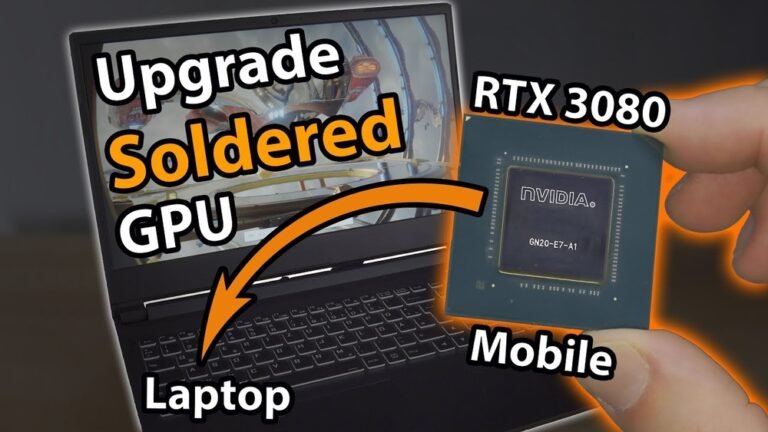
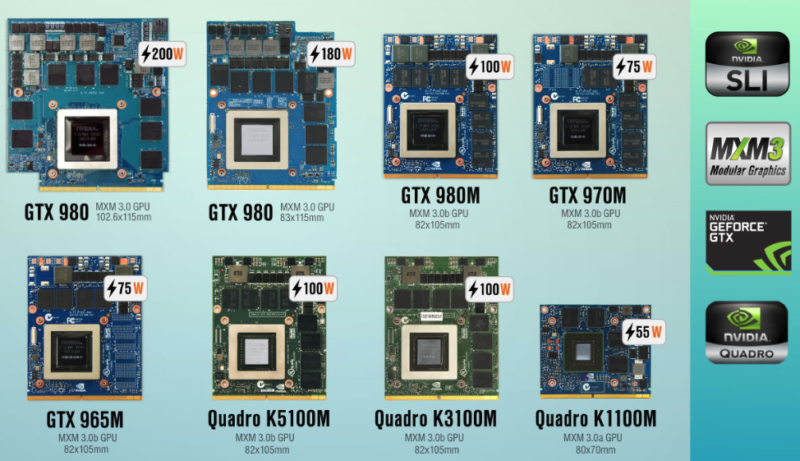
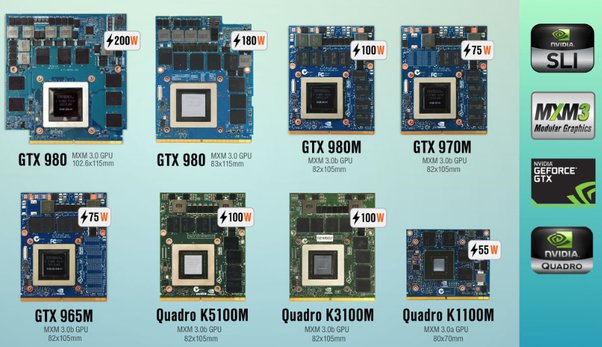
Upgrading a laptop GPU is tricky. Most laptops have GPUs soldered to the motherboard. This makes swapping them nearly impossible. Some gaming laptops allow GPU upgrades through MXM modules. External GPU docks also offer an upgrade path for some models.
Credit: www.shoshitamam.com
Checking Compatibility
Checking compatibility is the first step before upgrading a laptop GPU. Not all laptops support GPU upgrades. Some have fixed graphics chips soldered to the motherboard. Others allow limited GPU changes. This section explains how to check if your laptop can handle a new GPU.
Identifying Your Laptop Model
Find your exact laptop model number. It is usually on a sticker under the laptop or in system settings. Knowing the model helps you search for upgrade options. Use the model to check the manufacturer’s website. They often list compatible hardware parts. This step avoids buying incompatible GPUs.
Supported Gpu Interfaces
Laptops use different types of GPU connections. Common interfaces include MXM cards or external GPU docks via Thunderbolt. Most laptops have integrated GPUs that cannot be changed. Verify your laptop’s interface type before buying a new GPU. The wrong interface means the GPU will not fit or work.
Bios And Firmware Considerations
The laptop BIOS controls hardware recognition. Some BIOS versions block new GPUs. Check if your BIOS supports GPU upgrades. Updating BIOS may be needed to add support. Be cautious; wrong updates can harm your laptop. Confirm firmware compatibility to avoid startup issues after upgrade.
Choosing The Right Gpu
Choosing the right GPU for your laptop upgrade is crucial. The GPU affects your laptop’s speed and graphics quality. Picking the wrong one can lead to poor performance or compatibility issues. Consider your needs carefully before buying.
Performance Requirements
Identify what you want from your new GPU. For gaming, choose a model with high frame rates. For video editing, pick one with strong rendering power. Basic tasks need less powerful GPUs. Match the GPU to your workload.
Power And Cooling Needs
Check your laptop’s power supply limits. Some GPUs need more power than your laptop can provide. Cooling is important too. A powerful GPU can cause overheating. Make sure your laptop’s cooling system can handle the upgrade.
Budget Considerations
Set a clear budget before shopping. High-end GPUs cost more but offer better performance. Mid-range GPUs balance price and power. Low-end options are cheaper but less capable. Spend wisely based on your needs and funds.

Credit: www.youtube.com
Required Tools And Materials
Upgrading a laptop GPU needs some tools and materials. These help you do the job safely and correctly. Preparing well avoids damage and saves time.
Gathering the right tools ensures a smooth upgrade process. Each item plays a key role in removing and installing the GPU. Safety gear protects both you and your laptop.
Essential Tools
You need a small Phillips screwdriver to open your laptop case. A plastic pry tool helps separate parts without scratching. Anti-static wrist straps prevent static electricity from damaging parts. Thermal paste is required to maintain good heat transfer between GPU and cooler. Clean microfiber cloths help remove old paste and dust.
Safety Precautions
Turn off your laptop and unplug it before starting. Remove the battery if possible. Work on a flat, clean surface with good lighting. Use an anti-static wrist strap attached to a grounded metal object. Avoid touching circuit boards or connectors directly. Handle the GPU by its edges only.
Backup And Data Protection
Backup all important files before upgrading. Use an external drive or cloud storage for safety. Save your system settings and drivers too. This helps restore data if anything goes wrong. Prepare a recovery USB or disk for emergencies.
Step-by-step Upgrade Process
Upgrading a laptop GPU can improve your computer’s performance. The process requires care and patience. Follow these clear steps to complete the upgrade safely. Prepare your workspace with tools and good lighting. Keep all parts organized to avoid losing anything.
Disassembling The Laptop
Turn off the laptop and unplug all cables. Remove the battery if possible. Use a screwdriver to open the back cover. Keep screws in a safe place. Gently lift the cover to expose the internal components.
Removing The Existing Gpu
Locate the GPU on the motherboard. It is usually covered by a heat sink and fan. Disconnect the fan cable carefully. Unscrew the heat sink and remove it. Unlock the GPU from its slot by releasing the latch. Pull the GPU out slowly and gently.
Installing The New Gpu
Align the new GPU with the slot. Insert it firmly but carefully. Lock the GPU in place with the latch. Replace the heat sink over the GPU. Screw it back tightly to avoid overheating. Reconnect the fan cable to the motherboard.
Reassembling The Laptop
Place the back cover on the laptop. Screw it back securely. Reinsert the battery if removed. Plug in the power cable and turn on the laptop. Check if the new GPU works properly. Update the GPU drivers for best performance.
Post-upgrade Setup
After upgrading your laptop GPU, some steps are needed to make it work well. The new hardware must be set up correctly. This ensures the laptop runs smoothly and uses the GPU’s full power. Follow these simple steps to finish your upgrade.
Proper setup helps avoid errors and boosts performance. Check each part carefully for the best results.
Installing Gpu Drivers
Drivers connect your new GPU with the laptop’s system. Without the right drivers, the GPU can’t work properly. Visit the GPU maker’s website to download the latest driver. Choose the driver that matches your laptop’s operating system. Run the installer and follow the instructions on the screen. Restart the laptop after installation. This step activates the new drivers and prepares the GPU for use.
Configuring Gpu Settings
After driver installation, set up your GPU settings. Open the GPU control panel or software. Adjust settings like power management and display resolution. Set the preferred GPU for games or apps to improve speed. Customize the fan speed to keep the laptop cool. These changes help balance performance and battery life. Save your settings before closing the panel.
Testing Performance And Stability
Test the GPU to check if it works well. Run a few games or apps that need good graphics. Watch for smooth images and no crashes. Use benchmarking tools to measure speed and temperature. If the laptop heats up too much, adjust cooling or settings. Repeat tests to confirm stability. This step ensures your upgrade is successful and reliable.
Troubleshooting Common Issues
Upgrading a laptop GPU can improve performance but may cause some issues. Knowing how to fix common problems helps keep your laptop running smoothly. This section covers frequent troubles and easy fixes for each.
No Display Or Boot Problems
Sometimes the screen stays black after installing a new GPU. Check if the GPU is firmly seated in its slot. Make sure all power cables are connected correctly. Reset the BIOS by removing the battery or using the jumper. Try booting with the old GPU to see if the problem persists. Update the BIOS to support the new hardware.
Overheating And Noise
New GPUs can generate more heat and noise. Clean the laptop’s vents and fans to improve airflow. Apply fresh thermal paste between the GPU and its cooler. Use a cooling pad to lower the laptop’s temperature. Adjust fan speed settings in BIOS or with software. Monitor temperatures to avoid overheating damage.
Driver Conflicts
Driver issues can cause crashes or poor GPU performance. Uninstall old GPU drivers completely before installing new ones. Use driver cleanup tools to remove leftover files. Download the latest drivers from the GPU manufacturer’s website. Avoid using generic drivers from Windows Update. Restart the laptop after installing drivers.
Alternative Performance Boosts
Upgrading a laptop GPU is not always easy or possible. Many laptops have fixed graphics cards. This makes alternative ways to boost performance very useful. These methods can improve your laptop’s speed and graphics without changing the GPU itself.
External Gpu Solutions
External GPUs connect to your laptop through ports like Thunderbolt 3. They offer better graphics power by using a desktop-level GPU. This setup works well for gaming or design work. It requires buying an external GPU enclosure and a desktop graphics card. The connection speed can affect performance but is usually good enough.
Optimizing Software Settings
Adjusting software settings can help your current GPU perform better. Lowering game or application resolution reduces the workload. Turning off extra visual effects can also help. Updating drivers keeps your GPU running smoothly. Use tools like NVIDIA Control Panel or AMD Radeon Settings to tweak performance.
Upgrading Other Hardware Components
Boosting CPU, RAM, or storage can improve overall laptop speed. A faster CPU helps games and programs run better. Increasing RAM allows smoother multitasking and better handling of large files. Switching to an SSD reduces load times and speeds up data access. These upgrades support your GPU and improve system balance.
Frequently Asked Questions
Can I Upgrade My Laptop Gpu Easily?
Upgrading a laptop GPU is often difficult. Most laptops have integrated or soldered GPUs. Check your laptop’s compatibility and upgrade options before trying.
What Are The Best Laptops For Gpu Upgrades?
Laptops with MXM slots or external GPU support are best for upgrades. Gaming or workstation laptops often offer GPU upgrade paths.
How Do External Gpus Improve Laptop Graphics?
External GPUs connect via Thunderbolt 3 or higher ports. They boost graphics performance without opening your laptop. This is a simple upgrade method.
Will Upgrading My Laptop Gpu Improve Gaming?
Yes, upgrading your GPU can enhance gaming performance. It allows higher frame rates and better graphics quality in supported games.
Conclusion
Upgrading a laptop GPU can boost your device’s performance. It takes some research and care to pick the right part. Make sure your laptop supports the new GPU before buying. Follow the steps carefully to avoid damage. A better GPU means smoother videos and games.
Small upgrades can make a big difference. Take your time and enjoy the process. Your laptop can feel new again.