How to Check Cpu Usage in Linux: Easy Steps for Accurate Monitoring
Are you wondering how busy your Linux system’s brain really is? Knowing how to check CPU usage in Linux can save you time and frustration.
Whether your computer feels slow or you just want to keep an eye on its performance, understanding CPU usage gives you the power to spot problems early. In this guide, you’ll discover simple and effective ways to monitor your CPU right from the command line.
By the end, you’ll feel confident managing your system like a pro. Ready to take control? Let’s dive in!
Credit: www.atlantic.net
Monitor Cpu Usage With Top Command
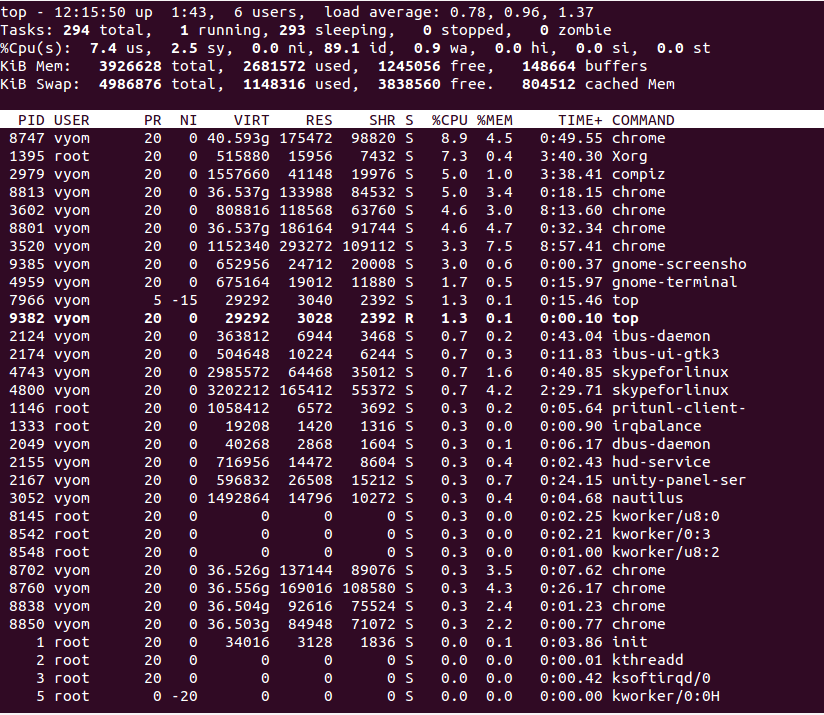
Monitoring CPU usage helps you understand how your Linux system performs. The top command is a popular tool for this task. It shows real-time data about CPU load and running processes. This makes it easier to spot heavy CPU users and manage resources effectively.
Launch Top In Terminal
Open your terminal. Type top and press Enter. The command starts immediately. You will see a screen full of data. The top part shows overall CPU usage. The bottom lists processes using CPU and memory.
Interpret Top Output
The first few lines display system summary. Look for CPU usage percentages under the %Cpu(s) section. It shows user, system, and idle times. Below, processes are sorted by CPU use. The process with the highest CPU use appears first. Check the PID, USER, and %CPU columns for details.
Customize Top Display
Press h inside top for help. Use Shift + P to sort by CPU use. Press c to show full command lines. Press q to quit the program. You can also change refresh rate by pressing d and entering seconds. This helps tailor the view to your needs.
Check Cpu Usage Using Vmstat
Checking CPU usage in Linux helps monitor system performance and identify bottlenecks. The vmstat tool provides real-time data on CPU activity and other system resources. It is simple to use and shows useful CPU metrics clearly.
Run Vmstat Command
Open your terminal. Type vmstat and press Enter. The command shows a summary of system performance. It displays CPU, memory, and process information. This quick check gives an overview of your CPU usage.
Analyze Cpu Metrics
Look at the vmstat output columns. The us column shows user CPU time. The sy column shows system CPU time. The id column shows idle CPU time. High id means low CPU use. Low id means high CPU use. Check these numbers to understand CPU load.
Set Refresh Interval
You can set how often vmstat updates data. Use vmstat 2 to refresh every 2 seconds. This helps watch CPU usage over time. Stop the command with Ctrl + C when done.
Use Mpstat For Detailed Cpu Stats
Mpstat is a powerful tool that shows detailed CPU usage statistics in Linux. It helps track how busy each CPU core is. You can see user time, system time, idle time, and more. This data helps understand your system’s performance and spot issues quickly.
Mpstat updates CPU stats in real time. It works on all Linux systems. The tool reports data for individual CPUs or the entire system. It is simple to use and gives clear, useful information.
Install Mpstat Tool
First, install the mpstat tool on your Linux system. It is part of the sysstat package. Use the package manager to install it.
For Debian or Ubuntu, run:
sudo apt-get install sysstatFor Fedora or CentOS, run:
sudo yum install sysstatAfter installation, the mpstat command will be available.
Execute Mpstat Command
To check CPU stats, open the terminal and type mpstat. This shows average CPU usage since boot.
Use mpstat 1 5 for reports every second, five times. This gives live, updated stats.
To see each CPU core separately, add the -P ALL option:
mpstat -P ALL 1 5This helps analyze load across all cores.
Understand Mpstat Output
The output columns include:
- %usr: Time CPU spends on user processes.
- %sys: Time CPU spends on system processes.
- %idle: Time CPU is idle.
- %iowait: Time CPU waits for I/O operations.
High %idle means your CPU is free. High %usr or %sys means it is busy.
Look for spikes in %iowait. This may show slow disk or network operations.

Credit: www.cyberciti.biz
View Cpu Load With Sar
Monitoring CPU load is crucial for managing system performance in Linux. The sar tool provides detailed CPU usage reports. It helps track CPU activity over time. This makes it easier to find performance issues early. Here is how to view CPU load using sar.
Enable Sysstat Package
First, install the sysstat package. It contains the sar tool. Use your package manager to install it. For example, run sudo apt install sysstat on Debian-based systems. After installing, enable the sysstat service. This allows it to collect data automatically.
Collect Cpu Data
Sysstat collects CPU data at regular intervals. Confirm the collection by checking the sysstat configuration file. Modify the data collection frequency if needed. Use the command sudo systemctl start sysstat to start data collection. Let the system run for some time to gather useful data.
Review Sar Reports
Run sar -u to view CPU usage reports. This shows CPU usage statistics for all cores. Check the CPU usage percentage for user and system processes. Look for high idle times to confirm low CPU use. Use sar -u -f /var/log/sysstat/sarXX to view past reports. Replace XX with the day number.
Analyze Cpu Usage Via /proc/stat
Understanding CPU usage is vital for managing system performance in Linux. The /proc/stat file holds detailed CPU activity data. This file updates frequently, showing how much time the CPU spends on different tasks. You can analyze this data to see how busy your CPU is.
Reading /proc/stat directly gives you raw numbers. These numbers show time spent on user processes, system tasks, idle time, and more. By comparing these values over time, you can calculate the CPU usage percentage. This method helps diagnose performance issues or monitor system load.
Access /proc/stat File
Open a terminal on your Linux system. Type cat /proc/stat and press Enter. The first line starts with cpu and lists several numbers. These numbers represent time units the CPU has spent in different states since boot. For example, user mode, system mode, idle, and others.
Calculate Cpu Usage Manually
Note the values from the first line in /proc/stat. Wait a second, then check the values again. Calculate the difference between the two readings for each field. Add all differences to get total CPU time. Subtract idle time difference from total time. Divide this result by total time to get CPU usage percentage.
Automate Calculation With Scripts
You can write simple scripts to automate this process. Bash scripts can read /proc/stat twice with a delay. Then, they compute CPU usage using the formula described. This method allows continuous monitoring without manual calculation. Many system tools use similar techniques behind the scenes.
Graphical Tools For Cpu Monitoring
Graphical tools provide a clear way to watch CPU usage on Linux systems. They show data using charts and graphs. This helps users see how much power the CPU uses over time. These tools work well for beginners and advanced users alike.
Using these tools saves time. They avoid typing many commands. Instead, users get instant visual feedback on CPU activity. This section covers popular graphical tools for CPU monitoring on Linux.
Use Gnome System Monitor
GNOME System Monitor is simple and easy to use. It comes pre-installed with many Linux distros using GNOME desktop. The app shows CPU usage in real time. Users can also check memory and disk activity.
Open it from the applications menu. The “Resources” tab displays CPU graphs. It updates every second. Users can spot spikes or drops quickly. The interface is clear and intuitive.
Try Kde System Guard
KDE System Guard works well on KDE desktop environments. It provides detailed CPU usage graphs. It also monitors network and memory usage. The tool allows users to customize which data to see.
Launch it from the system menu. The “System Load” tab displays CPU usage visually. Updates happen often to show real-time data. This tool suits users who want more control over monitoring.
Explore Third-party Apps
Several third-party apps offer advanced CPU monitoring. Tools like “htop” or “glances” have graphical interfaces in the terminal. Others like “Conky” display system stats on the desktop.
These apps often provide more details than default tools. Users can install them via package managers. They suit users who want extra features and customization.
Best Practices For Accurate Monitoring
Accurate monitoring of CPU usage in Linux requires careful planning. It helps spot issues early and keeps systems running smoothly. Following best practices ensures you get clear and useful data. Avoid guesswork by using smart methods to check CPU load.
Set Appropriate Sampling Intervals
Choose the right time gap between CPU checks. Too short intervals can overload the system with data. Too long intervals might miss short spikes in usage. A good start is 1 to 5 seconds. Adjust based on system speed and task needs. Regular timing helps track trends and sudden changes.
Monitor Multiple Metrics
CPU usage alone doesn’t tell the full story. Watch other key metrics like memory, disk, and network activity. This gives a broader view of system health. Check user time, system time, and idle time for CPU. Combining these details helps find the root cause of slowdowns or errors.
Combine Tools For Insights
Use different Linux tools together for better results. Tools like top, vmstat, and mpstat provide unique data. Graphical tools like htop offer easy-to-read visuals. Shell scripts can automate data collection and reporting. Mixing tools gives a clearer picture of CPU behavior.

Credit: runcloud.io
Frequently Asked Questions
How Do I Check Cpu Usage On Linux Terminal?
Use the top or htop command in the terminal. These tools display real-time CPU usage and process information clearly.
What Linux Command Shows Detailed Cpu Usage Stats?
The mpstat command provides detailed CPU usage statistics per core. Install the sysstat package if it’s missing.
Can I Monitor Cpu Usage Graphically On Linux?
Yes, tools like gnome-system-monitor or KSysGuard offer graphical CPU usage monitoring on Linux desktops.
How To Check Cpu Usage For A Specific Process?
Use top or ps commands with process ID filters to see CPU usage for individual Linux processes.
Conclusion
Checking CPU usage in Linux is simple and useful. You can use commands like top, htop, or mpstat. These tools show real-time data about your processor’s work. Watching CPU usage helps keep your system fast and stable. Try these commands often to spot any issues early.
Stay aware of your system’s health with easy Linux commands. This way, you can fix problems before they grow. Keep practicing, and monitoring CPU will become a quick habit.