How to Boost Cpu: Expert Tips to Maximize Performance Fast
Is your computer running slower than it should? You might think your CPU is the problem, but the good news is you can boost its performance without buying a new one.
Imagine speeding up your tasks, gaming smoother, or handling heavy software with ease—all by making a few smart changes. You’ll discover simple, effective ways to get the most out of your CPU. Ready to unlock your computer’s true potential? Keep reading to find out how.

Credit: softwareg.com.au
Check Current Cpu Performance
Before trying to boost your CPU, check how it is performing now. This helps find any problems or limits. Knowing the current state guides the next steps to improve speed and efficiency.
Monitoring CPU performance gives clear data about its use and health. This can show if the CPU is overloaded or running smoothly. Tracking these details helps avoid crashes and slowdowns.
Use Built-in Monitoring Tools
Most computers have tools to check CPU performance. On Windows, use Task Manager to see CPU usage and processes. On Mac, Activity Monitor shows similar details. These tools are easy to open and use.
They display real-time data about how much power the CPU uses. You can spot which programs use the most CPU. This helps decide what to close or adjust to reduce load.
Identify Performance Bottlenecks
Bottlenecks happen when the CPU slows down due to other parts. For example, slow memory or hard drives can hold back CPU speed. Look at CPU usage, temperature, and response times to spot bottlenecks.
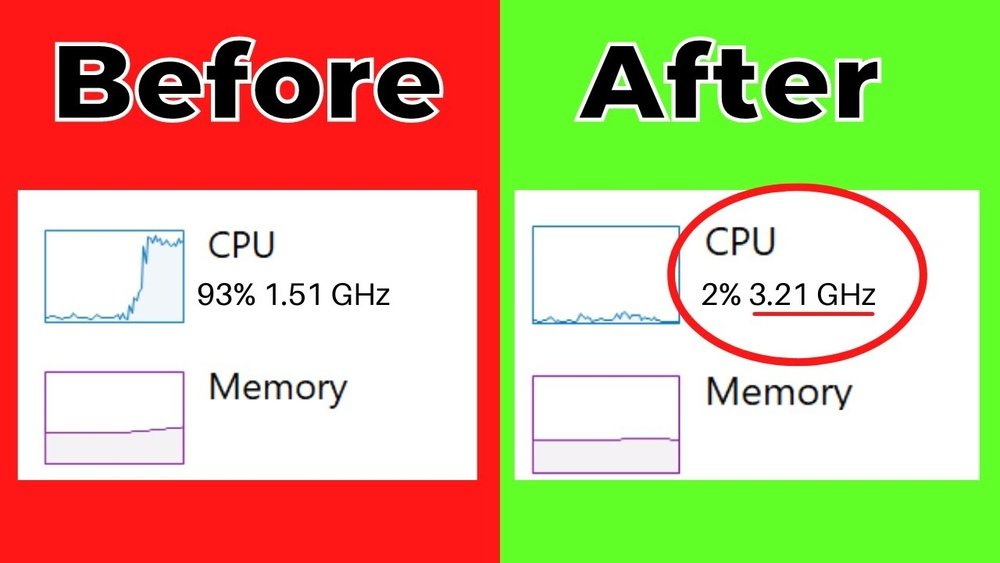
Check if the CPU is often at 100% usage. This means it is working too hard. Also, high temperature may cause the CPU to slow down to avoid damage. Fixing these issues improves overall performance.

Credit: www.youtube.com
Update Drivers And Firmware
Updating drivers and firmware plays a key role in improving CPU performance. These updates fix bugs and improve hardware compatibility. They can also enhance system stability and speed. Keeping your CPU drivers and motherboard firmware current ensures your computer runs smoothly and efficiently.
Download Latest Cpu Drivers
Start by visiting your CPU manufacturer’s website. Find the support or downloads section. Look for the latest drivers for your specific CPU model. Download the correct driver version for your operating system. Install the driver by following on-screen instructions. Restart your computer to apply changes. Updated CPU drivers help your processor work faster and more reliably.
Update Motherboard Bios
Check your motherboard’s brand and model number. Visit the manufacturer’s official site to find BIOS updates. Download the latest BIOS file carefully. Follow the provided instructions to update the BIOS safely. A BIOS update can improve CPU compatibility and overall system performance. Always back up important data before updating BIOS to avoid risks.
Optimize Power Settings
Optimizing power settings helps your CPU run faster and more efficiently. It controls how your computer uses energy and manages the processor’s speed. Making these changes can improve performance without extra cost.
Adjusting power settings is simple and effective. It allows your CPU to get the power it needs for demanding tasks. At the same time, it can save energy during light use.
Adjust Windows Power Plan
Windows has built-in power plans that control CPU performance. The “Balanced” plan saves energy but may slow down your CPU. The “High Performance” plan lets your CPU run at full speed.
To boost your CPU, open Control Panel and go to Power Options. Choose “High Performance” to give your CPU more power. This plan stops Windows from lowering the CPU speed.
You can also create a custom plan. Adjust settings for the processor’s maximum and minimum state. Set the maximum processor state to 100% to keep the CPU fast.
Manage Cpu Power States
CPU power states (C-states) control how much power the processor uses. Lower C-states save energy but reduce performance. Higher C-states keep the CPU ready for action.
To manage C-states, enter your computer’s BIOS or UEFI settings during startup. Find CPU power management options. Disable deep C-states or set limits to keep the CPU more active.
This method reduces delays when the CPU wakes from sleep. It helps the processor run smoother and faster during tasks.
Clean And Maintain Hardware
Cleaning and maintaining your CPU hardware helps improve its performance. Dust and dirt block airflow and cause overheating. Overheating slows down your CPU and can damage parts. Regular cleaning keeps your system cool and fast.
Remove Dust From Cpu Cooler
Dust builds up on the CPU cooler over time. It stops the cooler from removing heat well. Turn off your computer and unplug it. Use a can of compressed air to blow dust off the cooler. Clean all the fan blades and heatsink fins carefully. Avoid touching the fan with your fingers. Repeat this every few months for best results.
Improve Airflow Inside The Case
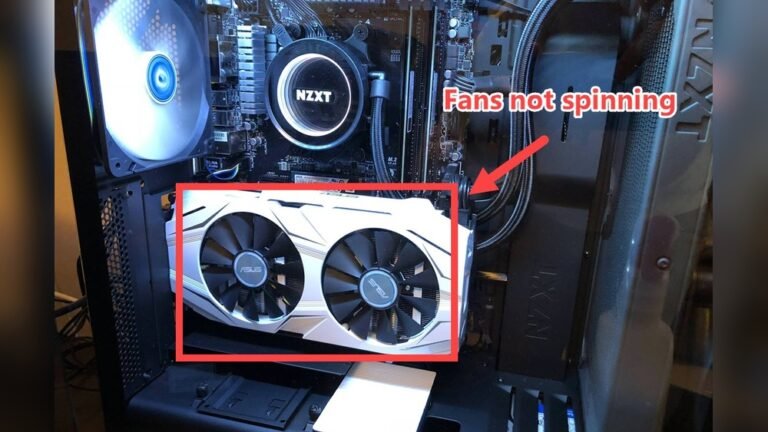
Good airflow helps your CPU stay cool. Arrange cables neatly to stop air blockage. Use zip ties to bundle cables and keep them out of the way. Check that all case fans work properly. Place intake fans at the front and exhaust fans at the back. This setup moves hot air out and brings cool air in. Clean the dust filters on your case regularly to keep air flowing smoothly.
Apply Effective Overclocking
Applying effective overclocking can improve your CPU’s speed beyond its base limits. This process pushes the processor to run faster by changing certain settings. Overclocking helps get better performance for tasks like gaming or video editing.
It requires careful steps to avoid damage and keep the system stable. Understanding which tools to use and how to test your CPU is essential. Follow simple guidelines to safely enhance your CPU power.
Choose Suitable Overclocking Tools
Select the right software for your CPU model. Many CPUs have built-in utilities from the manufacturer. Popular tools include BIOS settings and dedicated apps like Intel Extreme Tuning Utility or AMD Ryzen Master. These allow easy control over clock speeds and voltages.
Pick tools that match your skill level. Beginners should use user-friendly programs. Advanced users can explore BIOS options for deeper control. Always download tools from trusted sources to avoid malware.
Test Stability And Temperature
After overclocking, check if your system runs smoothly. Use stress testing programs like Prime95 or AIDA64. These tests push the CPU to its limits to find issues.
Monitor temperatures closely during tests. High heat can damage the processor. Keep CPU temperature below 85°C for safety. Use hardware monitoring tools such as HWMonitor or Core Temp for real-time data.
Adjust settings if your CPU crashes or gets too hot. Repeat tests until your system stays stable at the new speed. Proper testing ensures your CPU runs fast and safe.
Credit: www.cocosenor.com
Manage Background Processes
Managing background processes is a simple way to improve your CPU’s performance. Many programs run quietly in the background. They use CPU power without your knowledge. Stopping unnecessary ones frees up resources. This helps your CPU work faster and smoother.
Background processes often start automatically when you turn on your computer. Some are useful, but others are not. Disabling the ones you do not need can make a big difference. It also speeds up your system’s startup time.
Disable Unnecessary Startup Programs
Many apps start automatically with Windows. These apps use CPU power from the moment your PC boots. Disabling them reduces CPU load. To do this, open the Task Manager and go to the Startup tab.
Look through the list and find programs you don’t need right away. Right-click and select “Disable.” This stops them from running at startup. Your PC will use less CPU and start faster.
Use Task Manager To Monitor Apps
Task Manager shows all apps and processes running on your PC. It helps identify which programs use the most CPU. Open Task Manager by pressing Ctrl + Shift + Esc.
Click the “Processes” tab to see active apps. Sort by CPU usage to find heavy users. Right-click any app you don’t need and select “End task.” This frees CPU power for important tasks.
Keep checking Task Manager regularly. This prevents unnecessary programs from slowing your CPU down.
Upgrade Cooling Solutions
Upgrading your CPU cooling solutions is key to improving performance. Cooler CPUs run faster and stay stable longer. Good cooling stops overheating and reduces slowdowns. This upgrade can extend your CPU’s life. It also helps your PC work quietly and efficiently.
Install High-performance Fans
High-performance fans move more air and cool better than stock fans. Choose fans with larger blades and higher RPM for strong airflow. Place them to push hot air out and pull cool air in. Make sure your case has enough fan slots. Clean fans often to keep airflow smooth and dust-free.
Consider Liquid Cooling Options
Liquid cooling uses water or coolant to carry heat away from the CPU. It cools better than air alone, especially for powerful CPUs. You can choose all-in-one kits that are easy to install. Custom loops offer the best cooling but need more skill. Liquid cooling also reduces noise by using slower fans.
Keep Software And Os Optimized
Keeping your software and operating system optimized helps your CPU run faster. It reduces slowdowns and errors. A clean and updated system uses less power and works better. This way, your computer feels quicker and more responsive.
Update Operating System Regularly
Regular updates fix bugs and improve security. They also enhance CPU performance by optimizing system tasks. Updates ensure your computer can handle new software smoothly. Set your system to update automatically to stay current. Avoid skipping updates to keep your CPU running well.
Clean Up Junk Files And Malware
Junk files take up space and slow down your CPU. Delete old files, cache, and temporary data often. Malware uses CPU power without your knowledge. Run antivirus scans to find and remove harmful software. A clean system keeps your CPU free for important tasks.
Frequently Asked Questions
How Can I Safely Overclock My Cpu?
Overclocking increases CPU speed beyond factory settings. Use reliable software and monitor temperatures closely. Ensure proper cooling to prevent damage and maintain stability.
What Role Does Cooling Play In Cpu Performance?
Effective cooling prevents overheating, allowing the CPU to run faster and longer. Use quality fans or liquid cooling to keep temperatures low and boost CPU efficiency.
Can Updating Bios Improve Cpu Speed?
Yes, BIOS updates can optimize CPU performance by fixing bugs and enhancing hardware compatibility. Always back up data and follow instructions carefully before updating.
Does Upgrading Ram Help Boost Cpu Performance?
Upgrading RAM can reduce bottlenecks and improve overall system speed. While it doesn’t increase CPU clock speed, it supports better multitasking and faster data access.
Conclusion
Boosting your CPU can make your computer faster and smoother. Simple steps like cleaning dust and updating software help a lot. Adjusting settings and managing background apps saves power and speed. Always watch your CPU temperature to avoid damage. Small changes add up to better performance each day.
Keep your system healthy for long-lasting results. Try these tips to enjoy a quicker computer experience.