Driver Installation Failed How to Fix: Quick & Easy Solutions
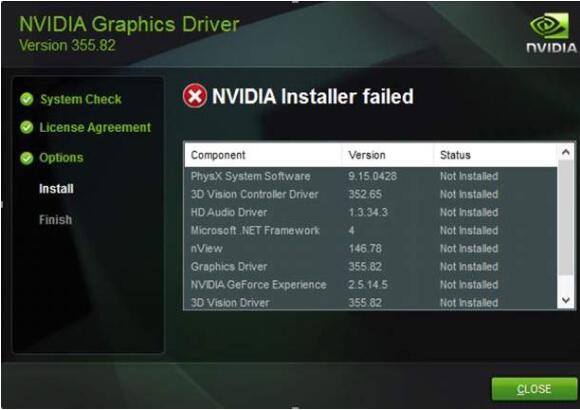
Have you ever tried to install a driver, only to see it fail without any clear reason? It’s frustrating, right?
When your driver installation fails, your device might not work properly, leaving you stuck and unsure of what to do next. But don’t worry—this problem has simple fixes that anyone can follow. You’ll discover easy steps to get your drivers installed correctly and have your devices running smoothly again.
Keep reading, because the solution you need is just ahead.
Credit: discussions.apple.com
Common Causes Of Driver Installation Failure
Driver installation failure can happen for several reasons. Understanding these causes helps fix the problem faster. Below are common reasons why driver installation might fail.
Incompatible Driver Versions
Drivers must match your device and operating system. Using the wrong version causes errors. Old drivers may not work with new systems. New drivers may not fit older hardware.
Corrupted Driver Files
Driver files can get damaged during download or transfer. Corrupted files stop the installation from completing. Always download drivers from trusted sources. Avoid interruptions during download to prevent corruption.
Missing System Updates
System updates often include essential components for drivers. Without these updates, drivers may fail to install. Keep your operating system updated to support new drivers.
Conflicts With Existing Drivers
Old or conflicting drivers can block new ones. Multiple drivers for the same device cause issues. Remove or update old drivers before installing new versions.
Preparing Your System For Installation
Preparing your system before installing a driver is key to avoid errors. This step helps ensure smooth installation and protects your data. Taking time now saves you from future troubles. Follow these simple steps to get ready.
Backup Important Data
Save your important files before starting the installation. This protects your data if something goes wrong. Use an external drive or cloud storage. Backing up avoids losing documents, photos, and other files. It only takes a few minutes but is very helpful.
Check System Compatibility
Verify that the driver matches your system’s hardware and software. Check the driver’s version against your operating system. Using the wrong driver causes installation failure. Look for compatibility info on the manufacturer’s website. Confirming this avoids wasted time and errors.
Disable Antivirus Temporarily
Antivirus programs can block driver installation. Temporarily turn off your antivirus before installing the driver. This prevents the software from interrupting the process. Remember to enable antivirus again after installation. This step helps the driver install without interference.
Step-by-step Fixes For Driver Installation
Driver installation problems can stop your device from working properly. Fixing these issues requires clear steps. Follow this guide to solve driver installation errors easily.
Each step helps ensure your drivers install correctly. Take your time and follow the instructions carefully. This will prevent further problems and improve your device’s performance.
Run As Administrator
Some drivers need special permission to install. Right-click the driver setup file. Choose “Run as administrator” from the menu. This gives the installer the rights to change your system. It often solves permission-related errors.
Use Device Manager To Update Drivers
Device Manager controls all hardware on your PC. Open it by typing “Device Manager” in the search bar. Find the device with the driver problem. Right-click and select “Update driver.” Choose “Search automatically for updated driver software.” Windows will find and install the correct driver.
Uninstall Old Drivers Completely
Old drivers can cause conflicts with new ones. Open Device Manager and find the device. Right-click and select “Uninstall device.” Check “Delete the driver software for this device” if available. Restart your computer. This clears old files and prepares your PC for fresh installation.
Download Drivers From Official Sources
Always get drivers from the official website of your device maker. Avoid third-party sites to prevent malware and wrong drivers. Visit the support section of the manufacturer’s site. Enter your device model and download the latest driver. This ensures compatibility and safety.
Credit: www.drivereasy.com
Using Troubleshooting Tools
Driver installation errors can be frustrating. Using troubleshooting tools can help fix these issues quickly. These tools check your system for common problems and offer simple fixes. They save time and make the process easier for everyone.
Windows Update Troubleshooter
The Windows Update Troubleshooter finds and fixes update errors. It checks for missing files or corrupted settings. This tool runs automatically and can restart services needed for updates. Running it often resolves driver installation problems linked to Windows updates.
Third-party Driver Updaters
Third-party driver updaters scan your PC for outdated drivers. They offer updates that match your hardware. These tools simplify driver management and reduce manual searching. Choose trusted software to avoid unwanted programs or errors. They help keep your drivers current and your system stable.
System File Checker (sfc)
The System File Checker scans your system files for damage. It repairs corrupted or missing files that can block driver installs. Run SFC from the command prompt with simple commands. This tool helps fix errors that other tools might miss. It is a key step in troubleshooting driver failures.
Advanced Solutions For Persistent Issues
Some driver installation problems need more detailed fixes. Basic steps may not always work. Advanced solutions target deeper issues. These steps help solve persistent driver errors. They focus on Windows security, system mode, and hardware checks. Follow each method carefully for better results.
Modify Driver Signature Enforcement
Windows blocks some drivers without proper signatures. This stops the installation process. You can disable signature enforcement temporarily. Restart your PC and press F8 or Shift + Restart. Choose “Disable Driver Signature Enforcement” from the menu. Install the driver after this change. Remember, this is a temporary fix. Your PC will re-enable enforcement on reboot.
Install Drivers In Safe Mode
Safe Mode loads only essential programs. It can stop conflicts during driver installation. Restart your computer and enter Safe Mode. Use the System Configuration tool or press F8 at startup. In Safe Mode, try installing your driver again. This method often bypasses software blocks. After installation, restart normally to exit Safe Mode.
Check For Hardware Malfunctions
Sometimes, driver errors are due to faulty hardware. Loose cables, damaged ports, or broken devices cause problems. Inspect physical connections carefully. Test the hardware on another PC if possible. Use built-in diagnostic tools in Windows. Hardware checks can save time and prevent wrong software fixes.

Credit: www.liftingitalia.com
Preventing Future Driver Installation Problems
Driver installation problems can be frustrating and time-consuming. Taking steps to prevent these issues saves effort and avoids disruptions. A few simple habits can keep your system healthy and drivers working well.
Regular care of your computer helps avoid many driver problems. Staying updated and prepared makes your system more stable. Let’s explore how to prevent future driver installation failures.
Regular System Maintenance
Keep your computer clean from unnecessary files and programs. Run disk cleanup and remove old software. Check for system errors and fix them quickly. A clean system improves driver installation success. Regular checks help find small problems early.
Keep Drivers Updated
Outdated drivers cause many installation errors. Check your device manager often for updates. Download drivers only from official websites or trusted sources. Updating drivers regularly ensures compatibility with your system. This reduces chances of failure during installation.
Create Restore Points
Restore points save your system’s current state. Create them before installing new drivers or updates. If an installation fails, you can easily go back. This protects your computer from damage and saves time. Regularly creating restore points adds a safety net.
Frequently Asked Questions
Why Does Driver Installation Fail On Windows?
Driver installation fails due to incompatible software, outdated OS, or corrupted files. Conflicts with existing drivers or lack of admin rights also cause failure. Ensuring compatibility and updating Windows often resolves this issue quickly.
How To Fix Driver Installation Errors Easily?
Restart your PC, run the installer as administrator, and update Windows. Disable antivirus temporarily and check device compatibility. Using Device Manager to update or reinstall drivers often fixes installation errors efficiently.
Can Outdated Drivers Cause Installation Failures?
Yes, outdated drivers may conflict with new hardware or software. Always download the latest drivers from official websites to avoid installation problems. Updating ensures smooth compatibility and better device performance.
Is Antivirus Blocking Driver Installation?
Sometimes, antivirus software blocks driver setup files thinking they are harmful. Temporarily disabling the antivirus during installation can resolve this issue safely. Remember to enable it again after the process completes.
Conclusion
Driver installation issues can feel frustrating and confusing. Fixing them takes patience and clear steps. Check your device compatibility and update drivers carefully. Restart your computer after each change to see results. Use official websites to download drivers safely. Keep your system updated to avoid future problems.
Small actions often solve big driver errors. Stay calm and follow instructions step-by-step. Soon, your device will work smoothly again. Don’t give up—solutions are within reach.