How to Use All Cores on Cpu: Boost Your PC Performance Now
Are you sure your computer is using all its power? Many people don’t realize their CPU isn’t running at full strength because not all cores are active.
Using all cores on your CPU can make your computer faster, smoother, and more efficient. Imagine finishing tasks quicker, playing games without lag, or running apps seamlessly. You’ll learn simple, practical steps to unlock your CPU’s full potential. Keep reading, and you’ll discover how to get the most out of your computer right now.
Cpu Cores And Performance
CPU cores play a key role in how well your computer performs tasks. Each core acts like a small processor inside the CPU. More cores mean your computer can handle more work at the same time.
Understanding how cores affect performance helps you use your CPU better. This knowledge is useful for gaming, video editing, and everyday tasks.
What Cpu Cores Do
Each CPU core processes instructions from programs. More cores allow more instructions to run at once. This helps speed up complex tasks. Cores work together to divide the workload. This makes your computer faster and more efficient.
Impact On Speed And Multitasking
More cores improve multitasking by handling several programs simultaneously. This reduces delays and keeps your system smooth. Speed increases in tasks that support multiple cores. Some software uses only one core, limiting speed. Modern apps and games often use multiple cores well.
Credit: www.youtube.com
Checking Core Usage
Checking core usage helps you see how your CPU works. It shows if all cores run tasks or stay idle. This helps in improving your computer’s speed and efficiency. You can check core usage with built-in or third-party tools.
Using Task Manager
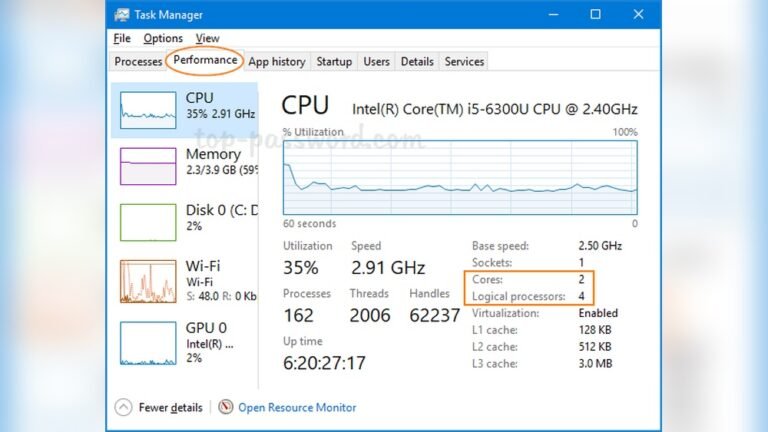
Task Manager is a simple way to check CPU cores. Press Ctrl + Shift + Esc to open it. Click on the “Performance” tab. Select “CPU” to see graphs of each core’s activity. You can watch how busy each core is in real time. This tool comes with Windows and needs no extra download.
Third-party Monitoring Tools
Third-party tools offer detailed information about core usage. Programs like HWMonitor, Core Temp, and MSI Afterburner display CPU data clearly. They show temperature, speed, and usage per core. These tools help you find if any core is overloaded or underused. Most are free and easy to install on your PC.
Optimizing Core Usage In Bios
Optimizing core usage in BIOS helps your CPU run all its cores efficiently. This process allows your computer to use maximum power from the processor. You can improve speed and multitasking by ensuring all cores are active. The BIOS controls hardware settings before the system loads the operating system.
Changing BIOS settings is simple and safe if done carefully. It helps unlock full potential of your CPU. This guide shows how to access BIOS and enable all cores.
Accessing Bios Settings
First, restart your computer. Press the BIOS key during startup. Common keys include F2, Delete, or Esc.
Keep pressing the key until the BIOS menu appears. Use arrow keys to navigate inside BIOS. Each motherboard has a different BIOS interface.
Look for CPU or Advanced settings. These sections usually contain core management options.
Enabling All Cores
Find the option named “CPU Core Control” or “Core Multi-Processing.” Select it using arrow keys. Change the setting to “All Cores” or “Enabled.”
Save changes before exiting. Usually done by pressing F10 and confirming. Your computer will reboot with all cores active.
This simple step ensures your CPU uses all its cores. It improves system performance in tasks needing high power.
Adjusting Settings In Operating System
Adjusting settings in your operating system can help your CPU use all its cores efficiently. This step improves performance and makes sure tasks run smoothly. You can set your system to distribute work across all cores.
Two important settings to check are processor affinity and power options. These settings control how the CPU handles tasks and manages power. Small changes here can make a big difference in using all cores well.
Configuring Processor Affinity
Processor affinity lets you choose which CPU cores run specific programs. By default, the system decides this automatically. But you can set affinity manually to spread tasks across multiple cores.
In Windows, open Task Manager and go to the Details tab. Right-click a process and select “Set affinity.” Then, check the boxes for the cores you want to use. This helps balance the load and uses all cores better.
Tweaking Power Options
Power settings affect how your CPU runs. Some modes limit core use to save energy. To use all cores fully, choose a high-performance mode.
On Windows, open Control Panel and find Power Options. Select “High performance” or create a custom plan. Make sure the minimum processor state is set to 100%. This keeps all cores active and ready for tasks.
Software And Application Tips
Using all CPU cores can speed up your work. Software and apps must support multiple cores to do this well. Here are some tips to help you use your CPU fully.
Choosing Multi-threaded Programs
Pick programs designed to use many cores. Multi-threaded apps split tasks across cores. This makes the process faster and smoother. Examples include video editors and some web browsers. Check if your software says it supports multiple cores. Using single-threaded apps wastes CPU power.
Updating Software For Better Core Support
Keep your software updated. New versions often improve core usage. Updates fix bugs and boost performance. Developers add better multi-core support over time. Set your apps to update automatically. This ensures you always get the best speed.

Credit: softwareg.com.au
Overclocking For Extra Power
Overclocking for extra power means running your CPU faster than its base speed. This can help you use all cores more effectively and get better performance. Overclocking pushes your processor beyond factory settings, giving you more speed for tasks like gaming or video editing.
It takes careful steps and some knowledge to do it safely. Let’s break down the basics and show you the risks involved.
Basics Of Overclocking
Overclocking raises the CPU clock speed to boost performance. You change settings in the BIOS or use software tools. Start by increasing the clock speed a little bit. Test your system’s stability after each change.
Check the temperature often because overclocking makes the CPU hotter. Use good cooling systems like fans or liquid coolers. Monitor CPU voltage carefully, as more voltage can help stability but also adds heat.
Risks And Precautions
Overclocking can cause your CPU to overheat and fail if done incorrectly. It may shorten the processor’s life or cause crashes. Always keep an eye on temperature and system stability.
Back up important data before starting. Use stress-testing software to check for errors. Avoid pushing the CPU too far beyond its limits. If your PC crashes often, lower the clock speed or voltage.
Troubleshooting Core Usage Issues
Troubleshooting core usage issues is important for better CPU performance. Sometimes, not all CPU cores work as expected. This can slow down your computer or cause apps to lag. Finding the cause helps fix the problem and use all cores efficiently.
Identifying Bottlenecks
Bottlenecks stop your CPU cores from working well. They happen when one part of the system is too slow. Common bottlenecks include slow memory, outdated drivers, or heavy background tasks. Check your task manager to see which process uses most CPU power. Watch for high disk or memory use too. These signs point to bottlenecks that limit core use.
Fixing Core Limitations
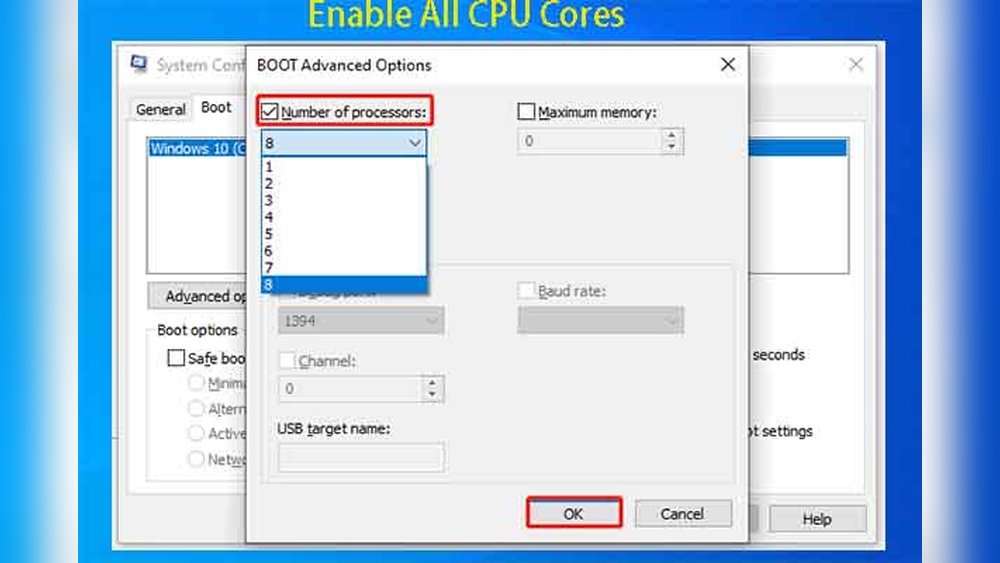
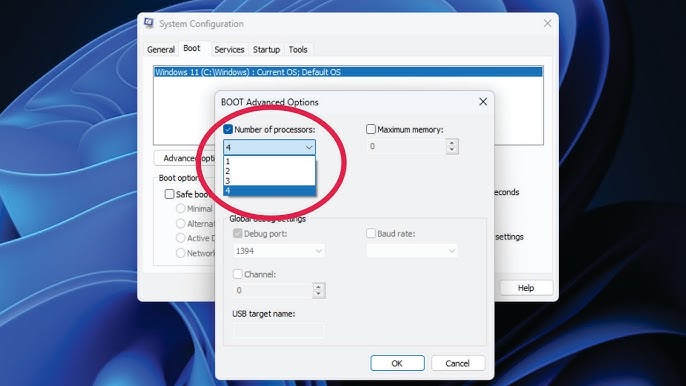
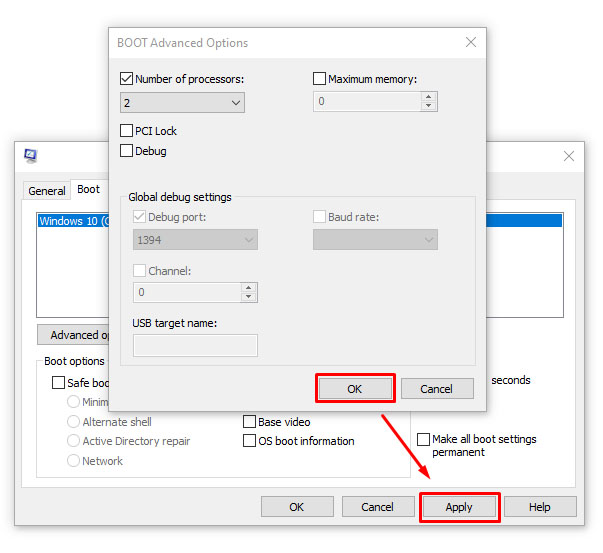
Core limits appear due to settings or software issues. Make sure your operating system sees all CPU cores. In Windows, check the system configuration tool. Disable any core limits in BIOS or UEFI settings. Update your drivers and install OS updates. Close apps running in the background to free CPU power. Using software designed for multi-core CPUs also helps spread the load evenly.
Maximizing Performance With Hardware Upgrades
Maximizing your CPU’s performance requires more than software tweaks. Hardware upgrades play a key role. They help your computer use all its cores efficiently. This section focuses on two important upgrades: CPUs with more cores and better cooling solutions.
Upgrading To Cpus With More Cores
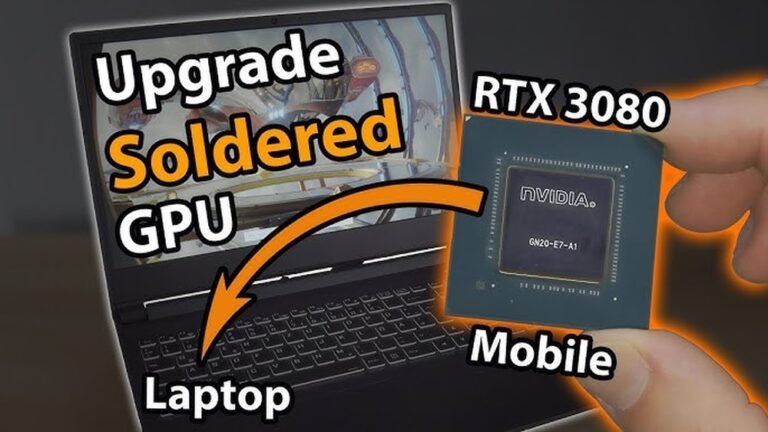
More cores mean your computer can do more tasks at once. This improves multitasking and speeds up heavy programs. Choose a CPU with higher core counts for better performance. Check your motherboard compatibility before upgrading. Newer CPUs often support more cores and faster speeds. This change helps your system handle demanding tasks smoothly.
Improving Cooling Solutions
Cooling keeps your CPU running at top speed. Overheating can slow down or damage your processor. Upgrade your cooling system with better fans or liquid coolers. Good cooling allows the CPU to use all cores without throttling. Maintain clean and dust-free cooling parts. This upgrade ensures stable and consistent performance during heavy use.
Credit: www.alphr.com
Frequently Asked Questions
How Can I Enable All Cpu Cores In Windows?
To use all CPU cores, access Task Manager and check core usage. In BIOS, enable multi-core or Hyper-Threading settings. Ensure your software supports multi-threading for optimal performance.
Why Is My Cpu Not Using All Cores?
Software may not support multi-threading, or cores could be disabled in BIOS. Task Manager settings or power plans may limit core usage. Update drivers and check system settings to resolve this.
Does Enabling All Cores Improve Performance?
Yes, enabling all cores can boost performance in multi-threaded tasks. It helps with video editing, gaming, and software development. Single-threaded apps may see little improvement.
How To Check If All Cpu Cores Are Active?
Open Task Manager and go to Performance tab. Select CPU to see active cores and usage. You can also use system info tools like CPU-Z for detailed core status.
Conclusion
Using all CPU cores helps your computer run tasks faster and smoother. You can change settings to make sure every core works well. This can improve how programs perform, especially those that need a lot of power. Remember to check your system’s settings carefully.
Keep your software updated to get the best results. Small changes can make a big difference in speed. Start using all cores today and see the improvement yourself. It’s a simple way to get more from your CPU.