How to Lower Temperature of Cpu: Ultimate Cooling Tips Revealed
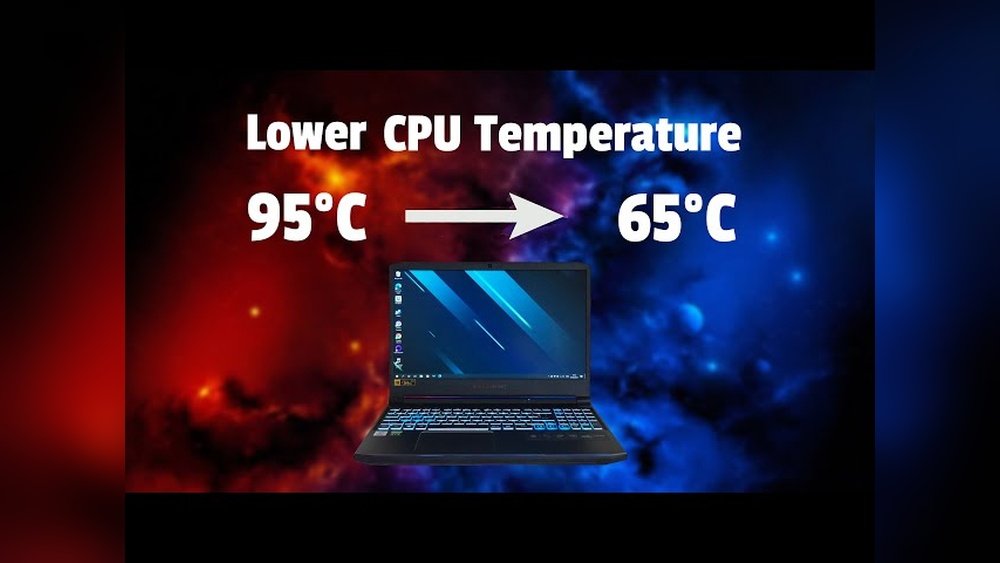
Is your computer feeling hotter than it should? When your CPU runs too hot, it can slow down your system, cause crashes, or even damage your hardware.
You don’t have to live with a burning processor. You’ll discover simple and effective ways to lower your CPU temperature. By following these easy steps, you can protect your computer and boost its performance. Keep reading to learn how to cool down your CPU and keep your device running smoothly.

Credit: www.youtube.com
Causes Of High Cpu Temperature
High CPU temperature can cause your computer to slow down or even shut off. Understanding the causes helps keep your CPU cool and safe. Several factors lead to increased heat in the CPU.
Overclocking Effects
Overclocking pushes the CPU to run faster than its normal speed. This extra power creates more heat inside the processor. Without proper cooling, the temperature rises quickly. Overclocking without good cooling can damage the CPU.
Poor Airflow Issues
Good airflow inside the computer case helps remove hot air. Blocked vents or small cases can trap heat. Fans that do not work well or are placed wrongly reduce airflow. Poor airflow causes the CPU to overheat.
Thermal Paste Deterioration
Thermal paste sits between the CPU and its cooler. It helps transfer heat away from the processor. Over time, thermal paste dries and loses its effectiveness. Old or bad thermal paste raises CPU temperature.
Dust And Dirt Accumulation
Dust builds up on fans, vents, and heat sinks. This dirt blocks airflow and stops fans from spinning properly. Dust causes the CPU cooler to work less efficiently. Regular cleaning can prevent overheating problems.

Credit: www.reddit.com
Choosing The Right Cooling System
Choosing the right cooling system helps keep your CPU temperature low. A cooler CPU runs better and lasts longer. The right system depends on your needs, budget, and computer use. Explore different types of cooling to find the best fit for your setup.
Air Cooling Solutions
Air cooling uses fans and heatsinks to move heat away from the CPU. It is common and easy to install. Fans push cool air through the heatsink, which absorbs heat from the CPU. This method is quiet and cost-effective. Ideal for most everyday users and light gaming setups.
Liquid Cooling Options
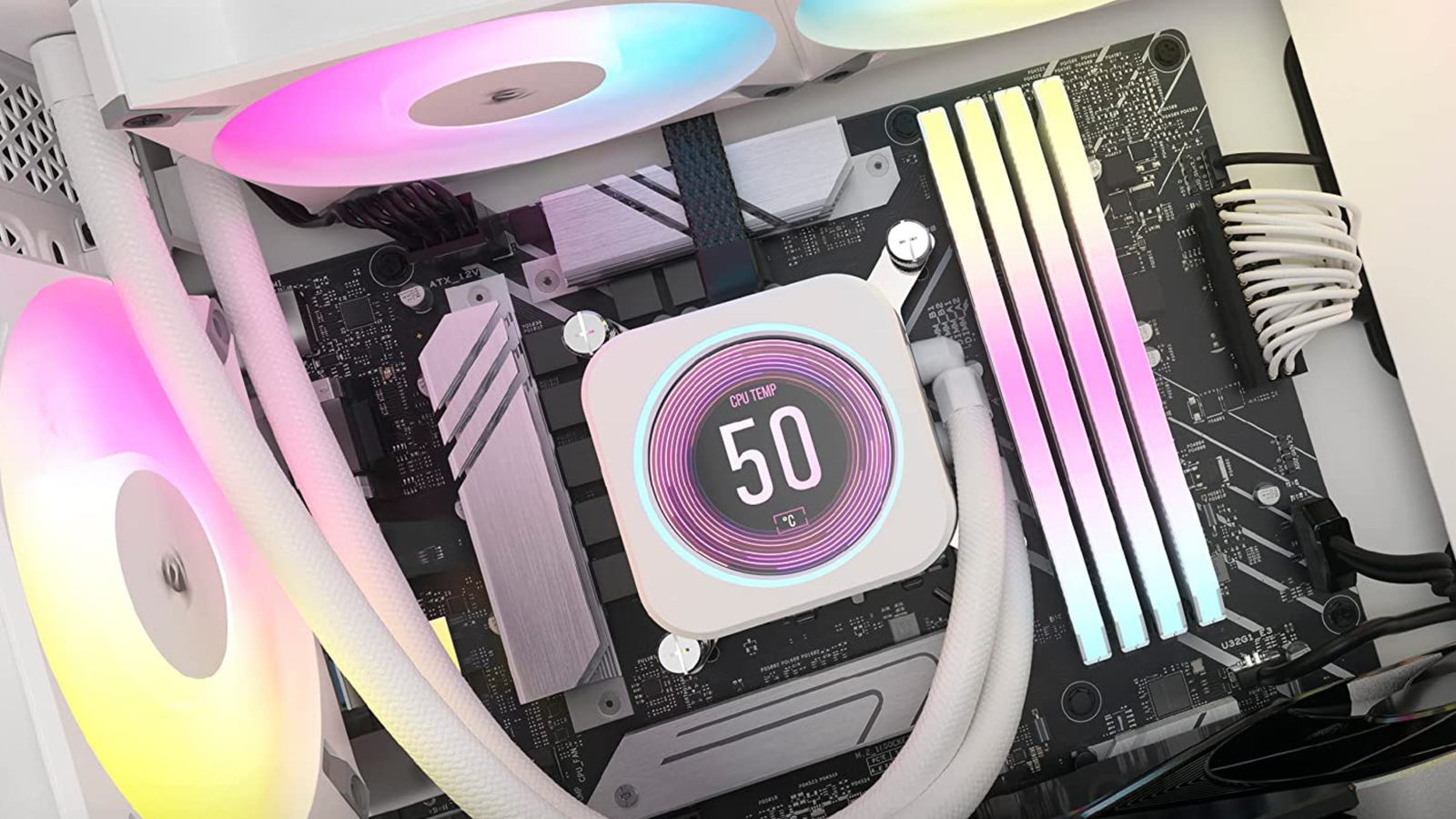
Liquid cooling uses water or coolant to carry heat from the CPU. It works faster and cools better than air. Tubes move liquid through a radiator, where fans cool it down. Liquid cooling suits high-performance computers and gamers. It is quieter but needs more maintenance and careful setup.
Passive Cooling Methods
Passive cooling uses no fans or pumps. It relies on large heatsinks to absorb and spread heat. This method produces no noise and has no moving parts. Best for low-power CPUs or silent PCs. It may not cool well for heavy tasks or gaming.
Improving Case Airflow
Improving the airflow inside your computer case helps keep the CPU cool. Good airflow moves hot air out and brings cool air in. This prevents heat build-up around the CPU and other parts. Proper airflow helps your PC run smoothly and lasts longer.
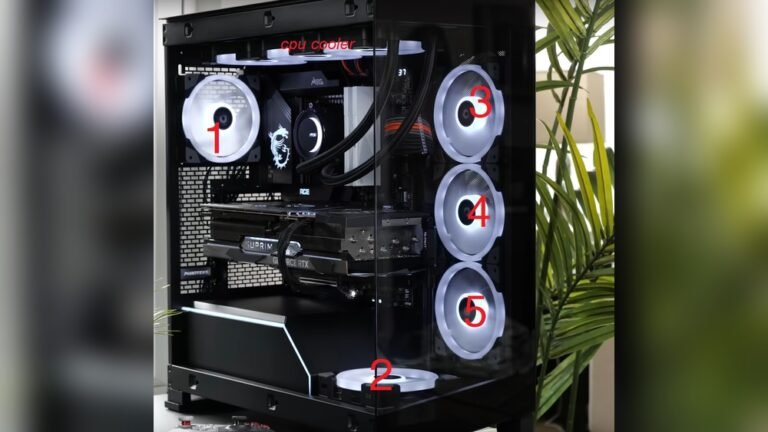
Optimizing Fan Placement
Place fans to create a clear air path through the case. Use intake fans at the front to pull cool air in. Use exhaust fans at the back or top to push hot air out. This flow moves heat away from the CPU quickly. Avoid blocking fans with cables or parts.
Upgrading Case Fans
Old or weak fans may not move enough air. Choose fans with higher airflow ratings for better cooling. Larger fans can run slower and quieter while moving more air. Look for fans with good airflow (measured in CFM) and low noise. Replace noisy or broken fans promptly.
Cable Management Tips
Keep cables tidy and out of airflow paths. Use cable ties or Velcro straps to bundle cables neatly. Avoid letting cables block fans or air vents. Clear airflow paths reduce heat and improve cooling. Good cable management also makes your PC easier to maintain.
Thermal Paste Application Tips
Applying thermal paste correctly is key to keeping your CPU cool. It helps fill tiny gaps between the CPU and its cooler. This improves heat transfer and lowers temperature. Poor application can cause higher temps and damage your CPU. Follow these tips to apply thermal paste the right way.
Selecting Quality Thermal Paste
Choose thermal paste with good heat conductivity. Look for brands with positive reviews and proven performance. Avoid very cheap options; they often dry out fast. Silicone-based pastes are common and easy to use. Metal-based pastes conduct heat better but need careful handling. Pick the type that fits your needs and budget.
Proper Application Techniques
Clean the CPU surface before applying paste. Use rubbing alcohol and a lint-free cloth. Apply a small pea-sized dot in the center of the CPU. Too much paste can cause overheating. When you attach the cooler, it will spread the paste evenly. Avoid spreading the paste by hand. This keeps the layer thin and uniform.
When To Reapply Thermal Paste
Reapply thermal paste every 1 to 2 years for best cooling. Also, reapply if you remove the CPU cooler. Signs like rising temperatures or unstable performance mean paste may need replacing. Old paste dries out and loses effectiveness. Regular checks help keep your CPU running cool and safe.
Monitoring And Managing Cpu Load
Keeping your CPU cool is key to good computer health. Monitoring and managing CPU load helps reduce heat. High CPU load makes the processor work harder and get hotter. Controlling this load prevents overheating and keeps your system stable.
Managing CPU load also improves speed and extends hardware life. This section explains how to track and control CPU use. Simple steps can lower temperature and boost performance.
Using Software Tools
Software tools show real-time CPU temperature and usage. Programs like HWMonitor, Core Temp, or Task Manager help track CPU load. They alert you if the CPU is too hot. Use these tools regularly to keep an eye on performance. Early detection helps prevent damage.
Adjusting Power Settings
Power settings affect how hard your CPU works. Lowering the maximum processor state reduces heat. Set your power plan to balanced or power saver mode. This limits CPU speed and cuts down temperature. Adjust settings in the control panel or system preferences.
Closing Unnecessary Applications
Running many apps increases CPU load and temperature. Close apps you do not use to free up CPU power. Check your task manager to find programs using high CPU. Shutting down unused apps lowers the workload and cools the CPU. Keep only essential apps open.
Credit: www.xda-developers.com
Regular Maintenance Practices
Regular maintenance helps keep your CPU cool and working well. Dirt and dust can block airflow. Fans might stop working properly. Outdated software can cause overheating. Simple checks and cleaning can reduce CPU temperature and improve performance.
Cleaning Dust Build-up
Dust gathers inside your computer over time. It blocks vents and fans. This stops air from flowing. Use a soft brush or compressed air to remove dust. Clean vents, fans, and heat sinks carefully. Do this every few months to keep your CPU cool.
Checking Fan Functionality
Fans cool the CPU by moving air. If a fan stops working, heat builds up fast. Listen for fan noise or feel air blowing out. Replace fans that are noisy or not spinning. Ensure all fans inside your PC run smoothly for best cooling.
Updating Bios And Drivers
BIOS and drivers control your CPU and hardware. Old versions can cause overheating issues. Check the manufacturer’s website for updates. Install updates carefully to improve system stability. Updated software helps your CPU manage heat better.
Frequently Asked Questions
How Can I Reduce Cpu Temperature Quickly?
To reduce CPU temperature quickly, clean dust from fans and vents. Improve airflow by organizing cables and using additional cooling fans. Lower the CPU workload by closing unnecessary programs. Applying fresh thermal paste can also help dissipate heat efficiently.
What Causes High Cpu Temperature Issues?
High CPU temperature often results from poor ventilation, dust buildup, or malfunctioning fans. Overclocking and heavy workloads can also increase heat. Insufficient or dried thermal paste may reduce heat transfer. Environmental factors like high ambient temperature contribute as well.
Is Liquid Cooling Better Than Air Cooling?
Liquid cooling generally offers better heat dissipation than air cooling. It’s quieter and more efficient for overclocked or high-performance CPUs. However, it’s more expensive and complex to install. Air cooling is simpler, cheaper, and sufficient for most users.
How Often Should I Clean Cpu Cooling System?
You should clean your CPU cooling system every 3 to 6 months. Dust accumulation blocks airflow and raises temperatures. Regular cleaning ensures optimal fan performance and heat dissipation, keeping your CPU cool and preventing overheating.
Conclusion
Keeping your CPU cool helps your computer work better and last longer. Simple steps like cleaning fans and improving airflow can lower heat fast. Using good thermal paste and checking your settings also makes a big difference. Small changes add up to big results.
Stay aware of your CPU temperature to avoid problems. Cool hardware means smooth performance and less risk of damage. Try these tips to keep your CPU safe and running strong every day.