How to Improve Gpu Performance: Ultimate Tips for Speed Boost
Are you frustrated with your GPU not running as fast as you expected? Whether you’re gaming, designing, or streaming, slow graphics can hold you back.
The good news is, you don’t need to buy a new card to boost your GPU’s performance. With some simple tweaks and smart adjustments, you can make your graphics card work harder and faster for you. Keep reading, and you’ll discover easy ways to unlock your GPU’s full potential right now.

Credit: www.avg.com
Optimize Graphics Settings
Optimizing graphics settings is a key step to improving GPU performance. It helps balance visual quality and smooth gameplay. Proper settings reduce the load on your GPU, making games run faster and with fewer problems.
Small changes in settings can boost frame rates and lower screen lag. This means you enjoy a better gaming experience without buying new hardware. Focus on adjusting resolution, texture quality, and syncing options for best results.
Adjust Resolution And Texture Quality
Lowering the resolution reduces the number of pixels your GPU must process. This change can greatly improve frame rates. Reducing texture quality also helps by using less GPU memory and power.
Try to find a balance between clear visuals and smooth performance. Avoid the highest settings if your GPU struggles to keep up.
Enable V-sync And Frame Rate Caps
V-Sync synchronizes your game’s frame rate with your monitor’s refresh rate. This prevents screen tearing and makes gameplay smoother. Frame rate caps limit how many frames your GPU renders per second.
Capping frames reduces GPU workload and heat. Both settings help maintain steady performance and reduce power use.
Use Game-specific Presets
Many games offer preset graphics settings like low, medium, and high. These presets are designed for different hardware setups. Choosing the right preset saves time and improves performance.
Start with medium presets, then tweak settings based on your experience. This approach helps find settings that suit your GPU and game type.
Update Drivers Regularly
Updating your GPU drivers is a simple way to keep your graphics card running well. New drivers fix bugs and improve speed. They help your computer use the GPU better for games and apps. Regular updates keep your system stable and fast.
Check For Latest Gpu Drivers
Visit the official website of your GPU brand. Search for the latest driver for your model. Download the newest version to keep your GPU up to date. Old drivers can cause slow performance and crashes. Check for updates every few weeks.
Use Manufacturer Software Tools
Many GPU makers offer software to update drivers easily. Tools like NVIDIA GeForce Experience or AMD Radeon Software scan your system. They notify you when new drivers are available. These tools also help optimize your settings for better performance.
Overclock Your Gpu Safely
Overclocking your GPU can boost its speed and improve gaming or creative work. Doing it safely protects your hardware and keeps performance steady. Follow clear steps to overclock your GPU without risks.
Understand Overclocking Basics
Overclocking means running your GPU faster than its default speed. It increases clock rates to get more power. Every GPU has limits. Pushing too far can cause crashes or damage. Start with small changes. Know your GPU’s base clock and boost clock speeds.
Use Reliable Overclocking Software
Pick trusted software to adjust GPU settings. Tools like MSI Afterburner or EVGA Precision X1 work well. They let you change clock speeds and voltage safely. Use software that shows real-time data. This helps you track changes and avoid errors during overclocking.
Monitor Temperature And Stability
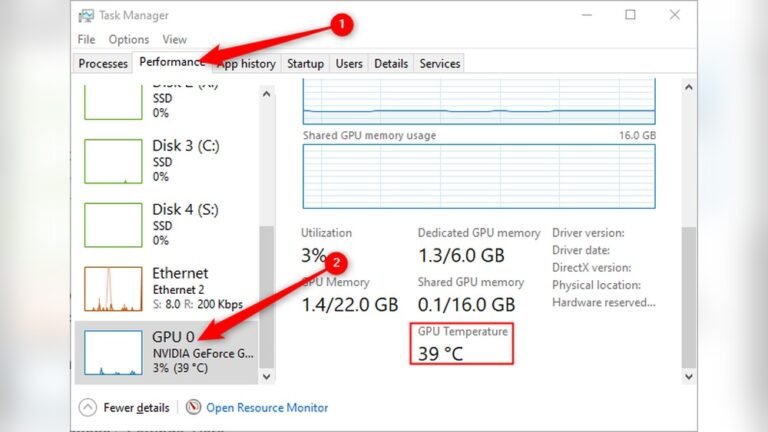
Keep a close eye on your GPU’s temperature. High heat can harm your card. Use programs like HWMonitor or GPU-Z to watch temps. Test stability by running games or benchmarks after changes. If your system crashes or heats up too much, lower the clock speeds.
Credit: www.gpuscore.com
Improve Cooling Solutions
Improving your GPU’s cooling can boost its performance and lifespan. Heat slows down your graphics card. Keeping it cool helps the GPU run faster and stay stable. Good cooling stops thermal throttling, which limits power when temperatures rise.
Focus on cleaning, upgrading, and organizing airflow inside your PC. These steps help the GPU work at its best without overheating.
Clean Dust And Improve Airflow
Dust blocks air vents and fans. It traps heat inside the GPU. Clean your PC regularly with compressed air. Remove dust from fans, heatsinks, and vents. This keeps air flowing smoothly and cools the GPU better.
Check cables and components. Arrange them to avoid blocking airflow. Clear paths let air move freely and cool parts faster.
Upgrade Gpu Cooling Systems
Stock GPU coolers may not be enough for high performance. Consider upgrading to better options like aftermarket air coolers or liquid cooling systems. These provide stronger cooling power and reduce GPU temperatures.
Aftermarket coolers often have bigger fans or better heat pipes. Liquid coolers use water to move heat away quickly. Both can improve GPU stability and speed.
Optimize Case Ventilation
Case ventilation affects GPU temperature. Add intake and exhaust fans to create steady airflow. Intake fans bring cool air inside. Exhaust fans push hot air out. This balance prevents heat buildup.
Place fans to guide air over the GPU. Avoid blocked vents and crowded cables. A well-ventilated case keeps all components cooler, helping the GPU run smoothly.
Manage Background Processes
Managing background processes can boost your GPU’s performance. Many programs run quietly in the background. They use valuable system resources, slowing down your graphics card. Clearing these processes frees up power for better GPU output. This step is simple but effective for smoother graphics and faster rendering.
Close Unnecessary Applications
Open apps consume GPU and CPU resources. Close apps not needed while gaming or editing. Check the taskbar and system tray for active programs. Closing them stops resource drain. This action helps your GPU focus on the main task. Your system will feel faster and more responsive.
Disable Startup Programs
Many programs start automatically with Windows. They run silently, using resources. Disable unnecessary startup apps to save GPU power. Use the Task Manager to manage startup items. Turning off these programs speeds boot time. It also reduces background load on your GPU.
Use Performance Monitoring Tools
Tools like Task Manager or third-party apps track resource use. Monitor your GPU and CPU loads regularly. Identify which programs use the most power. This helps decide what to close or disable. Monitoring keeps your system optimized and your GPU free for demanding tasks.

Credit: www.reddit.com
Optimize Power Settings
Optimizing power settings can boost your GPU’s performance. It helps your graphics card run at its best. Changing power modes and limits controls how much energy your GPU uses. This can increase speed and reduce lag in games or software.
Switch To High-performance Mode
High-performance mode lets your GPU work harder. It stops your computer from saving energy too much. This means your GPU gets full power for better graphics. You can find this mode in your system’s power options. Choose “High Performance” to improve GPU speed. This setting uses more energy but gives better results.
Adjust Gpu Power Limits
Many GPUs allow you to change power limits. Increasing these limits lets your card draw more power. This helps it run faster and handle tough tasks. Use software like MSI Afterburner to adjust power limits. Raise the limit slowly and watch temperatures. Keep your GPU cool to avoid damage. Small changes can make a big difference in performance.
Upgrade Hardware Components
Upgrading hardware components is a direct way to boost your GPU performance. It helps your system run smoother and faster. Better hardware supports your GPU, reducing bottlenecks and delays. Small changes can lead to noticeable improvements in speed and graphics quality.
Add More Ram
Increasing your computer’s RAM helps your GPU perform better. RAM stores data your GPU uses quickly. More RAM means your system handles larger tasks easily. It reduces lag and improves frame rates in games and apps. Aim for at least 16GB for good GPU support.
Use Faster Storage Devices
Switching to faster storage devices speeds up data transfer. Solid State Drives (SSD) load files faster than traditional Hard Drives. This helps your GPU get data quickly and run without pauses. Faster storage also reduces game and app loading times. Choose NVMe SSDs for the best speed.
Consider A Newer Gpu Model
Upgrading to a newer GPU improves overall performance significantly. New models have better technology and more processing power. They handle modern games and software more efficiently. Even small upgrades can boost graphics quality and speed. Check compatibility with your system before buying.
Use Gpu Performance Boost Software
Using GPU performance boost software can help enhance your graphics card’s speed and efficiency. These tools adjust settings and manage resources to improve gaming and application performance. They often provide easy controls for users to get better results without complex setups.
Such software can monitor your GPU temperature, clock speed, and power usage. It can also apply real-time tweaks to maintain smooth performance during heavy tasks. Many users find these tools useful for getting the most out of their hardware safely.
Explore Third-party Optimization Tools
Third-party GPU optimization tools offer extra features beyond default drivers. Popular examples include MSI Afterburner, EVGA Precision X1, and ASUS GPU Tweak. These programs allow users to change clock speeds, fan curves, and voltage.
They provide detailed monitoring of GPU health and performance stats. Most have user-friendly interfaces suitable for beginners. Using these tools can help balance performance and temperature effectively. Try different options to find the one that works best for your GPU model.
Customize Profiles For Games
Creating custom profiles for each game lets you optimize GPU settings for specific needs. You can set different clock speeds, fan speeds, and power limits for every title. This helps improve frame rates and reduces lag during gameplay.
Profiles also allow quick switching between performance modes. For example, a high-performance mode for action games and a quiet mode for casual play. Many GPU software tools support this feature. Custom profiles give you control to tailor performance based on the game you play.
Frequently Asked Questions
How Can I Boost My Gpu Performance Quickly?
Updating your GPU drivers is the fastest way to boost performance. Also, close unnecessary background apps to free GPU resources. Adjusting in-game settings to medium or low improves frame rates. Cleaning your PC from dust enhances cooling, preventing thermal throttling.
What Settings Improve Gpu Performance For Gaming?
Lowering resolution and reducing graphics quality can improve GPU performance. Disable V-Sync and limit frame rates for smoother gameplay. Enabling performance mode in GPU control panels also helps. Overclocking is an option but must be done cautiously to avoid damage.
Does Overclocking Increase Gpu Performance Safely?
Overclocking can increase GPU performance but carries risks like overheating. Use reliable software and monitor temperatures closely. Increment overclock settings gradually and test stability. Always ensure your cooling system is adequate before overclocking your GPU.
How Does Cooling Affect Gpu Performance?
Effective cooling prevents GPU from overheating and throttling down speed. Clean fans and heatsinks regularly to maintain airflow. Consider aftermarket coolers or liquid cooling for better temperature control. Cooler GPUs maintain higher clock speeds and consistent performance.
Conclusion
Improving GPU performance takes small but steady steps. Clean your system and update drivers often. Lower settings in games can help boost speed. Keep your PC cool to avoid slowdowns. Try closing extra programs when gaming or working. These simple actions make a big difference.
Stay patient and check your progress regularly. Better GPU performance means smoother games and faster work. Keep these tips in mind for a better experience every day.