Do Gpu Fans Always Spin: Unveiling the Truth Behind Noise
Have you ever noticed your GPU fans staying still even when your computer is running? It can be confusing and even a little worrying.
You might ask yourself, “Do GPU fans always spin? ” Understanding when and why your GPU fans start or stop spinning is key to keeping your system cool and safe. You’ll discover the simple reasons behind your GPU fan’s behavior and learn how to make sure your graphics card stays in top shape.
Keep reading—you’ll want to know this to protect your investment and boost your PC’s performance.
Credit: www.drivereasy.com
How Gpu Fans Work
GPU fans help keep the graphics card cool. They stop the GPU from getting too hot. The fans do not spin all the time. They start spinning only when needed. This saves power and reduces noise.
Understanding how GPU fans work shows why they turn on and off. The system uses sensors and rules to control the fans. These parts work together to keep the GPU safe.
Fan Activation Thresholds
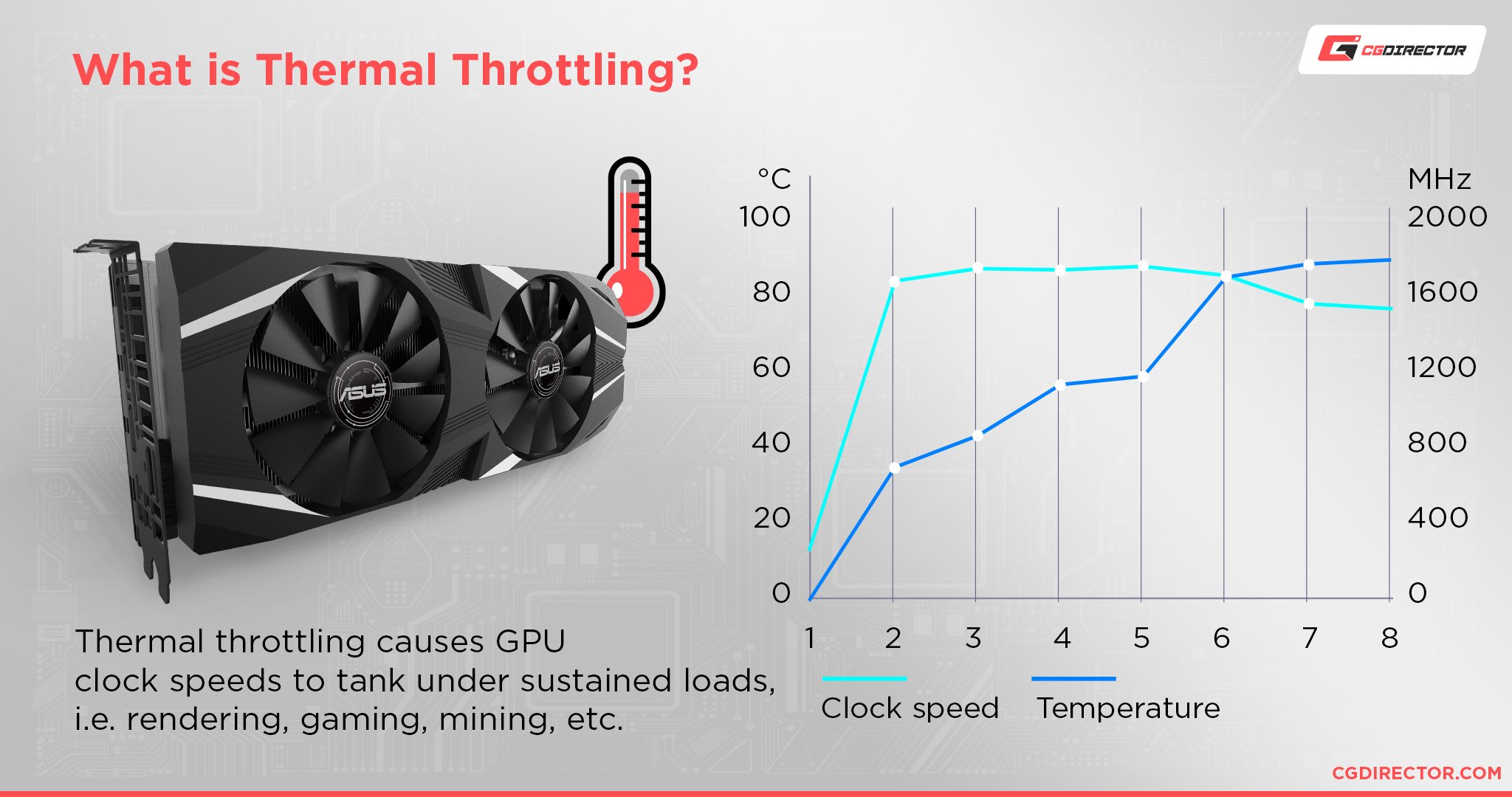
GPU fans have set temperature points to start spinning. These points are called activation thresholds. When the GPU temperature passes this limit, the fans turn on. If the temperature stays below, the fans remain off. This helps reduce noise during light use. It also prevents wear on the fans.
Temperature Sensors Role
Temperature sensors measure how hot the GPU is. They send this data to the fan controller. The controller uses the data to decide fan speed. As the GPU gets hotter, fans spin faster. If the GPU cools down, fans slow or stop. This keeps the GPU at a safe temperature.
Credit: www.cgdirector.com
When Gpu Fans Stay Still
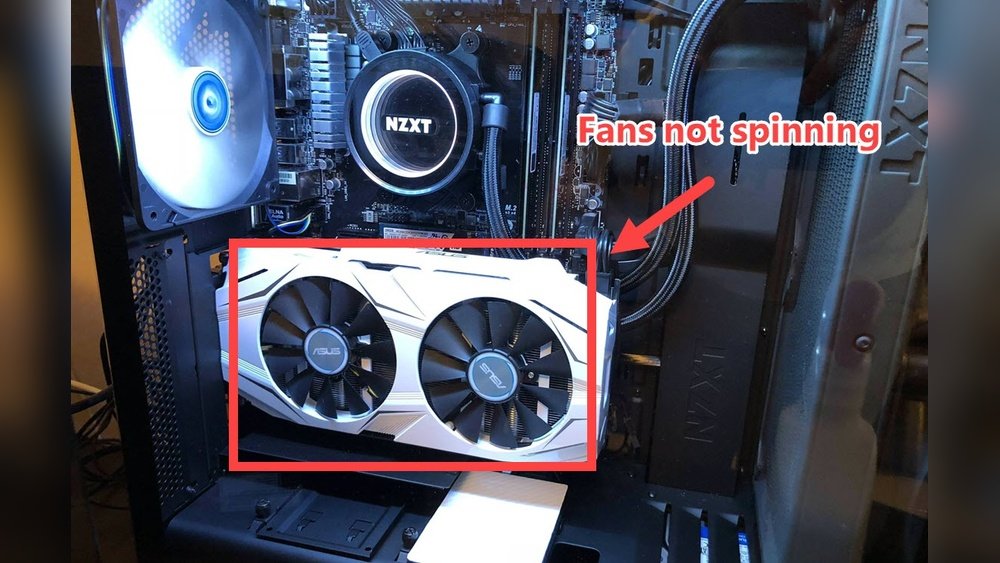
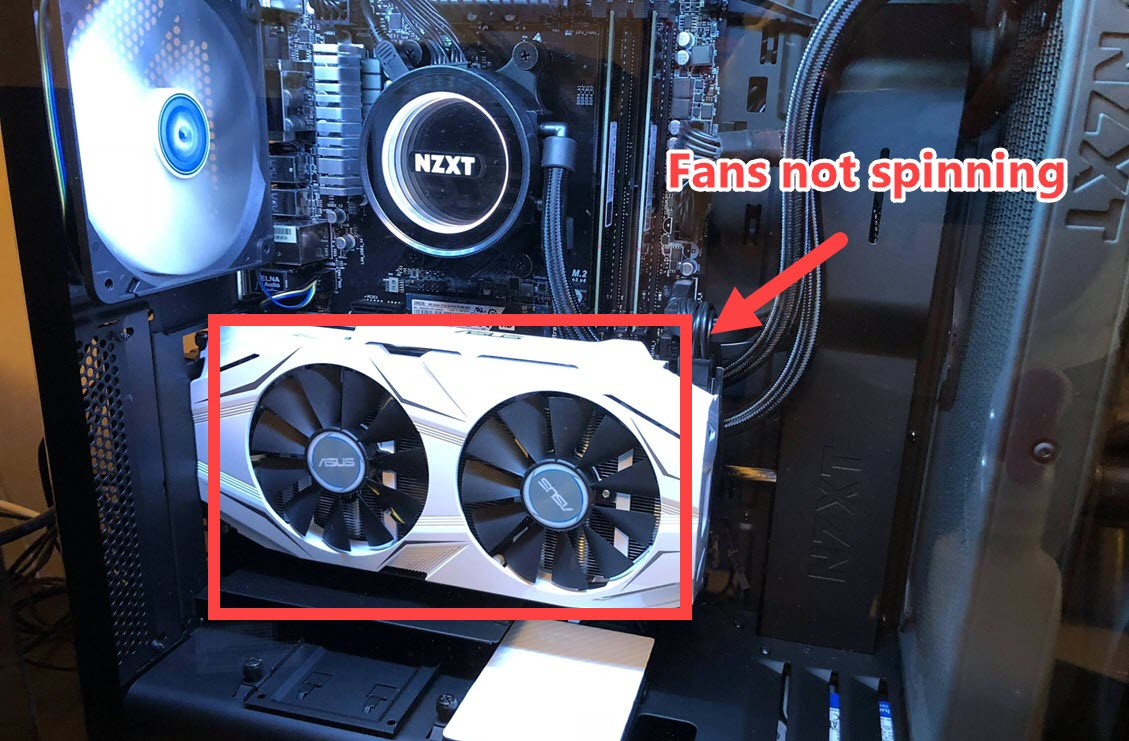
Sometimes, GPU fans do not spin even when the computer is on. This can seem strange or worrying. The truth is, many modern graphics cards keep their fans still under certain conditions. This helps keep the system quieter and cooler in a smart way.
Understanding why fans stay still helps users know their GPU works fine. It also explains how cooling works without noise. Let’s explore the main reasons GPU fans do not always spin.
Idle And Low Load Scenarios
GPU fans often stay still when the computer is idle. This means no heavy tasks like gaming or video editing are running. The graphics card temperature stays low in these cases. Low heat means fans do not need to run.
During low load, the GPU uses less power. This reduces heat production. The fan only starts spinning when temperature rises. This saves energy and avoids unnecessary noise.
Passive Cooling Benefits
Passive cooling means the GPU cools without fan movement. Some GPUs use big heat sinks to spread heat. This design helps keep the card cool quietly. Fans start only when heat gets too high.
Silent operation is a key benefit of passive cooling. It makes the computer quieter and more pleasant to use. It also reduces dust buildup inside the case. This keeps the GPU cleaner for longer.
Factors Causing Gpu Fan Noise
GPU fan noise often puzzles many users. It can be loud or quiet depending on several factors. Understanding these causes helps manage and reduce unwanted noise. Here are the main reasons why your GPU fan might be noisy.
High Workload Impact
When a GPU works hard, it produces more heat. The fan speeds up to cool it down. Heavy gaming or video editing raises the workload. This makes the fan spin faster and louder. The noise is a sign the GPU is under stress.
Dust And Dirt Accumulation
Dust and dirt build up inside the fan over time. This blocks airflow and causes the fan to work harder. The fan blades get uneven, causing vibrations. These vibrations increase noise levels. Cleaning the GPU can reduce this problem.
Bearing Wear And Tear
Fan bearings allow smooth spinning of the blades. Over time, these bearings wear out or get damaged. Worn bearings create grinding or rattling sounds. This noise shows the fan needs repair or replacement. Regular checks help catch this early.
Credit: www.reddit.com
Fan Control Technologies
GPU fan control technologies manage how and when the fans spin. These systems help keep the graphics card cool without making too much noise. They adjust fan speed based on the temperature of the GPU. This balance protects the hardware and improves user comfort. Different methods exist to control fan behavior.
Bios And Software Controls
BIOS and software allow users to set fan speeds manually or automatically. The BIOS has basic fan settings that apply at startup. Software tools offer detailed control over speed curves and thresholds. Users can create custom profiles for different tasks. These controls help optimize cooling and noise levels. Many GPU manufacturers provide dedicated software for fan management.
Zero Rpm Modes
Zero RPM mode stops the fans when the GPU is cool. Fans only start spinning when the temperature rises above a set level. This reduces noise during light tasks like web browsing or video playback. It also saves energy and extends fan life. Zero RPM is common in modern GPUs and helps create a quieter environment.
Troubleshooting Noisy Gpu Fans
Noisy GPU fans can be a real problem. They make your computer loud and distracting. Knowing how to fix noisy fans helps keep your PC quiet and cool. This section shows ways to troubleshoot noisy GPU fans. Follow these simple steps to reduce noise and improve performance.
Cleaning And Maintenance
Dust buildup is a common cause of noisy GPU fans. Dust blocks airflow and makes fans work harder. Use compressed air to blow dust off fan blades and vents. Clean your PC regularly to stop dust from building up. Make sure the computer is off and unplugged before cleaning.
Check fan blades for dirt or grime. Wipe gently with a soft cloth if needed. Keep your PC in a clean, dust-free area to reduce noise. Clean fans run smoother and quieter.
Adjusting Fan Curves
Fan curves control how fast your GPU fans spin. You can change fan speed based on temperature. Use software like MSI Afterburner or GPU manufacturer tools. Set fan speed to stay low when the GPU is cool. Increase speed only when the GPU gets hot.
Adjusting fan curves lowers noise during light use. It also keeps temperatures safe under heavy load. Find a balance between cooling and noise for your needs. Small changes can make a big difference in fan noise.
When To Replace Fans
Fans wear out after long use. Listen for grinding, rattling, or other unusual sounds. These noises may mean the fan is broken or damaged. Check if the fan blades spin freely by hand. Replace the fan if it does not spin smoothly.
Use fans made for your GPU model. Proper replacement keeps your graphics card cool and quiet. Don’t ignore noisy fans; they can cause overheating and damage. Replacing old fans extends your GPU’s life and improves performance.
Improving Gpu Cooling And Noise
Improving GPU cooling and noise helps your computer run better and last longer. Cooler GPUs perform faster and avoid damage. Less noise makes your workspace calm and more comfortable. Good cooling keeps fans from running too loud or too often.
Aftermarket Cooling Solutions
Aftermarket coolers replace the stock GPU fans and heatsinks. These parts can cool better and run quieter. Options include air coolers with bigger fans or liquid cooling systems. Liquid coolers use water to move heat away quickly. Choose a cooler that fits your case and GPU size.
Installing aftermarket cooling might need some skill. It can lower GPU temperature by many degrees. This means fans spin less and noise drops. Many users find this upgrade worth the effort for a quieter PC.
Case Airflow Optimization
Good airflow inside your PC case helps cool the GPU. Place intake fans at the front or bottom. Exhaust fans should be at the back or top. This setup moves cool air in and hot air out.
Keep cables tidy to avoid blocking airflow. Dust filters on fans help keep dirt away. Clean your case regularly to keep airflow smooth. Proper airflow reduces GPU heat and fan noise.
Frequently Asked Questions
Do Gpu Fans Always Spin When Powered On?
No, GPU fans usually stay off at low temperatures. They spin only when the GPU reaches a certain heat level to cool down and save energy. This feature helps reduce noise and prolongs fan lifespan.
Why Do Some Gpu Fans Stop Spinning Sometimes?
GPU fans stop spinning when the GPU temperature is low. Modern GPUs use a zero RPM mode to reduce noise and power consumption. Fans start spinning only when the GPU needs active cooling.
Can Gpu Fans Damage If They Spin Constantly?
Constant spinning can wear out GPU fans faster. However, they are designed to handle continuous operation under heavy load. Zero RPM mode helps extend fan life by reducing unnecessary spinning.
How To Know If Gpu Fans Are Working Properly?
Monitor GPU temperature and listen for fan noise under load. Use software tools to check fan speed. If fans don’t spin at high temperatures, there might be a hardware or driver issue.
Conclusion
GPU fans do not always spin. They start only when needed. This helps keep your computer quiet. Fans turn on as the GPU heats up. When the temperature lowers, fans stop spinning. This is normal and saves energy. Watching your GPU fan can help spot issues.
If fans never spin, check the GPU settings. Proper fan function protects your hardware. Understanding this can ease concerns about your PC. Keep your system clean and cool for best results.