How to Check Vram on Gpu: Easy Steps to Boost Performance
Wondering how much VRAM your GPU has? Knowing your graphics card’s VRAM is key to understanding its power and what games or applications it can handle smoothly.
If you’ve ever faced slow performance or glitches, checking your VRAM could be the simple step you’re missing. You’ll learn easy ways to find out exactly how much VRAM your GPU holds—no tech jargon, just clear steps you can follow right now.
Keep reading to unlock your PC’s full potential and make smarter choices for your gaming or work setup.
What Is Vram And Why It Matters
VRAM stands for Video Random Access Memory. It is a special type of memory used by your computer’s graphics card. VRAM stores image data and textures that the GPU needs to create pictures on your screen. The more VRAM your GPU has, the better it can handle high-quality images and videos.
VRAM affects how smoothly games run and how clear videos look. It also helps with tasks like video editing and 3D rendering. If your VRAM is too low, you might see blurry images or slow performance. Knowing about VRAM helps you understand your computer’s graphic ability.
What Vram Does In Your Gpu
VRAM holds the data your GPU uses to draw images fast. It stores textures, frame buffers, and shaders. This helps your graphics card work without delays. VRAM is faster than regular RAM for these tasks. It makes graphics look sharp and animations smooth.
How Vram Affects Gaming And Graphics
Games use lots of VRAM to load detailed textures and effects. More VRAM means games can use higher settings. This results in better visuals and less lag. Without enough VRAM, games may lower quality or run slower. VRAM size can limit your gaming experience.
Vram And Video Editing
Video editing software also needs VRAM. It stores video frames and effects while you edit. More VRAM helps with faster rendering and playback. This makes editing easier and more efficient. Low VRAM can cause slow previews and delays.
:max_bytes(150000):strip_icc()/how-to-check-your-vram-52357832-2e00910c05254e97bd8643cbad7ec1a2.jpg)
Credit: www.lifewire.com
Methods To Check Vram On Windows
Checking the VRAM on your GPU helps you understand your computer’s graphics power. It tells how much video memory your system has for running games, videos, and apps. Windows offers several ways to find this information quickly. Each method shows VRAM details differently. Choose one that feels easiest for you.
Using Display Settings
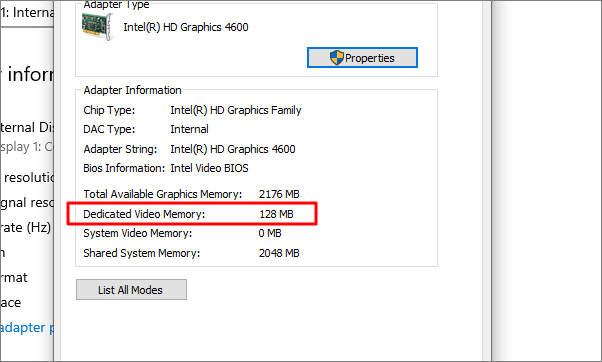
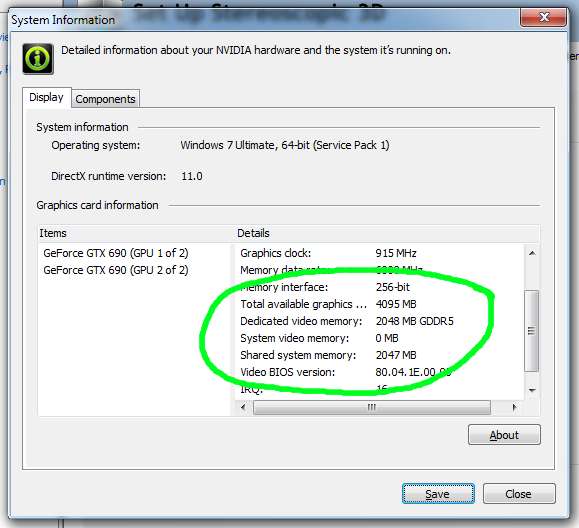
Open the Settings app on your Windows PC. Select “System” and then click “Display.” Scroll down and click “Advanced display settings.” Here, you will see the display information. Look for “Display adapter properties” and click it. A new window opens with a “Adapter” tab. The “Dedicated Video Memory” shows your VRAM size.
Through Directx Diagnostic Tool
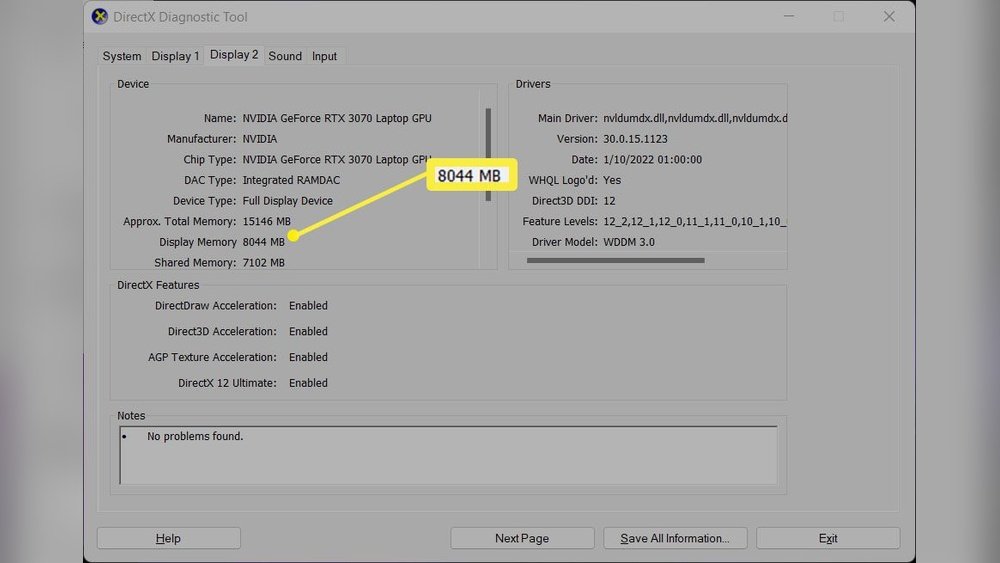
Press Windows + R to open the Run box. Type “dxdiag” and press Enter. The DirectX Diagnostic Tool will open. Click the “Display” tab to see your GPU details. Look for the “Display Memory” or “VRAM” section. This shows the total video memory available on your graphics card.
Via Task Manager
Right-click the taskbar and select “Task Manager.” Switch to the “Performance” tab. Select “GPU” from the left panel. The right side shows your GPU usage and VRAM. Look for “Dedicated GPU memory” to find the VRAM size. This method also shows real-time GPU activity.
Using Third-party Software
Download trusted third-party tools like GPU-Z or Speccy. Install and open the software on your PC. These programs display detailed information about your GPU. VRAM size is shown clearly in the main window. They also provide extra details about your graphics card health and specs.
How To Check Vram On Mac
Checking your Mac’s VRAM is simple and quick. VRAM is the memory your graphics card uses to process images and videos. Knowing your VRAM helps you understand your Mac’s graphics power. It is useful for gaming, video editing, and running graphic apps.
Macs offer easy ways to find VRAM information. You do not need extra software. Just follow the steps below to check VRAM on your Mac.
Using About This Mac
Click the Apple logo at the top-left corner of your screen. Select “About This Mac” from the menu. A window opens showing your Mac’s overview. Here, you can see basic information about your Mac.
Look for the “Graphics” section. It shows the name of your graphics card and the VRAM size. The VRAM size appears as memory, for example, “1536 MB” or “4 GB.” This method is fast and good for a quick check.
Through System Report
Open “About This Mac” again by clicking the Apple logo. Click on the “System Report” button. This opens a detailed system information window.
In the sidebar, find and click “Graphics/Displays.” You will see detailed information about your graphics hardware. Look for “VRAM (Total)” or “VRAM” to find the exact VRAM size.
This method gives more detailed info than “About This Mac.” It is useful for deeper system checks or troubleshooting.
Checking Vram On Linux Systems
Checking VRAM on Linux systems helps you understand your GPU’s memory. This is important for gaming, video editing, or running software that needs good graphics. Linux does not have one standard tool, but you can use commands or graphical apps to find VRAM details. Both methods are simple and fast.
Using Terminal Commands
Open the terminal on your Linux system. Type lspci -v | grep -i vga -A 12. This shows your graphics card details, including VRAM size. Another command is glxinfo | grep "Video memory". It gives VRAM info if your system supports it.
You can also use sudo lshw -C display. Look for the line labeled “size” or “memory.” This shows the VRAM capacity. These commands work on most Linux distributions like Ubuntu, Fedora, and Debian.
Using Gui Tools
Graphical tools make it easier to check VRAM without typing commands. One popular tool is “Hardinfo.” Install it via your package manager, then open it. Go to the “Devices” section and click “PCI Devices.” Find your GPU to see VRAM details.
Another tool is “Nvidia X Server Settings” for Nvidia GPUs. It shows memory usage and VRAM size. For AMD cards, “radeontop” can give VRAM data in a simple window. These apps provide clear visuals for VRAM size and usage.
Interpreting Vram Information
Understanding VRAM details helps you know your GPU’s power. VRAM stores images and textures your computer uses. This memory affects how well your graphics perform. Knowing what VRAM size means can guide your choices for games and apps.
Understanding Vram Size
VRAM size is the amount of memory on your graphics card. More VRAM means your GPU can handle bigger files and more details. Small VRAM may cause slow performance or blurry images. Check VRAM size to match your needs for gaming or design work.
Vram Vs System Ram
VRAM and system RAM are different types of memory. System RAM helps your computer run programs and processes. VRAM only stores graphics data for display tasks. Your GPU cannot use system RAM as VRAM. Both are important but serve different roles.
Impact On Gaming And Graphics
Games and graphic software need enough VRAM to run smoothly. Low VRAM can cause lag, crashes, or low-quality graphics. High VRAM allows better textures and higher resolutions. Choose a GPU with enough VRAM to enjoy smooth visuals and good performance.
Credit: www.esseg.eu
Tips To Optimize Gpu Performance
Optimizing your GPU helps your computer run smoother and faster. It also makes sure games and apps work without lag. Small changes can improve your GPU’s power. This saves time and avoids frustration.
Here are some simple tips to keep your GPU performing well.
Updating Gpu Drivers
GPU drivers control how your graphics card works with your computer. Old drivers can cause slowdowns and errors. Check your GPU manufacturer’s website for the latest drivers. Download and install updates regularly. This keeps your GPU running at its best and fixes bugs.
Adjusting Graphics Settings
Lowering graphics settings in games or apps reduces the load on your GPU. Try reducing resolution or turning off extra effects like shadows and reflections. This helps maintain smooth frame rates. It also reduces overheating and power use. Find a balance between good visuals and performance.
Managing Background Processes
Many apps run in the background and use GPU power. Close programs you don’t need while gaming or working with graphics. Use Task Manager to see what uses the most resources. Stopping unnecessary processes frees up your GPU. This improves speed and prevents slowdowns.
Credit: superuser.com
Frequently Asked Questions
What Is Vram And Why Does It Matter For Gpus?
VRAM is video memory used by GPUs to store image data. It affects graphics quality and performance in games and software. More VRAM helps in handling high-resolution textures and complex visuals smoothly.
How Can I Check Vram On Windows Pc?
Open Display Settings, scroll to Advanced Display Settings, then click Display Adapter Properties. The dedicated video memory shows your VRAM size clearly.
Does Vram Size Impact Gaming Performance?
Yes, higher VRAM allows better handling of detailed graphics and textures. Insufficient VRAM can cause lower frame rates and stuttering in games.
Can I Check Vram On Mac Computers?
Yes, click the Apple menu, select About This Mac, then click System Report. Under Graphics/Displays, you’ll find VRAM information listed.
Conclusion
Checking VRAM on your GPU is simple and quick. Knowing your VRAM helps with gaming and software choices. You can use built-in tools on Windows or Mac. Third-party apps also show detailed VRAM info. Keep your drivers updated for accurate readings.
Regular checks ensure your system runs smoothly. Now, you can easily find VRAM without confusion. This small step improves your computer experience. Try these methods and see the difference yourself.