How to Test If Gpu is Failing: Quick & Easy Diagnostic Tips
Is your computer acting up with strange glitches, crashes, or slow graphics? You might be wondering if your GPU is failing.
Knowing how to test your GPU can save you time, money, and frustration. You’ll discover simple and effective ways to check if your graphics card is really the problem. Keep reading, because the sooner you find out what’s going on, the sooner you can fix it and get back to smooth, fast performance.
Signs Of A Failing Gpu
Knowing the signs of a failing GPU helps you catch problems early. A bad GPU can cause many issues on your computer. These signs often show before the GPU stops working completely. Watch for these symptoms to avoid bigger problems.
Visual Artifacts And Glitches
Strange colors or shapes appear on the screen. Lines or dots may flicker during use. Images might look distorted or broken. These are common signs of a GPU starting to fail. They happen because the GPU cannot process graphics correctly.
Unexpected Crashes And Freezes
Your computer crashes without warning. Programs stop working or freeze while running. These crashes happen more often during graphic-heavy tasks. A failing GPU struggles to keep up with the workload. This causes sudden shutdowns or freezes.
Performance Drops In Games
Games run slower than usual. Frame rates drop, causing lag and stutter. The smooth gameplay you had is gone. The GPU cannot handle games at normal settings. This drop in performance signals GPU problems.
Overheating Symptoms
The GPU becomes very hot during use. Fans run loudly, trying to cool it down. Your computer may shut off to prevent damage. Overheating can cause permanent harm to the GPU. Watch for high temperatures and loud fan noise.

Credit: www.youtube.com
Basic Hardware Checks
Basic hardware checks help find common GPU problems fast. These steps need no special tools or skills. They ensure your graphics card and PC parts connect well and work properly. Start simple to save time and avoid extra costs.
Checking hardware keeps your GPU safe from damage. It also stops small problems from growing. Follow these three easy steps to check your GPU’s basic health.
Inspect Physical Connections
Turn off your PC and unplug it. Open the case carefully. Look at the GPU slot on the motherboard. Check if the GPU sits firmly and straight. Loose cards cause display issues or crashes. Also, inspect cables linked to the GPU. Make sure no wires are bent or broken.
Clean Dust And Debris
Dust blocks air and cool air flow. It makes the GPU overheat and fail. Use a soft brush or compressed air. Clean fans and heatsinks gently. Avoid touching chip parts directly. Clean regularly to keep the GPU cool and working well.
Verify Power Supply
GPU needs enough power to run well. Check the power connectors attached to the GPU. They must fit tight and have no damage. Use a power supply with enough wattage for your GPU model. Low power causes crashes and screen flickers. Test your PSU if needed for stable output.
Software Tools For Gpu Testing
Software tools help check if a GPU is working well or failing. These programs test the graphics card by running different tasks. They also monitor how the GPU handles stress and heat. Using these tools can show problems early. This helps avoid bigger issues and keeps the computer safe.
Using Benchmarking Programs
Benchmarking programs measure the GPU’s performance. They run graphics tasks and score the results. Compare these scores to average values for the same GPU model. Low scores may mean the GPU is failing or slowing down. Popular benchmarking tools include 3DMark and Unigine Heaven. These programs are easy to use and give quick feedback.
Running Stress Tests
Stress tests push the GPU to its limits. They make the card work hard for a long time. This reveals any faults under heavy load. Stress testing tools like FurMark and OCCT are common choices. Watch for crashes, glitches, or artifacts during the test. These signs often point to a failing GPU.
Monitoring Temperature And Usage
Keeping an eye on GPU temperature is vital. High heat can cause damage and failure. Use software like MSI Afterburner or HWMonitor to track temperature and usage. Normal temperatures stay below 85°C under load. Sudden spikes or constant high heat can indicate cooling issues or GPU problems. Monitoring helps catch trouble before it worsens.
Credit: www.driversupport.com
Driver And System Updates
Driver and system updates play a key role in keeping your GPU healthy. Outdated or faulty drivers can cause crashes, glitches, and slow performance. Checking and updating these components can help identify if the GPU is failing or just needs a software fix.
Update Gpu Drivers
Start by updating your GPU drivers to the latest version. Visit the official website of your GPU maker, such as NVIDIA or AMD. Download and install the newest drivers. This often fixes bugs and improves compatibility with games and apps. Updated drivers help the GPU run smoothly and avoid errors.
Check Operating System Updates
Next, check for updates to your operating system. Windows or macOS updates include important patches that support hardware like GPUs. Go to your system settings and look for updates. Install all available patches. This step ensures your system can work well with the GPU drivers.
Roll Back Problematic Drivers
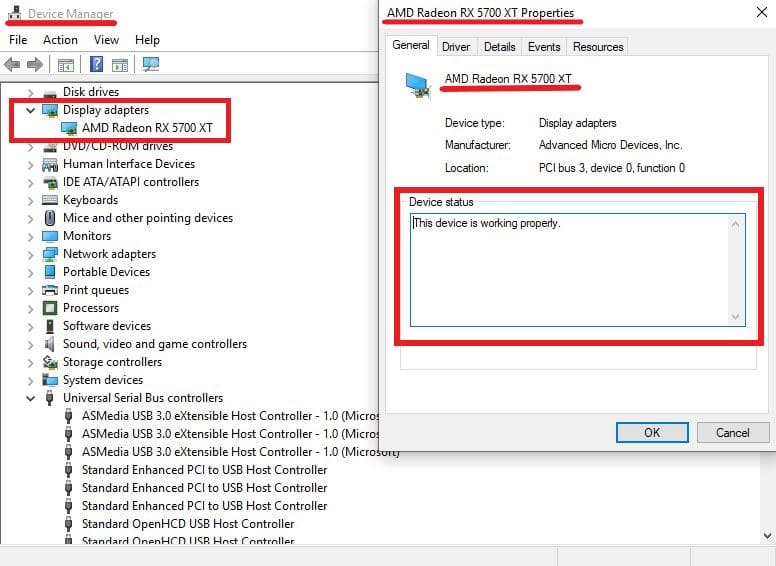
If problems started after a driver update, try rolling back to the previous version. Go to Device Manager, find your GPU, and select the option to roll back the driver. This can fix issues caused by new, unstable drivers. Testing the older driver helps confirm if the latest update caused GPU troubles.
Advanced Diagnostic Methods
Advanced diagnostic methods help find deep problems in your GPU. Basic checks may not show all issues. These methods go beyond simple tests. They find hidden faults that affect performance or cause crashes. Use these steps to know if your GPU is failing.
Testing With Another System
Remove your GPU and test it in a different computer. This shows if the problem is with the GPU or your PC. If the GPU works well in another system, the issue is likely your computer. If it still fails, your GPU may have a problem. This method gives clear proof of hardware issues.
Using Diagnostic Software
Run special software made for GPU testing. These tools check temperature, clock speed, and errors. Programs like FurMark or GPU-Z stress the GPU and watch for failures. They show if your GPU overheats or has bad memory. These tests give detailed data about your GPU’s health.
Consulting Manufacturer Tools
Visit your GPU maker’s website for official tools. Brands like NVIDIA or AMD offer software to check your GPU. These tools can scan for faults and update drivers. They provide trusted results directly from the manufacturer. Using these tools helps get accurate information about your GPU’s condition.
When To Replace Your Gpu
Knowing when to replace your GPU is important for maintaining good computer performance. A failing GPU can cause crashes, glitches, and slowdowns. Sometimes, repairs work. Other times, replacement is better. Deciding when to replace your GPU depends on several factors. These include repair costs, warranty status, and your needs.
Evaluating Repair Vs Replacement
First, check if the GPU can be repaired. Small issues like dust or loose cables may be fixed easily. But hardware damage or overheating often means costly repairs. If repair costs are high, replacement is usually cheaper. Also, older GPUs may not perform well after repair. Consider if a new GPU offers better value and performance.
Warranty And Support Options
Check your GPU’s warranty status. If it is still covered, contact the manufacturer for repair or replacement. Warranties save money and hassle. Some brands offer extended support or replacement programs. Without warranty, repairs or replacement cost you. Keep receipts and documents for easier claims. Warranty support can guide your decision to replace or fix.
Choosing A New Gpu
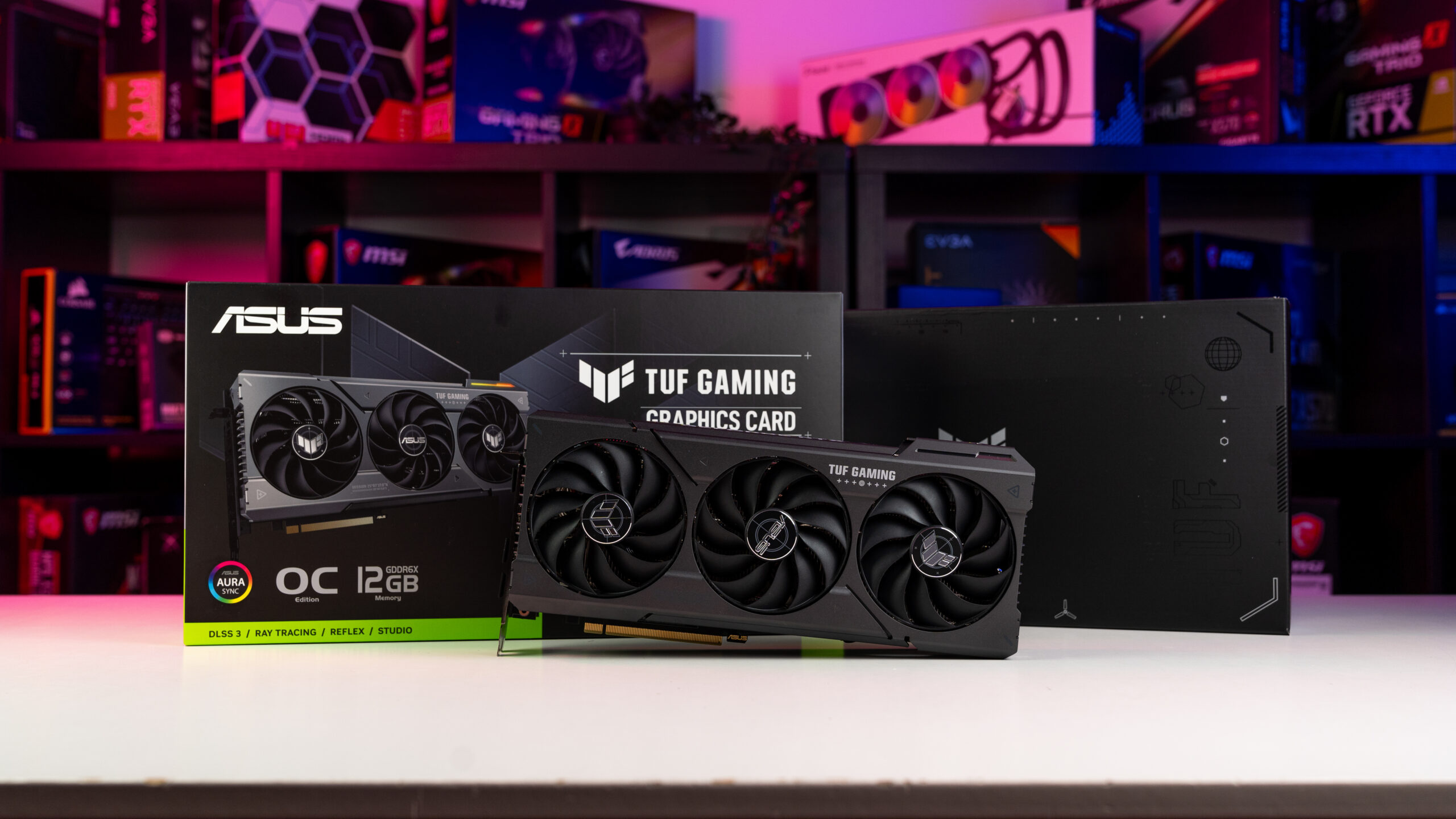
Pick a new GPU that fits your needs and budget. Look for compatibility with your system. Consider the tasks you do most, like gaming or design. Newer models offer better speed and features. Balance price with performance to avoid overspending. Check reviews and specs before buying. A good GPU improves your computer’s speed and experience.
Credit: www.pcguide.com
Frequently Asked Questions
How Can I Check If My Gpu Is Failing?
Monitor artifacts like screen glitches, crashes, or driver errors. Use stress tests like FurMark to detect GPU instability or overheating. Also, check device manager for hardware errors and ensure your GPU drivers are up to date.
What Are Common Signs Of A Failing Gpu?
Common signs include screen flickering, random crashes, overheating, and poor game performance. Visual artifacts and system freezes during graphics-heavy tasks also indicate GPU issues.
Can Overheating Cause Gpu Failure?
Yes, overheating can damage GPU components, leading to failure. Ensure proper cooling, clean fans, and good airflow to prevent overheating and extend GPU lifespan.
Is A Gpu Stress Test Reliable For Failure Detection?
Yes, stress tests push your GPU to its limits to reveal instability or hardware faults. Consistent crashes or artifacts during testing often indicate a failing GPU.
Conclusion
Testing your GPU helps catch problems early. Regular checks keep your computer running smooth. Simple steps reveal if your GPU needs repair. Avoid bigger issues by acting on test results. Stay patient and follow each test carefully. This way, you protect your device and save money.
Keep your system healthy with regular GPU tests. Don’t wait for crashes—check your GPU today.