How to Adjust Gpu Fan Speed: Ultimate Guide for Optimal Cooling
If your GPU is running hot or making too much noise, adjusting the fan speed can make a big difference. You might think it’s complicated, but it’s easier than you expect.
By taking control of your GPU fan speed, you can keep your system cooler, boost performance, and extend the life of your graphics card. In this guide, you’ll learn simple steps to customize your GPU fan speed safely and effectively.
Ready to make your PC run smoother and quieter? Let’s dive in!
Why Fan Speed Matters
Adjusting your GPU fan speed plays a key role in maintaining your computer’s health. Fans help keep your graphics card cool. Keeping the GPU cool stops damage and slowdowns. Knowing why fan speed matters helps you make smart choices for your system.
Impact On Cooling
GPU fans push air over hot parts. Faster fans move more air. This cools the GPU better. Good cooling stops the GPU from overheating. Overheating can cause crashes or shutdowns. Proper fan speed helps your GPU last longer.
Effect On Performance
Cool GPUs work at full power. When a GPU gets too hot, it slows down. This is called throttling. Raising the fan speed can stop throttling. This keeps your games and apps running smooth. Adjusting fan speed can improve your system’s performance.
Noise Considerations
Faster fans make more noise. Some people find loud fans distracting. Lower fan speeds are quieter but cool less. You must find a good balance. Enough cooling with low noise keeps your PC comfortable to use.
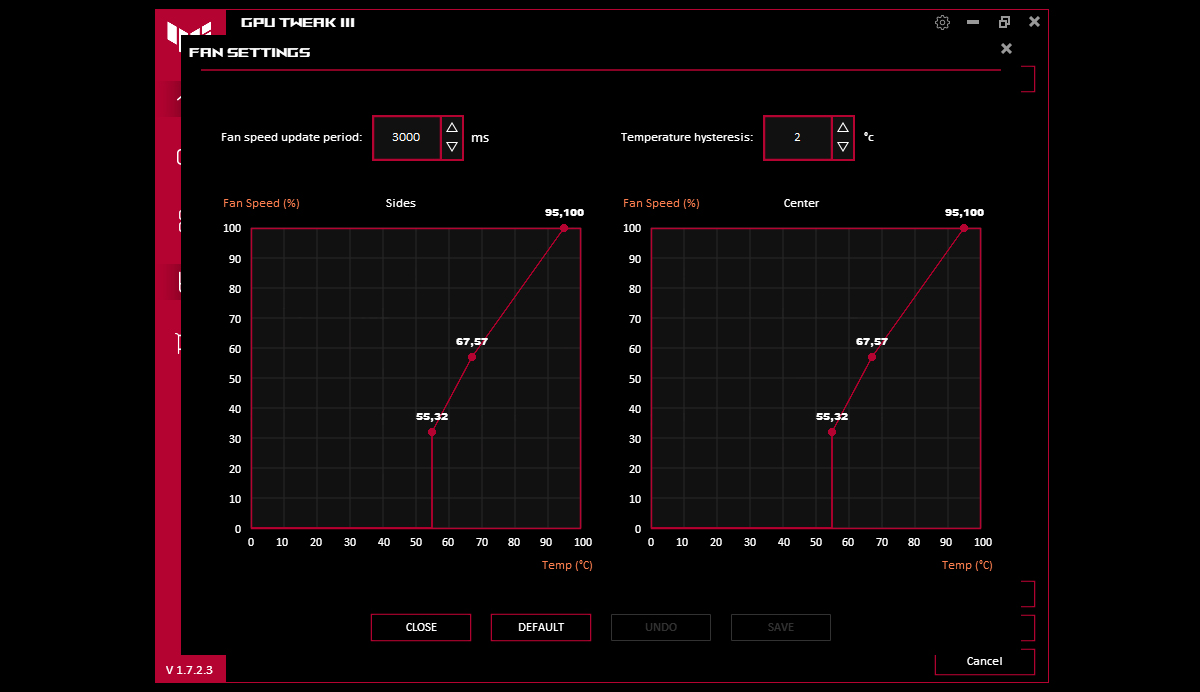
Credit: rog.asus.com
Tools For Adjusting Fan Speed
Adjusting your GPU fan speed helps keep your graphics card cool. This prevents overheating and noise issues. Several tools let you control fan speed easily. Choose one based on your comfort and needs.
Manufacturer Software
Many GPU makers offer their own software. These programs work well with their hardware. They provide simple controls for fan speed. Examples include NVIDIA’s GeForce Experience and AMD’s Radeon Software. These tools often show temperature and fan status.
Third-party Applications
Third-party apps give more control over fan settings. Popular options are MSI Afterburner and SpeedFan. They support many GPU brands and models. These apps let you create custom fan curves. You can adjust how fast fans run at different temperatures.
Bios Settings
Advanced users can change fan speed in the BIOS. This method requires caution and some experience. BIOS options vary by motherboard and GPU. Changing settings here can improve cooling but may affect stability. Always back up your data before making changes.
Steps To Change Fan Speed
Adjusting your GPU fan speed helps control temperature and noise. This process can improve your computer’s performance and lifespan. Follow simple steps to change the fan speed safely. You can choose manual or automatic controls based on your needs.
Accessing Fan Controls
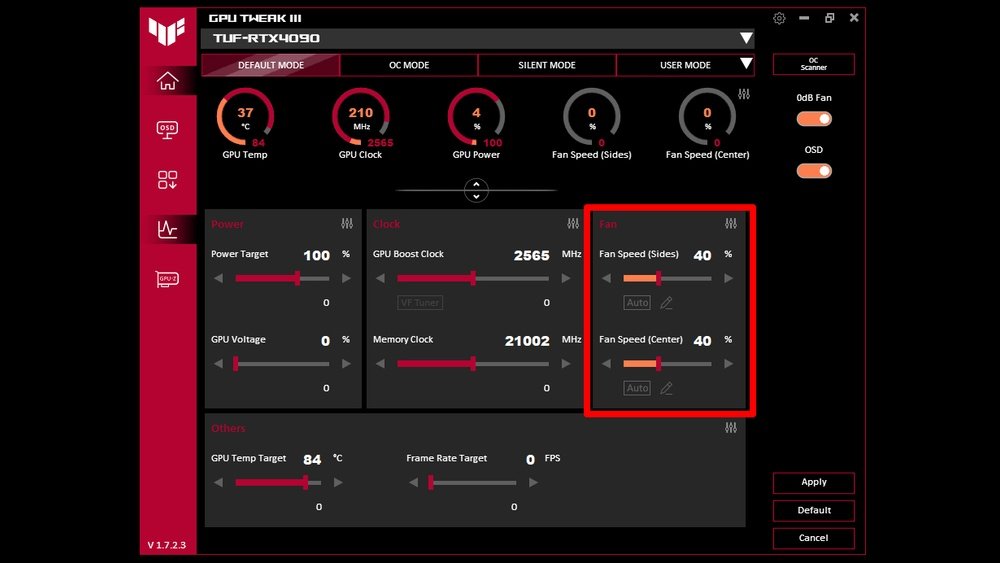
Start by opening your GPU software or a third-party app. Popular tools include MSI Afterburner and EVGA Precision X1. Find the section labeled “Fan” or “Cooling.” Here, you can view current fan speeds and temperature settings.
Ensure your software is updated for best results. Some GPU brands have their own apps with built-in fan controls. If unsure, check your GPU manufacturer’s website.
Setting Manual Fan Curves
Manual fan curves let you set fan speed based on temperature levels. This gives you control over cooling and noise. Drag points on the graph to set speeds at different temperatures. For example, set a low speed at 30°C and increase it to 70% at 70°C.
Test your settings by monitoring GPU temperature and fan noise. Adjust points until you find a balance between cooling and quietness. Save your curve once satisfied.
Using Automatic Profiles
Automatic profiles change fan speed based on preset rules. These profiles adjust fans without your input. Choose from options like “Silent,” “Balanced,” or “Performance.” The software handles fan speed changes during different tasks.
Automatic profiles suit users who prefer easy setup. They offer decent cooling with less noise. You can switch profiles anytime depending on your workload.

Credit: superuser.com
Best Fan Speed Settings
Finding the best fan speed settings for your GPU is essential. It helps keep your graphics card cool and quiet. Proper settings improve performance and extend the life of your hardware. Adjusting fan speed correctly prevents overheating and loud noise during use. Let’s explore how to set your fan speed for optimal balance and efficiency.
Balancing Cooling And Noise
Cooling your GPU is important to prevent damage. Fans running too fast can be very noisy. Slower fan speeds reduce noise but might let temperatures rise. The goal is to find a balance where the GPU stays cool without too much sound. Start with moderate fan speeds and test noise levels during use. Adjust gradually to keep both temperature and noise at safe levels.
Temperature Thresholds
Set fan speeds based on GPU temperature thresholds. For example, keep fans low below 50°C. Increase speed progressively as the temperature rises. Many GPU tools allow custom fan curves for this. Set fans to reach maximum speed at around 80-85°C. This prevents overheating while avoiding constant loud noise. Adjust thresholds according to your GPU model and environment.
Customizing For Different Games
Different games stress your GPU differently. Some games require higher fan speeds for longer periods. Others allow lower speeds as they use less GPU power. Create custom fan profiles for each game if possible. This ensures cooling matches the game’s demand. Custom settings improve comfort and maintain GPU health during gameplay.
Troubleshooting Fan Issues
Troubleshooting GPU fan issues is key to keeping your graphics card cool. Fans help prevent overheating and maintain performance. Problems with fan speed or function can cause damage over time. Understanding common issues and solutions saves time and frustration.
Check your GPU fan regularly for signs of trouble. Adjust fan speeds carefully using software or BIOS settings. Watch for errors or strange noises. Fixing fan issues early protects your computer.
Fan Not Responding
The fan may not spin even after speed changes. First, check the fan connection to the GPU. Loose cables cause no response. Restart your PC and try controlling the fan again. Update your GPU drivers as outdated ones may block fan controls. If the fan still does not respond, it might be defective and need replacement.
Overheating Despite Adjustments
Fans run but the GPU temperature stays high. Make sure the fan speed settings are high enough. Clean dust from the fan and heatsink for better airflow. Poor ventilation around your PC case can raise temperatures. Check thermal paste on the GPU chip if overheating continues. Reapplying thermal paste can improve heat transfer.
Software Conflicts
Multiple programs controlling fan speed can cause conflicts. Close all other fan control tools before adjusting settings. Some GPU utilities override manual fan adjustments. Disable automatic fan control in software if it interferes. Use only one trusted program to manage your GPU fan speed. Software conflicts often cause unexpected fan behavior.
Maintaining Gpu Cooling Efficiency
Maintaining GPU cooling efficiency is key to keeping your graphics card healthy and performing well. Proper cooling prevents overheating, which can cause crashes and lower the GPU’s lifespan. Adjusting fan speed is just one part of the process. Other steps ensure your GPU stays cool during heavy use.
Regular Cleaning
Dust builds up on GPU fans and heatsinks over time. This dust blocks airflow and reduces cooling power. Cleaning your GPU regularly removes this dust. Use compressed air to blow dust off the fans and heatsink gently. Do this every few months to keep the cooling system working well.
Improving Case Airflow
Good airflow inside your computer case helps your GPU stay cool. Make sure cables are tidy and do not block air paths. Adding extra case fans can move more air and reduce heat. Arrange fans to push hot air out and pull cool air in. Balanced airflow keeps the GPU temperature lower.
Upgrading Cooling Solutions
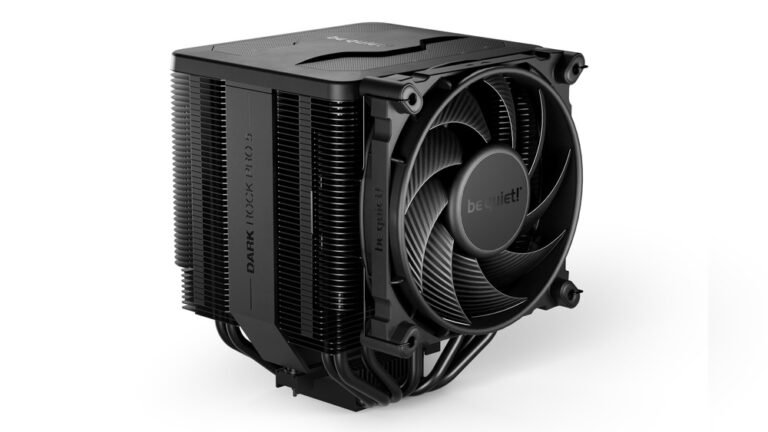
Stock GPU coolers may not be enough for heavy use. Consider upgrading to better cooling options. Aftermarket air coolers offer larger fans and better heatsinks. Liquid cooling systems provide more efficient heat removal. These upgrades lower temperatures and allow quieter fan speeds.

Credit: www.liftingitalia.com
Frequently Asked Questions
How Can I Manually Adjust Gpu Fan Speed?
You can adjust GPU fan speed using software like MSI Afterburner or EVGA Precision X1. These tools offer easy fan curve customization for better cooling and noise control.
Why Should I Control My Gpu Fan Speed?
Controlling GPU fan speed helps balance cooling and noise. It prevents overheating, extends GPU life, and improves gaming or computing performance.
What Is The Safe Gpu Fan Speed Range?
Typically, a GPU fan speed between 30% and 70% is safe. Higher speeds improve cooling but increase noise, while lower speeds reduce noise but may risk overheating.
Can Adjusting Fan Speed Void My Gpu Warranty?
Adjusting fan speed via software usually does not void warranties. However, hardware modifications or unsafe settings causing damage may void it. Always check your GPU manufacturer’s policy.
Conclusion
Adjusting your GPU fan speed helps keep your system cool and quiet. It can prevent overheating and improve performance. Always monitor temperatures while changing fan settings. Start slow and watch how your GPU reacts. Use reliable software to make adjustments safely.
Remember, balancing cooling and noise is key. Regular checks help maintain your GPU’s health. Small changes make a big difference over time. Stay patient and careful for the best results.