How to Check Gpu on Laptop: Quick and Easy Methods Revealed
Wondering how to check the GPU on your laptop? Whether you’re a gamer, a designer, or just curious about your computer’s power, knowing your GPU can make a big difference.
It helps you understand how well your laptop can handle games, videos, or heavy software. You’ll discover simple steps to find out exactly what GPU your laptop has—no tech jargon, no confusion. Keep reading, and you’ll unlock the secret to getting the most out of your machine.
Locate Your Gpu In Windows
Finding your GPU on a Windows laptop is simple and fast. Your GPU, or graphics processing unit, handles images and videos. Knowing which GPU you have helps with software and gaming choices. Windows offers several easy ways to check your GPU details.
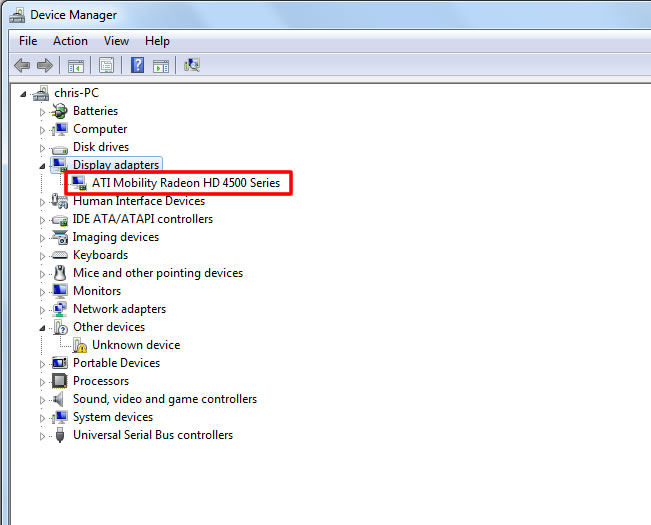
Using Device Manager
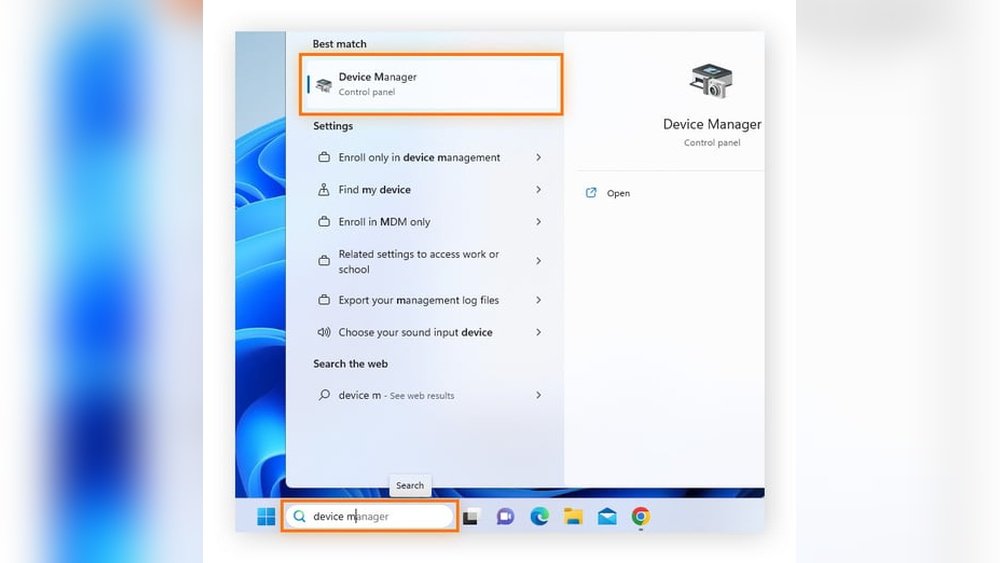
Open Device Manager by typing it in the search bar. Click the “Display adapters” category to expand it. Your GPU name appears under this section. It shows both integrated and dedicated graphics cards. Right-click the GPU for more options or details.
Checking System Information
Press Windows + R keys to open the Run dialog. Type “msinfo32” and press Enter. In the System Information window, select Components > Display. Your GPU details appear on the right side. This method gives you more hardware information.
Accessing Directx Diagnostic Tool
Open the Run dialog again with Windows + R keys. Type “dxdiag” and press Enter to launch the tool. Go to the Display tab for GPU information. You see the name, manufacturer, and memory size. This tool also checks your DirectX version and graphics drivers.
Find Gpu On Mac Laptops
Finding the GPU on a Mac laptop helps you understand your device’s graphics power. This is useful for tasks like video editing, gaming, or software that needs strong graphics. Mac laptops often have integrated or dedicated GPUs, so knowing which one you have matters.
There are simple steps to check your GPU on a Mac. You do not need extra software. The Mac system itself provides clear information about your graphics card. Two easy ways are using “About This Mac” and checking the “System Report.”
Using About This Mac
Click the Apple logo in the top-left corner of your screen. Select “About This Mac” from the dropdown menu. A window will open showing an overview of your Mac’s specs.
Look for the “Graphics” section. It lists the name and type of GPU installed. This method is quick and gives you a basic idea of your graphics hardware.
Checking System Report
From the “About This Mac” window, click the “System Report” button. This opens a detailed report about your Mac’s hardware and software.
In the sidebar, find and click “Graphics/Displays.” This section shows detailed info about your GPU, including VRAM and display settings. It helps you understand your Mac’s graphics capabilities in depth.
Use Third-party Software
Using third-party software is a simple way to check the GPU on your laptop. These tools give detailed information about the graphics card. They are easy to download and use. Most software shows not only the GPU model but also other useful details. This helps you understand your laptop’s graphic power better.
Popular Gpu Detection Tools
Several popular tools help detect your laptop’s GPU. GPU-Z is a favorite for many users. It shows detailed GPU info in a clear layout. Another good option is Speccy. It gives a full overview of your system, including the GPU. HWMonitor is also useful. It tracks GPU temperature and usage in real time.
How To Read Gpu Specs
GPU specs can seem confusing at first. Focus on the GPU name and model number. This tells you the exact chip inside your laptop. Check the memory size next. More memory means better performance for games and apps. The GPU clock speed shows how fast the card runs. Higher speeds usually mean smoother graphics. Also, look for the GPU’s architecture or generation. Newer models often support more features and better efficiency.
Credit: www.myfixguide.com
Identify Integrated Vs Dedicated Gpu
Identifying whether your laptop has an integrated or dedicated GPU helps understand its graphics power. This knowledge aids in troubleshooting, gaming, and software compatibility. Let’s explore the key differences and how to check which GPU your laptop uses.
Differences Between Gpus
Integrated GPUs share memory with the CPU. They use less power and are common in everyday laptops. Dedicated GPUs have their own memory and provide stronger performance. They are found in gaming and professional laptops. Integrated GPUs suit basic tasks. Dedicated GPUs handle heavy graphics and gaming.
How To Spot Which Gpu Is Active
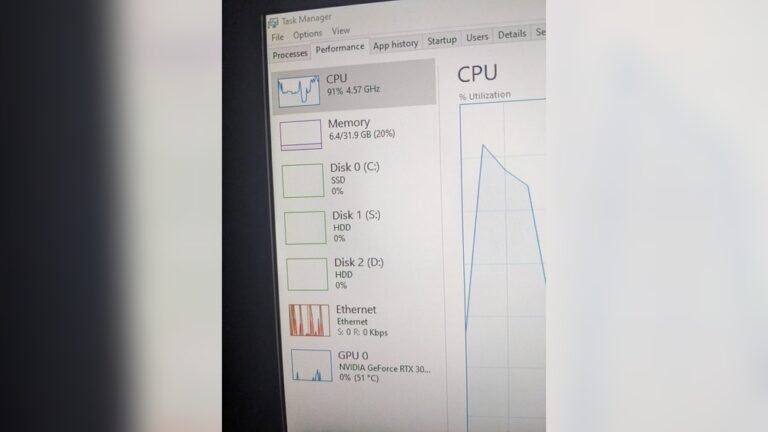
Open the Task Manager by pressing Ctrl + Shift + Esc. Go to the Performance tab and select GPU. It shows the GPU name and usage. You can also check Device Manager under Display Adapters. The active GPU is usually listed first or shows higher activity. Use this method to see which GPU runs your programs.
Check Gpu Performance And Usage
Checking your laptop’s GPU performance and usage helps you understand how well your graphics card works. It shows if the GPU handles tasks smoothly or if it slows down under heavy use. Watching GPU activity also helps spot problems and improve your laptop’s speed.
Different systems offer tools to check GPU performance. Windows and Mac have built-in options and free apps that display real-time GPU use. These tools provide details like GPU temperature, memory use, and processing power.
Using Task Manager On Windows
Windows Task Manager shows GPU usage in real-time. Press Ctrl + Shift + Esc to open Task Manager quickly. Click the “Performance” tab to find your GPU listed. It displays GPU utilization, memory usage, and engine load.
You can see graphs that update every second. This helps track how much power your GPU uses during gaming, video editing, or browsing. Task Manager also shows GPU temperature on some laptops. This info helps avoid overheating.
Monitoring Tools For Mac
Mac computers do not show GPU usage in Activity Monitor by default. Use third-party apps like iStat Menus or gfxCardStatus for detailed GPU stats. These apps display GPU load, temperature, and memory use.
iStat Menus sits in the menu bar for quick access. It shows real-time GPU performance and other system data. gfxCardStatus helps switch between integrated and dedicated GPUs to save battery or boost power.
Using these tools helps Mac users keep an eye on GPU health and speed. They reveal if apps use the GPU heavily or if the laptop runs cool and stable.

Credit: www.hp.com
Troubleshoot Common Gpu Issues
GPU problems can slow down your laptop and cause frustration. Many issues arise from outdated software or conflicts between hardware components. Troubleshooting these problems helps restore smooth performance. Start with simple checks and fixes to get your GPU working well again.
Driver Updates
Outdated drivers often cause GPU problems. Drivers connect your GPU to the system and software. Check for new driver versions on the laptop or GPU maker’s website. Install updates carefully. New drivers fix bugs and improve performance. Restart your laptop after updating drivers to apply changes.
Handling Gpu Conflicts
Sometimes, two GPUs or software programs clash. This conflict can cause crashes or poor graphics. Open Device Manager to see all GPU devices. Disable unused or duplicate GPUs to reduce conflicts. Close apps that might use the GPU heavily. This step helps the main GPU run smoothly and avoid errors.

Credit: www.hp.com
Frequently Asked Questions
How Do I Find My Laptop’s Gpu Model?
Open the Device Manager, expand “Display adapters,” and view the listed GPU. This shows your laptop’s graphics card model quickly and easily.
Can I Check Gpu Details Without Software?
Yes, you can use built-in tools like Task Manager or DirectX Diagnostic Tool (dxdiag) to check your GPU details on Windows laptops.
Why Is Knowing My Laptop Gpu Important?
Knowing your GPU helps determine gaming, video editing, and software performance. It guides you in upgrading or troubleshooting graphics issues.
How To Check Gpu On Macbook Laptops?
Click the Apple menu, select “About This Mac,” then click “System Report. ” Under “Graphics/Displays,” you’ll find detailed GPU information.
Conclusion
Checking your laptop’s GPU is quick and simple. You just need to follow easy steps. Knowing your GPU helps with games, videos, and software. It also guides you when buying new programs or upgrades. Keep this guide handy for future use.
Stay informed about your laptop’s hardware. This way, you can make smart choices. Now, you can check your GPU anytime you want. No confusion, no hassle. Just clear information at your fingertips.