How to Check What Cpu Cooler I Have: Quick & Easy Guide
Are you curious about the CPU cooler inside your computer but don’t know where to start? Knowing what cooler you have is important—it can affect your PC’s performance, noise levels, and even how long your components last.
But finding this information isn’t always easy if you’re not sure what to look for. Don’t worry—you’re in the right place. In this guide, you’ll discover simple and effective ways to check your CPU cooler quickly, so you can make smart decisions about upgrades or maintenance.
Keep reading, and you’ll have the answers you need in no time.
Credit: www.xda-developers.com
Identify Cooler By Visual Inspection
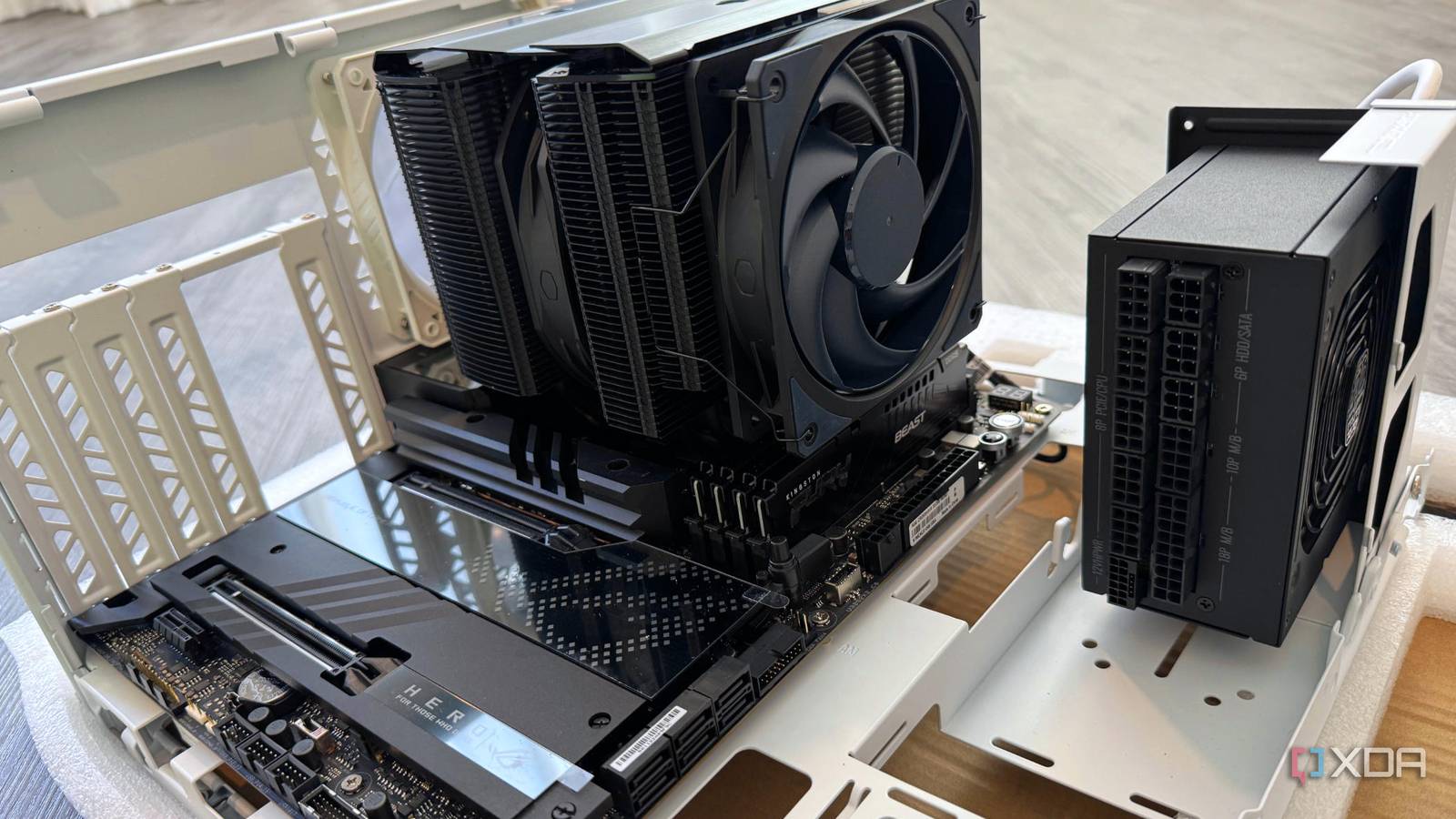
Identifying your CPU cooler by visual inspection is a simple way to learn more about your computer’s cooling system. You do not need special tools or software. Just open your PC, look closely, and note what you see. This method helps you understand your cooler’s brand, model, and design.
Open Your Pc Case Safely
First, turn off your computer and unplug it from the power source. Wait a few minutes to let the components cool down. Remove the side panel of your PC case carefully. Use a screwdriver if needed. Avoid touching other parts inside the case. Ground yourself by touching a metal part to prevent static damage.
Look For Brand And Model Labels
Check the cooler’s fan and heatsink for any stickers or labels. These often show the brand and model number. The label might be on the top, side, or fan hub. Write down the information you find. This data helps you search online for detailed specs.
Recognize Common Cooler Designs
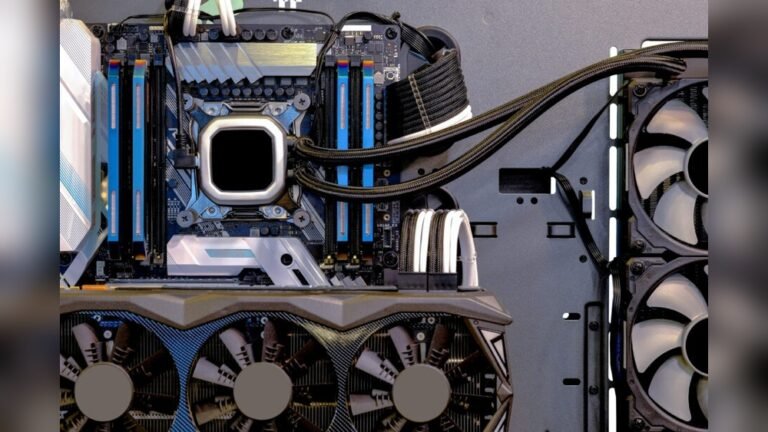
CPU coolers come in several common styles. Air coolers have a fan and metal fins. They often look like a box with blades. Liquid coolers have tubes connected to a radiator. The radiator has one or two fans attached. Stock coolers from CPU makers are usually smaller and simpler. Knowing these designs helps you identify your cooler quickly.
Credit: www.cgdirector.com
Use Software Tools To Detect Cooler
Software tools can help find out what CPU cooler you have. They show details about your computer parts. These tools save time and avoid opening the case. Some software even shows temperature and fan speed. This helps check if the cooler works well.
Check Bios/uefi Settings
BIOS or UEFI holds important system information. Restart your computer and enter BIOS/UEFI. Look for hardware or monitoring menus. Some BIOS versions list the CPU cooler model. You can also see fan speed and temperature data. This method does not need extra software.
Use Hardware Monitoring Apps
Hardware monitoring apps track fan speed and temperatures. Popular apps include HWMonitor, SpeedFan, and Open Hardware Monitor. These apps show if the cooler’s fan runs properly. They do not always name the cooler brand. Still, they give clues about cooler performance and status.
Leverage Cpu-z And Similar Programs
CPU-Z provides detailed info about CPU and motherboard. It may not list cooler models directly. Use CPU-Z with other tools for better results. Some programs like HWiNFO or AIDA64 show more hardware details. Running these programs helps confirm the type of CPU cooler installed.
Check Purchase And Build Documentation
Checking your purchase and build documents is a smart way to find out what CPU cooler you have. These papers often hold the exact model and details. They save time and avoid guesswork. Many people keep these documents safe after buying or building their PC.
Here are some steps to help you find the cooler information in your documents.
Review Purchase Receipts
Receipts from your CPU or PC purchase can list the cooler details. Look for the item descriptions or product codes. Sometimes, the cooler is a separate item and will be listed clearly. Store or online purchase receipts often have this info. Keep receipts in a folder or digital file for easy access.
Check Pc Build Sheets
Build sheets or manuals from PC assembly usually show all parts used. Look through these sheets if you built your PC or had someone build it. They typically list the cooler brand and model number. Build sheets help confirm if the cooler is stock or aftermarket. Keep these sheets safe for future reference.
Contact Manufacturer Or Seller
Contact the seller or manufacturer if you cannot find documents. Provide your PC model or order number. They can check their records and tell you the cooler type. This method works well for pre-built systems. Keep your purchase information ready before calling or emailing.
Compare Cooler With Online Resources
Comparing your CPU cooler with online resources helps identify the exact model. This process is easy and saves time. You get clear details about your cooler’s size, shape, and performance. Use the internet to match your cooler with trusted sources. Here are simple ways to compare your cooler online.
Search Using Visual Features
Look closely at your cooler’s shape and design. Note the number of fan blades, heat pipes, and color. Use these details to search images online. Use search engines or image search tools to find similar coolers. This helps narrow down the model quickly. Visual matching works well for common coolers.
Use Manufacturer Websites
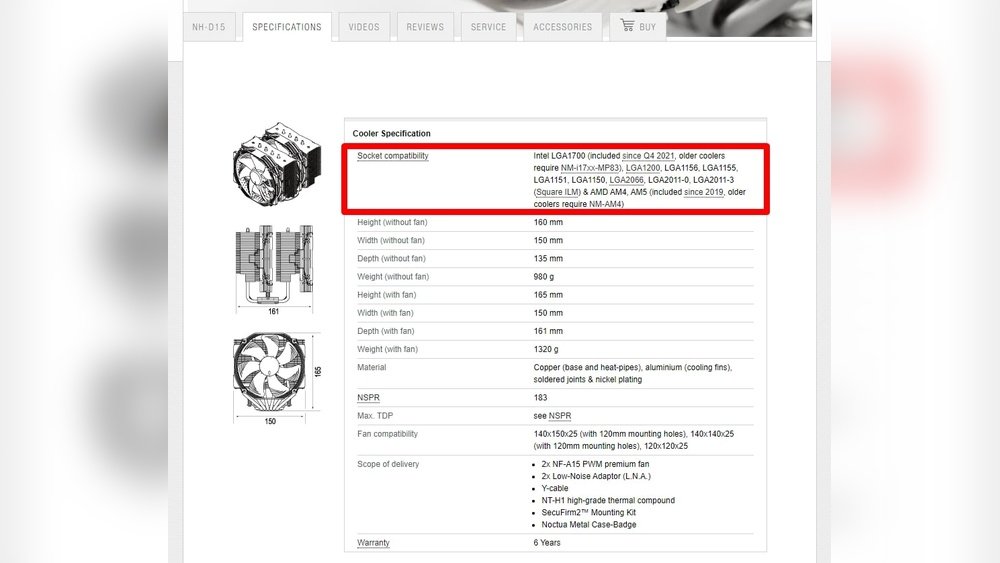
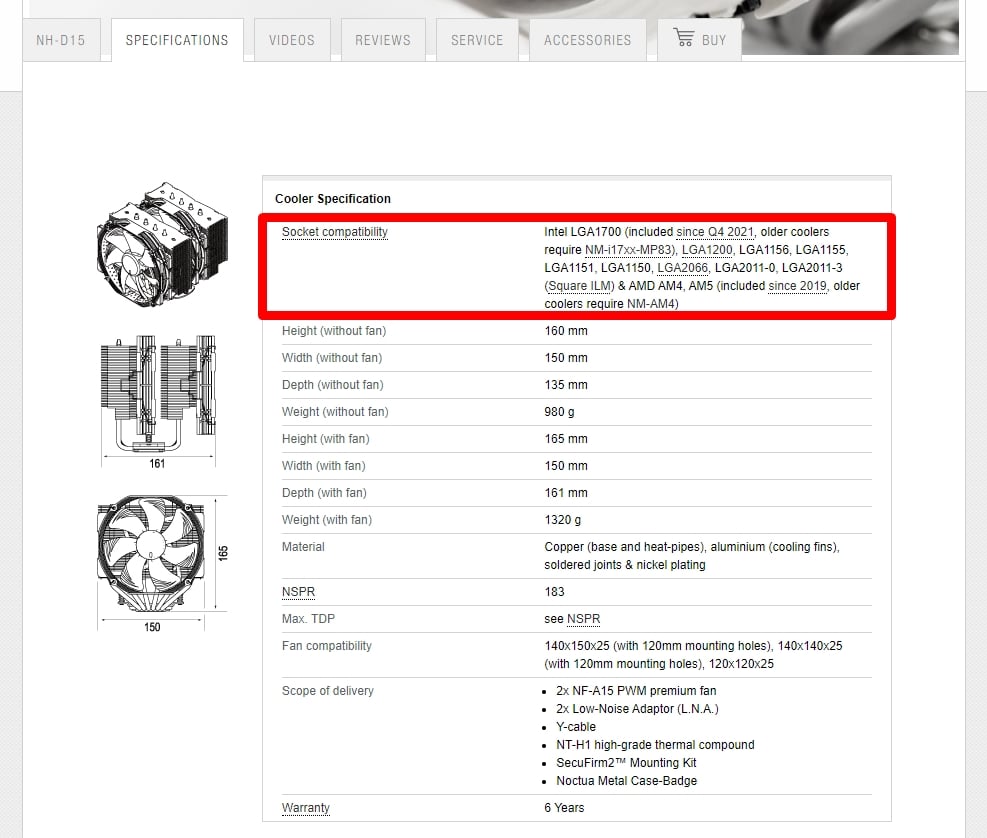
Visit the website of your cooler’s brand. Manufacturers list all their products with pictures and specs. Compare your cooler with their official images and descriptions. Check model numbers or serial numbers if visible on your cooler. Manufacturer sites offer accurate and detailed info. This method ensures you find the right match.
Explore User Forums And Communities
Join PC building forums and tech communities online. Many users share photos and details of their CPU coolers. Post a picture of your cooler and ask for help. Community members often give quick and reliable answers. Reading threads about coolers also provides useful tips. Forums are great for real user experiences and advice.
Tips For Future Cooler Identification
Keeping track of your CPU cooler can save time and effort later. Knowing exactly what cooler you have helps with upgrades and troubleshooting. Simple habits during installation make future identification easier.
Label Components When Installing
Write the model name and date on a small sticker. Place it on the cooler or near it inside the case. This simple step helps you remember the cooler details quickly.
Keep Records Of Hardware
Create a list of all your PC parts. Include the cooler model, brand, and purchase date. Store this list on your computer or in a notebook. This record helps you avoid confusion in the future.
Take Photos For Reference
Take clear pictures of your CPU cooler from different angles. Save these photos in a folder on your computer or cloud. Photos help identify the cooler visually when you need to check later.

Credit: softwareg.com.au
Frequently Asked Questions
How Can I Identify My Cpu Cooler Model Easily?
Check your PC’s documentation or invoice for cooler details. Alternatively, open your PC case and look for labels or brand names on the cooler itself. You can also use system information tools or software like CPU-Z for indirect clues about your cooler.
Can Software Detect My Cpu Cooler Type?
Most software cannot directly identify your CPU cooler model. However, tools like HWMonitor or SpeedFan can show fan speeds and temperatures, hinting at cooler performance. Physical inspection remains the most accurate method to confirm your CPU cooler type and model.
Why Should I Know My Cpu Cooler Model?
Knowing your CPU cooler model helps in maintenance, upgrades, and compatibility checks. It ensures you replace it with the right part and avoid overheating issues. Also, it assists in troubleshooting system noise or temperature problems effectively.
Is It Safe To Open My Pc To Check The Cooler?
Yes, it is safe if you power off and unplug your PC first. Ground yourself to prevent static discharge. Carefully remove the side panel to access and inspect the CPU cooler without damaging components.
Conclusion
Knowing your CPU cooler helps keep your computer safe and fast. You can check it by looking inside your PC or using software tools. This knowledge helps you clean or upgrade your cooler easily. A good cooler stops your CPU from getting too hot.
Take a moment to identify it today. It makes a big difference in your computer’s life. Simple steps lead to better performance and longer hardware use. Keep your system cool and running smoothly.