How to Reduce My Cpu Usage: Proven Tips for Faster Performance
Is your computer running slow or overheating? High CPU usage might be the culprit, making your device sluggish and frustrating to use.
You don’t have to live with this problem. By understanding how to reduce your CPU usage, you can speed up your computer and make it work like new again. Keep reading, and you’ll discover simple, effective steps to take control of your CPU and boost your system’s performance right away.
Identify High Cpu Usage
High CPU usage can slow down your computer and cause frustration. Identifying which programs or processes use the most CPU helps you fix the problem quickly. This step is crucial to lower your CPU usage and improve performance.
Check Task Manager
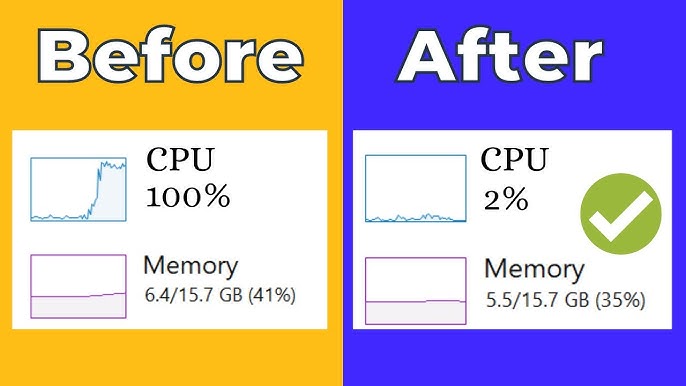
Task Manager shows all running apps and their CPU use. Press Ctrl + Shift + Esc to open it fast. Look under the “Processes” tab. The “CPU” column lists the percentage each process uses. Sort by CPU to find the highest users. Spot any program using too much CPU. This simple tool gives a quick view of CPU usage.
Monitor Background Processes
Background processes often run without your knowledge. They can consume CPU even if you do not use them. In Task Manager, look below the apps to see these processes. Identify any unusual or heavy CPU users here. Many background tasks are safe, but some may slow your PC. Knowing these helps you decide what to close or disable.
Use Resource Monitor
Resource Monitor provides detailed CPU use info. Open it by typing “Resource Monitor” in the Start menu. Go to the “CPU” tab. It shows all processes and services with real-time CPU use. You can see which threads use the CPU too. This tool helps find hidden CPU hogs that Task Manager misses. Use it to get a deeper look at CPU consumption.
Credit: www.youtube.com
Close Unnecessary Applications
Closing unnecessary applications helps lower CPU usage quickly. Many apps run in the background without your knowledge. They consume CPU power and slow your system down.
Stopping these programs frees up resources. Your CPU can then focus on tasks you need. It makes your computer faster and more responsive.
Manage Startup Programs
Some apps start automatically with Windows. They keep running even if you don’t use them. Open Task Manager and go to the Startup tab. Disable programs you don’t need at startup. This reduces CPU load right after booting.
Limit Browser Tabs
Browsers use a lot of CPU, especially with many tabs open. Close tabs you no longer need. Each tab uses memory and CPU power. Fewer tabs mean less strain on your processor.
End Resource-heavy Tasks
Check Task Manager for apps using high CPU. Some programs or processes consume much power. Select and end these tasks if they are not needed. This frees CPU resources instantly and improves performance.
Optimize System Settings
Optimizing system settings can help reduce high CPU usage effectively. Small changes in your computer’s settings can lower CPU load. This makes your system faster and more stable. Focus on key settings that directly affect CPU performance.
Adjust Power Options
Power settings control how your CPU runs. Switching to a balanced or power saver plan reduces CPU strain. Go to Control Panel, then Power Options. Select a plan that limits CPU speed during low tasks. This helps prevent the CPU from running at full power all the time.
Disable Visual Effects
Visual effects use CPU power for animations and graphics. Turning off these effects frees up CPU resources. Open System Properties, then Advanced system settings. Under Performance, click Settings and choose “Adjust for best performance.” This removes unnecessary effects and speeds up your PC.
Update Device Drivers
Outdated drivers cause your CPU to work harder. Keeping drivers current ensures better hardware performance. Visit your device manufacturer’s website to find the latest drivers. Install updates regularly to keep your CPU running smoothly. Updated drivers fix bugs and improve efficiency.

Credit: www.avg.com
Scan For Malware
High CPU usage often happens because of hidden malware. Malware runs in the background and uses your computer’s power. It slows down your system and makes tasks harder. Scanning for malware helps find and remove these threats. This step can improve your computer’s speed and health.
Run Antivirus Software
Antivirus software detects and removes harmful programs on your PC. It scans files and apps for viruses and other threats. Many antivirus programs update automatically to catch new malware. Run a full scan regularly to keep your system safe. This helps reduce CPU usage caused by malware.
Use Malware Removal Tools
Special tools focus on removing tough malware that antivirus might miss. These tools target spyware, adware, and rootkits. They offer a deeper scan for hidden threats. Download trusted malware removal tools from official sites only. Running these tools can free up your CPU from unwanted processes.
Perform Regular System Scans
Regular scans keep your computer clean and fast. Schedule scans weekly or biweekly depending on your usage. Consistent checks catch malware early before it affects CPU performance. Set scans to run when you are not using the computer. This practice maintains system health and reduces slowdowns.
Manage Software Updates
Managing software updates plays a vital role in reducing CPU usage. Outdated software can cause your computer to work harder. It may also create security risks and performance issues. Staying current with updates helps keep your system smooth and efficient.
Updates often include bug fixes and performance improvements. These changes can lower CPU load by optimizing how software runs. Regular maintenance ensures your computer uses resources wisely. This section explains how to manage updates effectively.
Keep Os Updated
Operating system updates fix bugs and improve stability. They also enhance how your CPU handles tasks. Running the latest OS version helps avoid unnecessary CPU strain. Set your system to update automatically or check often.
Update Applications Regularly
Apps need updates for better performance and security. Developers fix issues that cause high CPU use. Updating apps keeps them running smoothly and fast. Check for updates manually if automatic updates are off.
Avoid Beta Versions
Beta software is not fully tested. It may have bugs that increase CPU load. Using stable versions reduces crashes and heavy CPU use. Wait for official releases before updating your software.

Credit: www.reddit.com
Upgrade Hardware Components
Upgrading hardware components can greatly reduce high CPU usage. Old or slow parts often cause the CPU to work too hard. New hardware helps the system run smoother and faster. This lowers the CPU load and improves overall performance.
Add More Ram
Adding more RAM helps your computer handle tasks better. When RAM is low, the CPU does extra work to manage memory. More RAM allows your system to store more data temporarily. This reduces the CPU’s workload and speeds up your computer.
Consider Ssd Upgrade
Replacing a traditional hard drive with an SSD improves speed. SSDs access data faster, so the CPU waits less for information. This leads to quicker program loading and less CPU stress. An SSD makes your computer feel more responsive.
Replace Aging Cpu
Old CPUs struggle with modern software demands. A new CPU can process tasks faster and handle more programs. This lowers the chance of high CPU usage spikes. Upgrading the CPU refreshes your computer’s core power.
Use Performance-boosting Tools
Using performance-boosting tools can help lower your CPU usage effectively. These tools work by cleaning up your system, managing processes, and controlling how your CPU runs. They keep your computer fast and responsive without too much effort from you.
Install System Optimizers
System optimizers scan your computer for unnecessary files and programs. They remove junk and fix small errors that slow down your CPU. Many of these tools also manage startup programs to reduce CPU load at boot. Regular use keeps your system clean and running smooth.
Use Cpu Throttling Software
CPU throttling software adjusts the speed of your processor based on current needs. It lowers CPU speed during light tasks to save energy and reduce heat. This helps prevent your CPU from running too hard all the time. It also extends the life of your hardware.
Monitor System Health
Monitoring tools track CPU usage, temperature, and system performance. They alert you when the CPU is overloaded or overheating. Regular checks help catch problems early before they become serious. Keeping an eye on your system health helps maintain stable CPU usage.
Frequently Asked Questions
What Causes High Cpu Usage On My Computer?
High CPU usage is usually caused by resource-heavy programs, malware, or background processes. Overloaded software and outdated drivers also contribute. Identifying these helps reduce CPU load and improve system speed efficiently.
How Can I Check Which Processes Use Most Cpu?
Use Task Manager on Windows or Activity Monitor on Mac. These tools show CPU usage by each process. Monitoring helps identify and stop resource-intensive programs to lower CPU usage quickly.
Does Updating Software Help Reduce Cpu Usage?
Yes, updating software often fixes bugs and improves efficiency. Newer versions optimize resource use, reducing CPU load. Keeping your OS and applications updated helps maintain optimal CPU performance.
Can Malware Increase Cpu Usage?
Malware can run hidden processes that consume CPU power. It slows down your system and causes overheating. Using antivirus software to scan and remove malware reduces CPU usage and protects your computer.
Conclusion
Reducing CPU usage keeps your computer fast and smooth. Close programs you don’t need. Check for viruses that slow down your system. Update your software regularly to fix bugs. Limit startup apps to save resources. Clean your computer’s fans to avoid overheating.
Small steps make a big difference over time. Your PC will run better and last longer. Keep these tips handy for easy CPU management. Simple actions help you avoid frustrating slowdowns. Stay patient and watch your system improve daily.