How to Minimize Cpu Usage Windows 10: Easy Steps to Boost Speed
Is your Windows 10 computer running slow or overheating? High CPU usage could be the reason.
When your CPU is working overtime, everything feels sluggish, and your device may even freeze. But don’t worry—you can take simple steps to reduce CPU usage and make your computer run smoothly again. You’ll discover easy and effective ways to minimize CPU usage on Windows 10.
Keep reading to regain control of your PC’s performance and enjoy a faster, more responsive system.
Credit: www.avast.com
Identify High Cpu Usage
High CPU usage can slow down your Windows 10 computer. It can make programs freeze or respond slowly. To fix this, you first need to find what uses the most CPU power. Identifying these processes helps you decide what to close or manage. Windows has built-in tools to help with this. Two key tools are Task Manager and Resource Monitor. These tools show you which apps or processes use the most CPU.
Use Task Manager
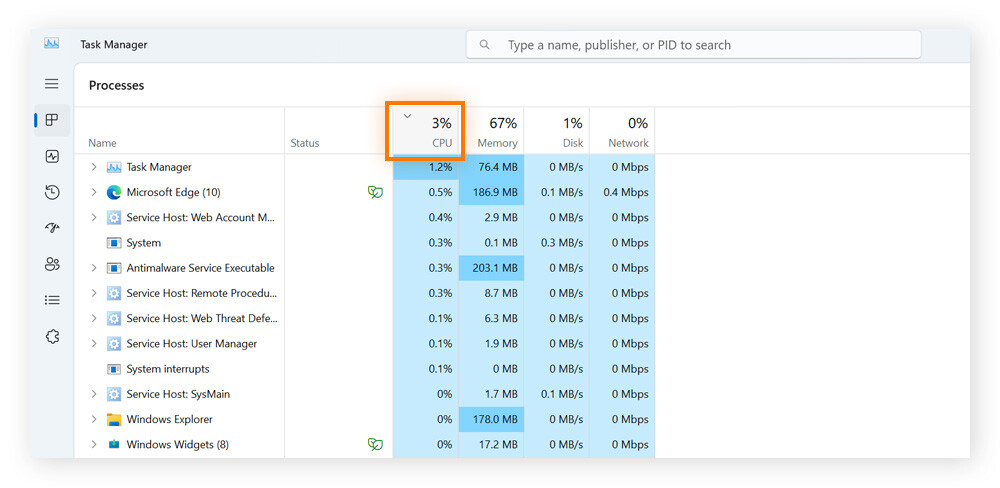
Task Manager is the easiest way to check CPU usage. Press Ctrl + Shift + Esc to open it quickly. Click the Processes tab. Here, you see all running apps and background processes. Look at the CPU column. It shows the percentage of CPU each process uses. Sort the list by clicking the CPU header. Processes using the most CPU appear at the top. Spot any app or process with high CPU use. This helps find what slows your PC.
Check Resource Monitor
Resource Monitor gives more detailed CPU data. Open Task Manager first. Then click the Performance tab. Click Open Resource Monitor at the bottom. Go to the CPU tab in Resource Monitor. You see all running processes and their CPU usage. You also see services linked to these processes. Check the graphs for CPU activity over time. It helps find spikes or unusual CPU use. Use this info to target problem processes more precisely.
Disable Startup Programs
Disabling startup programs is a smart way to reduce CPU usage on Windows 10. Many apps start automatically and run in the background. They use CPU power even if you do not need them right away.
Stopping these programs from launching at startup saves CPU resources. It also helps your computer run smoother and faster. You control which apps start and which do not.
Manage Startup Apps
Open the Task Manager by pressing Ctrl + Shift + Esc. Click the “Startup” tab to see all apps set to start automatically. Review the list carefully.
Select apps you do not need right away. Right-click and choose “Disable.” This stops the app from running at boot. You can always enable it later if needed.
Focus on apps that use high CPU or memory. Disabling unnecessary apps reduces CPU load and saves system resources.
Impact On Boot Time
Fewer startup programs mean faster boot times. Your computer reaches the desktop quicker. This improves your overall experience.
Disabled programs do not consume CPU during startup. This lowers CPU usage spikes when you turn on your PC. Your system feels more responsive.
Regularly check startup apps to keep your boot time short. This keeps CPU usage low and your PC running efficiently.
Optimize Background Processes
Optimizing background processes is key to reducing CPU usage on Windows 10. Many apps run silently in the background. They consume CPU power even when not in use. Stopping these unnecessary processes frees up resources. Your computer can then work faster and more smoothly.
End Unnecessary Tasks
Open Task Manager by pressing Ctrl + Shift + Esc. Click the Processes tab to see running apps. Look for tasks using high CPU. Select the task and click End Task. Only stop tasks you recognize and don’t need. This prevents accidental closing of important system processes.
Adjust Background Apps Settings
Go to Settings, then Privacy, and click Background apps. Here, you see a list of apps allowed to run in the background. Turn off the toggle for apps you rarely use. This stops them from consuming CPU without your knowledge. Adjusting these settings helps save power and reduce CPU load.

Credit: www.youtube.com
Update Windows And Drivers
Keeping Windows and drivers up to date helps reduce CPU usage. Updates fix bugs and improve system performance. Old software can cause your CPU to work harder than needed. Regular updates ensure smooth and efficient operation.
Check For Windows Updates
Open the Settings app from the Start menu. Click on “Update & Security,” then select “Windows Update.” Press the “Check for updates” button. Windows will find and install any available updates. Restart your computer to complete the process. Updated Windows files often improve CPU management.
Update Device Drivers
Drivers control hardware components like graphics cards and network adapters. Outdated drivers can cause high CPU use. Open Device Manager by right-clicking the Start button. Find the device needing an update, right-click it, and choose “Update driver.” Select “Search automatically for updated driver software.” Windows searches and installs the latest driver. Restart your PC after updating drivers for best results.
Scan For Malware
Malware often causes high CPU usage on Windows 10. It runs hidden in the background and uses resources. Scanning for malware helps find and remove these threats. This can lower your CPU load and improve system speed. Regular scans keep your PC safe and fast.
Use Windows Defender
Windows Defender is built into Windows 10. It protects your computer from viruses and malware. Open Windows Security from the Start menu. Go to “Virus & threat protection” and click “Quick scan.” This scans important files fast. For deeper checks, choose “Full scan.” It looks through all files and programs. Windows Defender updates automatically to find new threats.
Try Third-party Antivirus Tools
Third-party antivirus tools offer extra scanning options. Some are free, others require payment. Popular tools include Avast, Bitdefender, and Malwarebytes. Download and install one from its official website. Run a full system scan to detect malware. These tools often find threats Windows Defender misses. They also provide real-time protection and cleanup features.
Adjust Power Settings
Adjusting power settings can help reduce CPU usage on Windows 10. Power plans control how your PC uses energy. Choosing the right plan can balance performance and power consumption.
Changing these settings can make your CPU work more efficiently. This reduces overheating and slows down unnecessary processes. A well-set power plan helps your computer run smoother and cooler.
Select Balanced Or High Performance
Windows 10 offers several power plans. The “Balanced” plan saves energy while keeping good performance. It adjusts CPU speed based on your needs.
The “High Performance” plan makes the CPU run at full speed. It uses more power but improves system responsiveness. Choose this if you need maximum performance for tasks.
Pick the plan that fits your work style. Balanced is good for everyday use. High Performance suits heavy tasks like video editing or gaming.
Customize Power Plan
Customizing your power plan lets you control CPU settings in detail. Open the Control Panel and go to Power Options. Click “Change plan settings” next to your selected plan.
Adjust the advanced settings like processor power management. Set the minimum and maximum processor state to control CPU speed limits. Lowering the maximum state can reduce CPU usage.
Also, tweak sleep and display settings. These changes save energy and reduce CPU load when idle. Save your settings to apply the new plan.
Manage Visual Effects
Visual effects in Windows 10 make the interface look smooth and attractive. But they use CPU power. Managing these effects helps reduce CPU usage. This makes your computer faster and more responsive.
Turning off some visual features can lighten the load on your system. It gives more power to important tasks. This is especially helpful for older or slower PCs.
Disable Unnecessary Animations
Animations like fading windows or sliding menus use extra CPU. Disabling them saves processing power. Go to System Settings and find Performance Options. Choose “Adjust for best performance” or manually turn off animations. This stops effects that waste CPU without harming your work.
Optimize For Performance
Windows lets you balance looks and speed. Select “Custom” in Performance Options. Turn off shadows, animations, and transparency. Keep only essential effects. This reduces CPU use and keeps your system quick. Small changes can make a big difference in daily use.
Use System Maintenance Tools
System maintenance tools help keep Windows 10 running smoothly. They clear unnecessary files and organize data. This reduces CPU load and speeds up your computer. Using these tools regularly improves overall system health.
Run Disk Cleanup
Disk Cleanup removes temporary files and system junk. It frees up space on your hard drive. To run it, search for “Disk Cleanup” in the Start menu. Select the drive to clean, usually C:. Check the boxes for files to delete. Click “OK” and then “Delete Files.” This process lowers CPU use by reducing clutter.
Defragment Hard Drive
Defragmenting arranges fragmented data on your hard drive. This helps the CPU access files faster. Open the Start menu and type “Defragment and Optimize Drives.” Select your hard drive and click “Optimize.” Wait for the process to finish. Regular defragmentation keeps your system efficient and reduces CPU strain.
Check For Hardware Issues
Hardware problems can cause high CPU usage in Windows 10. Checking hardware is important. It helps find issues that slow down your PC. Fixing these can lower CPU load and improve performance.
Start by watching your CPU temperature. Overheating makes the CPU work harder. Then, look at your cooling system. Dust or broken fans can cause heat to build up.
Monitor Cpu Temperature
Use a simple tool to check CPU temperature. Many free apps show real-time data. Keep an eye on temperatures above 80°C. High heat forces your CPU to slow down or work harder. This raises CPU usage. Lower the temperature by improving airflow or cleaning dust.
Inspect Cooling System
Open your computer case carefully. Check if fans spin freely. Dust or debris blocks air movement. Clean fans and vents with a soft brush or compressed air. Replace any broken fans. Good cooling keeps the CPU cool and reduces stress. This helps to keep CPU usage low and your PC running smoothly.
Credit: helpdeskgeek.com
Frequently Asked Questions
How Can I Check Cpu Usage On Windows 10?
Open Task Manager by pressing Ctrl + Shift + Esc. Click the “Performance” tab. Select “CPU” to view real-time usage details and processes consuming CPU.
What Causes High Cpu Usage In Windows 10?
High CPU usage can be due to background apps, malware, outdated drivers, or resource-heavy programs running simultaneously on your system.
How Do I Reduce Cpu Usage On Windows 10?
Close unnecessary apps, disable startup programs, update drivers, scan for malware, and adjust power settings to optimize CPU performance.
Can Windows 10 Updates Affect Cpu Usage?
Yes, some updates may temporarily increase CPU usage during installation or due to new features requiring more resources.
Conclusion
Reducing CPU usage on Windows 10 helps your computer run smoother. Close apps you do not need. Check for updates to keep software fresh. Disable startup programs that slow your system. Use Task Manager to spot heavy CPU users. Regular maintenance keeps your PC healthy and fast.
Small steps make a big difference over time. Keep your system clean and organized. Enjoy a faster, more responsive computer every day.