How to Reset Gpu on Pc: Quick and Easy Steps to Fix Issues
Is your PC’s graphics card acting up, causing glitches or crashes? Knowing how to reset your GPU can be the quick fix you need to get everything running smoothly again.
Whether you’re a gamer facing sudden frame drops or a designer dealing with display issues, resetting your GPU can clear out problems without complicated steps. In this guide, you’ll learn simple, effective ways to reset your graphics card and bring your system back to peak performance.
Keep reading—you’ll be surprised how easy it is to solve common GPU troubles yourself.
Credit: learn.microsoft.com
Signs You Need To Reset Your Gpu
Knowing when to reset your GPU can save time and improve your PC’s performance. Your graphics card may struggle silently before showing clear signs. Recognizing these signs early helps avoid bigger problems.
Common Gpu Issues
Screen flickering or strange lines appear during use. Your PC might freeze or crash unexpectedly. Games and videos may not display correctly. These issues often point to GPU problems. Resetting the GPU can clear temporary errors.
Performance Drops
Your games run slower than usual. Frame rates drop without changes in settings. Applications that rely on graphics lag or stutter. These slowdowns suggest the GPU needs a fresh start. Resetting restores normal speed and smooth visuals.
Driver Errors
Error messages about your graphics driver show up. Your system may fail to detect the GPU properly. Driver crashes or conflicts happen more often. These errors block proper GPU function. Resetting helps reload drivers and fix these bugs.

Credit: blog.usro.net
Preparing For A Gpu Reset
Preparing your PC for a GPU reset is important to avoid data loss and errors. Taking simple steps helps the process go smoothly. These steps also protect your files and system stability.
Follow these easy tips before resetting your GPU. They keep your computer safe and ready.
Backup Important Data
Save all important files to an external drive or cloud storage. This includes documents, photos, and game saves. A GPU reset can affect system settings or cause unexpected issues. Backing up ensures your data stays safe no matter what.
Update Graphics Drivers
Download the latest graphics drivers from your GPU maker’s website. Updated drivers fix bugs and improve performance. Installing them before a reset can prevent problems and make your GPU work better after the reset.
Close Running Applications
Shut down all open programs and background apps. This frees system resources and avoids conflicts during the GPU reset. Make sure no heavy software or games are running. A clean start helps the reset complete without interruptions.
Resetting Gpu Via Device Manager
Resetting your GPU through Device Manager is a quick way to fix many graphics issues. This method helps refresh the graphics card without much hassle. It is useful for resolving driver glitches or screen freezes.
The process involves disabling and enabling the GPU in Device Manager. This action forces Windows to reset the graphics driver. It can restore normal GPU function without a full system reinstall.
Accessing Device Manager
First, open Device Manager on your PC. Press the Windows key and type “Device Manager”. Select it from the search results. You can also right-click the Start button and choose Device Manager.
In Device Manager, find the “Display adapters” section. Click the arrow next to it to see your GPU. This section lists all graphics cards installed on your PC.
Disabling And Enabling Gpu
Right-click your GPU under “Display adapters”. Select “Disable device” from the menu. Confirm the action if Windows asks for permission.
Wait a few seconds after disabling. Then, right-click the GPU again. Select “Enable device” to turn it back on. This step resets the GPU driver.
Restarting Your Pc
After enabling the GPU, restart your computer. Restarting helps apply the changes fully. It ensures your GPU starts fresh and works properly.
Once the PC boots, check if the GPU issues are fixed. This simple reset can solve many common graphics problems fast.
Using Graphics Control Panel To Reset
Resetting your GPU through the graphics control panel is a simple method. This option helps fix display or performance issues. Each GPU brand has its own control panel. These tools let you adjust settings and reset configurations easily.
Using the graphics control panel to reset your GPU keeps the system stable. It clears temporary glitches without needing extra software. This method is safe and quick. Below are the steps for popular GPU control panels.
Nvidia Control Panel Steps
Right-click on your desktop and select “NVIDIA Control Panel”.
Go to the “Manage 3D settings” section on the left.
Click the “Restore Defaults” button at the bottom.
Confirm the reset by clicking “Yes” if prompted.
Close the panel and restart your PC for changes to apply.
Amd Radeon Settings Steps
Right-click on the desktop and open “AMD Radeon Settings”.
Choose the “Preferences” tab at the top right.
Select “Restore Factory Defaults” from the drop-down menu.
Click “Yes” to confirm the reset action.
Restart your computer to finish the process.
Intel Graphics Command Center
Open the Start menu and search for “Intel Graphics Command Center”.
Click on “System” in the sidebar menu.
Select “Restore Defaults” under the system settings.
Confirm the reset when asked.
Reboot your PC to apply the default settings.
Resetting Gpu Settings To Default
Resetting GPU settings to default helps fix many graphics problems. It clears wrong configurations and sets the GPU back to its original state. This step is useful when your screen flickers or games run poorly. Resetting also helps after a bad update or driver change.
Let’s explore how to reset key GPU settings easily. Follow these steps to restore your display and graphics performance.
Restoring Driver Settings
Start by opening your GPU control panel. For NVIDIA, use the NVIDIA Control Panel. For AMD, open Radeon Settings. Look for an option to restore or reset settings. Click “Restore Defaults” or “Reset.” This action removes custom changes made to the driver. It brings all settings back to how they were at installation.
Adjusting Resolution And Refresh Rate
Check your screen resolution and refresh rate. Right-click on the desktop and select “Display Settings.” Scroll to find resolution and refresh rate options. Choose the recommended resolution for your monitor. Set refresh rate to the highest safe value. Wrong resolution or refresh rate can cause display issues. Resetting these ensures smooth visuals and proper scaling.
Resetting Overclocking
Overclocking pushes your GPU beyond factory speeds. It can cause instability or crashes. Open any overclocking software you use. This might be MSI Afterburner or the GPU control panel. Find the option to reset overclocking to default values. Set clock speeds and voltage back to original levels. This step restores stability and prevents overheating.
Advanced Gpu Reset Methods
Advanced GPU reset methods help solve deep driver or hardware issues. These methods go beyond basic restarts and refresh your graphics card more thoroughly. Use them if your GPU still acts up after simple resets. They can fix crashes, freezes, or slow performance.
These steps require more care. Follow instructions closely to avoid problems. Below are three key advanced methods to reset your GPU effectively.
Reinstalling Gpu Drivers
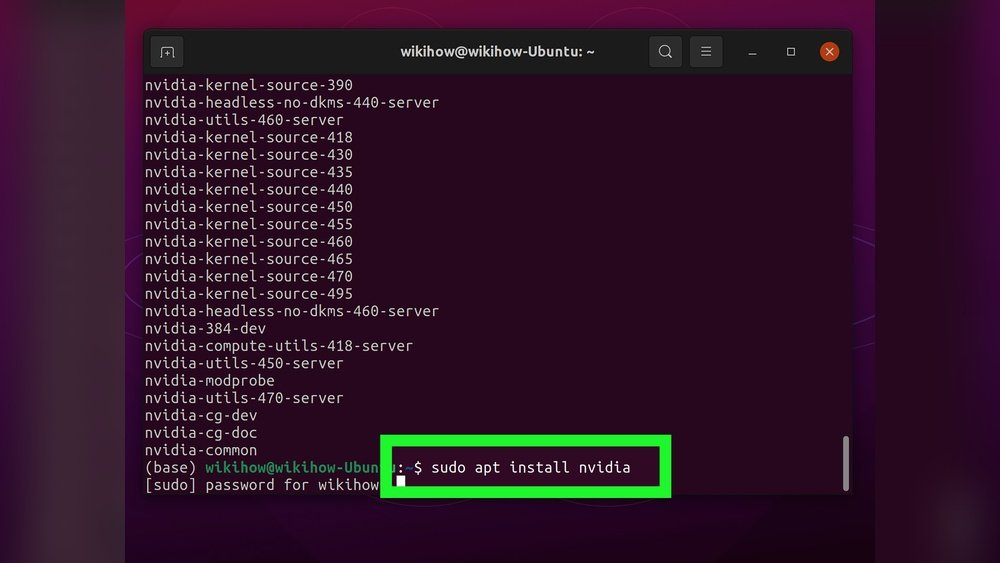
Reinstalling drivers removes corrupted files and restores default settings. First, uninstall your current GPU driver via Device Manager. Restart your PC to clear old files. Then, download the latest driver from the GPU maker’s website. Install it carefully, following on-screen prompts. This method refreshes your GPU software completely.
Performing A Clean Driver Installation
A clean installation deletes all driver traces before adding new ones. Use Display Driver Uninstaller (DDU) to remove drivers safely. DDU works in Safe Mode to avoid leftover files. After cleaning, install the latest GPU driver fresh. This method reduces conflicts and errors from old driver data.
Using Third-party Tools
Third-party tools can help reset GPU settings quickly. Utilities like MSI Afterburner or NVIDIA Inspector allow you to restore default GPU profiles. These tools reset clocks, voltages, and fan speeds. They fix issues caused by manual overclocking or tweaks. Always download such tools from trusted sources only.
Preventing Future Gpu Issues
Preventing future GPU issues saves time and keeps your PC running smoothly. Taking simple steps can extend your GPU’s life. Small habits make a big difference in performance and stability.
Below are key tips to help protect your GPU from common problems.
Regular Driver Updates
GPU drivers control how your graphics card works with your system. Outdated drivers cause crashes and slowdowns. Check for updates often. Use official websites or trusted software to download drivers. Updated drivers improve performance and fix bugs.
Monitoring Gpu Temperature
High GPU temperature can damage the hardware. Use monitoring tools to check your GPU’s heat levels. Keep the temperature below the manufacturer’s limit. Clean dust from fans and vents regularly. Good airflow inside your PC case helps cool the GPU.
Avoiding Overclocking Risks
Overclocking pushes your GPU beyond its limits. It may boost speed but increases heat and stress. Overclocking can cause instability and shorten GPU life. Use factory settings for better reliability. If you must overclock, do it cautiously and watch temperatures closely.
Credit: www.laptopoutlet.co.uk
Frequently Asked Questions
How Do I Reset My Gpu On A Windows Pc?
To reset your GPU on Windows, open Device Manager, find your GPU under Display adapters, right-click and select “Disable. ” After a few seconds, right-click again and choose “Enable. ” This refreshes your GPU driver and resolves many minor issues quickly.
Can Resetting Gpu Fix Graphics Performance Problems?
Yes, resetting your GPU can resolve temporary glitches and improve graphics performance. It refreshes the GPU driver and clears minor errors that cause lag or crashes without needing a full driver reinstall.
When Should I Reset My Gpu On Pc?
Reset your GPU when experiencing screen flickering, freezing, or driver crashes. It’s a quick fix before trying more complex troubleshooting like driver updates or hardware checks.
Does Resetting Gpu Delete Any Data Or Settings?
No, resetting your GPU via Device Manager only restarts the driver. It does not delete any personal data, settings, or installed programs on your PC.
Conclusion
Resetting your GPU on a PC can fix many common issues. It helps clear temporary problems and improves performance. Follow the steps carefully to avoid mistakes. Keep your drivers updated to prevent future errors. Restart your computer after resetting for best results.
Simple actions can save you time and frustration. Try these tips next time your GPU acts up. Stay patient, and your PC will run smoother again.