How to Check Cpu And Gpu Temps: Easy Steps for Accurate Monitoring
Are you worried that your computer might be overheating? Knowing how to check your CPU and GPU temps is key to keeping your system running smoothly and avoiding costly damage.
You’ll discover simple and effective ways to monitor your hardware’s temperature. By the end, you’ll feel confident spotting potential issues before they cause real problems. Keep reading to protect your computer and boost its performance.

Credit: www.spec-school.org
Why Monitor Cpu And Gpu Temps
Monitoring CPU and GPU temperatures is essential for every computer user. These components work hard and produce heat. Without tracking their heat levels, problems can arise that affect your device’s health and speed.
Knowing the temperature helps you keep your system stable. It also extends the life of your hardware. Below are key reasons why temperature monitoring matters.
Impact On Performance
High temperatures can slow down your CPU and GPU. The system reduces speed to cool down parts. This process is called thermal throttling. It makes your computer less responsive and slower.
Keeping temperatures low helps your device run smoothly. Games, videos, and apps perform better with cooler hardware.
Preventing Hardware Damage
Heat can harm sensitive computer parts. Extreme heat may cause permanent damage to the CPU or GPU. Monitoring temps alerts you to overheating risks.
Early detection lets you fix cooling problems fast. This prevents costly repairs or replacing parts. Safe temperature levels protect your investment and keep your system healthy.
Signs Of Overheating
Overheating can damage your CPU and GPU. It reduces the life of your computer parts. Spotting signs of overheating early helps protect your device. Watch for changes in performance and sound. These clues show your hardware may be too hot.
System Slowdowns
Your computer may run slower than usual. Programs might take longer to open or respond. This happens because the CPU or GPU tries to cool down. It lowers its speed to avoid damage. Slow performance often signals overheating issues.
Unexpected Shutdowns
The device might turn off without warning. This protects the hardware from high heat damage. Sudden shutdowns can happen during heavy tasks. These are clear signs your system is too hot. Avoid using the device until it cools down.
Fan Noise Increase
The cooling fans work harder when temperatures rise. You will hear louder or faster fan sounds. This noise means the fans try to cool hot parts. Constant loud fan noise shows overheating problems. Clean your fans and check airflow to help cool down.
Tools For Temperature Monitoring
Monitoring CPU and GPU temperatures helps keep your computer safe and fast. Overheating can cause slowdowns or damage parts. Using the right tools makes checking temps easy. These tools show real-time data and alert you to issues. Some are built into your system, while others you can download.
Built-in Software Options
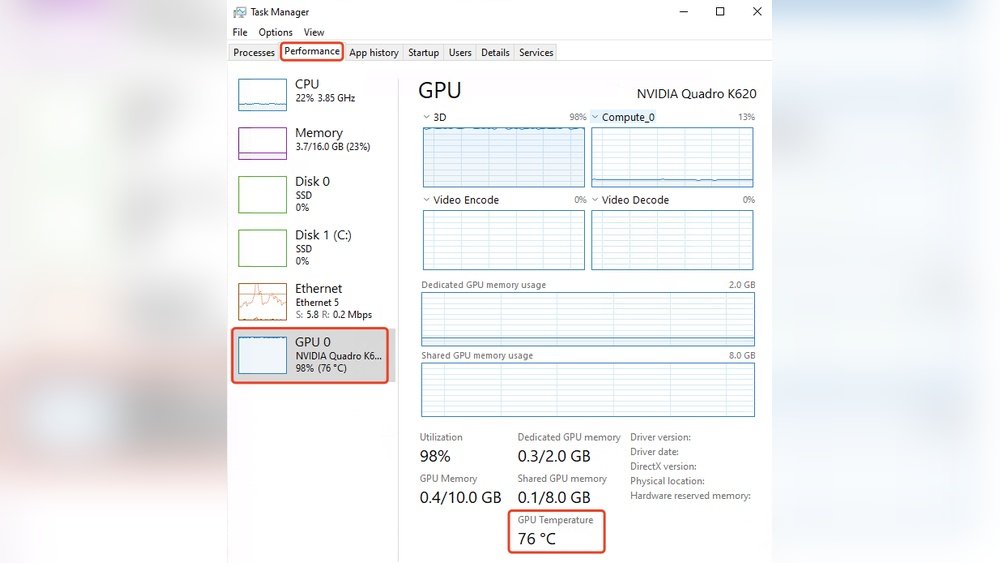
Many computers come with built-in programs to check temperatures. For example, Windows users can use Task Manager to see basic CPU info. BIOS or UEFI menus also display hardware temperatures when starting your PC. Some laptop brands include their own apps for temperature monitoring. These tools are simple and need no extra installation.
Third-party Applications
Third-party apps offer detailed and accurate temperature readings. Popular options include HWMonitor, Core Temp, and MSI Afterburner. These programs track CPU and GPU temps continuously. They show graphs, logs, and alert settings. You can customize them to fit your needs. Most are free and easy to install. Using these apps helps prevent overheating during gaming or heavy work.
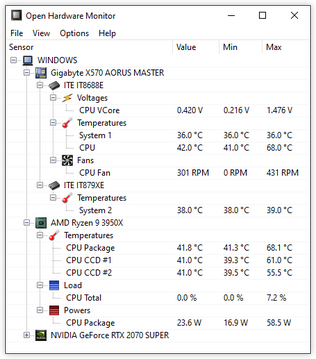
Credit: openhardwaremonitor.org
Checking Cpu Temperature
Checking your CPU temperature is important for keeping your computer safe. High temperatures can cause damage or slow down your system. Knowing how to check the temperature helps you act fast. There are two main ways to do this: through the BIOS/UEFI or using software apps. Both methods are simple and give you clear information.
Using Bios/uefi
The BIOS or UEFI is the built-in system on your computer’s motherboard. You can access it right after turning on your PC. Press a key like F2, Delete, or Esc during startup. The key depends on your computer brand.
Inside the BIOS/UEFI menu, find the hardware or system health section. Here, you will see the CPU temperature. It shows the current temperature in Celsius or Fahrenheit. This method is very accurate because it reads directly from the motherboard sensor.
Checking temperature here is good before Windows loads. But you cannot use your computer while in BIOS. To see temperatures during use, try software apps.
Using Software Apps
Software apps let you check CPU temperature inside Windows. They give live data and graphs. Popular apps include HWMonitor, Core Temp, and SpeedFan. Most are free and easy to use.
After installing, open the app to see CPU temperature. It shows temperatures for each core and overall CPU. Some apps also warn if the temperature is too high.
These apps help you track temperature during gaming or heavy work. They run in the background and update in real-time. This keeps you informed and helps prevent overheating.
Checking Gpu Temperature
Checking your GPU temperature helps keep your computer safe. High temperatures can cause slow performance or damage. Regular monitoring ensures your graphics card runs smoothly. It also helps spot cooling problems early.
Graphics Card Software
Many graphics cards come with their own software. This software shows real-time temperature readings. It often offers extra features like fan control and performance stats. Examples include NVIDIA GeForce Experience and AMD Radeon Software. These tools are easy to use and accurate for your specific GPU.
General Monitoring Tools
General tools work with most GPUs, no matter the brand. Apps like HWMonitor and MSI Afterburner display temperature and other hardware data. They provide detailed info about your system’s health. These tools are free and popular among users. They help keep an eye on your GPU without extra setup.
Interpreting Temperature Readings
Understanding CPU and GPU temperature readings helps keep your computer safe. These readings show how hot your components are during use. High temperatures can cause damage or slow your system down. Knowing what numbers are normal helps you avoid problems. This section explains how to read and interpret these temperatures.
Safe Temperature Ranges
CPU temperatures usually stay between 30°C and 50°C when idle. Under heavy load, they can rise to 70°C or 80°C. Some CPUs handle up to 90°C, but it is not ideal. For GPUs, normal idle temps are about 30°C to 40°C. While gaming or running intense apps, GPU temps can reach 70°C to 85°C. Temperatures above 90°C are risky for both CPU and GPU.
When To Take Action
Take action if your CPU or GPU hits 90°C or more often. Sudden spikes over 95°C need immediate attention. Watch for frequent crashes or slowdowns along with high temps. Cleaning dust from fans and heatsinks helps lower temperatures. Improving airflow inside the case also cools components. Replace thermal paste if temperatures stay high. Using software to control fan speeds can prevent overheating.
Tips To Lower Cpu And Gpu Temps
Keeping your CPU and GPU cool is key to a smooth computer experience. High temperatures can slow down your system and cause damage over time. Simple steps can help lower these temps and keep your PC running well.
Improving Airflow
Good airflow helps remove hot air from inside the case. Use fans to bring in cool air and push out warm air. Make sure cables are tidy and do not block airflow paths. Keep the case side panel open only if it improves airflow.
Cleaning Dust
Dust blocks vents and fans, trapping heat inside. Use a soft brush or compressed air to clean dust from fans, vents, and heatsinks. Clean your PC every few months to keep air flowing freely. Dust buildup can raise temps quickly.
Applying Thermal Paste
Thermal paste helps transfer heat from the CPU or GPU to the cooler. Old paste can dry out and lose effectiveness. Remove the old paste carefully and apply a new, thin layer. This simple step can lower temperatures by several degrees.
Automating Temperature Monitoring
Automating temperature monitoring makes it easy to keep your CPU and GPU safe. It saves time and avoids manual checks. Automation gives quick warnings if temperatures rise too high. This helps prevent damage and keeps your computer running smoothly.
Setting Alerts
Alerts notify you when temperatures go above a set limit. You can set alerts using software tools like HWMonitor or MSI Afterburner. Choose safe temperature thresholds for both CPU and GPU. Alerts can be in the form of pop-ups or sounds. This way, you get instant warnings without watching the screen.
Using Monitoring Scripts
Monitoring scripts run in the background and check temperatures regularly. You can write simple scripts in Python or Bash. These scripts collect temperature data and log it over time. Some scripts send alerts via email or desktop notifications. They are useful for advanced users who want full control.

Credit: www.shoshitamam.com
Frequently Asked Questions
How Do I Check My Cpu Temperature?
You can check CPU temperature using software like HWMonitor, Core Temp, or your motherboard’s BIOS. These tools provide real-time temperature readings to help monitor your CPU’s health and prevent overheating.
What Is The Ideal Gpu Temperature Range?
Ideal GPU temperatures usually range between 30°C to 70°C under normal use. Temperatures above 85°C may cause performance issues or damage, so monitoring is essential for optimal GPU function.
Can High Cpu Or Gpu Temps Damage My Computer?
Yes, consistently high CPU or GPU temperatures can reduce lifespan and cause hardware failure. Proper cooling and monitoring help prevent overheating and protect your computer’s performance and stability.
Which Software Is Best For Monitoring Cpu And Gpu Temps?
Popular tools like MSI Afterburner, HWMonitor, and SpeedFan offer accurate CPU and GPU temperature monitoring. These programs are user-friendly and provide detailed insights into your system’s thermal status.
Conclusion
Keeping an eye on your CPU and GPU temperatures helps your computer run smoothly. Use simple tools to check the temps often. Cooler parts last longer and work better. Watch for high numbers to avoid damage. Stay calm if temps rise; fix cooling or clean dust.
Regular checks protect your device and save money. Easy steps make your PC safer and faster. A small effort brings big benefits.