How to Upgrade Your Ram: Easy Steps to Boost PC Performance
Are you tired of your computer running slow or freezing at the worst moments? Upgrading your RAM could be the simple fix you need to boost your PC’s speed and performance.
Imagine opening multiple apps without lag or enjoying smoother gaming and streaming. In this guide, you’ll discover easy steps to upgrade your RAM yourself—no tech degree required. Keep reading, and by the end, you’ll know exactly how to give your computer the memory boost it deserves.
Signs You Need More Ram
Knowing when your computer needs more RAM can save time and frustration. RAM helps your system run many tasks at once. It lets programs open quickly and work smoothly. When your RAM is low, the computer slows down. It may struggle to keep up with your needs.
Watch for clear signs that your RAM is not enough. These signs show your computer cannot handle all its tasks well. Upgrading RAM can fix these problems and improve your computer’s speed.
Slow Performance
Programs take longer to open or respond. Simple tasks like browsing the web or typing feel sluggish. Your computer may take extra time to switch between apps. Slow performance often means your RAM is full.
Frequent Freezing
Your screen may freeze for several seconds or more. The mouse and keyboard stop working during these freezes. This happens because the computer struggles to manage active programs. More RAM helps reduce freezing and keeps things running.
High Memory Usage
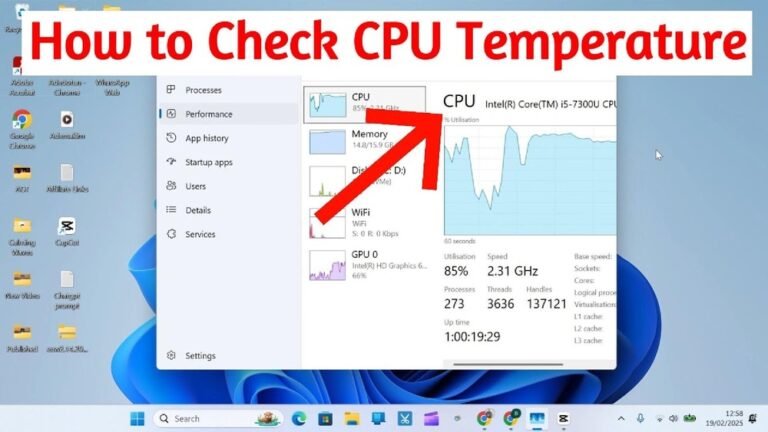
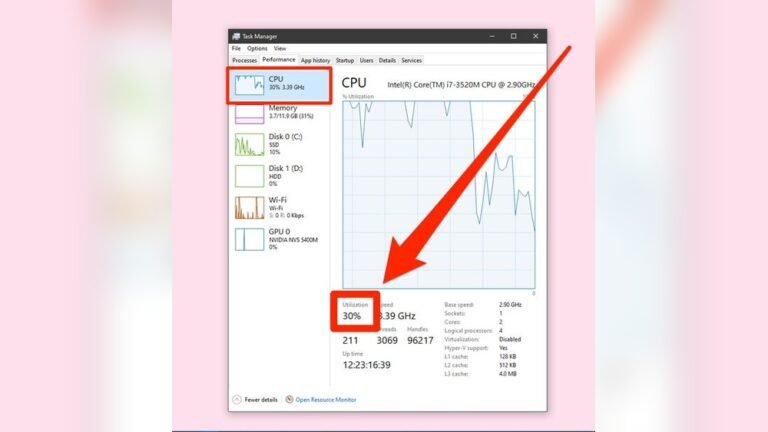
You can check memory use in the task manager or system monitor. If memory use stays near 100%, your RAM is overloaded. High memory usage means your computer uses all available RAM. It needs more to handle your tasks smoothly.
Choosing The Right Ram
Choosing the right RAM is key to improving your computer’s performance. The wrong type can cause problems or slow down your system. Learn what to check before buying new RAM modules. Understand the types available and pick the right capacity and speed for your needs.
Checking Compatibility
Start by checking your computer’s motherboard specifications. Each motherboard supports specific RAM types and speeds. Look for the maximum RAM capacity and the number of slots available. Use tools like CPU-Z to find details about your current RAM. Avoid buying RAM that your system cannot support.
Types Of Ram
There are different RAM types, such as DDR3, DDR4, and DDR5. Most modern computers use DDR4 or DDR5. DDR5 is faster but less common and more expensive. Match the RAM type to what your motherboard supports. Mixing different types can cause errors or prevent the system from booting.
Capacity And Speed
RAM capacity affects how many tasks your computer can handle at once. More RAM means smoother multitasking and better performance. Choose a capacity that fits your needs and budget. Speed is measured in MHz and affects how fast the RAM works. Pick RAM with the highest speed your motherboard supports for best results.
Preparing For Installation
Preparing for your RAM upgrade is important for a smooth and safe installation. Taking simple steps helps protect your computer parts and avoids damage. Follow these key actions before opening your PC case.
Gathering Tools
Collect the tools you need before starting. Usually, a small Phillips screwdriver is enough. Have a clean, flat surface ready to work on. Keep your new RAM and any manuals close by.
Powering Down Safely
Turn off your computer completely. Do not just put it to sleep or restart. Unplug the power cable from the wall or power strip. This prevents any electric shock or damage during installation.
Grounding Yourself
Static electricity can harm computer parts. Touch a metal part of your PC case to release static. Use an anti-static wrist strap if you have one. This step keeps your RAM and other components safe.
Credit: www.aisberg-voda.ru
Installing The Ram
Installing RAM is a key step to improve your computer’s speed. It is a simple process but needs care. Follow these steps to add RAM safely and correctly.
Opening The Case
First, turn off your computer. Unplug all cables and move it to a clean workspace. Use a screwdriver to remove the screws on the case side panel. Slide the panel off gently and set it aside. Now, you have access to the inside of your computer.
Locating Ram Slots
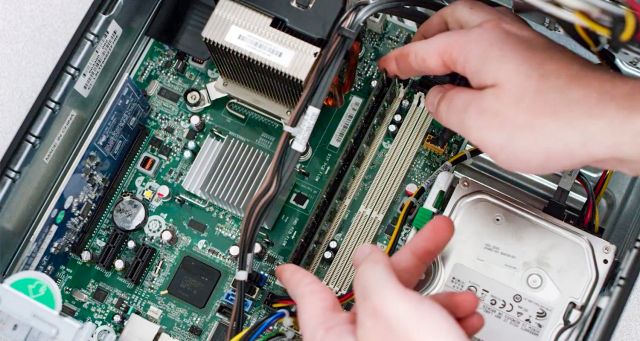
Look for long, thin slots near the CPU. These are the RAM slots. They usually sit side by side and have small clips on each end. Check if some slots already have RAM modules installed. You want to add your new RAM to the empty slots.
Inserting The Ram Modules
Hold the RAM module by the edges. Align the notch on the module with the slot key. Press down firmly but gently until the clips snap into place. Make sure the RAM is seated evenly and securely. Close the case, screw it back, and reconnect your cables. Your computer is ready for a RAM upgrade.
Post-installation Steps
After installing the RAM, some important steps follow. These steps ensure the computer works well with the new memory. Taking care of these steps helps avoid problems and makes sure the upgrade is successful.
Closing The Case
First, gently close the computer case. Make sure no cables or parts block the cover. Use screws or clips to secure the case tightly. A closed case protects the inside from dust and damage.
Booting Up The Pc
Turn on the computer after closing the case. Listen for any unusual sounds. Watch the screen for errors or warning messages. A smooth start means the RAM is likely installed well.
Verifying Ram Recognition
Check if the computer recognizes the new RAM. Open system settings or BIOS to see memory details. The total memory should match the new amount installed. If not, recheck the RAM placement or try again.

Credit: blog.acer.com
Troubleshooting Common Issues
Troubleshooting common issues during a RAM upgrade is important. Problems can stop your PC from working properly. Knowing how to fix these issues saves time and stress. This guide explains simple steps to solve usual RAM problems.
Pc Not Booting
Your PC may fail to start after installing new RAM. Check if the RAM sticks are firmly seated in their slots. Loose connections often cause boot problems. Remove and reinsert the RAM carefully. Make sure the power is off before handling components.
Try booting with one RAM stick at a time. This helps find faulty or incompatible memory modules. Also, clear the CMOS battery to reset BIOS settings. This step can fix boot errors caused by hardware changes.
Ram Not Detected
Sometimes, the system does not recognize the new RAM. Verify the RAM is compatible with your motherboard. Use the motherboard manual to confirm supported RAM types and speeds. Update your BIOS to the latest version to improve hardware support.
Check the RAM slots for dust or debris. Clean them gently with compressed air if needed. Test each RAM stick alone to see if one is defective. Incorrect installation or bad RAM often causes detection issues.
System Instability
System crashes or freezes may occur after a RAM upgrade. This usually happens due to faulty or mismatched RAM. Run a memory test using tools like MemTest86 to find errors. Replace any RAM stick that fails the test.
Check that all RAM sticks have the same speed and voltage. Mixing different RAM types can cause instability. Adjust BIOS settings to match the RAM specifications. Stable RAM operation ensures smooth computer performance.
Tips To Maximize Performance
Upgrading your RAM can boost your computer’s speed and multitasking ability. To get the best results, follow some simple tips. These help your system use the new memory efficiently. Small changes can make a big difference.
Updating Bios
BIOS controls your computer’s hardware settings. An old BIOS may not support new RAM well. Check your motherboard’s website for the latest BIOS update. Download and install it carefully. A new BIOS improves memory compatibility and performance.
Optimizing System Settings
Adjust system settings to use RAM fully. Set virtual memory or page file size correctly. Disable unnecessary startup programs to free RAM. Use task manager to monitor memory usage. These steps help your computer run smoother and faster.
Regular Maintenance
Keep your computer clean and virus-free. Dust inside the case can cause overheating, lowering RAM efficiency. Run antivirus scans often. Close unused apps and restart your PC regularly. Good maintenance keeps RAM working well over time.

Credit: www.crucial.com
Frequently Asked Questions
What Type Of Ram Is Compatible With My Computer?
Check your computer’s specifications or motherboard manual to find compatible RAM types. Use tools like CPU-Z for detailed info. Ensure matching DDR generation, speed, and voltage for optimal performance and stability.
How Much Ram Should I Add For Better Performance?
Adding 8GB to 16GB RAM suits most users for smooth multitasking and gaming. More RAM helps with heavy applications and faster data processing. Match your system’s maximum RAM capacity before upgrading.
Can I Upgrade Ram Myself Safely At Home?
Yes, upgrading RAM is safe with proper precautions. Power off and unplug your PC, ground yourself to avoid static damage, then carefully install the new RAM into available slots.
Will Upgrading Ram Improve My Computer’s Speed?
Upgrading RAM enhances multitasking and reduces slowdowns in memory-intensive tasks. It won’t boost CPU or GPU speed but improves overall system responsiveness and application loading times.
Conclusion
Upgrading your RAM can boost your computer’s speed and performance. It helps your system run programs smoothly and handle more tasks at once. Choose the right RAM type and size for your device. Follow simple steps to install it safely.
Take time to check compatibility before buying. This small change can make a big difference in daily use. Enjoy a faster and more responsive computer after upgrading your RAM.