How to Upgrade Gpu on Laptop: Ultimate Guide for Boosted Performance
Are you tired of your laptop struggling to run the latest games or handle heavy graphic tasks? Upgrading your GPU could be the game-changer you need.
Imagine smoother gameplay, faster rendering, and a laptop that feels brand new again—all without buying a whole new machine. You’ll discover simple, practical steps to boost your laptop’s graphics power. Whether you’re a gamer, designer, or just want better performance, keep reading to unlock your laptop’s true potential.
Laptop Gpu Upgrade Basics
Upgrading a laptop’s GPU can improve graphics and speed. It helps run new games and software better. Before starting, know the basics of laptop GPU upgrades. This helps avoid mistakes and saves time.
Many think upgrading a laptop GPU is easy. The truth is, it needs careful planning and understanding. Not all laptops support GPU changes. Knowing the types and limits is important.
Why Upgrade Your Laptop Gpu
Faster graphics help games run smoother. Video editing and 3D design also improve. A better GPU makes the laptop more useful. It can extend the laptop’s life. Users get more value from their device.
Types Of Laptop Gpus
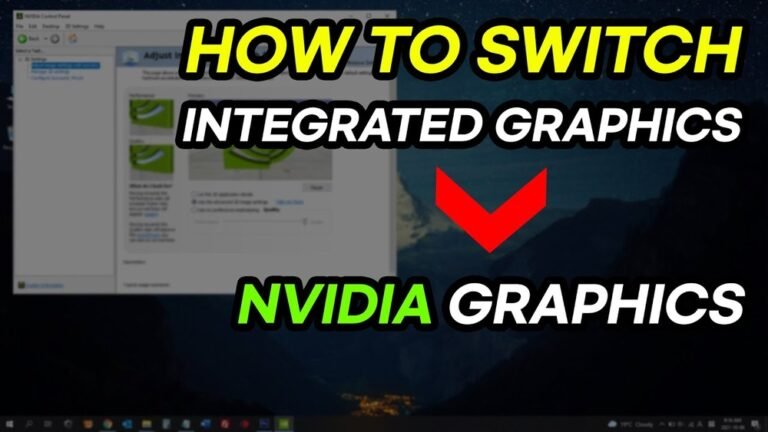
Laptops have two main GPU types: integrated and dedicated. Integrated GPUs share memory with the CPU. They are less powerful but use less battery. Dedicated GPUs have their own memory. They offer stronger performance for heavy tasks.
Limitations Of Laptop Gpu Upgrades
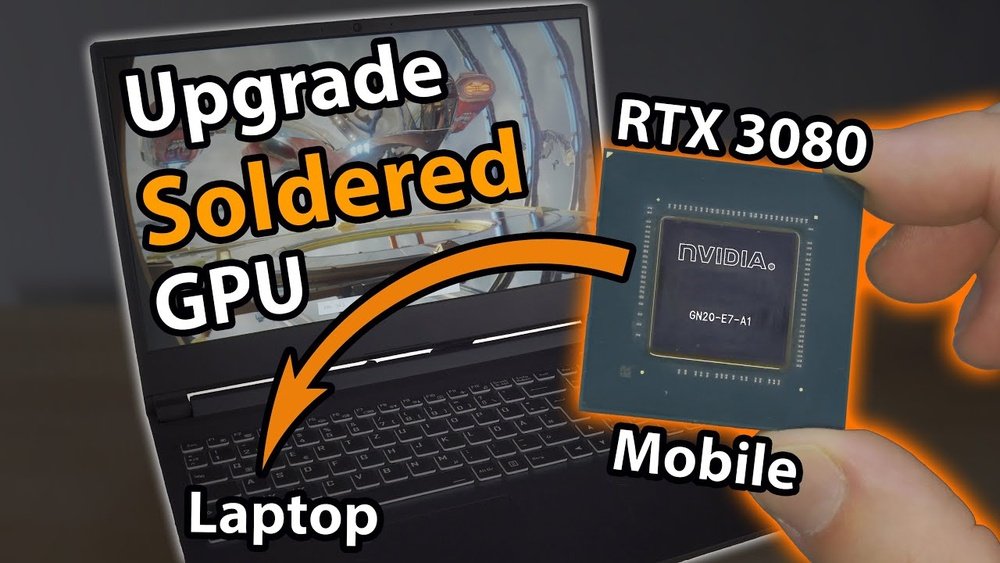
Many laptops have GPUs soldered to the motherboard. These cannot be replaced or upgraded. Size and power limits also restrict GPU upgrades. Cooling systems may not handle stronger GPUs. Compatibility is a big issue to check first.
Checking Compatibility
Before upgrading your laptop’s GPU, checking compatibility is crucial. Not all GPUs fit or work well with every laptop. Knowing what your laptop supports saves time and money. This step ensures the new GPU runs smoothly and improves performance.
Identifying Your Current Gpu
First, find out which GPU your laptop has now. This info helps compare with new options. You can check your GPU through system settings or device manager. Write down the model and manufacturer for reference.
Compatible Gpus For Your Laptop Model
Not all GPUs fit every laptop model. Some laptops use integrated GPUs that cannot be replaced. Others have specific slots or connectors for certain GPU types. Look for GPUs designed for your laptop’s brand and model. Check online forums and manufacturer sites for recommended upgrades.
Bios And Firmware Considerations
Your laptop’s BIOS and firmware control hardware functions. Sometimes, upgrades need BIOS updates to work correctly. Check if your laptop’s BIOS supports the new GPU. Updating BIOS might require technical skills or professional help. Always follow manufacturer instructions carefully.
External Gpu Solutions
External GPU solutions offer a practical way to boost your laptop’s graphics power. Many laptops cannot upgrade their internal GPU. An external GPU, or eGPU, connects through a fast port. This setup gives your laptop desktop-class graphics performance. It works well for gaming, video editing, and 3D work.
What Is An External Gpu (egpu)?
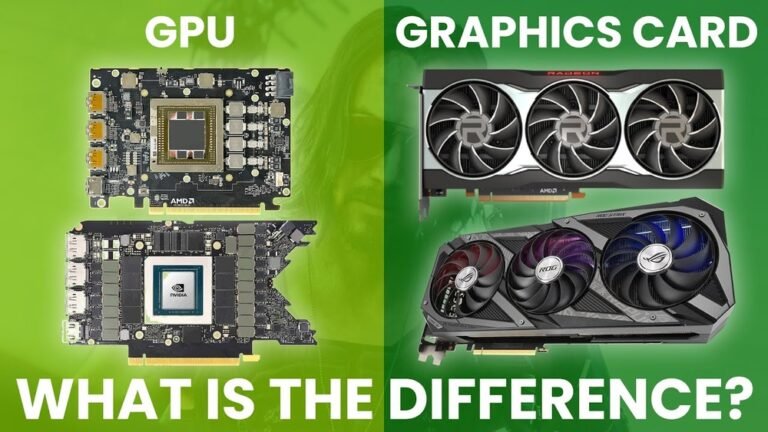
An external GPU is a separate graphics card unit. It sits outside your laptop and connects via a cable. This device has its own power supply and cooling system. The eGPU uses a desktop-grade graphics card. It sends video data to your laptop through a high-speed connection. This method enhances graphics without opening your laptop.
Choosing The Right Egpu Enclosure
The eGPU enclosure holds the graphics card. It provides power and cooling to the GPU. Choose an enclosure that fits your graphics card size. Check the power output to match your GPU needs. Look for good cooling features to avoid overheating. Also, ensure it supports the connection type your laptop has.
Connecting Egpu To Your Laptop
Most eGPUs connect via Thunderbolt 3 or 4 ports. These ports offer fast data transfer speeds. Plug the eGPU enclosure into your laptop’s Thunderbolt port. Install the necessary drivers for your graphics card. Some laptops may require BIOS updates. After setup, your laptop will use the external GPU automatically.
Credit: www.liftingitalia.com
Internal Gpu Upgrade Options
Upgrading the internal GPU of a laptop can improve graphics performance. Not all laptops allow internal GPU upgrades. Some models have special designs that support GPU changes. Understanding these options helps in deciding the best upgrade path.
Modular Gpu Slots In Laptops
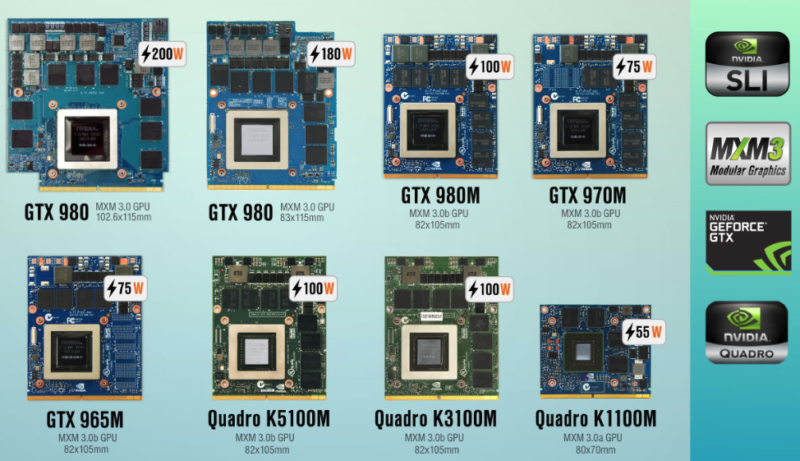
Some laptops have modular GPU slots. This means the GPU is not soldered to the motherboard. Instead, it fits into a removable slot. This design lets users replace or upgrade the GPU. Such laptops are rare but valuable for upgrades.
Swapping The Gpu Module
Swapping the GPU module requires careful work. You must open the laptop case and remove the old GPU. Then, install the new GPU in the same slot. Proper handling is needed to avoid damage. This method can boost graphics power significantly.
Professional Assistance And Risks
Upgrading an internal GPU involves risks. Laptops are delicate and parts are small. Mistakes can cause permanent damage. Professional help ensures safe and correct installation. Experts have tools and experience to manage the process well.
Preparing For The Upgrade
Preparing for a GPU upgrade on your laptop is an important step. It helps avoid problems and ensures a smooth process. Taking time to prepare saves effort later. This section covers key preparation tasks before the upgrade.
Backing Up Important Data
Backing up your data protects files from loss. Save your documents, photos, and videos on an external drive or cloud storage. This prevents data loss during hardware changes. Double-check that backup is complete and accessible before starting.
Gathering Necessary Tools
Having the right tools makes the upgrade easier. Common tools include a small screwdriver, anti-static wrist strap, and a clean workspace. Use a soft cloth to avoid scratches. Prepare all tools in one place for quick access during the upgrade.
Ensuring Proper Cooling And Power
Good cooling prevents overheating during and after the upgrade. Clean the laptop vents and fans carefully. Check that your power adapter supports the new GPU’s requirements. A stable power source avoids damage and maintains laptop performance.

Credit: www.youtube.com
Step-by-step Upgrade Process
Upgrading the GPU on a laptop can seem tough. Follow this step-by-step guide to make the process clear. Each step helps you handle your laptop safely and correctly. This way, you protect your device and get the best performance from your new GPU.
Disassembling The Laptop Safely
Turn off your laptop and unplug all cables. Remove the battery if possible. Use a small screwdriver to open the back panel carefully. Keep screws in a safe place. Avoid using too much force to prevent damage. Ground yourself to stop static electricity. This protects sensitive parts inside your laptop.
Removing The Old Gpu
Locate the GPU on the motherboard. It often sits under a heat sink or fan. Disconnect any cables or screws holding it. Gently release the GPU from its slot. Avoid bending or touching connectors directly. Place the old GPU in an anti-static bag for safety.
Installing The New Gpu
Take the new GPU out of its packaging carefully. Align it with the slot on the motherboard. Press down gently until it clicks into place. Secure it with screws if needed. Reconnect any cables or cooling systems removed earlier. Double-check all connections before closing the laptop.
Reassembling And Testing
Put the back panel and battery back in place. Screw the panel securely but do not over-tighten. Plug in your laptop and turn it on. Install the latest GPU drivers from the manufacturer’s website. Test the new GPU with a game or graphics program. Check for smooth performance and no errors.
Post-upgrade Optimization
After upgrading your laptop’s GPU, some steps help your system run smoothly. Post-upgrade optimization improves graphics and overall performance. These steps ensure your new GPU works at its best.
Installing Latest Gpu Drivers
Drivers connect your GPU with the operating system. Download the latest drivers from the GPU maker’s official website. Updated drivers fix bugs and improve speed. Always install the newest version for better compatibility.
Adjusting Graphics Settings
Set graphics options to match your new GPU’s power. Lower settings for older games, increase for newer ones. Balance quality and performance for smooth gameplay. Use control panels from GPU software to tweak settings easily.
Monitoring Performance And Temperatures
Watch your GPU’s temperature during use. High heat can reduce performance or damage hardware. Use software tools to check real-time stats. Keep fans clean and vents clear for better cooling.
Troubleshooting Common Issues
Upgrading a laptop GPU can be tricky. Problems may arise even after a successful upgrade. Knowing how to solve common issues saves time and stress. This section covers three frequent problems and their fixes.
Gpu Not Detected
Your laptop may fail to recognize the new GPU. Check the physical connection first. Make sure the GPU is properly seated in the slot. Restart the laptop to refresh hardware detection. Enter BIOS settings and verify if the GPU appears there. Sometimes, updating the BIOS helps detect new hardware. Use Device Manager to check for unknown devices. Install the correct drivers from the GPU manufacturer’s website. Avoid using old or generic drivers as they cause detection errors.
Overheating Problems
New GPUs can generate more heat than original parts. Poor cooling causes overheating and system shutdowns. Clean laptop vents and fans to improve airflow. Use a cooling pad or external fan for extra cooling. Check thermal paste on the GPU chip and replace it if dry. Avoid running heavy apps immediately after upgrade. Monitor GPU temperature with software tools. Keep temperatures below 85°C to prevent damage.
Driver Conflicts
Conflicts happen when old and new GPU drivers clash. Uninstall all previous GPU drivers before installing new ones. Use Display Driver Uninstaller (DDU) for thorough removal. Download the latest driver version compatible with your GPU model. Avoid automatic updates that might install wrong drivers. Restart the laptop after installation to complete setup. Test GPU performance with simple apps to ensure stability. Driver issues can cause crashes and poor graphics quality.
Alternative Ways To Boost Performance
Upgrading a laptop’s GPU can be tough. Many laptops don’t support changing the graphics card. But there are other ways to boost your laptop’s performance. These methods help improve speed and graphics without swapping the GPU.
These options make your laptop run smoother. They are easy to try and cost less. Let’s explore some effective ways to enhance your laptop’s power.
Upgrading Ram And Storage
Increasing RAM helps your laptop handle more tasks. More memory lets programs run faster and smoother.
Switching to a solid-state drive (SSD) speeds up loading times. SSDs read and write data faster than traditional hard drives.
Upgrading RAM and storage improves overall system performance. Your laptop feels quicker in daily use.
Optimizing Software Settings
Adjust graphics settings in games and apps. Lowering resolution or turning off effects reduces the load on your GPU.
Close unnecessary background programs. Freeing up system resources helps your laptop focus on important tasks.
Keep your drivers and software updated. Updates fix bugs and improve compatibility.
Using Game Mode And Performance Tools
Many laptops have a Game Mode or performance setting. Activating it boosts CPU and GPU power for better gaming.
Use built-in or third-party tools to monitor system performance. These tools help manage power and temperature.
Performance modes reduce lag and improve frame rates. They optimize your laptop’s hardware for demanding tasks.

Credit: softwareg.com.au
Frequently Asked Questions
Can I Upgrade The Gpu On Any Laptop?
Not all laptops support GPU upgrades. Most have integrated or soldered GPUs. Only select models with MXM slots allow upgrades. Check your laptop’s specifications or manual to confirm compatibility before attempting an upgrade.
How Do I Know If My Laptop Gpu Is Upgradeable?
Review your laptop’s manual or manufacturer website for upgrade details. Look for MXM slots or removable GPU modules. Use software tools to identify your current GPU model and compatibility options for upgrades.
What Tools Are Needed To Upgrade A Laptop Gpu?
You typically need a small screwdriver set, anti-static wrist strap, and thermal paste. Some models may require specific tools. Always follow manufacturer guidelines to avoid damaging components during the upgrade.
Will Upgrading My Laptop Gpu Improve Gaming Performance?
Upgrading to a better GPU can significantly enhance gaming performance. It boosts frame rates and graphics quality. However, ensure your laptop supports the new GPU and cooling system to avoid overheating.
Conclusion
Upgrading your laptop’s GPU can boost its performance a lot. Choose the right GPU that fits your laptop model. Take time to prepare and follow safety steps carefully. Small changes can make your laptop run faster and look better. Remember to check compatibility to avoid problems later.
With patience, your laptop can handle games and tasks better. Enjoy the new speed and improved graphics after your upgrade. Simple steps can bring big improvements to your device.