How to Upgrade a Gpu on a Laptop: Easy Steps for Maximum Power
Are you tired of your laptop struggling to run the latest games or heavy graphics software? Upgrading your GPU could be the key to unlocking smoother performance and better visuals.
But you might be wondering—is it even possible to upgrade a laptop’s GPU? The answer is yes, and it’s simpler than you think. In this guide, you’ll discover clear, step-by-step advice on how to upgrade your laptop’s GPU safely and effectively.
Keep reading, and you’ll soon enjoy a faster, more powerful laptop without buying a whole new machine.
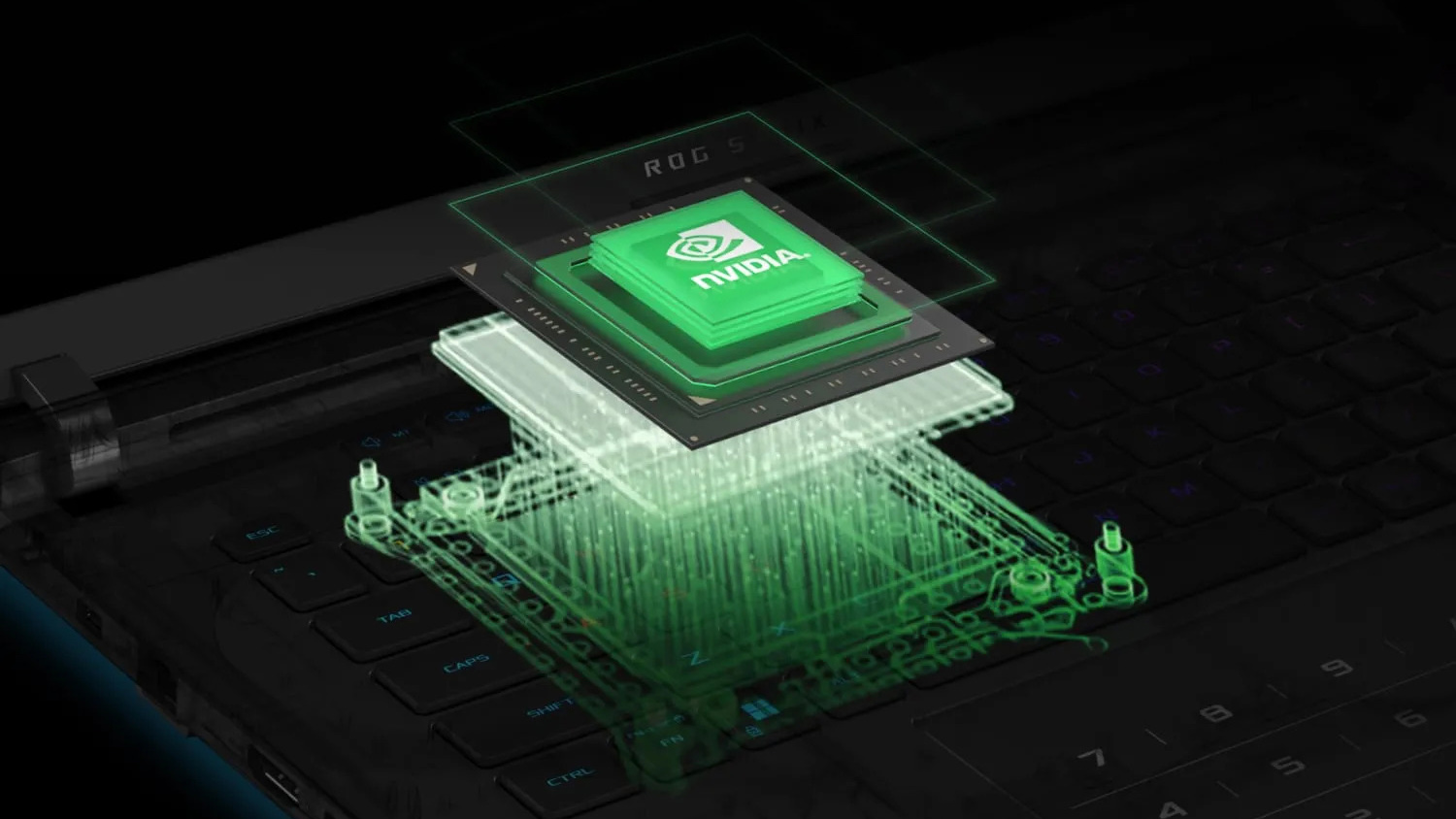
Credit: rog.asus.com
Assessing Laptop Gpu Upgrade Options
Upgrading a laptop GPU can improve graphics performance. It helps with gaming, video editing, and other tasks. Before starting, check your upgrade options carefully. Not all laptops support GPU changes. Some laptops allow internal upgrades, while others may need external solutions.
Assessing your laptop’s GPU upgrade options saves time and effort. It also helps avoid buying incompatible parts. The following steps guide you through the process.
Check Laptop Compatibility
Not all laptops allow GPU upgrades. Many have GPUs soldered to the motherboard. This means you cannot replace or upgrade them. Check your laptop’s model and manual for details. Search online for your laptop’s upgrade possibilities. Look for user experiences and manufacturer notes. Confirm if your laptop supports a new internal GPU.
Identify Upgradeable Gpu Models
Once you know your laptop supports GPU upgrades, find compatible models. Laptop GPUs come in different sizes and power needs. Choose a GPU that fits your laptop’s slot and cooling system. Compare performance and power consumption of available GPUs. Avoid models that need more power than your laptop can provide. Make sure the new GPU matches your laptop’s specifications.
Consider External Gpu Alternatives
If internal upgrades are not possible, consider external GPUs. External GPUs connect through Thunderbolt or USB-C ports. They offer a performance boost without opening your laptop. External GPUs need their own power supply and cooling. They are larger and less portable but effective. Check if your laptop supports external GPU connections. External GPUs provide flexibility for upgrading graphics power.
Preparing For The Upgrade
Preparing your laptop for a GPU upgrade takes careful steps. These steps help avoid problems and keep your data safe. Follow this guide to get ready before starting the hardware change.
Backup Important Data
Save all your important files on an external drive or cloud storage. This protects your data in case something goes wrong during the upgrade. Backing up prevents loss of pictures, documents, and software settings. Take time to double-check the backup before continuing.
Gather Required Tools
Get all the tools needed for the GPU upgrade ready. You will usually need small screwdrivers, an anti-static wrist strap, and a clean workspace. Having tools nearby speeds up the process and reduces damage risks. Check your laptop model for any special tools required.
Update Bios And Drivers
Download and install the latest BIOS and GPU drivers from your laptop maker’s website. Updated BIOS improves hardware compatibility and stability. Latest drivers ensure the new GPU works correctly. Restart your laptop after updates to apply changes fully.
Removing The Existing Gpu
Removing the existing GPU from a laptop is a key step in upgrading your graphics card. It takes patience and care. This process involves opening your laptop, finding the GPU, and safely detaching it. Follow each step closely to avoid damage.
Disassemble Laptop Carefully
Turn off the laptop and unplug it from power. Remove the battery if possible. Use a small screwdriver to open the back panel. Keep screws organized to avoid losing them. Avoid using force to pry open the case. Work on a clean, flat surface to keep parts safe.
Locate And Detach Gpu Module
Find the GPU inside the laptop. It usually sits near the cooling fan. Look for a metal or plastic cover over the GPU. Unscrew and remove this cover gently. Detach any cables connected to the GPU. Carefully release the locking mechanism holding the GPU. Slowly pull the GPU out from its slot.
Handle Components Safely
Wear an anti-static wrist strap to protect parts from static electricity. Hold the GPU by its edges, not the chips or connectors. Avoid touching other internal components. Place the GPU on an anti-static mat or bag. Keep your workspace clean and dry. Proper handling prevents damage and helps the upgrade succeed.
Installing The New Gpu
Installing the new GPU in a laptop needs careful steps. This part is delicate and must be done with attention. Proper installation ensures good performance and avoids damage. Follow each step closely for the best results.
Align And Secure Gpu Properly
First, place the new GPU in the slot carefully. Check that it fits the connector perfectly. Do not force it. Press it gently until it clicks or fits snugly. Use screws or clips to hold the GPU in place. This stops it from moving or loosening later.
Reconnect Cables And Cooling Systems
Next, reconnect all cables removed during disassembly. Pay attention to power and data cables. Connect the cooling system back to the GPU. Fans and heat sinks must fit tightly. Proper cooling prevents overheating and keeps the laptop safe.
Reassemble Laptop
Finally, put the laptop parts back in order. Replace the back cover and tighten all screws. Check every part is secure and aligned. Do not rush this step. A well-assembled laptop works better and lasts longer.
Post-upgrade Setup
After upgrading your laptop’s GPU, some steps ensure it works properly. The post-upgrade setup helps your system recognize the new hardware and run smoothly. Follow these steps carefully to get the best performance from your new GPU.
Install Latest Gpu Drivers
Start by installing the latest drivers for your GPU. Drivers help your laptop communicate with the new graphics card. Visit the GPU manufacturer’s website to download the correct driver. Avoid using old or generic drivers as they can cause issues. After downloading, run the installer and follow the instructions. Restart your laptop to apply changes fully.
Adjust Bios Settings If Needed
Sometimes, the BIOS needs changes to support the new GPU. Enter the BIOS setup by pressing a key during startup, usually F2 or Delete. Look for settings related to the graphics or video configuration. Set the primary display to the new GPU if required. Save changes and exit the BIOS. This ensures your system prioritizes the new graphics card.
Test Gpu Performance
Check if the new GPU works correctly by testing its performance. Use tools like benchmarking software or games that require graphics power. Monitor the GPU temperature and speed to avoid overheating. If performance is low, recheck driver installation and BIOS settings. Testing confirms the upgrade was successful and your laptop runs well.
Troubleshooting Common Issues
Upgrading a GPU on a laptop can bring new power and speed. Sometimes, this upgrade causes issues. Troubleshooting helps solve these common problems fast. These tips fix most troubles without extra help.
Fix Display Or Boot Problems
Check all connections inside the laptop. A loose cable can stop the screen from showing. Restart the laptop after the upgrade. If the screen stays black, try connecting to an external monitor. This step shows if the GPU works. Reset the BIOS by removing the battery or using the reset button. This action can fix boot issues caused by new hardware.
Resolve Driver Conflicts
Uninstall old GPU drivers before installing new ones. Use a tool like Display Driver Uninstaller (DDU) for a clean removal. Download the latest drivers from the GPU maker’s website. Install these drivers carefully and restart the laptop. Driver conflicts often cause crashes or poor performance. Keep your system updated to avoid these problems.
Manage Overheating Concerns
New GPUs can produce more heat than old ones. Clean the laptop’s fans and vents before upgrading. Apply fresh thermal paste to the GPU for better cooling. Use a cooling pad to help lower temperatures during heavy use. Monitor the laptop’s temperature with software tools. High heat can cause crashes or slowdowns.
Maximizing Gpu Performance
Maximizing GPU performance is key to getting the best from your laptop’s graphics card. It helps run games, videos, and software smoothly. Small changes can improve speed and reduce lag. Focus on easy steps that boost your GPU without extra cost.
Optimize Power Settings
Set your laptop to high-performance mode in power settings. This stops the system from limiting GPU power to save battery. Connect to a charger while using heavy apps to keep the GPU running at full speed. Avoid power-saving modes during gaming or editing.
Use Performance Monitoring Tools
Use tools like MSI Afterburner or GPU-Z to watch your GPU’s temperature and speed. These apps show if the GPU is working well or slowing down. Monitoring helps spot overheating or other issues early. Keep an eye on performance during tasks for better control.
Keep Drivers Up To Date
Update your GPU drivers regularly. Manufacturers release updates to fix bugs and improve speed. Check the official website for the latest driver versions. Updated drivers help your GPU work with new software and games smoothly.

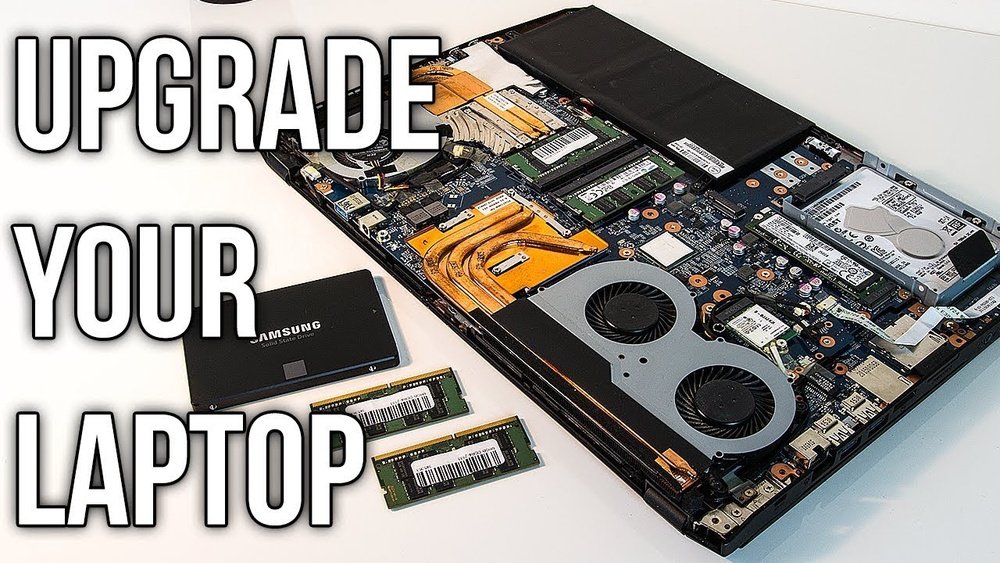
Credit: www.youtube.com

Credit: www.reddit.com
Frequently Asked Questions
Can I Upgrade My Laptop Gpu Easily?
Upgrading a laptop GPU is often difficult due to hardware limitations. Most laptops have integrated or soldered GPUs, making upgrades impossible. Some high-end models with MXM slots allow GPU swaps. Always check your laptop’s specifications before attempting an upgrade to avoid damage.
What Tools Are Needed To Upgrade A Laptop Gpu?
You typically need a small Phillips screwdriver, anti-static wrist strap, thermal paste, and cleaning materials. These tools help safely open your laptop and install the new GPU. Using the right tools prevents damage and ensures proper installation.
Will Upgrading My Laptop Gpu Improve Gaming Performance?
Yes, upgrading to a more powerful GPU can boost gaming performance. It allows higher frame rates and better graphics quality. However, ensure your CPU and cooling system can handle the new GPU for optimal results.
How To Check If My Laptop Gpu Is Upgradeable?
Check your laptop’s manual or manufacturer website for upgrade options. Look for MXM GPU slots or modular designs. If your GPU is soldered, upgrading is not possible. Consulting a professional can provide clarity on your specific model.
Conclusion
Upgrading a laptop GPU can boost graphics and speed. It takes care, the right parts, and patience. Check your laptop’s compatibility before buying a new GPU. Follow clear steps to avoid damage. Small changes can make a big difference in performance.
Enjoy smoother videos, games, and work tasks. Keep your laptop cool to help the new GPU last longer. A good upgrade brings new life to your device. Take your time and do it right. Your laptop will thank you.