How to Tell What Ram I Have: Quick & Easy Guide for Beginners
Do you ever wonder if your computer’s memory is holding you back? Knowing exactly what kind of RAM you have is the first step to boosting your device’s speed and performance.
Whether you’re planning an upgrade or just curious, understanding your RAM can save you time and money. In this guide, you’ll learn simple ways to check your RAM without any technical headaches. Keep reading, and you’ll soon feel confident managing your computer’s memory like a pro.
Check Ram On Windows
Checking your RAM on a Windows computer helps you know how much memory is available. This can improve your computer use and help with software needs. There are simple ways to find this information using built-in Windows tools.
Use System Information
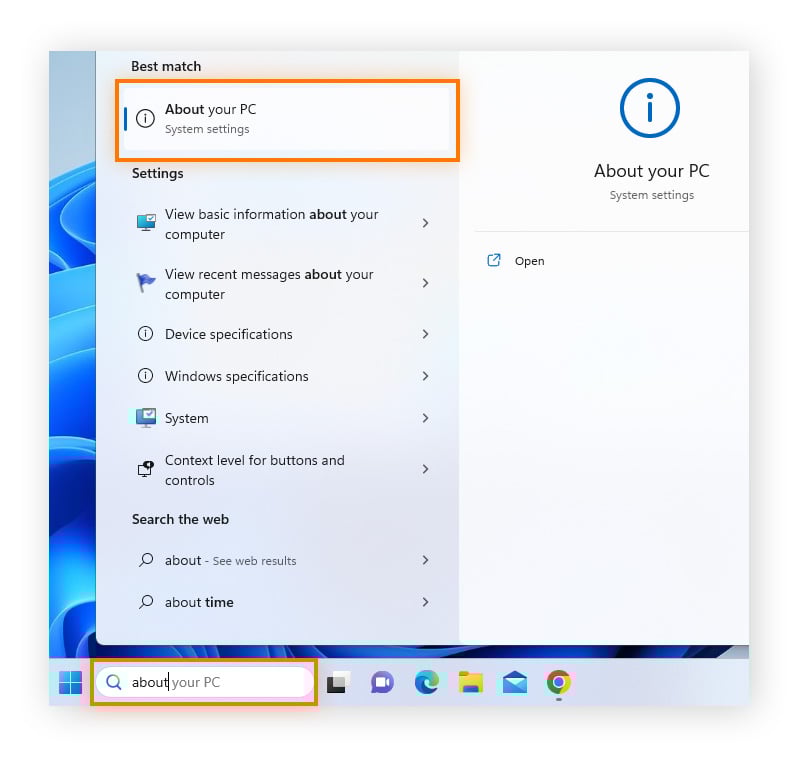
Open the Start menu and type “System Information”. Click the app to open it. Look for “Installed Physical Memory (RAM)” in the summary. This shows the total RAM your computer has. It also gives details about your system hardware.
Try Task Manager
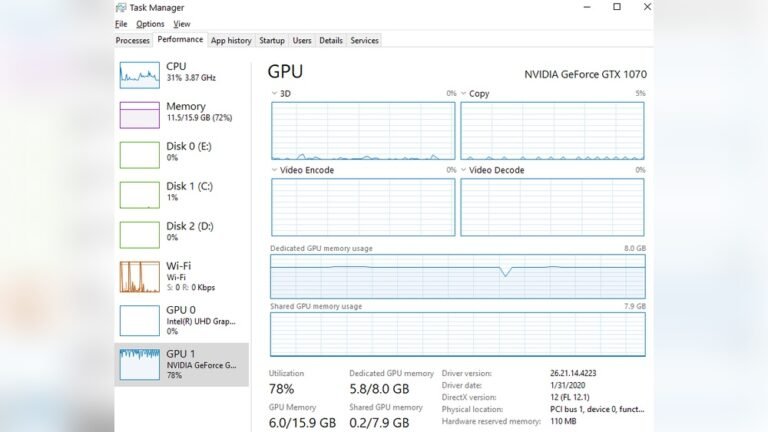
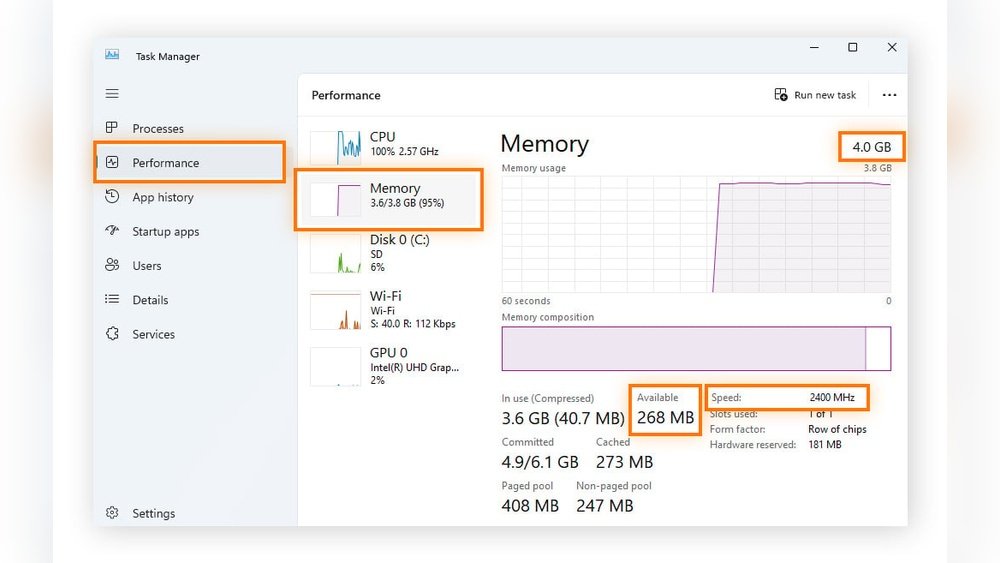
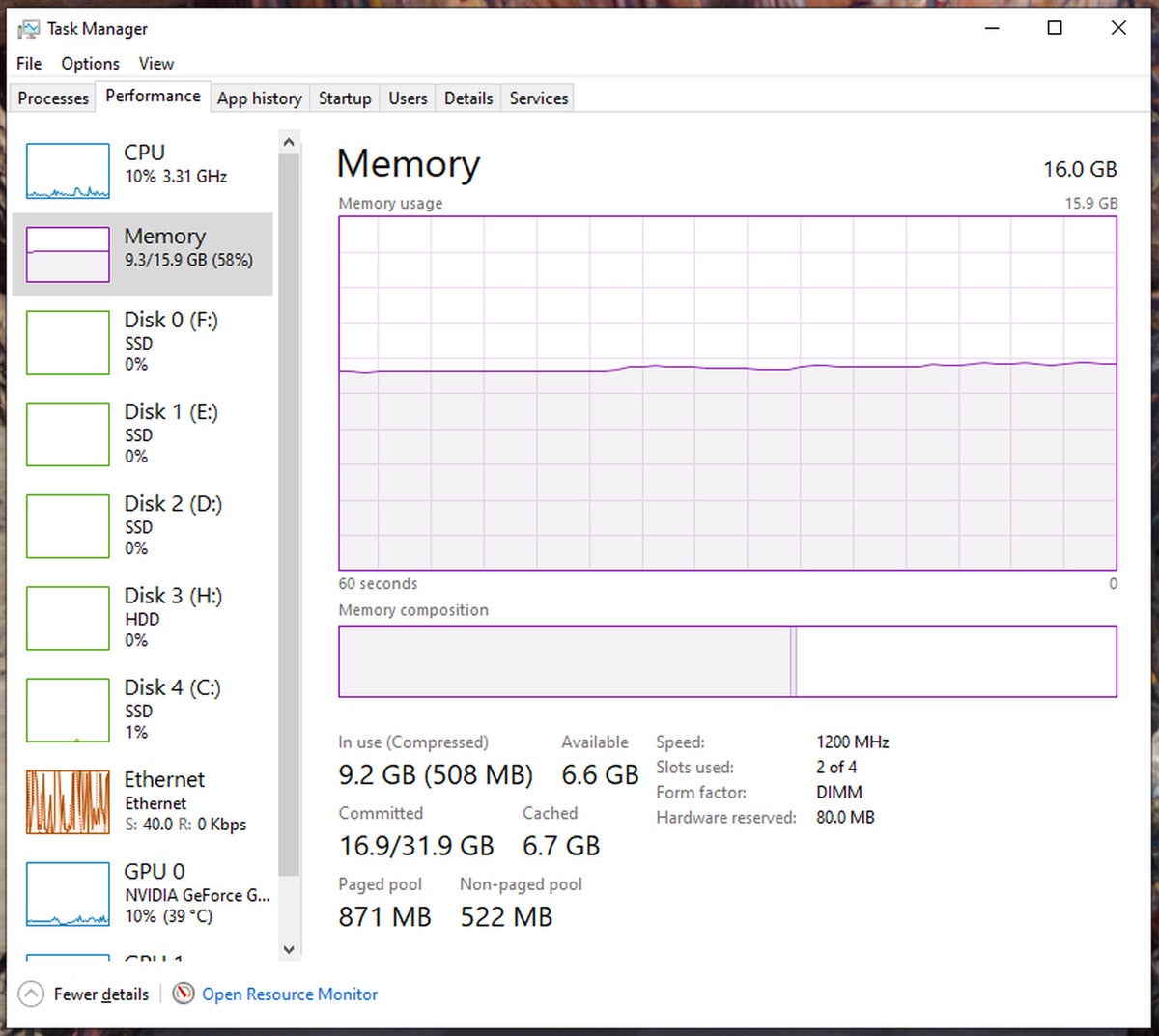
Right-click the taskbar and select “Task Manager”. Click on the “Performance” tab. Select “Memory” from the left menu. You will see the RAM size and its speed. This method also shows how much RAM is in use right now.
Command Prompt Method
Press Windows + R keys to open the Run box. Type “cmd” and press Enter to open Command Prompt. Type “wmic memorychip get capacity” and press Enter. The command shows RAM size in bytes for each memory chip. Add these numbers to find total RAM capacity.
Credit: www.avast.com
Find Ram On Mac
Finding out how much RAM your Mac has is simple. Knowing this helps with performance checks and upgrades. Macs show RAM information in a few easy steps.
Start by checking the basic info about your Mac. For more details, dig deeper into the system report. Both methods give clear RAM details.
About This Mac
Click the Apple logo at the top-left corner of your screen. Select “About This Mac” from the dropdown menu. A window will appear showing your Mac’s overview.
Look for the “Memory” section. It tells you the total RAM installed. This quick view shows RAM size and speed in simple terms.
System Report Details
In the “About This Mac” window, click the “System Report” button. This opens a detailed system information window. Here, find the “Memory” section in the sidebar.
It lists each RAM slot’s size and type. This helps identify how many RAM sticks your Mac uses. Also, see the speed and status of each memory module.
Identify Ram On Linux
Finding out how much RAM your Linux system has is simple. Knowing your RAM helps you understand your computer’s speed and ability to run programs. Linux offers easy tools to check this information quickly.
This section explains two common ways to identify RAM on Linux. You can use commands in the terminal or check the system monitor. Both methods work well for beginners and advanced users.
Using Terminal Commands
Open your terminal to start. Type free -h and press enter. This command shows your total, used, and free memory in a simple format.
Another useful command is cat /proc/meminfo. It gives more details about your RAM, like available and cached memory.
For a quick summary, use vmstat -s. This command lists memory stats in an easy-to-read way.
Checking System Monitor
Most Linux versions include a system monitor tool. Open it from your applications menu. Look for the “Memory” or “Resources” tab.
This tab shows your total RAM and current usage with graphs. It helps you see how your memory works in real time.
The system monitor is useful if you want a visual way to check your RAM. It also shows CPU and disk usage.
Physical Ram Inspection
Checking your RAM physically helps you know its type and size. This method is simple and direct. You get clear details from the labels on the RAM sticks. No need for special software or commands.
Handle your computer carefully while inspecting the RAM. Avoid static electricity by touching a metal object first. This step protects your PC parts from damage.
Opening Your Pc
Turn off your computer and unplug it from power. Place it on a clean, flat surface. Use a screwdriver to remove the side panel of the case. This panel usually slides or screws off.
Look inside for long, thin sticks seated in slots on the motherboard. These are your RAM modules. Make sure you do not touch other parts inside to avoid damage.
Reading Ram Labels
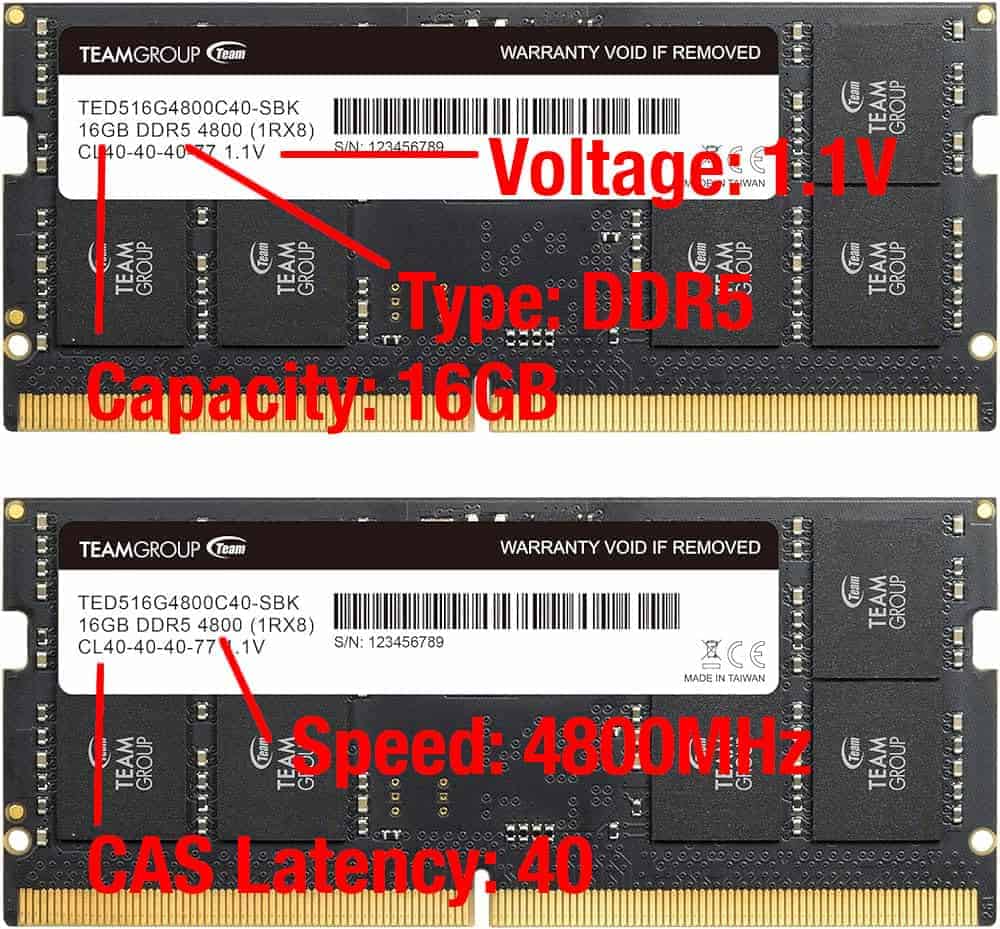
Each RAM stick has a small sticker or print with important info. Look for numbers like “4GB,” “8GB,” or “16GB.” These tell you the memory size. You may also see “DDR3,” “DDR4,” or “DDR5,” which shows the RAM type.
Other details include speed, like “2400MHz” or “3200MHz.” This number shows how fast your RAM works. Write down these details for future reference or upgrades.
Tools To Analyze Ram
Knowing your computer’s RAM details helps with upgrades and troubleshooting. Several tools make checking RAM simple and clear. These tools show your RAM size, type, speed, and more.
Third-party Software
Third-party programs provide detailed RAM information beyond basic system tools. Many are free and easy to download. They show RAM manufacturer, model, and exact specs.
Popular options include CPU-Z, Speccy, and HWiNFO. These tools also track RAM usage and health. They help users understand their memory better.
Online Resources
Some websites offer online tools to scan and report RAM details. These tools work through your browser without installation. They read system info and present RAM data clearly.
Use trusted sites to avoid security risks. Online tools provide quick checks when software downloads aren’t possible. They are helpful for basic RAM analysis.
Credit: www.acquetech.com
Key Ram Specs To Note
Understanding your RAM is important for improving your computer’s performance. Key RAM specs tell you what kind of memory you have. These details help when upgrading or troubleshooting your system. Focus on capacity, speed, type, generation, and slots used.
Capacity And Speed
RAM capacity shows how much memory your computer has. It is usually measured in gigabytes (GB). More capacity means your computer can handle more tasks. Speed tells how fast the RAM works. It is measured in megahertz (MHz). Higher speed means quicker data access.
Type And Generation
RAM type defines its design and compatibility. Common types include DDR3, DDR4, and DDR5. Each type fits specific motherboard slots. Generation shows the version of your RAM type. Newer generations offer better performance and efficiency.
Number Of Slots Used
Computers have RAM slots on the motherboard. Each slot holds one RAM module. Knowing how many slots are used helps plan upgrades. Filling all slots can maximize memory capacity. Leaving some free slots allows easy memory expansion.
Credit: blizanovy.cz
Frequently Asked Questions
How Can I Check My Ram Size On Windows?
Open Task Manager by pressing Ctrl + Shift + Esc. Go to the Performance tab. Click on Memory to see total RAM size and usage details.
What Tools Show Detailed Ram Information?
Use system tools like CPU-Z or Speccy. These apps provide RAM type, size, speed, and module details clearly and quickly.
How Do I Find Ram Type And Speed?
Check RAM details in BIOS/UEFI or use software like CPU-Z. It reveals exact RAM type, frequency, and timings easily.
Can I Identify Ram Without Opening My Pc?
Yes, use software tools like Task Manager or CPU-Z. They provide full RAM details without needing to open your computer.
Conclusion
Knowing what RAM you have helps you make smart computer choices. It guides you in upgrading or fixing your device. Checking RAM is quick and easy using built-in tools. This saves time and avoids mistakes. Keep your computer running smoothly by understanding its memory.
Now you can manage your system with confidence. Simple steps lead to better performance and less frustration. Take control of your tech today.