How to Tell If a Gpu is Dead: Easy Signs to Diagnose Quickly
Is your computer acting up, showing strange lines on the screen, or refusing to start games? You might be wondering if your GPU is dead.
Knowing for sure can save you time, money, and frustration. You’ll learn simple and clear ways to check if your graphics card is really gone or if there’s an easy fix. Keep reading—your next step to getting your PC back in shape is right here.

Credit: www.wikihow.com
Common Gpu Failure Symptoms
Knowing the common symptoms of GPU failure helps you spot problems early. A dead or dying GPU shows clear signs. These signs affect your computer’s display and performance. Recognizing these symptoms saves time and frustration.
No Display Output
No display output means your monitor stays black. Your computer might turn on, but nothing shows on the screen. This could be a sign that the GPU is dead. Check cables and monitor first. If they work fine, the GPU might be the problem.
Screen Artifacts And Glitches
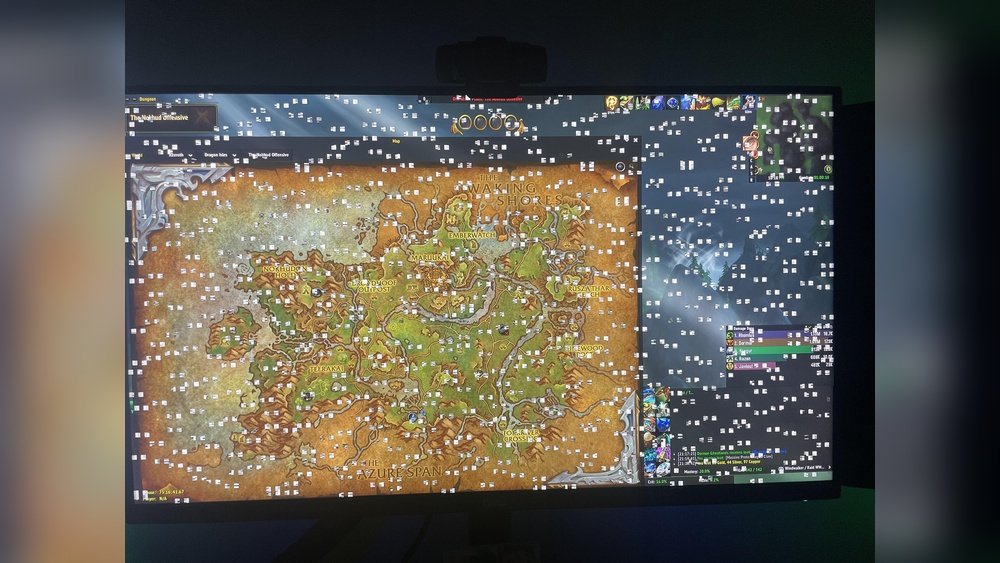
Artifacts are strange lines, dots, or shapes on your screen. Glitches can cause flickering or weird colors. These happen when the GPU struggles to process graphics. Artifacts often mean the GPU is failing or overheating. Watch for these signs during games or videos.
Frequent Crashes And Freezes
Your computer crashes or freezes often with a bad GPU. These crashes happen during heavy tasks like gaming or video editing. The screen may go black or your system may restart. These issues suggest the GPU cannot handle its workload anymore.
Overheating Issues
Overheating can damage your GPU over time. Your computer feels hot, and fans run loudly. The GPU may shut down to cool off. Constant overheating leads to hardware failure. Keep your system cool to avoid these problems.
Credit: www.reddit.com
Basic Hardware Checks
Basic hardware checks help find common problems with a GPU. These checks do not need special tools. They can show if the GPU is not working due to simple issues. Start with easy steps before moving to complex fixes.
Inspecting Physical Connections
Loose or dirty connections can cause the GPU to fail. Check the cable between the GPU and motherboard. Make sure it is firmly plugged in. Look at the video cable from the GPU to the monitor. Clean any dust or dirt on the connectors. A small wiggle can fix connection problems.
Checking Power Supply
The GPU needs enough power to work well. Check if the power cables are connected tightly to the GPU. Look at the power supply unit for any signs of damage. If the power supply is weak, the GPU might not start. Testing with a stronger power supply can help find issues.
Testing With Another Monitor
The monitor can also cause display problems. Connect the GPU to a different monitor or screen. Use a known working video cable. If the display works on another monitor, the first one might be the problem. This test helps rule out monitor issues.
Software And Driver Troubleshooting
Software and driver issues often cause GPU problems. Checking these first can save time. It helps to know if the GPU is truly dead or just having software trouble.
This section covers simple steps to fix driver problems and test your GPU using software tools.
Reinstalling Gpu Drivers
Old or corrupted drivers can stop a GPU from working. Uninstall the current drivers completely. Use the device manager or a driver removal tool. Then, download the latest drivers from the GPU maker’s website. Install them carefully. Restart your computer after installation. This step often solves display problems.
Using Diagnostic Software
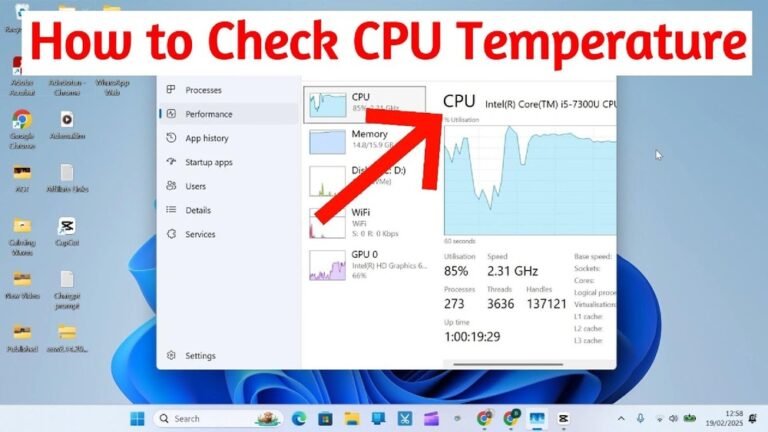
Diagnostic tools check the health of your GPU. Programs like GPU-Z or HWMonitor show temperature and usage. Stress tests like FurMark push the GPU to find faults. Watch for crashes or strange artifacts. These tests help spot hardware issues masked as software problems.
Booting In Safe Mode
Safe Mode runs Windows with minimal drivers. It disables most software that might cause conflicts. Restart your PC and enter Safe Mode. Check if the GPU works better here. If it does, a software conflict likely exists. You can then update or remove the problem software.
Advanced Testing Methods
Advanced testing methods help find deeper problems with a GPU. Simple checks may not show all issues. These methods give clear signs if the GPU is dead or failing. They require more time and some technical knowledge. Using them can save you from buying a new card unnecessarily.
Running Stress Tests
Stress tests push the GPU to work hard for a long time. This reveals problems like overheating or crashes. Use tools like FurMark or Unigine Heaven to run tests. Watch the screen for glitches or artifacts. If the GPU crashes or shows errors, it may be dead or damaged.
Swapping Gpus
Swapping means changing your current GPU with another one. This helps confirm if the problem is with the GPU or other parts. Install a known working GPU and see if issues continue. If the new GPU works fine, your old GPU likely has a fault. This method is simple but very effective.
Checking Bios And Firmware
Outdated BIOS or firmware can cause GPU issues. Check your motherboard’s BIOS version and update it if needed. Also, look for GPU firmware updates from the manufacturer’s website. Updating can fix compatibility or performance problems. Sometimes, a dead GPU can come back to life after an update.
When To Replace Your Gpu
Knowing when to replace your GPU is important. A failing graphics card can slow down your computer or stop working altogether. Recognizing the right time to get a new GPU saves you time and frustration. It also helps you avoid wasting money on repairs that won’t work.
Signs Beyond Repair
Look for frequent crashes or black screens during use. Strange noises or burning smells from the GPU are bad signs. If your GPU fails to display anything, even after reinstalling drivers, it may be dead. Overheating that causes shutdowns is also a serious issue. These problems often mean the GPU cannot be fixed.
Cost Vs. Performance Considerations
Think about how much a new GPU costs compared to repairs. Old GPUs may need expensive fixes that don’t improve speed. New models offer better performance and energy efficiency. Spending money on an upgrade might save more in the long run. Check if your GPU meets your needs or if a replacement is smarter.
Data Backup Before Replacement
Back up important files before changing your GPU. Hardware changes can cause data loss or system errors. Save your work on an external drive or cloud storage. This keeps your data safe during the replacement process. Preparing ahead makes switching GPUs easier and safer.

Credit: www.wikihow.com
Frequently Asked Questions
How Can I Check If My Gpu Is Dead?
Check for no display, strange artifacts, or crashes. Test with another system or GPU. If symptoms persist, your GPU may be dead.
What Are Common Signs Of A Dead Gpu?
Common signs include no video output, frequent crashes, screen glitches, and loud fan noise. These indicate potential GPU failure.
Can A Dead Gpu Cause Computer Not To Boot?
Yes, a dead GPU can prevent booting or cause a black screen. Removing or replacing the GPU can help diagnose this.
How Do I Test My Gpu’s Health?
Use diagnostic tools like GPU-Z or stress tests. Monitor temperature, clock speeds, and error messages to assess GPU health.
Conclusion
Testing your GPU step by step helps find the real problem. Watch for strange noises, errors, or screen issues. Simple checks can save time and money. Replace the GPU only after clear signs show it is dead. Regular care keeps your graphics card working longer.
Don’t guess—trust your tests and observations. This way, you avoid costly mistakes and frustration. Stay calm and follow the steps carefully. Your computer will thank you.