How to Make Sure Ram is Running at Full Speed: Ultimate Guide
Is your computer feeling slower than it should? One common reason might be that your RAM isn’t running at its full speed.
When your RAM is underperforming, your system struggles to keep up with tasks, apps lag, and your overall experience suffers. But don’t worry—you have the power to fix this. You’ll learn simple steps to check and ensure your RAM runs at the speed it was designed for.
Keep reading, and unlock your computer’s true potential with just a few easy tweaks.
Check Ram Specifications
Checking your RAM specifications is key to making sure it runs at full speed. Knowing your RAM details helps avoid slowdowns and compatibility issues. It also ensures you get the best performance from your system.
Identify Ram Type And Speed
Start by finding out the type of RAM installed in your computer. Common types include DDR3, DDR4, and DDR5. Each type has different speeds and features.
Next, check the speed of your RAM. This is often shown in MHz, like 2400 MHz or 3200 MHz. The speed affects how fast your computer processes data.
You can find this information in your system settings or by using tools like CPU-Z. Knowing the exact type and speed helps you confirm if your RAM is running at its best.
Consult Motherboard Compatibility
Your motherboard must support the RAM type and speed to run it at full speed. Motherboards list compatible RAM types in their manuals or product pages.
Using RAM that your motherboard supports ensures stability and maximum performance. Some motherboards limit the RAM speed, even if the RAM itself is faster.
Check your motherboard’s specifications carefully. This step avoids mismatches that can slow down or stop your RAM from working properly.
Enable Xmp Or Docp Profiles
Enabling XMP or DOCP profiles is the key to running your RAM at its full speed. These profiles tell your motherboard to use the best settings for your memory. Without them, your RAM may run slower than it can.
Most modern RAM sticks come with these profiles pre-programmed. They make it easy to get better performance without changing many settings manually. It is a simple step that can boost your system’s speed.
Access Bios/uefi Settings
First, restart your computer and enter the BIOS or UEFI menu. Usually, pressing the Delete, F2, or F10 key during startup works. Look for a message on the screen that shows which key to press.
Inside the BIOS, navigate to the advanced settings or overclocking section. The exact menu names can differ based on your motherboard brand. Take your time to find the memory or RAM settings area.
Activate Memory Profiles
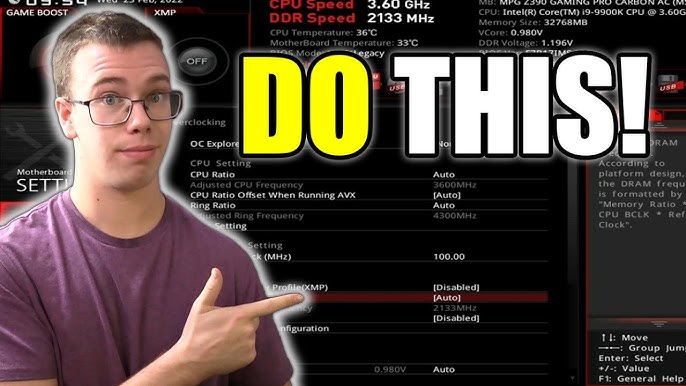
Once in the memory settings, find the option for XMP or DOCP profiles. It may be labeled as “XMP,” “DOCP,” or “Memory Profile.” Select the profile that matches your RAM’s speed.
Save the changes and exit BIOS. Your computer will restart and run the RAM at the faster, correct speed. Check your system information to confirm the new speed is active.
Update Bios And Drivers
Updating your BIOS and drivers helps your RAM run at its best speed. BIOS controls your computer’s hardware. Drivers tell your system how to use hardware parts. Old BIOS or drivers can slow down RAM performance. Keeping them current ensures smooth and fast memory operation.
Download Latest Bios Firmware
Find your motherboard model first. Visit the official website of your motherboard maker. Search for the BIOS section on the support page. Download the newest BIOS firmware available. Make sure it matches your exact motherboard model.
Check the BIOS version on your computer before updating. Use the system information tool or BIOS setup screen. Compare your version with the one on the website. If the website has a newer version, update your BIOS.
Follow the instructions carefully to avoid errors. Use a stable power source to prevent shutdowns. Restart your computer after the update completes. This helps load the new BIOS firmware properly.
Install Updated Chipset Drivers
Chipset drivers control communication between your CPU and RAM. Visit your motherboard or computer maker’s support site. Look for the latest chipset drivers for your model. Download drivers that match your operating system.
Run the installer and follow on-screen steps. Restart your system after installation finishes. Updated chipset drivers improve RAM speed and stability. They fix bugs that may limit your memory’s performance.

Credit: www.reddit.com
Verify Ram Speed In Os
Verifying RAM speed in your operating system helps ensure your memory works correctly. It shows if the RAM runs at the speed it should. This check can improve your computer’s performance and stability. Many tools can help you see this information easily.
Use Task Manager Or System Info
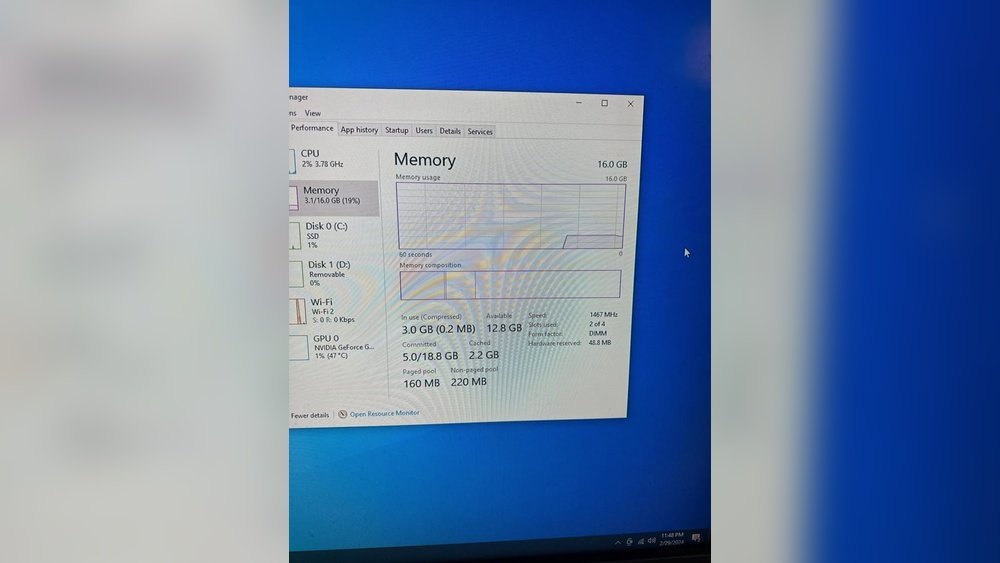
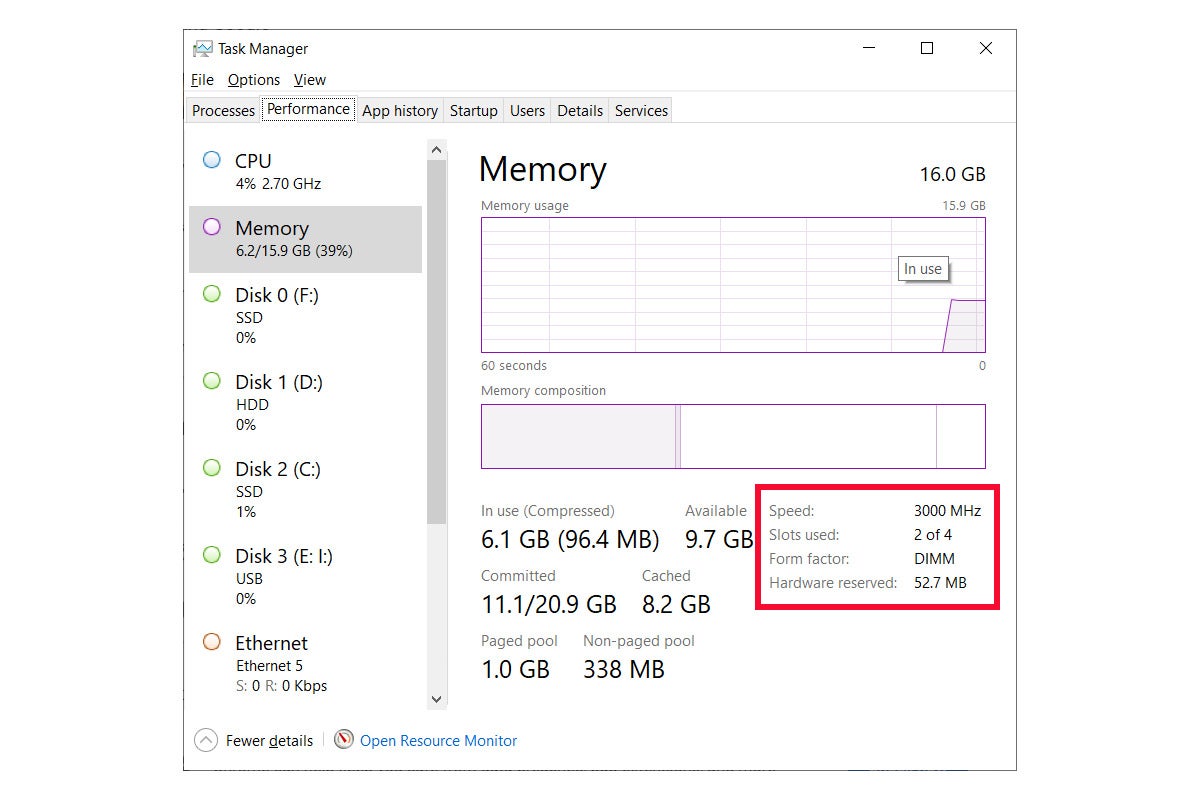
Task Manager on Windows shows RAM details quickly. Press Ctrl + Shift + Esc to open it. Click the “Performance” tab, then select “Memory.” You will see the speed listed in MHz. This method is simple and needs no extra software.
System Info also provides RAM speed information. Press Windows + R, type “msinfo32,” and hit Enter. Look under “Installed Physical Memory” or “Memory.” It gives a basic overview of your RAM specs. This tool is built into Windows and easy to use.
Try Third-party Diagnostic Tools
Third-party tools offer more detailed RAM information. Programs like CPU-Z or Speccy show exact RAM speed and timings. Download and install one of these free tools. Open the tool and find the memory section to check your RAM speed.
These tools also detect if your RAM runs at the advertised speed. They help spot issues with your memory modules. Using third-party tools gives a clearer view of your RAM’s real performance.
Adjust Ram Timings Manually
Adjusting RAM timings manually can improve your computer’s memory performance. RAM timings control how fast your memory responds to commands. Tweaking these settings helps your RAM run at full speed.
Manual adjustments give you more control than automatic settings. You can make your system faster without changing the hardware. But it needs careful handling to avoid errors.
Understand Timing Parameters
RAM timings include several key numbers. The most common are CAS latency, tRCD, tRP, and tRAS. CAS latency shows delay before data starts. Lower numbers mean faster response but can cause instability.
Each timing affects memory speed differently. Learn what each parameter does before changing it. Find your current timings in BIOS or system tools. Write them down to keep a backup.
Test Stability After Changes
After adjusting timings, check if your system stays stable. Run memory tests or stress tests to find errors. Programs like MemTest86 help spot issues quickly.
If your computer crashes or freezes, revert to previous settings. Change timings step by step, testing after each. This method avoids serious problems and keeps your system safe.
Credit: www.youtube.com
Check For Hardware Issues
Checking for hardware issues is a key step to ensure your RAM runs at full speed. Faulty or loose components can slow down your system. Identifying and fixing these problems helps your computer perform better and stay stable.
Reseat Ram Modules
Turn off your computer and unplug it. Open the case carefully. Find the RAM sticks on the motherboard. Gently push them out of their slots. Clean the contacts with a soft cloth. Insert the RAM firmly back into the slots. Make sure they click into place. Close the case and power on the computer. This simple step can fix connection issues and boost speed.
Run Memory Diagnostic Tests
Use built-in tools like Windows Memory Diagnostic or third-party software. These tests check for errors in your RAM. Save your work and start the test. The computer may restart during the process. Wait for the test to finish. Review the results for any problems. Fixing errors found can improve your RAM’s performance and reliability.
Optimize Dual Or Multi-channel Setup
Optimizing a dual or multi-channel RAM setup improves your computer’s speed and performance. This setup uses multiple RAM sticks to work together, increasing data flow. Ensuring your RAM runs at full speed means checking the installation and configuration carefully. Small changes can make a big difference.
Install Ram In Correct Slots
Motherboards have specific slots for dual or multi-channel RAM. Installing RAM in the right slots activates the channels. Usually, slots are color-coded or labeled in pairs. Consult your motherboard manual to find the correct slots. Placing RAM sticks in wrong slots limits speed and performance. Always install RAM modules in matching pairs for best results.
Confirm Channel Configuration
After installing RAM, check if channels run correctly. Use system tools or BIOS settings to verify channel configuration. Look for “dual-channel” or “multi-channel” status in system info. If only one channel is active, the speed will drop. Ensure your operating system and BIOS detect all RAM sticks properly. Correct configuration lets your RAM run at full capacity.
Credit: www.esseg.eu
Frequently Asked Questions
How Can I Check If My Ram Is Running At Full Speed?
You can check RAM speed in BIOS or use tools like CPU-Z. Look for the “Memory” tab to see current RAM frequency and timings.
Why Is Ram Not Running At Its Advertised Speed?
RAM may default to lower speeds due to motherboard settings. Enable XMP or DOCP profiles in BIOS for full speed.
What Bios Settings Optimize Ram Speed Performance?
Enable XMP/DOCP profiles and adjust voltage if needed. Ensure your motherboard supports your RAM’s rated speed for best results.
Does Motherboard Affect Ram Running At Full Speed?
Yes, motherboard chipset and BIOS support determine max RAM speed. Use compatible RAM and update BIOS for optimal performance.
Conclusion
Ensuring your RAM runs at full speed improves your computer’s performance. Check your BIOS settings to confirm the correct frequency. Use reliable software to monitor RAM speed and timings. Make sure your RAM sticks match and support the speed you want.
Keep your system updated and avoid mixing different RAM types. These steps help your PC run smoother and faster. Small tweaks can make a big difference in everyday tasks. Stay patient and test changes carefully for the best results. Your computer will thank you with better speed and stability.