How to Know If Gpu Compatible With Motherboard: Ultimate Guide 2025
Are you planning to upgrade your computer with a new GPU but unsure if it will work with your motherboard? Choosing the right graphics card can be confusing, especially if you don’t know what to look for.
If your GPU isn’t compatible, you could waste money and time on parts that won’t fit or function properly. You’ll discover simple ways to check if your GPU matches your motherboard, so you can make the best choice and avoid costly mistakes.
Keep reading to get clear, easy steps that anyone can follow.
Check The Pcie Slot
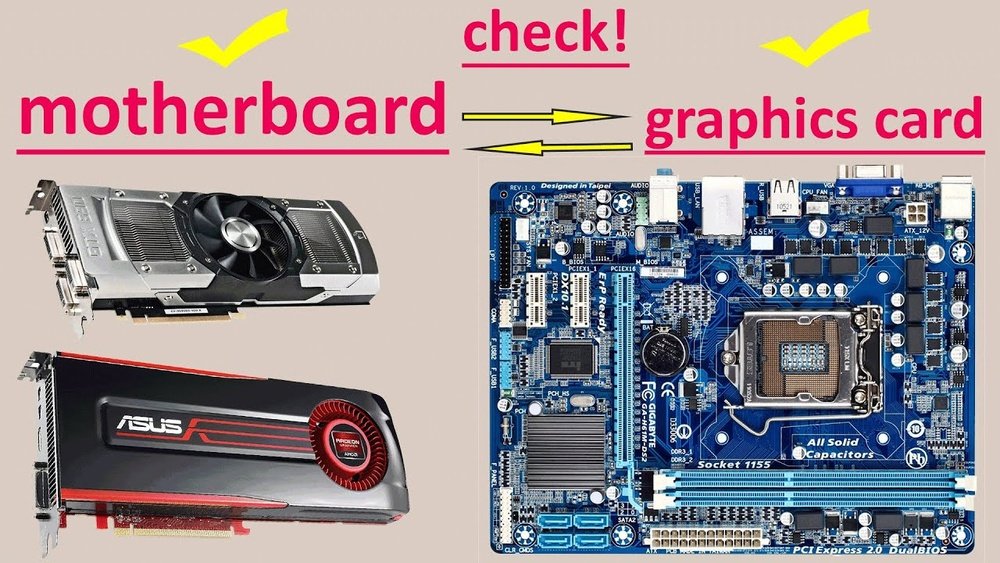
Checking the PCIe slot is a key step to ensure your GPU fits your motherboard. This slot connects the graphics card to the motherboard. Understanding its types and versions helps avoid compatibility problems. Let’s explore what you need to know about PCIe slots.
Types Of Pcie Slots
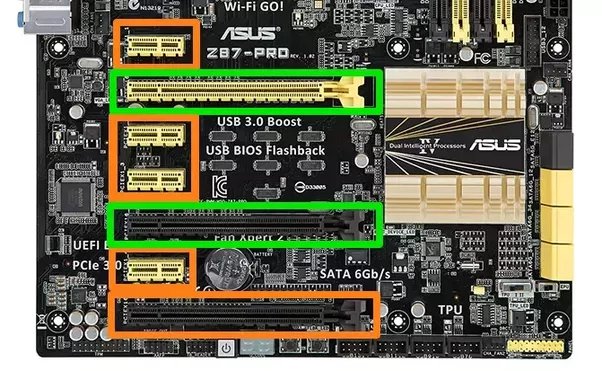
Motherboards have different PCIe slot types. The most common is PCIe x16. It has 16 lanes for data transfer. Other types include PCIe x1, x4, and x8, with fewer lanes. GPUs usually require PCIe x16 slots to work properly.
Slot Versions And Bandwidth
PCIe slots come in versions like 2.0, 3.0, 4.0, and 5.0. Higher versions offer faster data transfer speeds. A PCIe 4.0 slot is twice as fast as 3.0. Your GPU’s version and the slot version should match for best performance. Older slots still work but may limit speed.
Physical Compatibility
Check the size and shape of the PCIe slot. Most GPUs fit only x16 slots. Some motherboards have smaller slots that won’t hold large GPUs. Also, ensure your case has space for the card’s length and width. Proper physical fit is essential for installation.
Power Supply Requirements
The power supply is a key part to check before installing a new GPU. It must provide enough power for the graphics card to run well. An underpowered supply can cause crashes or damage to components.
Understanding power requirements helps avoid problems and improves system stability. Let’s break down the main points to consider about power supply needs.
Wattage Considerations
The GPU needs a certain wattage to work correctly. This wattage depends on the model and its performance level. A stronger GPU will use more power.
Check the GPU’s recommended wattage and compare it with your power supply unit (PSU). The PSU should have a higher wattage than the GPU needs. This ensures stable power delivery during heavy use.
Power Connectors On Gpu
Graphics cards require specific power connectors. These connectors supply extra power beyond the motherboard slot. Common types are 6-pin and 8-pin connectors.
Look at the GPU’s power connector requirements. Some high-end cards need multiple connectors. Make sure to know exactly which connectors your GPU uses.
Psu Connector Availability
Your PSU must have the right connectors for the GPU. If the PSU lacks needed connectors, the GPU will not get enough power. This can cause system failure.
Check the PSU cables before buying a GPU. You may need adapters or a new PSU with the correct connectors. Ensuring connector compatibility is important for a smooth upgrade.
Bios And Firmware Compatibility
BIOS and firmware compatibility play a key role in making sure your GPU works with your motherboard. BIOS controls the hardware settings of your computer and helps the system recognize new parts. Firmware updates can fix bugs and add support for new devices.
Without the right BIOS and firmware, your GPU might not work properly. Sometimes, the system may not detect the GPU or may run it at lower speeds. Checking BIOS and firmware compatibility helps avoid these problems and ensures smooth performance.
Updating Motherboard Bios
Updating the motherboard BIOS can add support for newer GPUs. Visit the motherboard maker’s website to find the latest BIOS version. Follow their instructions carefully to update the BIOS. A proper update can improve hardware compatibility and system stability.
Gpu Support In Bios
Some BIOS settings directly affect GPU compatibility. Check for options like “PCIe configuration” or “Primary Display.” Set the PCIe slot to the right mode for your GPU, usually “Auto” or “Gen3/Gen4.” This helps the system use the GPU correctly.
Troubleshooting Firmware Issues
Firmware problems can cause GPU errors or no display. Reset BIOS to default settings to fix conflicts. Clear CMOS if the system does not detect the GPU. Check for firmware updates from the motherboard and GPU makers to solve compatibility issues.

Credit: www.youtube.com
Physical Space And Case Size
Physical space and case size play a big role in GPU compatibility. A powerful graphics card needs enough room to fit inside your PC case. It also needs space to breathe and stay cool. Sometimes, the GPU size and case design do not match. This causes problems during installation or later with heat.
Checking the space helps avoid these issues. It saves time and money. Here are key points to check before buying a GPU.
Measuring Gpu Dimensions
Start by measuring the GPU size. Look for length, height, and width in the product details. Use a ruler or tape to measure the available space inside your case. Compare these numbers carefully. The GPU must fit without touching other parts.
Remember to check the GPU’s thickness. Some have two or three slots. Ensure your case can hold that much space. If the GPU is too big, it will not fit or cause airflow problems.
Motherboard Layout Impact
The motherboard layout affects GPU placement. PCIe slots differ in position and size. Some motherboards have slots close to other parts. This can limit GPU size. Check the distance between the PCIe slot and other components.
Also, look for any obstructions like large capacitors or heatsinks near the slot. These parts can block the GPU or cause damage. Ensure the GPU fits well on the motherboard without bending or stress.
Case Clearance And Cooling
Case clearance means free space around the GPU. This space allows air to flow and cool the card. Poor clearance causes heat build-up and reduces GPU life. Check for enough room above and beside the GPU.
Good airflow helps keep temperatures low. Look for cases with extra fan mounts or vents near the GPU. Avoid cases with tight spaces or blocked air paths. Proper cooling keeps your GPU running smoothly and quietly.
Cpu And Chipset Compatibility
Understanding CPU and chipset compatibility is key for a smooth PC build. The CPU and chipset control how well your GPU works with your motherboard. If these parts don’t match well, your system might slow down or not work at all. Knowing what fits helps avoid issues and improves performance.
Avoiding Bottlenecks
A bottleneck happens when one part limits the power of another. If your CPU is weak, it can slow down a strong GPU. This stops your computer from running games or programs fast. Choose a CPU that can keep up with your GPU to prevent bottlenecks.
Supported Chipsets For Gpus
Chipsets connect the CPU, GPU, and other parts. Not all chipsets support every GPU. Check your motherboard’s chipset to see if it supports the GPU you want. Common chipsets like Intel Z-series and AMD X-series work well with most GPUs.
Matching Cpu And Gpu Performance
Pair a strong CPU with a strong GPU for balanced power. A fast CPU with a slow GPU means wasted potential. A slow CPU with a fast GPU causes lag. Match their speeds to get the best results from your build.
Operating System And Driver Support
Understanding operating system and driver support is key to checking GPU compatibility with your motherboard. Your OS must support the GPU for it to work properly. Drivers act as a bridge between the GPU and the OS. Without the right drivers, the GPU may not perform well or could cause errors.
Always verify that your OS version is compatible with the GPU you want to use. Installing the latest drivers ensures smooth performance and fewer problems. Sometimes, driver conflicts can cause issues that stop the GPU from working correctly. Knowing these factors helps you choose the right GPU for your system.
Compatible Os Versions
Check the GPU manufacturer’s website for supported OS versions. Most GPUs support Windows 10 and newer versions. Some also work with Linux and macOS. Older operating systems may not support new GPUs. Make sure your OS version matches the GPU’s requirements.
Installing Latest Drivers
Download drivers from the official GPU maker’s site. Avoid using drivers from third-party sources. Install the latest version to improve stability and speed. Regularly update drivers to fix bugs and improve compatibility. Use the GPU’s software tool to manage driver updates easily.
Driver Conflicts
Driver conflicts happen when multiple drivers interfere with each other. This can cause crashes, freezes, or poor GPU performance. Remove old or unused GPU drivers before installing new ones. Use tools like Display Driver Uninstaller (DDU) to clean old drivers. Keeping drivers clean prevents conflicts and keeps your GPU running smoothly.
Multi-gpu And Sli/crossfire Support
Multi-GPU setups allow using two or more graphics cards together. This can boost graphics performance in certain tasks. Knowing if your motherboard supports this setup is important. Also, understanding SLI and Crossfire compatibility helps in choosing the right GPUs. These technologies let multiple GPUs work as one.
Motherboard Support For Multiple Gpus
Not all motherboards support multiple GPUs. Check the number of PCIe slots available. Slots must be spaced well to fit more than one GPU. The motherboard chipset also affects multi-GPU support. Some chipsets limit the number of usable slots. BIOS settings may need adjustment to enable multiple GPUs.
Sli And Crossfire Compatibility
SLI is Nvidia’s technology for linking GPUs. Crossfire is AMD’s version of multi-GPU support. Both require compatible motherboards and graphics cards. Nvidia cards must be SLI-certified to work together. AMD cards need Crossfire support to link properly. The motherboard must support the chosen technology for these to function.
Performance Benefits And Limitations
Multiple GPUs can increase frame rates in games and applications. Some software uses multi-GPU setups better than others. Not all games support SLI or Crossfire well. Power consumption and heat increase with more GPUs. Performance gains may not double with two cards. Sometimes one powerful GPU is better than two weaker ones.

Credit: softwareg.com.au
Future-proofing Your Build
Building a computer that lasts requires careful planning. Future-proofing your build means choosing parts that stay useful longer. This saves money and effort later. A key part is making sure your GPU and motherboard work well now and in the future.
Considering Upcoming Gpu Technologies
New GPUs often need new features from motherboards. Features like PCIe 5.0 or better power delivery matter. These allow the GPU to run at full speed and stay cool. Check if your motherboard supports the latest PCIe version. Also, see if it can handle higher power needs of future GPUs. This helps avoid early upgrades.
Motherboard Upgrade Paths
Choose a motherboard that supports easy upgrades. Some motherboards allow CPU and RAM upgrades too. This adds value to your system over time. Look for motherboards with multiple PCIe slots. It allows installing more GPUs or other cards. A good upgrade path means less hassle and better performance later.
Balancing Budget And Performance
High-end motherboards cost more but last longer. Cheaper boards might limit your options soon. Decide how much to spend based on your needs. A balanced build avoids overspending on features you won’t use. Focus on core compatibility and future growth. This keeps your build practical and strong for years.
Credit: www.esseg.eu
Frequently Asked Questions
How Do I Check Gpu Compatibility With My Motherboard?
Check your motherboard’s PCIe slot version and size. Match it with your GPU’s interface for compatibility. Also, verify BIOS support and power supply requirements.
Can An Older Motherboard Support A New Gpu?
Older motherboards may support new GPUs if they have compatible PCIe slots. However, performance can be limited by outdated hardware and BIOS issues.
What Motherboard Specs Affect Gpu Compatibility?
Key specs include PCIe slot type, BIOS version, physical slot size, and power connectors. Ensure these align with your GPU’s requirements for proper function.
Does Gpu Size Matter For Motherboard Compatibility?
Yes, GPU length and width must fit your motherboard’s case and slot spacing. Check your case dimensions and motherboard layout before buying.
Conclusion
Checking GPU and motherboard compatibility is key before buying. Look at the GPU slot type and size first. Make sure your power supply can handle the GPU’s needs. Also, verify that your case fits the GPU physically. Don’t forget to check BIOS updates for better support.
Taking these steps saves time and money. A compatible setup ensures your computer runs smoothly. Simple checks prevent common problems and frustration later. Stay careful and enjoy building your PC with confidence.