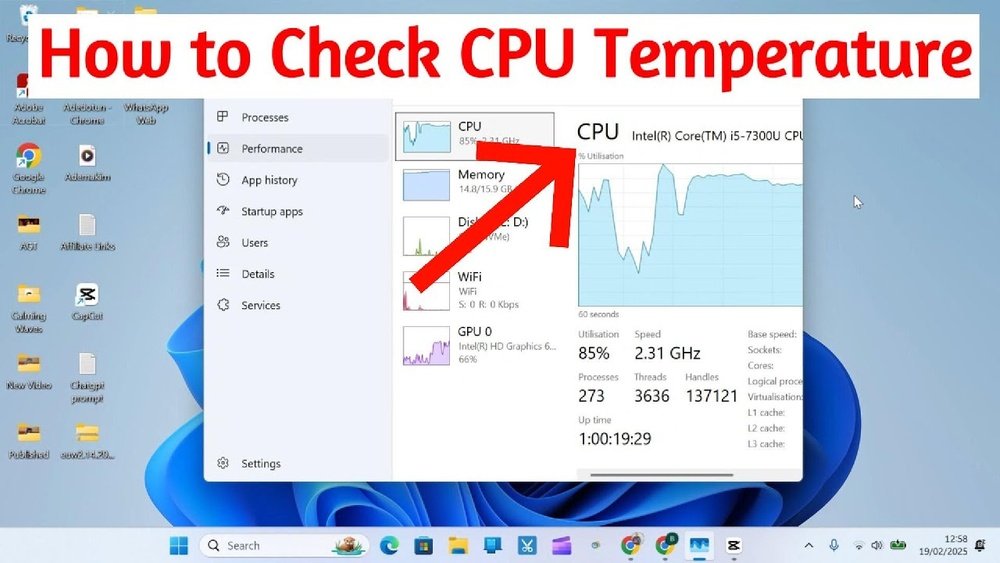
How to Find Temperature of Cpu: Easy Steps for Accurate Monitoring
Are you worried that your computer might be overheating? Knowing how to find the temperature of your CPU is key to keeping your system running smoothly and avoiding unexpected crashes.
Your CPU works hard every day, and if it gets too hot, it can slow down or even get damaged. In this guide, you’ll learn simple and effective ways to check your CPU temperature quickly. By the end, you’ll have the confidence to monitor your computer’s health like a pro and protect your valuable device from heat-related problems.
Let’s dive in and keep your CPU cool!

Credit: softwareg.com.au
Why Monitor Cpu Temperature
Monitoring your CPU temperature is very important for your computer’s health. The CPU is the brain of your computer, and it works hard. If it gets too hot, many problems can happen. Knowing the temperature helps you avoid these problems early.
Impact On Performance
High CPU temperature can slow down your computer. The CPU may reduce its speed to cool down. This means programs and games run slower. Keeping the temperature low helps your computer run smoothly. You get better speed and faster responses.
Preventing Overheating
Overheating can cause your computer to shut down suddenly. This stops damage but also interrupts your work. Heat can harm internal parts like the motherboard. Watching the temperature helps you act before damage occurs. You can clean fans or add cooling tools to keep it safe.
Extending Hardware Life
Heat wears out computer parts faster. The hotter the CPU, the shorter its life. Lower temperatures help your CPU last longer. This means fewer repairs and less money spent. Taking care of temperature protects your investment in hardware.
Signs Of High Cpu Temperature
High CPU temperature can cause many problems in your computer. It affects performance and may damage parts. Knowing the signs helps to act early and protect your device.
Unexpected Shutdowns
Your computer may turn off without warning. This happens because the CPU gets too hot. It shuts down to stop damage. Frequent shutdowns point to overheating issues.
System Slowdowns
The CPU slows down to reduce heat. This makes your computer feel very slow. Programs take longer to open. Tasks may freeze or lag. Slow performance is a common sign.
Fan Noise Increase
The cooling fan works harder as temperature rises. You will hear louder fan noise than usual. The fan spins faster to cool the CPU. Constant loud noise shows the CPU is hot.
Tools To Check Cpu Temperature
Checking your CPU temperature helps protect your computer from damage. Different tools let you see how hot your CPU gets. These tools give quick and easy ways to monitor your CPU’s heat levels. Some tools are built into your system. Others require extra software. Choose the one that fits your needs best.
Bios/uefi Monitoring
BIOS or UEFI is the first screen you see when starting your PC. It has a built-in tool to check CPU temperature. To access it, restart your computer and press a key like F2 or Delete. The CPU temperature shows under hardware or system health sections. This method is simple and does not need extra software. But you can only check temperature before Windows loads.
Third-party Software Options
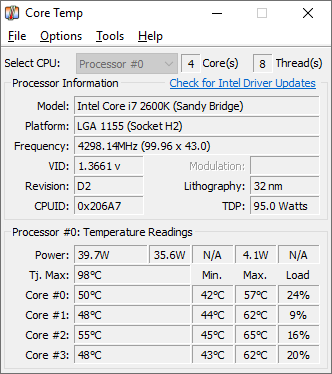
Many free programs show CPU temperature in real-time. Popular tools include HWMonitor, Core Temp, and SpeedFan. These programs display temperature and other data like fan speed. They work inside Windows and update the temperature constantly. Choose a program that matches your skill level and needs. Make sure to download from trusted sites only.
Built-in Operating System Features
Some operating systems offer built-in tools for CPU temperature. Windows users can try Task Manager or Windows Security. Mac users can use Activity Monitor with third-party plugins. Linux offers command-line tools like lm-sensors. These features help check CPU heat without extra downloads. They may not be as detailed as third-party programs but are handy for quick checks.
Credit: www.alcpu.com
Step-by-step Temperature Check
Checking your CPU temperature is important to keep your computer safe. Overheating can slow down or damage your PC. This step-by-step guide shows simple ways to find your CPU temperature. You can use built-in tools or software programs. Follow the easy steps below to monitor your CPU temperature.
Accessing Bios/uefi
Turn off your computer. Press the key to enter BIOS or UEFI. Common keys are Delete, F2, or Esc. Look for the “Hardware Monitor” or “PC Health” menu. Here, you will find your CPU temperature. Note the temperature before you exit. Restart your computer to continue normal use.
Using Software Tools
Download a trusted CPU temperature tool. Examples include HWMonitor, Core Temp, or SpeedFan. Install and open the software. The program shows real-time CPU temperature. Check each core’s temperature for accuracy. Run the program during normal use or heavy tasks.
Interpreting Temperature Readings
CPU temperature varies by model and usage. Normal idle temperature is usually 30°C to 40°C. Under heavy load, it can rise to 60°C to 80°C. Temperatures above 85°C may cause problems. High temperatures need cooling solutions like fans or thermal paste. Keep your CPU temperature in a safe range.
Maintaining Optimal Cpu Temperature
Maintaining the right CPU temperature is key to keeping your computer healthy. A CPU that runs too hot can slow down or even break. Proper temperature helps your PC work well and last longer. Here are simple ways to keep your CPU cool and safe.
Improving Cooling Solutions
Good cooling stops your CPU from overheating. Use a quality CPU cooler or fan. Bigger or faster fans move more air. Liquid cooling systems are also an option for better heat control. Place your computer in a cool, open space for better airflow.
Cleaning Dust And Debris
Dust blocks air vents and fans. It traps heat inside your PC. Clean your computer regularly with a soft brush or compressed air. Turn off and unplug the PC before cleaning. Keep dust away from vents and fans for smooth airflow.
Applying Thermal Paste
Thermal paste helps heat move from the CPU to the cooler. Old or dried paste does not work well. Remove the old paste carefully and apply a small, new amount. This improves cooling and lowers CPU temperature. Use a good quality thermal paste for best results.
When To Seek Professional Help
Knowing the CPU temperature is important to keep your computer safe. Sometimes, simple checks are not enough. Some problems need expert help. Recognizing these signs early can save your PC from damage. Here are key moments to call a professional.
Persistent Overheating Issues
Overheating that happens often is a serious problem. It can cause your computer to slow down or shut off. If you clean the fans and check the temperature but the heat stays high, it’s time for help. Professionals can find hidden issues like bad thermal paste or blocked vents. They have tools to fix deep problems you can’t see.
Hardware Replacement Needs
Sometimes, parts inside your computer wear out. A damaged fan or failing CPU can cause constant heat. If your CPU temperature stays too high even after repairs, some parts might need replacing. Experts know which parts to change and how to do it safely. Replacing hardware yourself can be risky without experience.
Credit: www.youtube.com
Frequently Asked Questions
How Do I Check My Cpu Temperature On Windows?
You can check CPU temperature on Windows using software like HWMonitor, Core Temp, or SpeedFan. These apps display real-time temperature readings clearly and help monitor your CPU health effectively.
Can Bios Show Cpu Temperature Without Software?
Yes, BIOS provides CPU temperature readings. Restart your PC and enter BIOS setup by pressing a specific key (like F2 or Delete). Look for hardware monitoring or PC health status sections to find CPU temperature.
What Is A Safe Cpu Temperature Range?
A safe CPU temperature typically ranges between 30°C to 70°C during normal use. Temperatures above 80°C may cause damage or throttling. Always keep your CPU cool to maintain performance and longevity.
Why Is My Cpu Temperature Suddenly High?
Sudden high CPU temperature can be due to dust buildup, poor ventilation, or heavy workloads. Ensure your cooling system works well and clean your PC regularly to avoid overheating issues.
Conclusion
Knowing your CPU temperature helps keep your computer safe. Use simple tools to check the heat level. Watch for high numbers to avoid damage. Regular checks can extend your CPU’s life. Stay aware, and your computer will run smoothly. Small steps make a big difference in performance.
Keep it cool, keep it fast.


