How to Display Fps Gpu Cpu Usage: Ultimate Guide for Gamers
Want to know exactly how your computer is performing while you game or work? Seeing your FPS, GPU, and CPU usage in real-time can give you powerful insights to boost performance and fix problems fast.
If you’ve ever wondered how to display these stats on your screen, you’re in the right place. You’ll learn simple, step-by-step ways to track your system’s key metrics without any hassle. Keep reading, and you’ll soon have the tools to take full control of your PC’s performance.

Credit: softwareg.com.au
Choosing The Right Tools
Choosing the right tools for displaying FPS, GPU, and CPU usage is important. The correct tools help you monitor your system clearly. They show real-time data without slowing your computer. This lets you enjoy games or work smoothly.
Many tools exist, but not all fit every need. Some focus on FPS only, while others track hardware usage. You want tools that are easy to use and reliable. This section covers popular options for each task.
Popular Fps Counters
FPS counters show how many frames your system displays each second. This helps check game smoothness. Many games include built-in FPS counters, but third-party options offer more features.
Fraps is a classic tool for FPS monitoring. It is simple and widely used. MSI Afterburner also shows FPS along with other stats. RivaTuner Statistics Server works well with Afterburner for on-screen display.
Gpu Monitoring Software
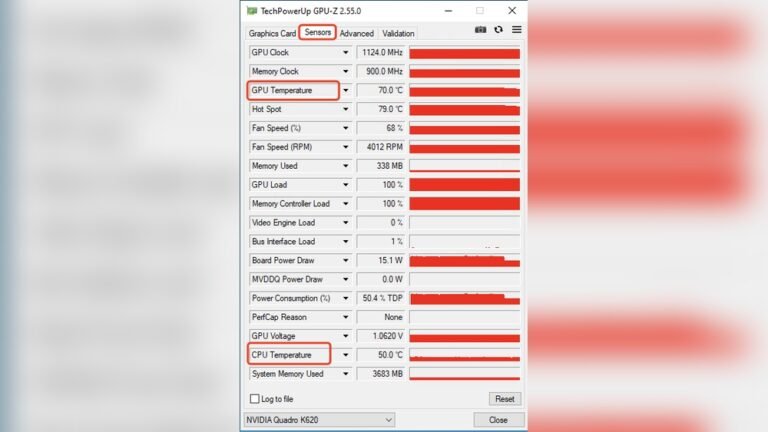
GPU monitoring tools track graphics card usage, temperature, and clock speeds. These help avoid overheating and performance drops. Popular tools include GPU-Z, which gives detailed GPU info.
MSI Afterburner offers GPU monitoring plus fan control. NVIDIA and AMD both provide software to monitor their cards. These tools show real-time stats on your screen or in a window.
Cpu Usage Trackers
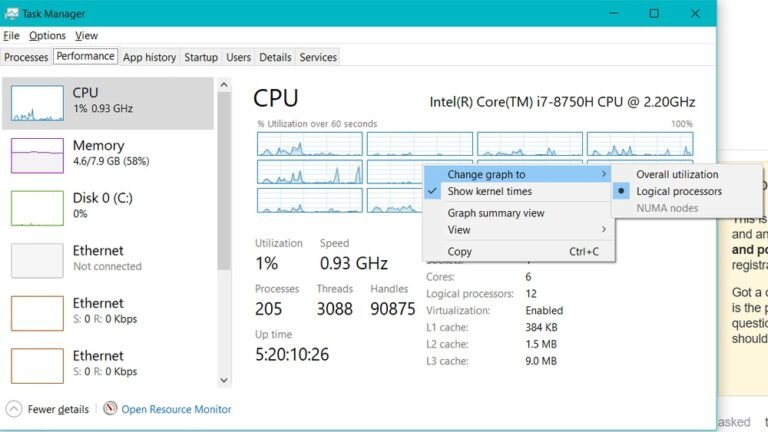
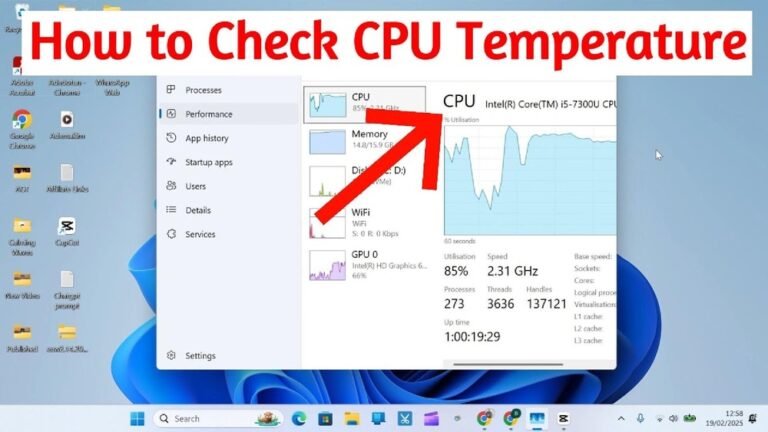
CPU usage trackers show how much processor power your system uses. They help identify tasks that slow your computer. Windows Task Manager is a basic tool included in your system.
More advanced options like HWMonitor and Core Temp provide detailed CPU info. These tools display temperature, load per core, and clock speeds. Monitoring CPU helps keep your system stable and efficient.

Credit: www.youtube.com
Setting Up Fps Display
Setting up an FPS display helps you monitor your computer’s performance. It shows how smoothly your games run. It also helps track GPU and CPU usage. This information can improve your gaming experience.
There are several ways to display FPS and system stats. Choose the method that fits your needs best. Below are common options for setting up FPS display.
Using In-game Overlays
Many games have built-in FPS counters. These overlays show real-time frame rates on screen. Popular platforms like Steam and Origin include these features. Enable the FPS counter in the game or platform settings. This option requires no extra software. It provides quick and easy access to performance data.
Third-party Applications
Third-party apps offer more detailed monitoring. Tools like MSI Afterburner and RivaTuner display FPS, GPU, and CPU usage. These apps work with most games and applications. Install the software and activate the overlay feature. Customize what stats you want to see. These programs give deeper insights into hardware performance.
Customizing Display Settings
Adjust the display settings to suit your preference. Change the overlay position on the screen. Choose font size and color for better visibility. Some tools allow adding graphs or logs. Tailor the display to avoid blocking game visuals. A clear and simple layout helps track performance easily.
Monitoring Gpu Performance
Monitoring GPU performance helps you understand how well your graphics card works. It shows if your GPU is running smoothly or facing issues. Tracking GPU data also helps improve gaming and software performance. You can see real-time stats like temperature, usage, and clock speed.
Using the right tools, you can watch your GPU closely. This lets you find problems early and keep your system healthy. Knowing how to read GPU metrics guides you to make smart changes. Small tweaks can boost your PC’s speed and efficiency.
Installing Gpu Monitoring Tools
Choose a trusted tool to monitor your GPU. Popular options include MSI Afterburner, GPU-Z, and HWMonitor. Download the software from official websites to avoid malware. Follow simple installation steps to set up the tool. Most programs show real-time GPU data on your screen.
Some tools work with overlays during games. This helps track GPU performance without closing your game. Pick a program that suits your needs and PC specs. Installation is usually quick and user-friendly.
Interpreting Gpu Metrics
Focus on key GPU metrics like usage, temperature, and clock speed. Usage shows how much work the GPU handles. High usage means the GPU is busy; low usage may indicate a bottleneck.
Temperature tells if the GPU is too hot. Safe temps usually stay below 85°C. Clock speed shows how fast the GPU runs. Higher speeds mean better performance but use more power.
Watch memory usage and fan speed too. These help spot issues like overheating or slow data flow. Understanding these numbers helps you keep your GPU healthy.
Optimizing Gpu Usage
Close unnecessary apps to free up GPU resources. Adjust game or app settings to lower graphics quality. This reduces GPU load and improves frame rates.
Keep your GPU drivers updated for best performance. Clean dust from your PC to improve cooling. Use custom fan curves in monitoring tools to manage heat better.
Overclock only if you know what you do. It can boost speed but may cause damage if done wrong. Small, steady changes are safer than big jumps.
Tracking Cpu Usage
Tracking CPU usage helps you understand how your computer works during tasks. It shows how much power your processor uses. This is important to keep your system running smoothly. You can avoid slowdowns and improve your gaming experience.
Knowing CPU usage helps you find problems early. It also guides you to adjust settings for better performance. Let’s explore how to track CPU usage easily.
Choosing Cpu Monitoring Software
Pick software that is simple and clear. Look for tools that show live CPU data. Some popular options include Task Manager, HWMonitor, and MSI Afterburner. These programs are free and easy to use. They give you real-time numbers and graphs. Check if the software fits your needs before installing it.
Reading Cpu Usage Data
CPU usage is shown as a percentage. Low numbers mean light use. High numbers show heavy use. Watch for spikes during gaming or heavy tasks. Consistently high usage may cause lag or overheating. Pay attention to each CPU core’s activity. This helps find which parts of your processor work hardest.
Managing Cpu Load During Gaming
Reduce background apps to lower CPU load. Close unused programs before starting your game. Adjust game settings like resolution and effects to ease the processor. Keep your computer cool with good ventilation. Use software to limit CPU use if needed. This keeps your game running smooth and stable.
Combining Fps, Gpu, And Cpu Data
Combining FPS, GPU, and CPU data helps you understand your computer’s performance better. These numbers show how well your hardware runs games or other apps. Watching them together gives a clear picture of what limits your system. You can fix problems or adjust settings to improve smoothness and speed.
Using All-in-one Monitoring Solutions
All-in-one tools collect FPS, GPU, and CPU data in one place. They show numbers on your screen while you play or work. This saves time because you do not switch between apps. Popular tools include MSI Afterburner and RivaTuner. These programs are easy to set up and use. You see live updates of your system’s load and speed.
Configuring Simultaneous Displays
Set up your monitoring tool to show all data at once. Choose a clean layout that does not block your view. Place FPS, GPU, and CPU stats in separate corners or edges. Adjust font size and color for easy reading. Some tools let you customize what data to show. This helps focus on the most important info during use.
Analyzing Performance Bottlenecks
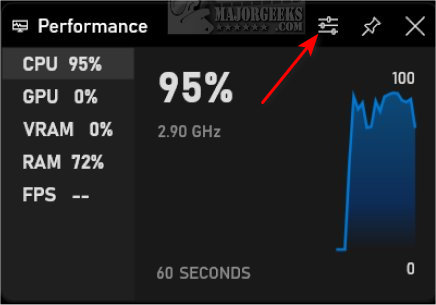
Compare FPS with GPU and CPU usage to find weak spots. High CPU use but low GPU use means the processor limits speed. High GPU use and low CPU use show the graphics card is the bottleneck. Balanced use means your system works well together. Fix bottlenecks by upgrading hardware or changing settings to boost performance.
Credit: www.shoshitamam.com
Troubleshooting Common Issues
Troubleshooting common issues helps keep your FPS, GPU, and CPU usage displays accurate. Many users face problems like overlays not showing or wrong data readings. Fixing these problems improves your monitoring experience and game performance awareness.
Fixing Display Overlay Problems
Overlays sometimes do not appear on the screen. This often happens due to permission or software conflicts. Ensure your monitoring tool runs with administrator rights. Check if other software blocks the overlay, such as screen recorders or antivirus programs. Turning off conflicting apps can restore the overlay. Also, update your graphics drivers for better compatibility.
Resolving Inaccurate Readings
Incorrect FPS or usage numbers confuse many users. Outdated software can cause this issue. Always keep your monitoring tools updated. Restart the software and your computer to reset data collection. Avoid running multiple monitoring tools at once; they can interfere with each other. Calibrate sensors through the software settings if available.
Improving Monitoring Software Compatibility
Some games or systems do not work well with certain monitoring tools. Choose software known for broad compatibility. Check the tool’s settings for game-specific options. Enable compatibility modes if the software offers them. Regularly update both your game and monitoring software. This helps maintain smooth and accurate data display.
Tips To Boost Gaming Performance
Boosting gaming performance helps you enjoy smooth gameplay and better visuals. Small changes can make a big difference. Focus on key areas like graphics settings, drivers, and background tasks. These tips help your PC run games more efficiently. Let’s explore practical ways to improve your gaming experience.
Adjusting Graphics Settings
Lowering graphics settings reduces the load on your GPU and CPU. Turn off shadows and lower texture quality for better speed. Set resolution to a level your system handles easily. Disable effects like motion blur and anti-aliasing. These tweaks improve frame rates and reduce stuttering during games.
Updating Drivers
Keep your GPU and CPU drivers up to date. New drivers fix bugs and improve performance. Check your hardware manufacturer’s website for the latest updates. Installing updates is simple and often speeds up your system. Updated drivers help games run smoothly and avoid crashes.
Managing Background Processes
Close unnecessary programs running in the background. These use CPU and memory that games need. Use Task Manager to find and stop unwanted apps. Disable startup programs that slow down your computer. Freeing resources lets your system focus on gaming for better results.
Frequently Asked Questions
How Can I Display Fps On My Pc?
You can display FPS using software like MSI Afterburner, Fraps, or Steam’s built-in FPS counter. These tools show real-time frame rates during gameplay.
What Tools Show Gpu And Cpu Usage In Games?
MSI Afterburner and HWMonitor are popular for displaying GPU and CPU usage. They provide real-time monitoring while gaming.
Is Displaying Fps And Usage Safe For My Pc?
Yes, monitoring FPS, GPU, and CPU usage is safe and does not harm your PC. It helps optimize performance.
Can I Display Fps Without Installing Extra Software?
Some games and platforms like Steam have built-in FPS counters. You can enable these from their settings without extra installs.
Conclusion
Showing FPS, GPU, and CPU usage helps track your computer’s performance. You see how games and apps use resources in real time. This info guides you to improve settings or fix slowdowns. Many free tools make it easy to display these stats.
Try different methods to find what works best for you. Keep an eye on your system while playing or working. Understanding these numbers helps you get smoother and better experiences. Simple steps lead to clearer insights and smarter choices.