How Hot Should My Gpu Be: Optimal Temps for Peak Performance
Wondering how hot your GPU should be while gaming or working? You’re not alone.
Knowing the right temperature for your graphics card is key to keeping your system running smoothly and avoiding costly damage. If your GPU gets too hot, it can slow down, crash, or even fail completely. But how do you know what’s too hot?
You’ll discover the safe temperature range for your GPU and simple tips to keep it cool. Keep reading to protect your hardware and boost your PC’s performance.

Credit: www.overclockers.co.uk
Ideal Gpu Temperature Range
Knowing the ideal GPU temperature range is important for your computer’s health. The GPU works hard to display graphics in games and videos. It creates heat during use. Keeping the temperature in the right range helps your GPU last longer. It also avoids crashes and slowdowns.
This section explains the typical temperature ranges for your GPU. It covers temperatures when the GPU is idle, under load, and the maximum safe temperatures.
Idle Temperature Benchmarks
Idle means the GPU is on but not doing heavy work. Typical idle temperatures are between 30°C and 45°C (86°F to 113°F). Most GPUs stay cool at idle because they use less power. If your GPU temperature is higher than 50°C while idle, it could mean dust or poor airflow.
Load Temperature Limits
Load means the GPU is working hard, like in games or video editing. Safe load temperatures usually range from 65°C to 85°C (149°F to 185°F). Some GPUs can handle a bit more heat, but staying in this range helps avoid damage. Good cooling and fans keep these temperatures steady.
Maximum Safe Temperature
Each GPU model has a maximum safe temperature, often around 90°C to 100°C (194°F to 212°F). Going beyond this limit can cause overheating and reduce lifespan. The GPU will often slow down or shut off to protect itself. Avoid pushing your GPU to these high temperatures regularly.

Credit: www.reddit.com
Factors Affecting Gpu Temperature
GPU temperature depends on many factors. Knowing these helps keep your GPU safe and fast. Different things change how hot your GPU gets. Understanding these helps in controlling heat better.
Ambient Room Temperature
The room temperature affects GPU heat a lot. A warm room makes the GPU hotter. A cool room helps the GPU stay cooler. Keep your room well-ventilated for better cooling.
Case Airflow And Cooling
Good airflow inside your computer case is key. Fans move hot air out and bring cool air in. Poor airflow traps heat around the GPU. More fans or better placement can lower GPU temperature.
Overclocking Impact
Overclocking pushes your GPU to work harder. This increases power use and heat output. Higher clock speeds mean higher temperatures. Proper cooling is needed to handle this extra heat.
Signs Of Overheating
Overheating can harm your GPU and affect your computer’s performance. It is important to notice signs that show your GPU is too hot. Catching these signs early helps protect your system and avoid bigger problems.
Below are common signs that indicate your GPU might be overheating.
Performance Throttling
Your GPU slows down to lower its temperature. Games or programs run slower than usual. Frame rates drop and the experience feels laggy. This is the GPU’s way to avoid damage.
System Crashes And Artifacts
Your computer may crash or restart without warning. Screen glitches or strange colors appear during use. These visual errors, called artifacts, show the GPU is stressed. They often signal dangerous heat levels.
Physical Damage Risks
High heat can damage GPU parts over time. Fans may stop working properly. The circuit board and chips can warp or burn. This leads to costly repairs or replacement of the GPU.

Credit: www.reddit.com
Cooling Solutions For Gpus
Keeping your GPU cool is key for good performance and longer life. Cooling solutions help stop your GPU from overheating during heavy use. Choosing the right cooling method can lower temperatures and reduce noise. This section covers common ways to cool your GPU effectively.
Air Cooling Options
Air cooling is the most common and simple way to cool a GPU. It uses fans to push hot air away from the GPU. Most graphics cards come with built-in fans and heatsinks. These parts help spread heat and keep the GPU cool. Adding extra case fans improves airflow inside the computer. Clean fans and vents often for the best air cooling results.
Liquid Cooling Systems
Liquid cooling uses water or coolant to carry heat away from the GPU. It works better than air cooling for very powerful GPUs. A pump moves liquid through tubes to a radiator. The radiator cools the liquid before it returns to the GPU block. Liquid cooling is quieter and keeps temperatures lower. It needs more care and can cost more than air cooling.
Thermal Paste And Maintenance
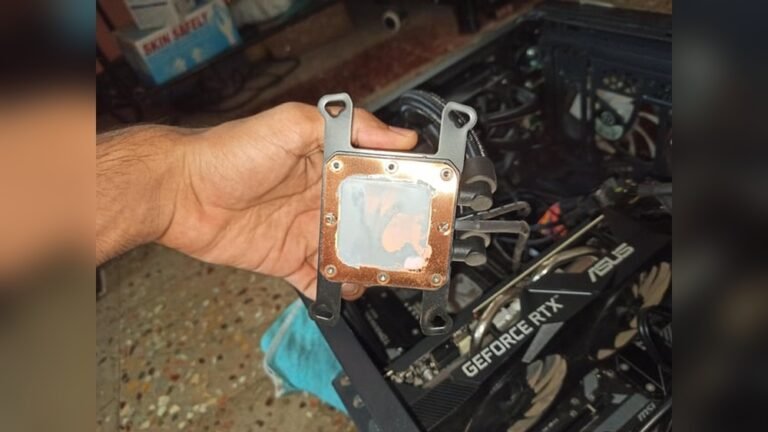
Thermal paste helps heat transfer from the GPU chip to the cooler. Over time, paste can dry out and lose effectiveness. Reapplying fresh thermal paste improves cooling performance. Cleaning dust and checking fans regularly keeps your GPU running cooler. Good maintenance helps avoid overheating and hardware damage.
Monitoring Gpu Temperature
Keeping an eye on your GPU temperature is important. It helps protect your graphics card from damage. High temperatures can reduce performance and shorten GPU life. Monitoring allows you to catch problems early.
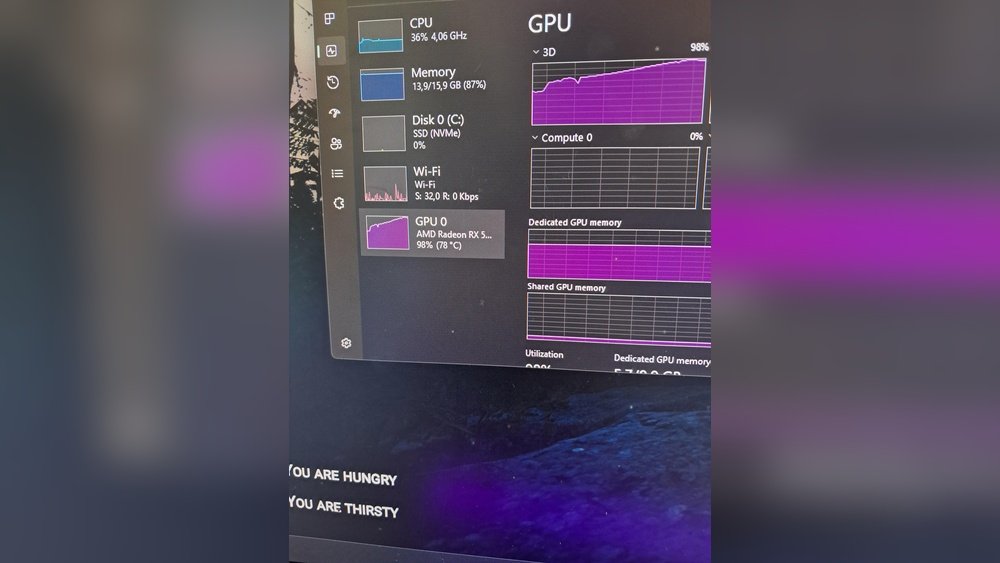
You can track GPU temperature using simple software tools. These tools show real-time data and help you manage heat better. Setting alerts can warn you if temperatures get too high. Learning to read this data keeps your system safe.
Recommended Software Tools
Several free and easy tools track GPU temperature. MSI Afterburner is popular and works with many GPUs. HWMonitor shows detailed hardware stats, including temperature. GPU-Z offers simple temperature readouts and GPU info. Choose a tool that matches your needs and is easy to use.
Setting Temperature Alerts
Many tools let you set alerts for high temperatures. You can set a limit, like 85°C, to get a warning. Alerts help you act before damage happens. Use sound or on-screen messages as alerts. This way, you avoid overheating and keep your GPU safe.
Interpreting Temperature Data
Understanding temperature numbers is key. Normal GPU temps range from 30°C to 85°C. Idle temps are usually 30-40°C. Heavy use can push temps to 70-85°C. Consistent temps above 90°C are risky. Watch for sudden spikes or unusual changes. These could mean a cooling problem or dust buildup.
Tips To Lower Gpu Temperatures
Keeping your GPU cool is important for its performance and lifespan. High temperatures can cause your graphics card to slow down or even get damaged. Here are some simple tips to help lower your GPU temperatures and keep your computer running smoothly.
Improving Case Airflow
Good airflow inside your computer case helps remove hot air quickly. Make sure your case fans are working well and not blocked by dust. Position fans to bring cool air in and push hot air out. Avoid clutter inside the case; tidy cables improve airflow. Using a case with more fan slots can also help keep air moving.
Adjusting Fan Curves
Fan curves control how fast your GPU fans spin based on temperature. Setting a more aggressive fan curve makes fans spin faster at lower temperatures. This helps cool the GPU before it gets too hot. Use software from your GPU maker to customize fan speeds. Balance noise and cooling to find what works best for you.
Reducing Overclocking
Overclocking pushes your GPU to run faster but creates more heat. Lowering or stopping overclocking reduces temperature and stress on the card. If your GPU runs very hot, try running it at factory settings. This can prevent crashes and prolong the card’s life. Simple adjustments can keep your GPU cooler and safer.
Frequently Asked Questions
What Is The Ideal Gpu Temperature Range?
The ideal GPU temperature ranges between 65°C and 85°C under load. Staying within this range ensures optimal performance and prevents overheating. Temperatures above 85°C may cause thermal throttling or damage. Always monitor your GPU temperature during gaming or heavy tasks to maintain hardware health.
Can High Gpu Temperatures Damage My Graphics Card?
Yes, high GPU temperatures can cause permanent damage. Excessive heat reduces the lifespan of your GPU and may cause crashes or freezes. Keeping the temperature below 85°C helps maintain stability and performance. Proper cooling and ventilation are essential to avoid overheating issues.
How Can I Check My Gpu Temperature?
You can check GPU temperature using software like MSI Afterburner, HWMonitor, or GPU-Z. These tools display real-time temperature readings and other vital stats. Monitoring helps you prevent overheating and optimize performance during gaming or rendering tasks.
What Causes Gpu To Overheat Quickly?
GPU overheating can result from poor airflow, dust buildup, or faulty cooling systems. Overclocking and running demanding applications also increase heat generation. Regular cleaning, proper case ventilation, and adequate cooling solutions help maintain safe GPU temperatures.
Conclusion
Keeping your GPU temperature in the right range matters a lot. Too hot can cause damage or slow down your computer. Too cool is not usually a problem but can waste power. Aim for around 65 to 85 degrees Celsius while gaming or working hard.
Clean your fans and ensure good airflow to help your GPU stay cool. Watching your GPU temperature helps your computer run better and last longer. Simple steps can protect your hardware and improve your experience. Stay aware, and your GPU will serve you well.