How to Remove Cpu from Heatsink: Easy Steps for Safe Detachment
If you’ve ever needed to upgrade or clean your computer, you know that removing the CPU from the heatsink can feel tricky. But what if it didn’t have to be?
Imagine handling your hardware with confidence, avoiding costly mistakes, and saving time. In this guide, you’ll discover simple, step-by-step tips to safely remove your CPU from the heatsink without damage. By the end, you’ll have the skills to tackle this task like a pro—ready to keep your PC running smoothly or make that upgrade happen.
Keep reading, and let’s make your next computer project easier than you thought.
Credit: docs.oracle.com
Prepare Your Workspace
Preparing your workspace is the first step to safely remove the CPU from the heatsink. A clean and organized area helps avoid mistakes and damage. It also makes the process faster and less stressful.
Setting up the right space protects your computer parts from harm. It keeps everything within reach and ready to use. Taking time to prepare reduces risks and ensures a smooth task.
Gather Necessary Tools
Collect all tools before starting. You will need a screwdriver, thermal paste cleaner, and a soft cloth. Having these items ready saves time and keeps you focused. Avoid using sharp objects that can damage components.
Keep tools on a flat surface near your computer. This setup makes it easy to grab what you need. Double-check you have everything before opening your computer case.
Ensure Static-free Environment
Static electricity can harm computer parts. Work on a non-carpeted floor to reduce static. Use an anti-static wristband if possible. This wristband grounds your body and protects the CPU.
Touch a metal object before handling parts. This action releases static from your body. Avoid wearing clothes that generate static, like wool or polyester. A safe environment protects your hardware during removal.

Credit: www.youtube.com
Power Down And Unplug
Before removing the CPU from the heatsink, powering down and unplugging the computer is essential. This step keeps you safe and protects your computer parts from damage. Never skip this process to avoid electric shocks and hardware issues.
Shut Down The Computer
Start by closing all programs and saving your work. Then, use the operating system’s shutdown option. Do not just press the power button unless it forces a shutdown. Wait for the screen to go completely black. This ensures the system is off and safe to work on.
Disconnect Power And Peripherals
Unplug the power cable from the computer. This stops any electricity flow to the parts inside. Next, disconnect all connected devices like the keyboard, mouse, and monitor. Removing peripherals prevents accidental damage during the CPU removal. Double-check that nothing is still plugged in before opening the case.
Access The Cpu And Heatsink
Accessing the CPU and heatsink is the first step in removing the CPU safely. This part sits inside the computer case and is covered by the heatsink. The heatsink keeps the CPU cool during operation. To remove the CPU, you must first open the case and find these components.
Open The Computer Case
Turn off the computer and unplug all cables. Place the computer on a clean, flat surface. Find the screws or latches holding the side panel of the case. Remove the screws carefully and slide the panel off. This gives you clear access inside the computer.
Locate The Heatsink And Cpu
Inside the case, look for a large metal piece with fins. This is the heatsink. It sits directly on top of the CPU. The CPU is underneath the heatsink, attached to the motherboard. Check for the fan mounted on or near the heatsink. This fan helps cool the CPU and may need to be removed to access the CPU fully.

Credit: www.wikihow.com
Release The Heatsink
Releasing the heatsink is the key step to safely remove the CPU. The heatsink holds the CPU tightly to keep it cool. Removing it needs care and the right steps. Avoid forcing it off to prevent damage to the CPU or motherboard.
Start by understanding how the heatsink is attached. This helps you remove it smoothly and without issues. Follow each step carefully for a safe removal.
Identify The Fastening Mechanism
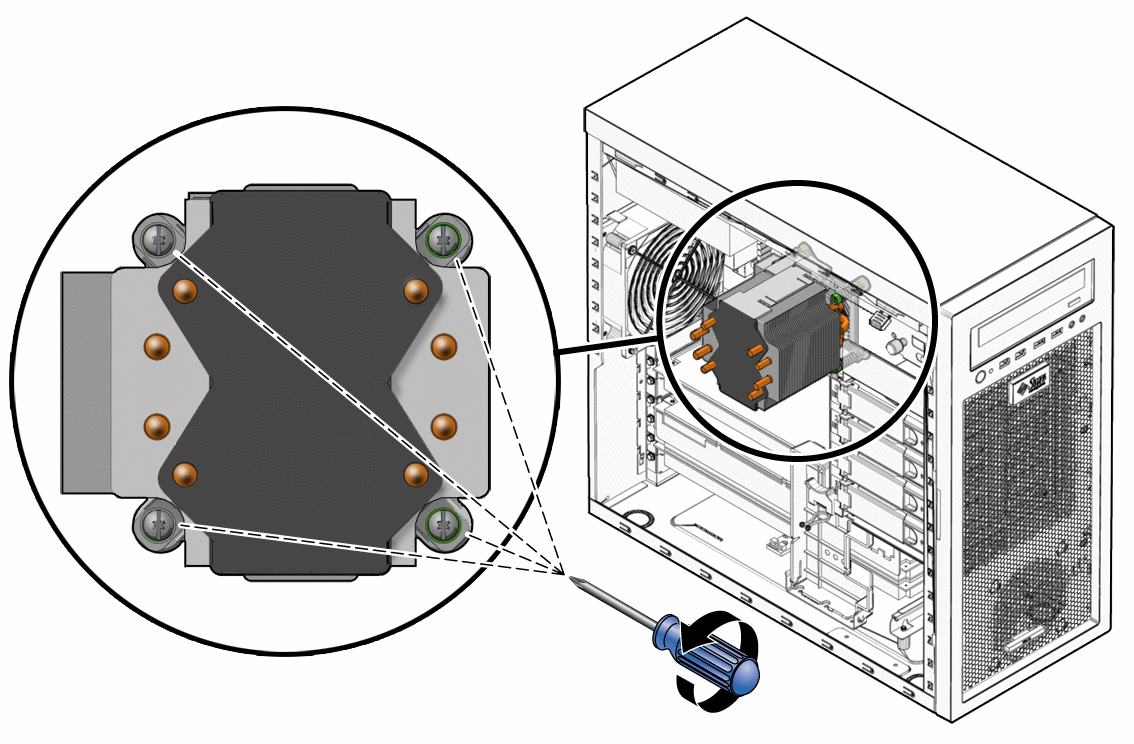
Check how the heatsink is fixed to the motherboard. Most use screws, clips, or a lever system. Look closely at the edges of the heatsink. This helps to know what tool or method to use. Some heatsinks have push-pins that lock into the board. Others have small screws that need a screwdriver. Knowing this prevents mistakes and saves time.
Loosen Screws Or Clips
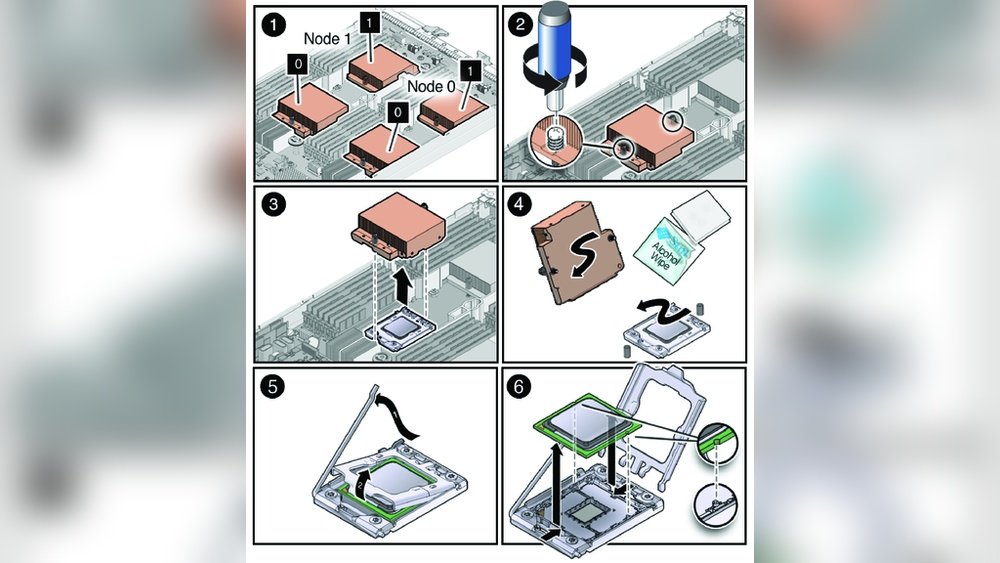
Use the correct screwdriver for screws. Turn them slowly and evenly. Loosen screws one at a time, moving diagonally if possible. For clips, gently press or pull as needed to release them. Avoid using too much force. If the heatsink feels stuck, wiggle it gently to break the seal. This keeps the CPU and board safe from damage.
Detach The Heatsink From Cpu
Detaching the heatsink from the CPU is a careful task. The heatsink sticks firmly to the CPU because of the thermal paste. This paste helps move heat away from the CPU. Removing the heatsink without care can damage the CPU or motherboard. Follow these steps to remove it safely.
Gently Twist To Break Thermal Paste Seal
The thermal paste acts like glue between the CPU and heatsink. Do not pull the heatsink straight up. Instead, hold the heatsink and gently twist it back and forth. This motion will break the paste seal. Use slow, steady movements to avoid damage. If the heatsink feels stuck, twist a little more. Avoid using force.
Lift The Heatsink Carefully
After breaking the paste seal, lift the heatsink slowly. Hold it by the edges to avoid touching the CPU or pins. Pull it straight up to prevent bending any parts. If the heatsink still resists, twist slightly again. Once free, place it on a clean surface. Keep the CPU and heatsink safe for reassembly.
Remove The Cpu From Socket
Removing the CPU from the socket is a delicate step in the process. It requires care to avoid damage. Follow clear steps to take out the CPU safely.
Handle the parts gently and keep the workspace clean. This helps keep the CPU and socket in good condition.
Unlock The Cpu Retention Arm
Find the small metal arm next to the CPU socket. This arm holds the CPU firmly in place. Gently push the arm down and away from the socket. This action releases the CPU from the socket. Do not use force; the arm should move smoothly.
Lift Cpu Straight Up
Once the retention arm is unlocked, lift the CPU straight up. Avoid tilting or twisting the CPU. A straight lift prevents bending pins or damaging the socket. Hold the CPU by its edges to keep fingers off the contacts. Place the CPU on an anti-static surface after removal.
Clean Thermal Paste Residue
Cleaning thermal paste residue is a key step after removing the CPU from the heatsink. Old paste can block heat transfer, causing the CPU to overheat. Proper cleaning helps prepare the surfaces for new thermal paste. This keeps your CPU running cool and safe.
Use Isopropyl Alcohol And Lint-free Cloth
Start by applying isopropyl alcohol to a lint-free cloth. Gently wipe the thermal paste from the CPU and heatsink. Avoid using paper towels or tissues as they leave fibers behind. Use small, circular motions to remove all residue. Repeat the process until both surfaces look clean and shiny.
Avoid Damaging Cpu And Socket
Handle the CPU carefully to avoid bending pins or scratching the surface. Do not pour alcohol directly on the CPU or socket. Use minimal liquid on the cloth to prevent spills. Keep the socket area dry and free from dust. Take your time and be gentle to protect your hardware.
Store Or Replace Cpu Safely
Removing a CPU from the heatsink requires careful handling afterward. Storing or replacing the CPU safely protects it from damage. Proper steps keep the CPU clean and working well for future use.
Use Anti-static Packaging
Place the CPU in anti-static packaging to avoid static damage. Static electricity can harm the delicate circuits inside the CPU. Use an anti-static bag or container made for electronic parts. Keep the CPU away from fabrics or surfaces that create static.
Handle With Care
Hold the CPU by its edges to avoid touching pins or contacts. Finger oils and dirt can cause problems later. Avoid bending or dropping the CPU. Store it in a cool, dry place away from dust and moisture. Treat the CPU gently to ensure it stays in good shape.
Frequently Asked Questions
How Do I Safely Detach A Cpu From A Heatsink?
To safely detach a CPU, first power off and unplug your PC. Gently twist the heatsink to break thermal paste bonds, then lift it straight up. Avoid pulling sideways to prevent CPU damage. Always ground yourself to avoid static discharge.
What Tools Are Needed To Remove A Cpu From A Heatsink?
Typically, no special tools are required. Use your hands carefully. If screws secure the heatsink, a screwdriver may be needed. Use a plastic card or thermal paste remover for cleaning. Keep tools handy for safety and efficiency.
Can I Reuse Thermal Paste After Removing The Cpu?
No, always apply fresh thermal paste. Old paste dries out and reduces heat transfer. Clean both CPU and heatsink surfaces thoroughly before applying new paste. This ensures optimal cooling and CPU performance.
How To Avoid Damaging The Cpu During Removal?
Avoid bending or twisting the CPU pins. Handle the CPU by its edges only. Use gentle, even pressure to lift the heatsink. Ensure the system is powered down and unplugged before starting.
Conclusion
Removing a CPU from a heatsink is a careful process. Take your time and avoid rushing. Use the right tools and handle parts gently. Clean the old thermal paste before reapplying new paste. Keep track of screws and small pieces.
This helps your computer stay cool and work well. Following these steps makes the task easier and safer. Practice patience, and you will succeed.