How to Apply Thermal Paste to Gpu: Ultimate Guide for Peak Cooling
If you want your GPU to run cooler and perform better, applying thermal paste correctly is key. But if you’ve never done it before, the process might seem tricky or even risky.
Don’t worry—you’re about to learn a simple, step-by-step way to apply thermal paste that anyone can follow. By the end of this guide, you’ll know exactly how to keep your GPU cool and avoid common mistakes that could hurt your hardware.
Ready to improve your gaming or work setup? Let’s dive in!
Why Thermal Paste Matters
Thermal paste plays a key role in keeping your GPU cool. It fills tiny gaps between the GPU and the heatsink. This helps heat move away from the GPU chip faster. Without thermal paste, your GPU can overheat and slow down.
Applying thermal paste correctly ensures your GPU runs smoothly. It protects your hardware and improves its lifespan. Understanding why thermal paste matters helps you take better care of your GPU.
Role In Heat Transfer
The GPU generates heat while working. The heatsink pulls heat away from the GPU chip. But tiny air gaps stop heat from moving easily. Thermal paste fills these gaps. It helps heat move from the chip to the heatsink quickly. This keeps the GPU cooler during heavy use.
Signs Of Poor Application
Too much or too little paste can cause problems. Your GPU may get hotter than normal. Fans might run louder and more often. You could see random shutdowns or crashes. These are signs thermal paste is not applied well. Reapplying paste can fix these issues and improve cooling.
Choosing The Right Thermal Paste
Choosing the right thermal paste is key for your GPU’s cooling. It helps the heat move from the GPU to the cooler. Picking the wrong paste can cause higher temperatures. This can shorten your GPU’s life and lower its speed. Understanding types and factors helps you make the best choice.
Types Of Thermal Paste
There are several types of thermal paste. Each has different materials and qualities. The most common type is silicone-based paste. It is affordable and easy to use. Another type is metal-based paste. It conducts heat very well but can be risky on some parts. Ceramic-based paste is safe and good for beginners. It is less conductive but reliable. Some pastes use liquid metal. They offer excellent heat transfer but need careful handling.
Factors To Consider
Check thermal conductivity first. Higher conductivity means better heat transfer. Look at the paste’s durability. Some pastes dry out fast and need reapplying. Consider ease of application. Some pastes spread easily, others need more care. Think about your GPU type and usage. Heavy gaming or mining needs better paste. Also, check if the paste is safe for your GPU’s materials. Avoid metal-based paste on aluminum parts. Choose a paste that fits your skill level and needs.
Preparing Your Workspace
Preparing your workspace is the first step to apply thermal paste to your GPU safely and effectively. A clean, organized area helps avoid mistakes and keeps your components safe. Taking time to gather tools and follow safety steps makes the process smooth.
Clear space allows you to focus on the task. It prevents dust and dirt from entering the GPU. Good lighting is important to see small parts clearly. A calm place without distractions helps you work carefully.
Tools Needed
You need a few basic tools before starting. Thermal paste tube or syringe is essential. Use isopropyl alcohol and a lint-free cloth to clean old paste. A small screwdriver set helps remove the GPU cooler. Gloves protect your hands and keep the paste clean. Have paper towels ready for any spills.
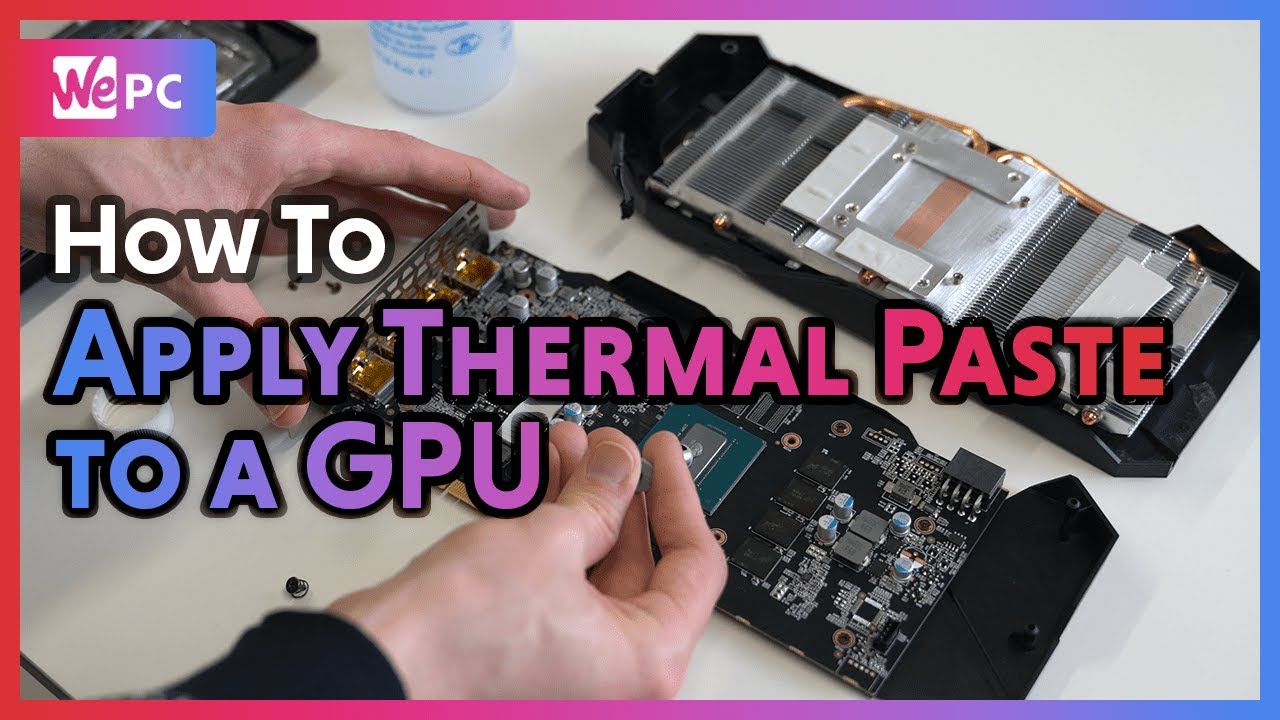
Safety Precautions
Wear anti-static gloves or a wrist strap to avoid static damage. Static can harm sensitive GPU parts. Work on a non-conductive surface like a wooden table. Avoid carpets or rugs in your workspace. Keep liquids away from your GPU to prevent damage. Handle the GPU by its edges only. Avoid touching chips or contacts.
Credit: www.youtube.com
Removing Old Thermal Paste
Removing old thermal paste from your GPU is a crucial step before applying new paste. It ensures better heat transfer and prevents overheating. Taking time to clean the surface properly helps maintain your GPU’s performance and longevity.
Cleaning Methods
Use a soft cloth or coffee filter to wipe off the old paste gently. Isopropyl alcohol with 70% or higher purity works best to dissolve the residue. Apply a small amount of alcohol on the cloth, not directly on the GPU. Rub the surface slowly until all paste is gone. Avoid using water or harsh chemicals that can damage the GPU.
Avoiding Damage
Handle the GPU carefully to avoid bending or breaking any parts. Do not press too hard on the chip while cleaning. Avoid touching other components around the GPU with your hands or cloth. Use gentle, circular motions to clean the thermal surface. Always work in a static-free environment to protect your GPU from static electricity.
Applying Thermal Paste Correctly
Applying thermal paste correctly is important for good GPU cooling. It helps the heat move from the GPU chip to the cooler. Too much or too little paste can cause poor heat transfer. This can lead to higher temperatures and lower performance.
Careful application ensures the paste spreads evenly and fills gaps. This improves contact and cooling. Use the right method and amount for the best results.
Application Techniques
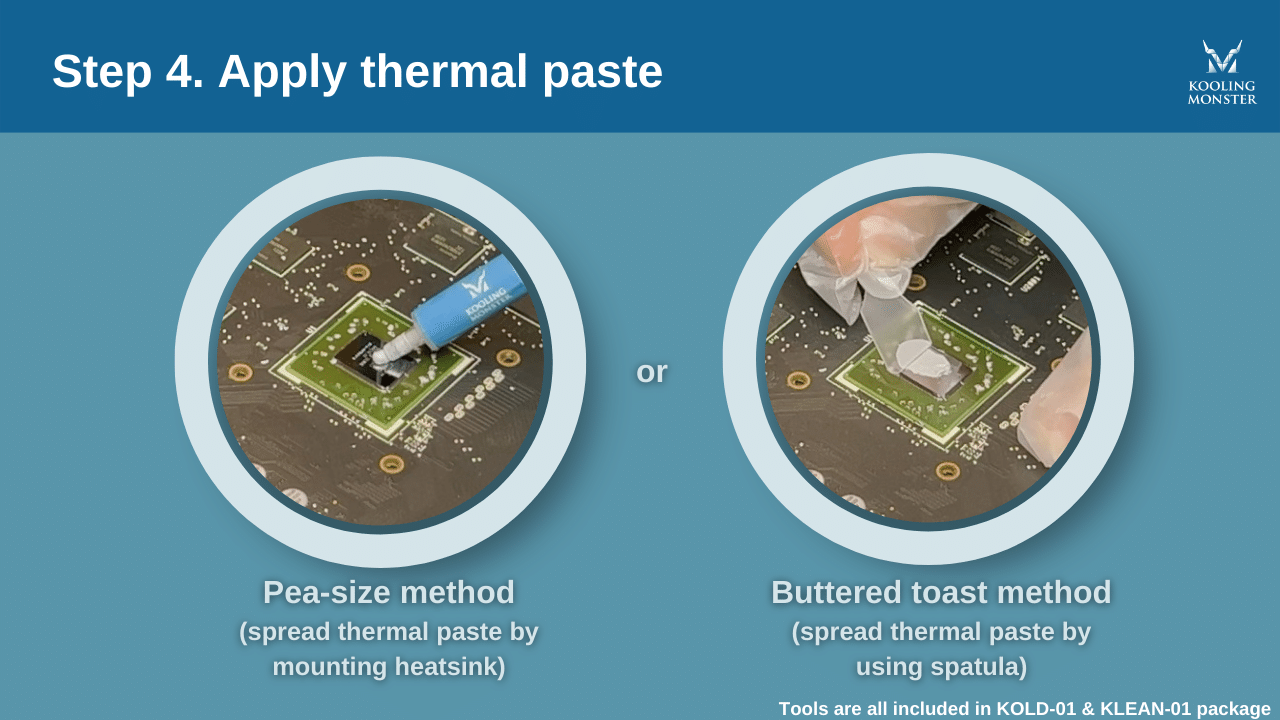
Start by cleaning the GPU surface and cooler base with alcohol. Let them dry before applying paste. Place a small drop of thermal paste in the center of the GPU chip. Avoid spreading it with your finger or tool. The pressure from the cooler will spread the paste evenly. This prevents air bubbles and uneven layers.
Do not apply paste on the cooler or outside the chip area. Keep the layer thin and uniform. This helps heat move quickly and avoids paste spilling over the sides.
Amount To Use
Use a pea-sized amount of thermal paste. This size is enough to cover the chip when pressed. Using too much paste can cause it to spill out and create a mess. Too little paste leaves gaps and air pockets. Both cases reduce cooling efficiency.
Less is more with thermal paste. You want a thin, even layer. This ensures good contact and better heat transfer. Adjust the amount slightly for larger or smaller GPU chips.

Credit: www.reddit.com
Reinstalling The Gpu Cooler
Reinstalling the GPU cooler is a key step after applying thermal paste. It helps keep your GPU running cool and stable. Careful reinstallation ensures the paste spreads evenly and the cooler works well. Follow simple steps to align and secure the cooler properly. This prevents overheating and protects your GPU.
Aligning The Cooler
Place the cooler gently on top of the GPU chip. Match the screw holes on the cooler with those on the GPU board. Take care not to slide the cooler sideways. Sliding can smear the thermal paste and reduce heat transfer. Make sure the cooler sits flat and straight for best results.
Securing Proper Contact
Use the screws to fasten the cooler in place. Tighten them evenly in a diagonal pattern. This spreads pressure across the GPU chip. Avoid over-tightening to prevent damage. Proper contact helps the thermal paste fill gaps. It improves heat flow from the GPU to the cooler.
Testing And Monitoring Temperatures
After applying thermal paste to your GPU, testing and monitoring temperatures is crucial. This step ensures your GPU stays cool and works well. Monitoring helps find problems early and keeps your computer safe. It also shows if the thermal paste was applied correctly. You can avoid overheating and damage by checking temperatures regularly.
Tools For Temperature Monitoring
Use software tools to track your GPU temperature. Popular programs include MSI Afterburner, HWMonitor, and GPU-Z. These apps show real-time temperature data. Some also display fan speed and clock rates. Most are free and easy to install. Choose one that fits your needs and skill level.
Hardware tools like temperature sensors and infrared thermometers can help too. They give accurate readings outside the software. This helps verify software results. Using both types of tools gives the best temperature picture.
Interpreting Results
Look for stable and normal temperature ranges. Most GPUs run safely between 30°C and 85°C. Temperatures above 90°C may indicate a problem. Sudden spikes or constant high readings need attention. They could mean poor thermal paste application or cooling issues.
Compare your GPU temperature at idle and under load. Idle temperatures should be low, around 30°C to 40°C. Under heavy use, temperatures can rise but stay below 85°C. If your GPU gets hotter, check the thermal paste and cooling system again.
Credit: koolingmonster.com
Common Mistakes To Avoid
Applying thermal paste to a GPU needs care and attention. Small mistakes can cause big problems. This section covers common errors to avoid. Follow these tips for better cooling and performance.
Overapplication
Using too much thermal paste is a common mistake. Excess paste can spill over the sides of the GPU chip. This causes poor heat transfer and may damage components. Use a small pea-sized amount for best results. Less is often more with thermal paste.
Uneven Spread
Uneven spreading creates air pockets under the cooler. Air blocks heat flow and raises temperatures. Spread the paste evenly across the GPU surface. Use a flat tool or the cooler itself to press the paste gently. A smooth, thin layer works best.
When To Reapply Thermal Paste
Thermal paste helps your GPU stay cool by filling tiny gaps between the chip and the cooler. Over time, this paste can dry out or lose its effectiveness. Knowing when to reapply thermal paste keeps your GPU running smoothly and prevents overheating. This step is important for maintaining good performance and extending the life of your graphics card.
Signs It’s Time
Watch for rising GPU temperatures during normal use. If your GPU runs hotter than usual, thermal paste might be the cause. Sudden crashes or freezes during gaming or heavy tasks can also indicate poor heat transfer. Physical inspection helps. If you remove the cooler and see the paste is dry, cracked, or missing, it needs replacement. Old thermal paste often looks flaky or powdery. These signs mean it’s time to clean off the old paste and apply a fresh layer.
Maintenance Tips
Clean the old thermal paste carefully using isopropyl alcohol and a soft cloth. Avoid touching the GPU chip with your fingers. Apply a small, pea-sized amount of new thermal paste in the center of the chip. Spread it evenly when you reattach the cooler to avoid air bubbles. Check your GPU temperature regularly using monitoring software. Plan to reapply thermal paste every 1 to 2 years, depending on usage and environment. Proper maintenance keeps your GPU cool and stable for longer.
Frequently Asked Questions
What Is The Best Way To Apply Thermal Paste On A Gpu?
Apply a small pea-sized dot of thermal paste in the center of the GPU chip. Spread it evenly using a plastic card or let the heatsink spread it when mounted. This ensures optimal coverage and prevents air bubbles for better heat transfer.
How Much Thermal Paste Should I Use On My Gpu?
Use a small pea-sized amount or a thin line of thermal paste. Too much paste can cause overheating and mess. Too little paste won’t cover the surface properly. The right amount ensures efficient heat conduction from GPU to heatsink.
Can I Reuse Thermal Paste On A Gpu?
No, always clean off old thermal paste before reapplying. Reusing old paste reduces effectiveness and can cause poor heat transfer. Use isopropyl alcohol and a lint-free cloth to clean the GPU surface before applying fresh thermal paste.
How Often Should I Replace Thermal Paste On A Gpu?
Replace thermal paste every 2 to 3 years or when temperatures rise. Over time, paste dries out and loses effectiveness. Regular replacement helps maintain proper cooling and extends GPU lifespan.
Conclusion
Applying thermal paste to your GPU helps keep it cool and working well. Use only a small amount in the center of the chip. Spread it evenly for the best heat transfer. Too much paste can cause problems, so be careful.
Clean the old paste off before adding new. Regular maintenance can extend your GPU’s life. Simple steps make a big difference in performance. Now, your GPU can run cooler and last longer.