How to Install Gpu Drivers: Easy Steps for Peak Performance
Are you struggling to get your graphics card running smoothly? Installing GPU drivers the right way can make a huge difference in your computer’s performance, whether you’re gaming, designing, or just browsing.
If your screen looks glitchy or your games lag, it might be because your drivers aren’t set up properly. In this guide, you’ll learn simple, step-by-step instructions to install your GPU drivers quickly and correctly. Keep reading, and you’ll have your system running at its best in no time.
Credit: www.youtube.com
Choosing The Right Gpu Driver
Choosing the right GPU driver is crucial for your computer’s performance. The correct driver ensures your graphics card works smoothly. It helps avoid crashes and improves visual quality. Picking a wrong or outdated driver can cause problems. This guide explains how to find the right one.
Identifying Your Gpu Model
Start by knowing your GPU model. This step is simple but important. It tells you what driver your system needs. On Windows, open Device Manager. Look under “Display adapters” to find your GPU name. On Mac, click the Apple logo, then “About This Mac.” Your GPU details appear there. Write down the model for the next step.
Finding Compatible Drivers
Next, find drivers that match your GPU model. Visit the official website of your GPU brand. Popular brands include NVIDIA, AMD, and Intel. Use their search tool to enter your GPU model. Choose the driver that fits your operating system. Check the driver version and release date. Newer drivers usually work better. Download the file and follow installation instructions. This ensures your GPU runs at its best.
Preparing For Installation
Preparing for GPU driver installation is important for a smooth process. It helps avoid problems and keeps your system safe. Taking a few simple steps before installing new drivers can save time and trouble.
Start with cleaning your system from old drivers. Also, back up your important files to prevent data loss. These actions create a safer environment for the new drivers.
Uninstalling Old Drivers
Old GPU drivers can cause conflicts with new ones. Removing them first ensures the new driver works correctly. Use the device manager or dedicated software to uninstall old drivers. Follow prompts carefully and restart your computer afterward. This clears any leftover files that may interfere with installation.
Backing Up Important Data
Backing up files protects you from accidental data loss. Save important documents, photos, and settings before starting. Use an external drive or cloud storage for backups. This step avoids stress if something goes wrong during installation. Keeping your data safe is always a smart move.
Downloading Gpu Drivers
Downloading GPU drivers is the first step to ensure your graphics card works well. Drivers help your computer talk to the GPU. Without the right driver, your GPU might not perform correctly or may cause errors. Downloading the correct driver keeps your system stable and your games or apps running smoothly.
Official Manufacturer Websites
Always download GPU drivers from official manufacturer websites. These sites provide the latest and safest drivers. Trusted brands like NVIDIA, AMD, and Intel offer easy-to-use download pages. You can find drivers by entering your GPU model. Official sites also provide instructions and support if needed.
Third-party Sources To Avoid
Avoid downloading drivers from unknown third-party websites. These sources may offer outdated or harmful files. Drivers from unsafe sites can contain malware or cause system crashes. Stick to official sites to protect your computer and data. Safety and reliability matter most when updating drivers.
Credit: vixencomposites.com
Installing Gpu Drivers
Installing GPU drivers is an important step to make your graphics card work properly. These drivers help your computer talk to the GPU and use its power. Without the right drivers, your GPU may not perform well or may cause errors. Follow simple steps to install the drivers correctly.
Running The Installer
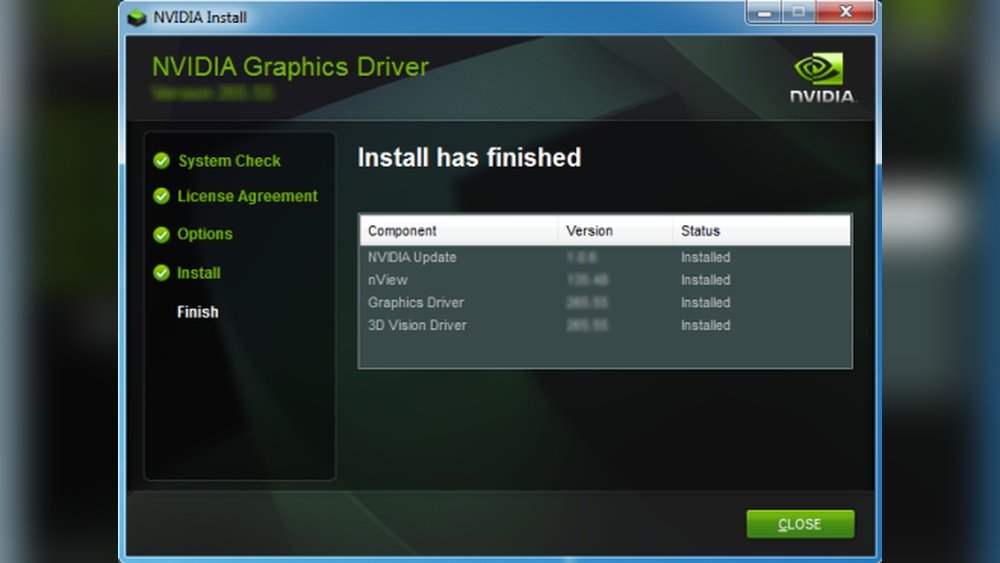
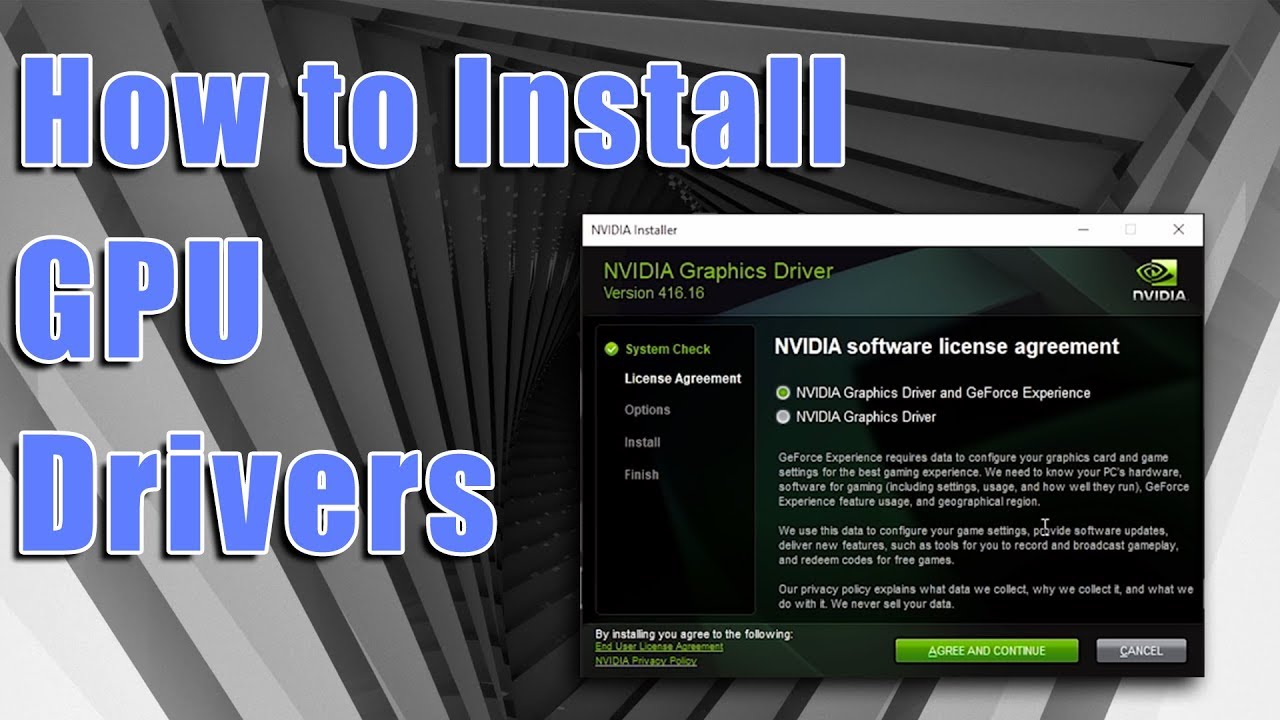
First, download the driver installer from the official website of your GPU brand. Open the file after the download finishes. The installer will start and guide you through the process. Follow the on-screen instructions carefully. The installer will check your system and prepare the driver files.
Wait for the installation to complete. This may take a few minutes. Do not turn off your computer during this time. Once done, the installer may ask you to restart your system. Restart to finish the installation and apply changes.
Custom Vs Express Installation
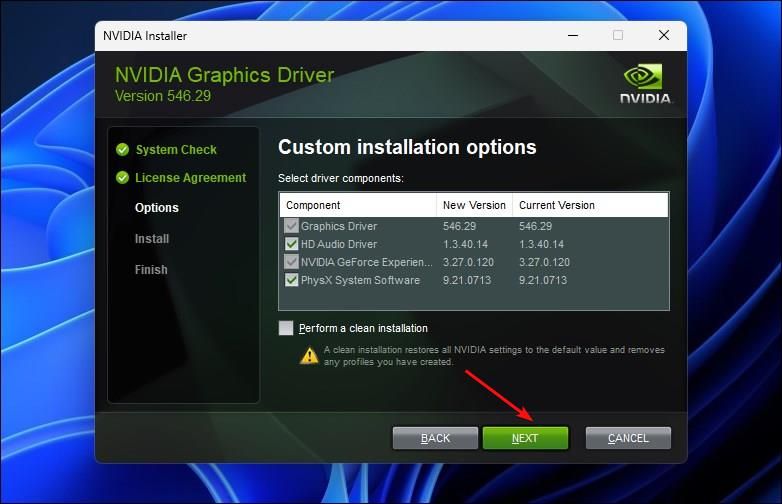
The installer offers two choices: custom or express installation. Express installation is faster and uses default settings. It installs all the necessary driver components automatically. Choose this option for a quick setup.
Custom installation lets you pick which components to install. You can decide to install only the main driver or add extra features. This option is good if you want more control. You can also remove old drivers during custom setup. Choose based on your needs and experience level.
Verifying Driver Installation
Verifying your GPU driver installation is important. It confirms the driver works correctly. This step avoids issues with your graphics card later. Simple checks help you ensure the driver is installed properly.
Checking Driver Version
Check the installed driver version to confirm success. On Windows, open Device Manager and find Display Adapters. Right-click your GPU and select Properties. Go to the Driver tab and note the driver version number. Compare this with the latest version on the GPU maker’s website. This quick step shows if your driver is up to date.
Using Diagnostic Tools
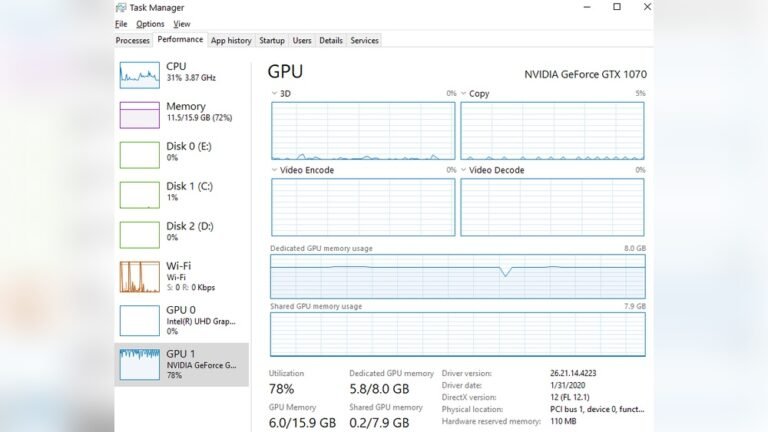
Use diagnostic tools to test the GPU driver. Programs like GPU-Z or MSI Afterburner display driver and hardware info. Run these tools to see real-time data about your GPU. They help confirm the driver is active and stable. Some tools also offer stress tests to check performance under load. This ensures the driver runs smoothly without errors.
Troubleshooting Common Issues
Troubleshooting common issues with GPU driver installation can save time and avoid frustration. Some problems are easy to fix with a few steps. Others may need a bit more attention. Knowing how to solve these issues helps keep your system running smoothly. Here are some tips to fix errors and improve performance.
Fixing Installation Errors
Installation errors can stop the GPU driver from working. First, check if the driver matches your GPU model. Download drivers only from the official website. Remove old drivers completely before installing new ones. Use a tool like Display Driver Uninstaller for clean removal. Run the installer as an administrator to avoid permission issues. Make sure your operating system is up to date. Restart your computer after installation to apply changes.
Resolving Performance Problems
Performance issues may appear after installing GPU drivers. Check if the driver version is the latest. Older drivers can cause slowdowns or crashes. Adjust graphics settings in your software or games for better speed. Disable unnecessary background programs that use GPU resources. Monitor GPU temperature to avoid overheating, which slows down performance. Update your system BIOS if recommended by the GPU maker. Reinstall the driver if problems continue after all steps.
Keeping Drivers Updated
Keeping your GPU drivers updated is important for smooth computer performance. Updated drivers fix bugs, improve security, and add new features. They also help your graphics card run games and apps better.
Regular updates ensure your system stays stable and fast. There are two main ways to keep drivers current: using automatic tools or updating manually. Both methods are simple and effective.
Automatic Update Tools
Automatic update tools check for new drivers and install them for you. These tools save time and reduce errors. Many graphics card makers offer their own update software. For example, NVIDIA has GeForce Experience, and AMD offers Radeon Software.
These programs notify you about new driver versions. They download and install updates with just a few clicks. Automatic tools also keep your drivers current without extra effort.
Manual Update Steps
You can update GPU drivers manually if you prefer control. Start by finding your graphics card model. Visit the official website of the GPU maker, such as NVIDIA, AMD, or Intel.
Look for the driver download section. Select the correct driver for your operating system and card model. Download the driver file and run the installer.
Follow the on-screen instructions to complete the installation. Restart your computer to apply changes. Manual updates ensure you install the exact driver you need.

Credit: www.youtube.com
Frequently Asked Questions
How Do I Check My Gpu Driver Version?
You can check your GPU driver version in Device Manager. Expand “Display adapters,” right-click your GPU, and select “Properties. ” Under the “Driver” tab, you’ll find the driver version and date.
Where Can I Download The Latest Gpu Drivers?
Download the latest GPU drivers from the official NVIDIA, AMD, or Intel websites. Avoid third-party sites to prevent malware risks and ensure compatibility with your GPU model.
How Often Should I Update Gpu Drivers?
Update your GPU drivers every few months or when you experience performance issues. Regular updates improve stability, fix bugs, and enhance gaming or software performance.
Can I Install Gpu Drivers Without Internet?
Yes, you can install GPU drivers offline by downloading the driver package on another device. Transfer it via USB and run the installer on your target PC.
Conclusion
Installing GPU drivers is a simple process anyone can do. Just follow the steps carefully and take your time. Drivers keep your graphics card working well and improve performance. Always download drivers from the official website to stay safe. Regular updates fix bugs and add new features.
A well-installed driver helps your computer run smoothly. Now, you can enjoy better graphics and faster speeds. Keep your system updated and check for new drivers often. Easy, right?