How to Find Cpu Info in Linux: Quick and Easy Methods Explained
If you’ve ever needed to check your computer’s processor details but didn’t know where to start, this guide is for you. Knowing how to find CPU info in Linux can save you time and help you make smarter decisions about your system.
Whether you want to check your CPU model, speed, or the number of cores, you’ll learn simple commands that give you all the answers quickly. Keep reading, and you’ll gain the confidence to unlock important details about your Linux machine in no time.
Check Cpu Details With Lscpu
The lscpu command is a simple way to see detailed CPU information on Linux. It shows the CPU’s architecture, cores, threads, and speeds. This tool works without needing extra permissions or software.
Running lscpu gives a clear summary of your processor. It helps in understanding your system’s power and capabilities fast.
How To Run The Lscpu Command
Open the terminal on your Linux system. Type lscpu and press Enter. The CPU details will appear on the screen immediately.
Understanding The Lscpu Output
The output shows CPU architecture, number of CPUs, cores per socket, and threads per core. It also lists CPU speed and cache sizes. This data helps you know your processor better.
Using Lscpu For Troubleshooting
Check CPU info to find performance issues. Look at core counts and speeds to spot limits. Use this data to decide on upgrades or fixes.
Credit: www.geeksforgeeks.org
View Cpu Info Using /proc/cpuinfo
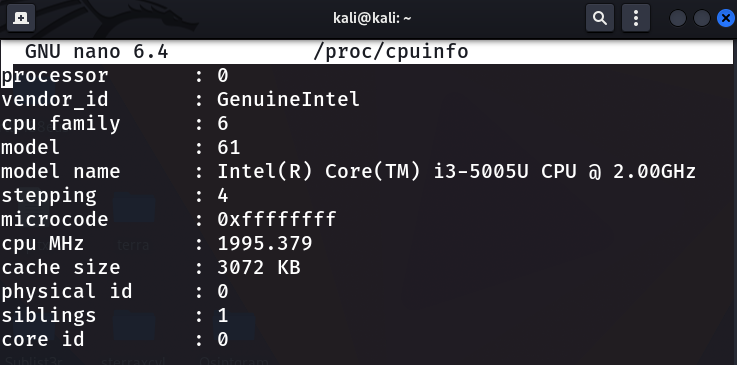
Linux stores detailed CPU information in a special file called /proc/cpuinfo. This file contains data about the processor’s model, speed, and features. It is a simple and fast way to check your CPU details using the command line.
Reading this file helps you understand your system’s hardware without needing extra tools. The content is plain text, easy to interpret, and always up to date with the current CPU state.
How To Access /proc/cpuinfo
Open your terminal. Type the command cat /proc/cpuinfo and press Enter. This command displays the full contents of the file on your screen. You see one or more sections, each describing a CPU core.
Understanding The Output
The output lists fields like processor, model name, and cpu MHz. Each section starts with the processor number. Model name shows the CPU brand and type. Cpu MHz gives the current speed in megahertz.
Filtering Important Information
Use commands like grep 'model name' /proc/cpuinfo to see only the CPU model names. This filters the output to show just the info you need. It saves time and avoids clutter on the screen.
Use Dmidecode To Get Cpu Data
Using dmidecode is a simple way to find detailed CPU information on Linux. This command reads data from the system’s BIOS. It provides clear and accurate hardware details, including the CPU.
dmidecode works without needing root access, but running as root gives full data access. It shows data like processor type, speed, manufacturer, and more. This helps users understand their CPU better.
What Is Dmidecode?
dmidecode is a tool that reads system hardware info from the BIOS. It extracts data from the DMI table. This table holds details about system components, including the CPU.
The tool shows hardware info in plain text. It is useful for troubleshooting or system inventory.
How To Run Dmidecode For Cpu Info
Open your terminal. Type sudo dmidecode -t processor. This command filters the output to only show CPU data.
Enter your password if prompted. The output will list all processors installed on your system. Look for fields like “Version,” “Voltage,” and “External Clock.”
Understanding Dmidecode Output
The output shows each CPU section separately. It includes processor ID, manufacturer, and max speed. The “Version” field tells the CPU model.
Voltage and external clock speed help assess the CPU’s power and frequency. This info is important for system tuning or upgrades.

Credit: www.geeksforgeeks.org
Get Cpu Info With Lshw Command
The lshw command in Linux provides detailed information about hardware. It shows specs of your CPU clearly. This helps you understand your computer’s processor details fast.
This command lists the CPU model, speed, cores, and cache size. It also gives info about other hardware components. The output is easy to read and useful for troubleshooting.
How To Run The Lshw Command For Cpu Info
Open your terminal. Type sudo lshw -class processor and press Enter. You will see detailed CPU information immediately. The sudo command is needed to get full details.
Understanding The Output Of Lshw
The output lists the CPU product name and vendor. It shows the CPU speed in MHz and the number of cores. Cache size and CPU configuration also appear. This info helps identify your processor type.
Using Lshw With Other Options
Add -short to get a brief summary of hardware. Use lshw -html to save output in a web page format. These options make the CPU info easier to read and share.
Display Cpu Info Via Hardinfo Tool
The Hardinfo tool is a simple way to see detailed CPU information on Linux. It provides a clear graphical interface. This helps users understand their CPU specs without using the command line.
Hardinfo shows data like CPU model, speed, and cache size. It also offers other system details, making it a handy tool for beginners and experts alike.
Installing Hardinfo On Linux
Most Linux versions do not have Hardinfo pre-installed. You can add it easily using your package manager. For example, on Ubuntu, run sudo apt install hardinfo. On Fedora, use sudo dnf install hardinfo.
Launching Hardinfo To View Cpu Details
After installation, open Hardinfo from your apps menu. You will see a system summary window. Click on the “CPU” section to view detailed processor information.
Understanding Cpu Information In Hardinfo
Hardinfo lists CPU name, vendor, and speed. It also shows the number of cores and threads. Cache sizes and CPU flags appear as well. This helps you check your CPU’s capabilities easily.
Using Top And Htop For Cpu Stats
Using top and htop commands is a quick way to check CPU stats in Linux. Both tools show real-time data about CPU usage and running processes.
top is available on almost all Linux systems. It displays CPU load, memory use, and active processes in a simple text interface.
htop offers a more colorful and user-friendly display. It shows CPU cores separately and allows easier navigation.
Using Top To Check Cpu Usage
Open a terminal and type top. The first few lines show overall CPU usage.
Look for the line starting with %Cpu(s):. It breaks down CPU use into user, system, and idle time.
Processes are listed below. Sort them by CPU use by pressing Shift + P.
To exit top, press q.
Using Htop For Detailed Cpu Stats
Run htop in the terminal. The top part shows CPU usage per core.
Colors help you understand CPU load quickly: green for user, red for system, and blue for low priority tasks.
Use arrow keys to scroll through the list of processes.
Press F6 to sort processes by CPU or memory usage.
Exit by pressing F10 or q.
Installing Htop If Not Available
Many Linux systems do not have htop pre-installed.
Use your package manager to install it. For example, on Ubuntu, type sudo apt install htop.
On CentOS or RHEL, use sudo yum install htop.
After installation, run htop to view CPU stats.
Check Cpu Info In Gui Environments
Checking CPU information in a graphical user interface (GUI) is simple and fast. It helps users see details without typing commands. Many Linux desktop environments include tools to view CPU data easily. These tools show important info like CPU model, speed, and cores.
This section explains how to check CPU info using common GUI tools in Linux. Each method works well for beginners and advanced users alike.
Using System Monitor
Most Linux desktops have a System Monitor app. Open it from the main menu or search bar. Inside, find the “Resources” or “CPU” tab. It shows CPU usage and details like core count and speed. Some versions also display the CPU model name. This method is quick and clear for basic CPU info.
Checking Details With Hardinfo
Hardinfo is a popular system information tool. Install it using your package manager if not present. Run Hardinfo from the menu or terminal. Click on “Devices” then “Processor” for CPU details. It lists model, speed, cache size, and more. Hardinfo gives a thorough view of your CPU and hardware.
Viewing Cpu Info In Gnome Settings
GNOME desktop has a Settings app with system info. Open Settings and select “About” at the bottom. This section shows CPU model, memory, and OS details. It is easy for users who want quick CPU facts without extra tools. GNOME Settings give a neat summary of the hardware.

Credit: www.cyberciti.biz
Compare Methods For Quick Cpu Info
Finding CPU info in Linux can be done in many ways. Some methods show details fast. Others give more data but take longer. Choosing the right way depends on your need. Here, we compare quick methods to check CPU info.
Each method uses different commands or files. Some show only the CPU model and speed. Others add core count and cache size. The goal is to find fast and useful info.
Using The /proc/cpuinfo File
The file /proc/cpuinfo stores detailed CPU data. You can read it with simple commands like cat /proc/cpuinfo. This method is fast and shows many details. It lists CPU model, cores, speed, and flags.
It works on almost all Linux systems. The output can be long. Use grep to find specific info.
Using The Lscpu Command
The lscpu command shows a summary of CPU info. It is easy to read and clear. It displays architecture, CPU cores, threads, and speed. The command runs quickly and needs no extra options.
This method suits users who want a neat overview fast. It is part of the util-linux package on most systems.
Using The Hostnamectl Command
hostnamectl shows system info including CPU details. It is simple and brief. The CPU info appears under “CPU” or “Hardware” section. This command also shows OS and hostname data.
It fits users who want a quick look at system and CPU info. No extra packages are usually needed.
Using The Top Or Htop Commands
top and htop are system monitors. They show CPU usage and some info in real-time. The CPU model appears near the top in some versions. These tools help check CPU load and details together.
They are good for users who want live CPU stats and basic info fast.
Frequently Asked Questions
How Can I Check Cpu Details In Linux?
You can check CPU details using the command lscpu in the terminal. It provides comprehensive CPU architecture and specs information quickly.
What Command Shows Cpu Info On Linux?
The cat /proc/cpuinfo command displays detailed CPU information, including model, cores, and cache size in Linux systems.
How To Find Cpu Model On Linux?
Run lscpu or cat /proc/cpuinfo | grep “model name” to find the CPU model name easily on Linux.
Is There A Graphical Tool For Cpu Info In Linux?
Yes, tools like hardinfo or gnome-system-monitor offer graphical interfaces to view CPU details and system info.
Conclusion
Finding CPU info in Linux is simple and fast. Commands like lscpu and cat /proc/cpuinfo give clear details. You can check CPU model, speed, and cores easily. This helps to understand your system better. Use these tips anytime you need quick CPU data.
Keep practicing these commands to get comfortable. Your Linux experience will improve with this knowledge. No extra tools needed. Just open a terminal and start exploring today.