How to See How Much Ram is Being Used: Easy Steps to Check Usage
Are you curious about how much RAM your computer is actually using right now? Knowing this can help you understand why your device might be running slow or struggling with certain tasks.
You’ll discover simple, step-by-step ways to check your RAM usage quickly. Whether you’re a beginner or just want a clear answer, you’ll learn exactly what to look for and how to interpret the numbers. Keep reading to take control of your computer’s performance and avoid unnecessary frustration.
Credit: www.avast.com
Check Ram Usage On Windows
Checking RAM usage on a Windows computer helps understand how your system uses memory. It shows how much memory apps and processes consume. This info can help improve performance and fix slowdowns. Windows offers simple tools to view RAM usage easily.
Using Task Manager
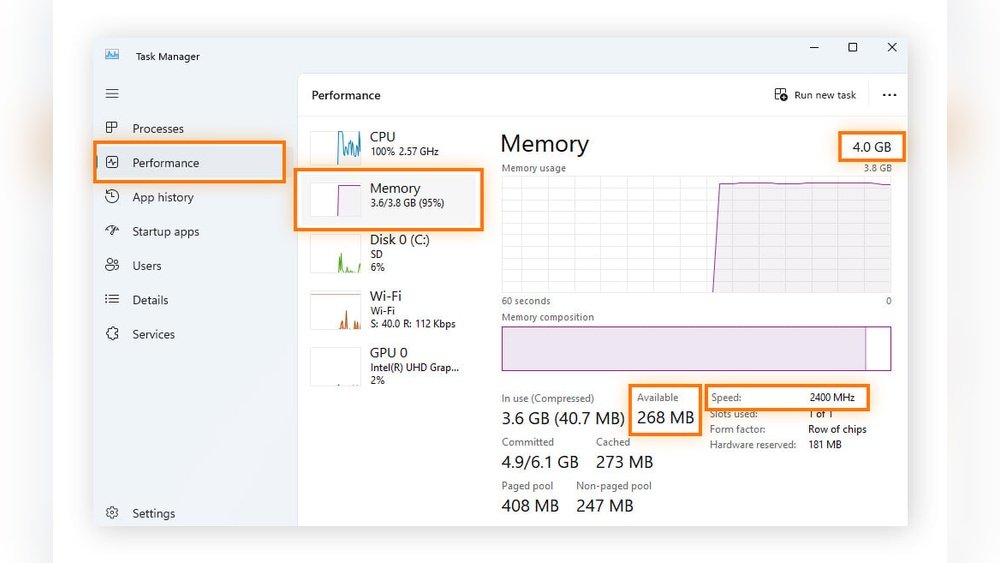
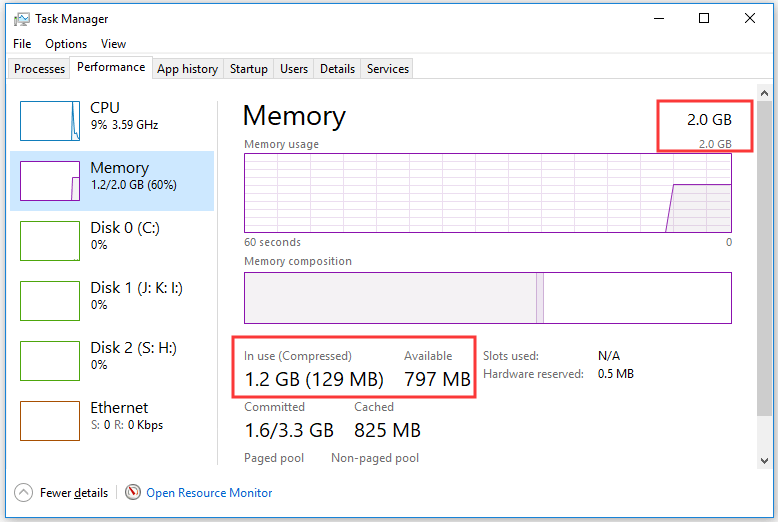
Task Manager is the easiest way to check RAM usage. Press Ctrl + Shift + Esc to open it. Click the Performance tab. Select Memory on the left side. You will see total RAM and used memory. The graph shows real-time usage. It also lists how much RAM each app uses under the Processes tab.
Using Resource Monitor
Resource Monitor gives a detailed view of RAM use. Open Task Manager first. Then, click Open Resource Monitor at the bottom of the Performance tab. In Resource Monitor, go to the Memory tab. It breaks down memory use by processes and services. You see how much RAM is in use, standby, or free. This tool helps find apps using too much memory.
Using Command Prompt
Command Prompt can display RAM information quickly. Press Win + R, type cmd, and press Enter. Type wmic OS get FreePhysicalMemory,TotalVisibleMemorySize /Value and press Enter. It shows free and total RAM in kilobytes. Calculate used RAM by subtracting free from total. This method is good for quick checks without opening menus.
Credit: learn.microsoft.com
Check Ram Usage On Macos
Checking how much RAM your Mac uses helps you understand your computer’s speed and performance. MacOS has built-in tools that show RAM usage easily. You can see which apps use the most memory and spot any issues. This guide covers two simple ways to check your RAM usage on macOS.
Using Activity Monitor
Activity Monitor is a user-friendly app that shows real-time RAM usage. Open it from the Applications folder under Utilities. Click the “Memory” tab to see memory details. You will find used, cached, and free memory amounts here.
Look at the “Memory Pressure” graph at the bottom. Green means your Mac is managing memory well. Yellow or red means your Mac is low on memory and may slow down. Activity Monitor also lists processes using the most RAM, so you can identify heavy apps.
Using Terminal Commands
The Terminal app gives a quick way to check RAM using text commands. Open Terminal from Utilities or search it with Spotlight. Type vm_stat and press Enter. This command shows virtual memory statistics.
To see used memory, look for “Pages active” and “Pages wired down.” To estimate free memory, check “Pages free.” Each page equals 4096 bytes of RAM. Another command, top -l 1 | grep PhysMem, displays a clear summary of used and free physical memory.
Check Ram Usage On Linux
Checking RAM usage on Linux helps you understand your system’s memory status. It shows how much memory is free and how much is used by programs. This info helps keep your system fast and efficient. Linux offers several simple tools to check RAM usage directly from the terminal or through a graphical interface.
Using Free Command
The free command quickly shows total, used, and free RAM. Open the terminal and type free -h. The -h option makes the output easy to read by using human-friendly units like MB or GB. Look under the “used” and “available” columns to see memory consumption. This method is fast and works on almost all Linux versions.
Using Top And Htop
The top command provides a live view of system processes and memory use. Type top in the terminal. The “%MEM” column shows memory used by each process. For a better experience, install htop using your package manager. It has a colorful display and easier navigation. Both tools refresh data in real time, so you see current RAM usage instantly.
Using System Monitor
Linux desktops often include a System Monitor app with a graphical interface. Open it from your applications menu. The RAM usage section shows total, used, and free memory in a clear graph or chart. This method is best for users who prefer visual data over commands. It also shows CPU and disk usage for a full system overview.
Interpreting Ram Usage Results
Interpreting RAM usage results helps you understand your computer’s performance. Knowing how much RAM is used and how much is free guides your next steps. It shows if your system runs smoothly or needs attention.
Reading these results can prevent slowdowns and crashes. It gives you a clear picture of your memory health.
Understanding Used Vs Available Ram
Used RAM is the memory your computer is actively using. Available RAM is the memory ready for new tasks. Some RAM might look busy but is actually cached for faster access. This cached memory frees up when programs need it.
High used RAM is normal during heavy tasks. Low available RAM might slow your computer. Watch both values to know the memory balance.
Identifying Memory Hogs
Memory hogs are programs that use too much RAM. Check your task manager or system monitor for apps with high memory use. Browsers with many tabs often consume lots of RAM. Video editing and gaming software also use large amounts.
Close or restart programs using excessive RAM. This frees memory and improves speed.
When To Consider Upgrading Ram
Consider upgrading RAM if your system runs slow often. Frequent freezes or crashes also signal low memory. If you use many apps at once, more RAM helps. Tasks like video editing need higher RAM for smooth work.
More RAM increases your system’s capacity to handle multiple tasks. It improves overall performance and responsiveness.
Tips To Optimize Ram Usage
Optimizing RAM usage helps your computer run faster and smoother. It stops programs from using too much memory. This makes your system more responsive. Here are some easy tips to help manage your RAM better.
Closing Unnecessary Programs
Running many programs at once uses more RAM. Close programs that you do not need right now. This frees up memory for important tasks. Check your taskbar or use Task Manager to close apps. This simple step can improve your computer speed instantly.
Managing Startup Applications
Some programs start automatically when your computer boots. These use RAM even if you don’t use them right away. Disable programs you rarely need at startup. Use system settings or Task Manager to manage these apps. This reduces memory use and speeds up startup time.
Using Lightweight Alternatives
Heavy software can use a lot of RAM. Choose lighter versions or simpler apps instead. For example, use a basic text editor instead of a large word processor. Lightweight apps use less memory and run faster. This keeps your RAM free for other important tasks.
Credit: www.minitool.com
Frequently Asked Questions
How Can I Check Ram Usage On Windows?
Open Task Manager by pressing Ctrl + Shift + Esc. Click the Performance tab, then select Memory. It shows total, used, and available RAM in real time.
What Is The Best Tool To Monitor Ram Usage?
Task Manager on Windows and Activity Monitor on Mac are built-in tools. Third-party apps like RAMMap or HWMonitor offer advanced RAM monitoring features.
How Do I View Ram Usage On Mac?
Open Activity Monitor from Applications > Utilities. Click the Memory tab to see RAM usage details, including memory pressure and cached files.
Can I Check Ram Usage Using Command Prompt?
Yes. Type wmic OS get FreePhysicalMemory,TotalVisibleMemorySize in Command Prompt. It shows free and total physical memory in kilobytes.
Conclusion
Checking your RAM usage helps keep your computer fast. You can easily see how much memory is used. This lets you know if your system needs an upgrade. Watching RAM use can stop slowdowns and crashes. Try these simple steps to monitor your memory.
Stay aware of your computer’s performance daily. This way, you keep your device running smooth and quick. Knowing your RAM use makes tech less confusing. Start checking today and feel more in control.