How to Oc Ram in Bios: Ultimate Guide to Boost Performance
Are you looking to boost your computer’s speed without spending extra money on new hardware? Learning how to overclock (OC) your RAM in the BIOS can unlock hidden performance, making your system run smoother and faster.
But if you’ve never tried it before, the idea might seem confusing or risky. Don’t worry—this guide will walk you through each step clearly and safely. By the end, you’ll know exactly how to get more power from your RAM and enjoy a noticeable difference in your PC’s performance.
Ready to take control and make your system work harder for you? Let’s dive in.
Basics Of Oc Ram
Overclocking RAM means making your computer’s memory run faster than its standard speed. This process happens inside the BIOS, the system that controls your computer’s hardware settings. Understanding the basics helps you get better performance without causing damage.
Changing RAM speed can improve how your computer handles tasks. Yet, it needs care and knowledge. Let’s explore what RAM overclocking is, its benefits, and the risks you should watch for.
What Is Ram Overclocking
RAM overclocking is raising the memory’s speed beyond its factory setting. It is done by adjusting values in the BIOS. These values include frequency, timings, and voltage. The goal is to get faster data transfer and better performance from your PC.
Benefits Of Ram Overclocking
Overclocked RAM can make your computer faster and more responsive. It helps with multitasking and running memory-heavy programs. You may notice quicker loading times and smoother performance in games and applications.
Risks To Consider
Overclocking RAM can cause instability if done incorrectly. Your system might crash or fail to boot. There is also a chance of overheating, which can damage components. Always increase speeds slowly and test for stability after each change.
Credit: www.intel.la
Preparing For Ram Oc
Preparing your system is the first step to overclocking RAM in BIOS. This process helps ensure stability and prevents damage. Take time to get ready carefully. Follow these steps before changing any settings.
Check Ram And Motherboard Compatibility
Not all RAM sticks work well with every motherboard. Check your motherboard manual or website for supported RAM types. Look for speed, size, and voltage limits. Using compatible hardware avoids crashes and errors. Confirm your RAM matches these requirements before continuing.
Update Bios Firmware
A BIOS update can improve RAM compatibility and add new features. Visit your motherboard maker’s website to find the latest BIOS version. Follow their instructions to update it safely. An updated BIOS reduces risks during overclocking and can improve system stability.
Backup Important Data
Overclocking carries some risk of system failure. Save your important files before starting. Use an external drive or cloud storage for backups. This step protects your data if problems occur. Always keep a backup ready before tweaking BIOS settings.
Accessing Bios Settings
Accessing BIOS settings is the first step to overclock your RAM safely. BIOS controls many hardware features on your computer. Adjusting RAM settings here helps improve performance. Understanding how to enter and navigate BIOS is key.
Each computer brand may use different keys to open BIOS. Knowing these keys saves time and avoids confusion. Once inside, finding the memory settings is important for RAM overclocking.
Entering Bios On Different Systems
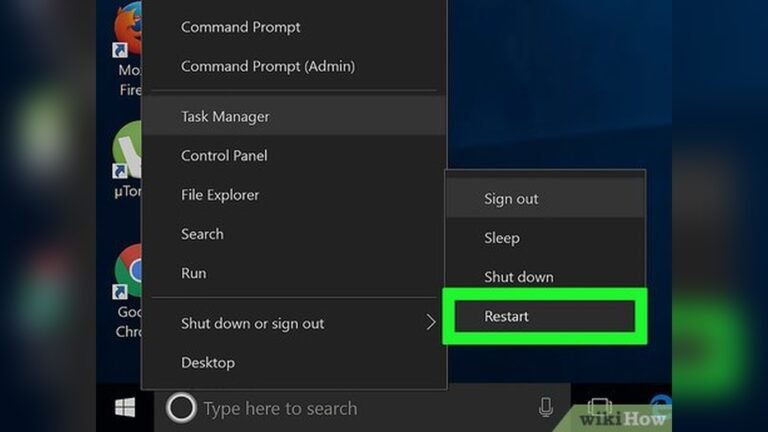
To enter BIOS, restart your computer. Press the BIOS key immediately after the screen lights up. Common keys include Delete, F2, F10, or Esc.
For Dell systems, press F2 during startup. HP users often press Esc or F10. Lenovo usually uses F1 or F2. Asus and MSI commonly use Delete or F2 keys.
Watch the screen carefully. It may show a message like “Press F2 to enter Setup.” Press the key quickly before the operating system loads.
Navigating To Memory Settings
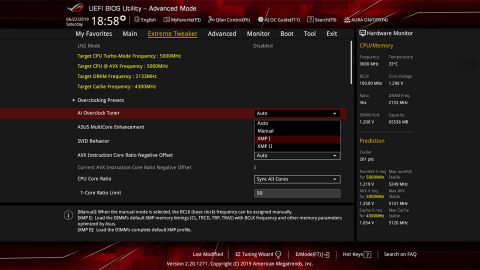
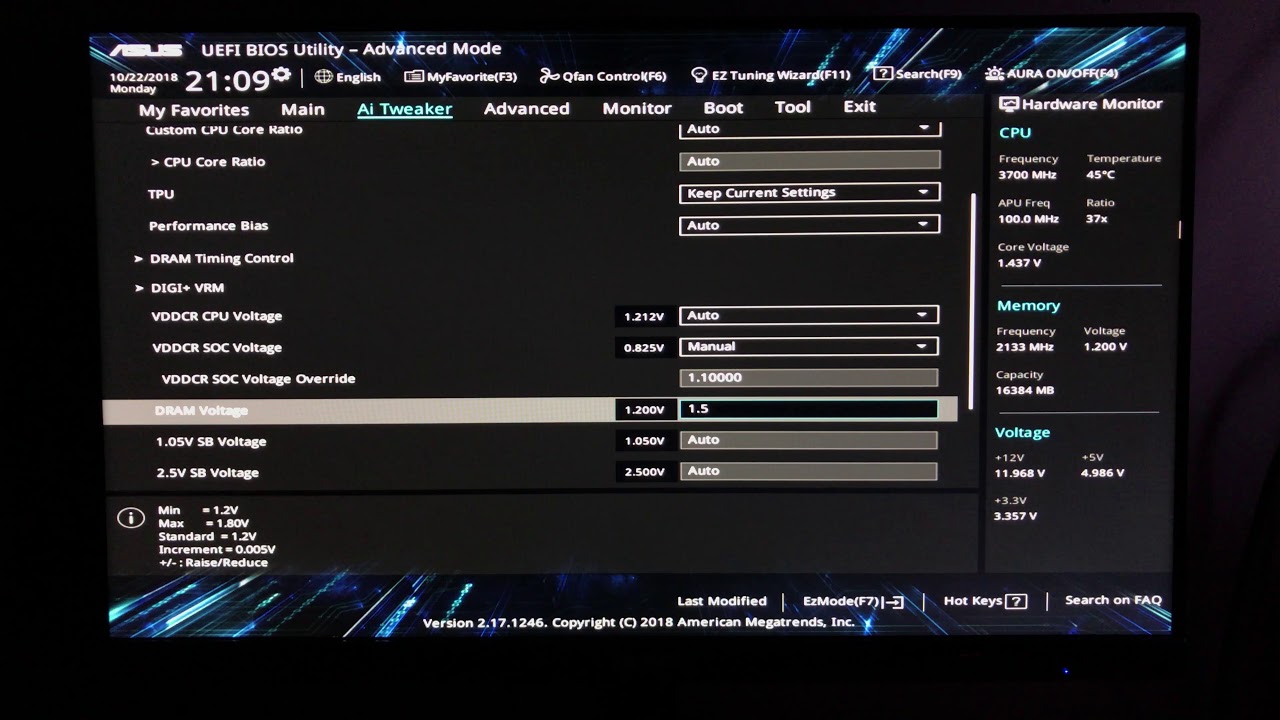
Once inside BIOS, use arrow keys to move through menus. Look for tabs named Advanced, Overclock, or Ai Tweaker. These usually contain memory settings.
Find options like DRAM Frequency or Memory Timings. These control the RAM speed and timings. Changing these values will overclock your RAM.
Be careful with settings. Make small changes and test stability. Save changes before exiting BIOS to apply new settings.
Adjusting Ram Frequency
Adjusting your RAM frequency in the BIOS can improve your computer’s speed and responsiveness. Changing the RAM frequency lets you control how fast your memory works. This affects the overall performance of your system, especially in tasks like gaming or video editing. The process is simple but requires careful steps to avoid system instability.
Selecting The Right Frequency
Choose a RAM frequency that matches your memory’s specifications. Check the label on your RAM modules or the product page online. Using a frequency higher than your RAM supports may cause crashes. Picking a frequency too low can limit performance. Find a balance that suits your hardware and needs.
Using Xmp Profiles
XMP profiles are built-in settings that help adjust RAM frequency automatically. They provide tested and stable speed settings. Enabling XMP in the BIOS saves time and reduces errors. Look for the XMP option under the memory or overclocking menu. Turn it on to apply the recommended frequency and timings.
Manual Frequency Adjustment
Manual adjustment gives more control over RAM speed and timings. Enter the BIOS and find the memory frequency settings. Change the frequency step-by-step, then save and reboot. Watch for system stability after each change. If the system fails to start, revert to the last stable frequency. Manual tuning requires patience but can offer better results.
Tweaking Ram Timings
Tweaking RAM timings in BIOS can improve your computer’s performance. It helps your RAM respond faster to commands. Small changes can lead to better speed and stability. Understanding timings is key to making smart adjustments.
Primary Timings Explained
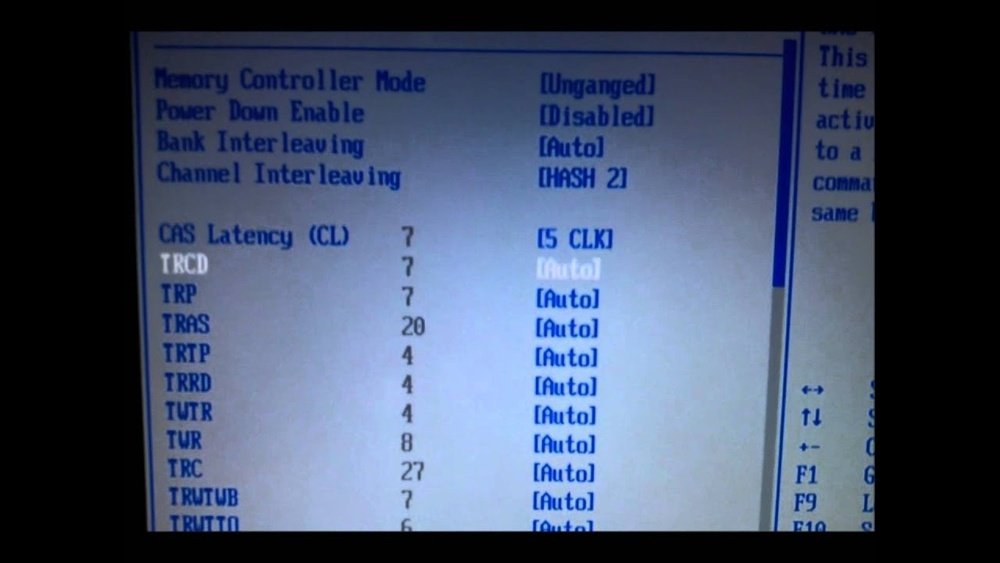
Primary timings are the main settings that control RAM speed. They include CAS latency (CL), RAS to CAS delay (tRCD), RAS precharge (tRP), and cycle time (tRAS). Lower values mean faster response but can cause instability. These timings define how quickly your RAM processes data.
Optimizing Timings For Stability
Balancing speed and stability is important. Start by lowering one timing value at a time. Test your system after each change. Use stress tools to check for crashes or errors. If problems appear, increase the timing slightly. Stable timings keep your system running smooth.
Advanced Timing Settings
Advanced timings go beyond primary values. They include tRC, tRRD, tFAW, and others. These settings fine-tune memory performance further. Changing them requires careful testing. Only adjust these if you understand their impact. They help squeeze extra speed from your RAM.
Setting Ram Voltage
Setting RAM voltage is a key step in overclocking your memory through the BIOS. It controls how much power your RAM receives. Proper voltage helps your RAM run faster and stay stable. Too low voltage may cause crashes. Too high voltage can damage the hardware. Finding the right balance is crucial for safe and effective overclocking.
Safe Voltage Ranges
Most DDR4 RAM modules work well between 1.2V and 1.35V. Some high-performance RAM can go up to 1.4V safely. Avoid going beyond 1.45V unless you have advanced cooling. Check your RAM’s specifications for recommended voltage limits. Staying within safe voltage prevents hardware damage and system instability.
Balancing Voltage And Temperature
Higher voltage increases RAM temperature. Hot RAM can cause errors or shorten lifespan. Use good cooling like fans or heatsinks. Monitor temperatures regularly during overclocking. Lower voltage helps keep temperatures down but may reduce stability. Find a voltage that keeps RAM stable and cool at the same time.
Testing Stability
Testing stability is key after you overclock your RAM in BIOS. It ensures your system runs smoothly without crashes or errors. Stability tests help find the best settings for your memory without causing problems. This step protects your hardware and saves time in the long run.
Using Stress Testing Tools
Stress testing tools push your RAM to its limits. Programs like MemTest86 and Prime95 check for errors under heavy load. Run these tests for several hours to verify stability. If errors appear, your overclock settings need adjustment.
Monitoring System Temperatures
Overclocking raises system temperatures. High heat can cause instability or damage components. Use tools like HWMonitor or Core Temp to watch your CPU and RAM temperatures. Keep temperatures within safe limits to ensure stable performance.
Troubleshooting Instability
Instability shows as crashes, freezes, or blue screens. Lower your RAM frequency or increase voltage slightly to fix issues. Test different timings for better stability. Patience is important; small changes make a big difference.
Fine-tuning For Performance
Fine-tuning your RAM settings in the BIOS can improve your computer’s speed and overall performance. Small changes can make a big difference. Careful adjustments help avoid system crashes and errors. Focus on balancing speed with stability for the best results.
Incremental Adjustments
Make small changes to your RAM frequency or timings. Increase values step-by-step, not all at once. This method helps find the highest stable settings. After each change, save and restart your system. Watch for crashes or freezes before moving forward.
Benchmarking Ram Speed
Use benchmarking tools to test your RAM performance. Programs like MemTest86 or AIDA64 give clear feedback. Run tests after each adjustment to check for improvements. Compare results to find the best speed without errors. Reliable benchmarks guide safe overclocking decisions.
Balancing Speed And Reliability
Faster RAM can boost tasks but may cause instability. Lower timings and higher frequency increase speed but risk errors. Find a balance where your system runs smoothly. Stability matters more than maximum speed for daily use. Keep backups and monitor system health regularly.
Common Mistakes To Avoid
Overclocking RAM in BIOS can improve your computer’s speed. But many users make mistakes that cause problems. Avoiding these errors helps keep your system stable and safe. Learn the common pitfalls to have a smooth experience with RAM overclocking.
Ignoring Temperature Monitoring
RAM can get hot during overclocking. High temperatures may cause crashes or damage. Always check your RAM temperature after changes. Use software tools to watch the heat levels. Cooling is important to keep your RAM safe.
Overvolting Ram
Raising voltage can improve RAM speed. Too much voltage can harm your memory chips. Increase voltage in small steps only. Never exceed the maximum voltage recommended by the manufacturer. Overvolting risks shorten RAM lifespan and cause system instability.
Skipping Stability Tests
After changing settings, test your system’s stability. Running stress tests helps find errors early. Without tests, crashes or data loss may occur later. Use popular tools to check if your RAM runs well. Stability testing is a must step in overclocking.

Credit: vixencomposites.com
Additional Tips
Overclocking RAM in BIOS needs careful attention beyond basic steps. Small adjustments can improve performance and system stability. These additional tips help you optimize settings and avoid common issues. Follow them to get the best from your memory.
Updating Motherboard Drivers
Keep your motherboard drivers up to date. New drivers fix bugs and improve hardware support. Check your motherboard maker’s website regularly. Install the latest BIOS updates for better RAM compatibility. Updated drivers help your system run smoothly during overclocking.
Using Quality Cooling Solutions
Overclocking increases heat from RAM and other parts. Use good cooling to keep temperatures low. Air coolers, fans, or liquid cooling can help. Cool memory runs faster and stays stable. Avoid overheating to protect your hardware and keep your PC reliable.
When To Reset Bios Settings
Reset BIOS if your PC won’t start after overclocking. Clear CMOS to restore default settings. This step fixes errors caused by wrong RAM timings or voltage. Use the reset button or remove the battery. Only reset when needed to avoid losing saved settings.
Credit: www.youtube.com
Frequently Asked Questions
What Is Ram Overclocking In Bios?
RAM overclocking in BIOS means increasing your memory speed beyond its default settings. This improves system performance by making your RAM run faster. Overclocking must be done carefully to avoid system instability or damage.
How Do I Access Ram Settings In Bios?
To access RAM settings, restart your computer and press the BIOS key (like Del or F2). Navigate to the “Advanced” or “Overclocking” tab. Here, you can find and modify RAM frequency, voltage, and timings.
Is Ram Overclocking Safe For My Computer?
RAM overclocking is generally safe if done within recommended limits. Avoid pushing settings too high to prevent crashes or hardware damage. Always monitor system temperature and stability during and after overclocking.
What Bios Settings Affect Ram Overclocking?
Key BIOS settings for RAM overclocking include frequency, voltage, and timings. Adjusting these helps achieve higher speeds and better performance. Start with small increments and test stability after each change.
Conclusion
Overclocking RAM in BIOS can boost your computer’s speed. Start slow, change settings step by step. Test each change to keep your system stable. Watch your temperatures to avoid overheating. Remember, small adjustments make a big difference. Enjoy better performance without extra cost.
Keep learning and experimenting safely. Your PC can run smoother with this simple process.