How to Increase Ram on Laptop: Easy Steps for Boosted Speed
Is your laptop running slow when you try to open multiple apps or browse the web? You’re not alone.
Many people face this frustrating problem, but there’s a simple fix you might not know about: increasing your laptop’s RAM. Imagine speeding up your device without buying a new one. Sounds great, right? You’ll discover easy steps to boost your laptop’s performance by increasing its RAM.
Keep reading, and you’ll learn how to make your laptop faster and more efficient, saving you time and stress every day.
Signs Your Laptop Needs More Ram
Knowing when your laptop needs more RAM is important. RAM helps your laptop run programs smoothly. Low RAM slows down your system and causes problems. Watch for signs that show your laptop struggles with memory.
Slow Performance And Freezing
Your laptop may become very slow. Programs take longer to open or respond. The screen might freeze for a few seconds or more. This happens because your laptop cannot handle tasks quickly. More RAM helps your laptop work faster without delays.
Frequent Crashes And Errors
Apps may close suddenly or show error messages. Your system might restart without warning. These crashes happen when there is not enough memory. Insufficient RAM causes programs to fail or stop working. Increasing RAM reduces crashes and keeps your laptop stable.
Difficulty Running Multiple Apps
Opening many programs at once can slow your laptop. Switching between apps may cause lag or freezing. Your system struggles to keep up with many tasks. More RAM allows your laptop to run several apps smoothly. This improves multitasking and saves time.
Credit: www.zdnet.com
Checking Current Ram Capacity
Checking your laptop’s current RAM capacity is the first step to increase it. Knowing how much RAM you have helps decide the upgrade size. It also prevents buying incompatible memory modules. This section explains how to find your RAM size and details using simple tools.
Using System Information Tools
Most laptops have built-in tools to view RAM details. On Windows, search for “System Information” and open it. Look for “Installed Physical Memory” or “Total RAM.” Mac users can click the Apple menu and select “About This Mac.” The memory size will show there. These tools provide a quick and easy way to check RAM.
Identifying Ram Type And Speed
RAM type and speed affect your laptop’s performance. You can find this data in the system tools or by using third-party apps like CPU-Z. Common RAM types include DDR3 and DDR4. Speed is measured in MHz, like 2400 MHz or 3200 MHz. Knowing these helps you buy the right RAM for your laptop.
Determining Maximum Ram Support
Determining the maximum RAM your laptop can support is the first step to upgrading. Not all laptops allow the same amount of memory. Knowing this limit helps you buy the right RAM sticks. It avoids spending money on incompatible parts. Let’s explore how to find this information easily.
Consulting Laptop Specifications
Start by checking your laptop’s official specifications. These details often appear in the user manual or the manufacturer’s website. Look for sections about memory or RAM. The maximum supported RAM will be listed there. It may also tell you the number of RAM slots available. This info guides you on how much memory you can add.
Checking model-specific specs prevents guesswork. It ensures your upgrade fits perfectly. This step is vital before purchasing any hardware.
Using Online Compatibility Tools
Online tools can quickly tell you your laptop’s RAM limits. Enter your laptop model or serial number on trusted websites. These tools scan databases for your exact model. They show the maximum RAM and compatible memory types. Some even suggest the best RAM brands.
These tools save time and reduce errors. They make upgrading simpler and safer. Use them as a quick guide before buying RAM sticks.
Types Of Ram For Laptops
Laptop RAM comes in different types. Each type has unique features. Knowing these types helps you choose the right RAM for your laptop. It affects speed, power use, and compatibility.
Some RAM types are older and slower. Others are faster and use less power. Laptop RAM is smaller than desktop RAM. This size difference matters when upgrading your laptop.
Ddr3 Vs Ddr4
DDR3 and DDR4 are common RAM types in laptops. DDR3 is older. It uses more power and is slower. DDR4 is newer. It runs faster and saves battery life.
Most modern laptops use DDR4 RAM. It offers better performance for tasks and apps. DDR3 may still be in some older laptops. They cannot use DDR4 due to different designs.
So-dimm Modules Explained
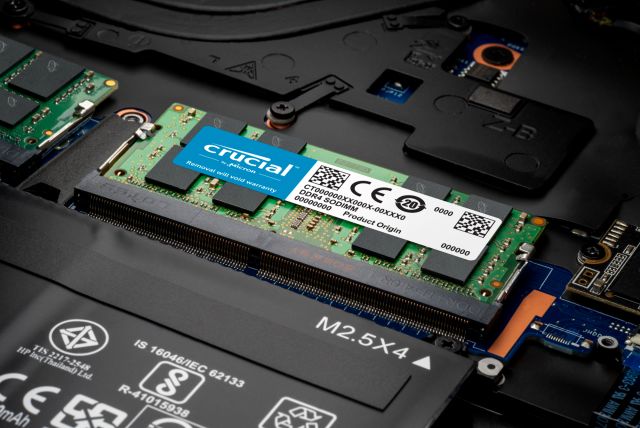
SO-DIMM stands for Small Outline Dual In-line Memory Module. It is the shape of RAM used in laptops. SO-DIMM is smaller than desktop RAM modules.
This size helps fit RAM into thin laptops. SO-DIMM modules come in DDR3 and DDR4 versions. Always check your laptop’s manual to find the right SO-DIMM type.
Preparing To Upgrade Ram
Preparing to upgrade the RAM on your laptop is an important step. It helps ensure a smooth and safe installation. Taking time to prepare reduces the risk of damage. It also helps you avoid losing any important data.
Gathering Required Tools
First, gather all the tools needed for the upgrade. Usually, a small screwdriver is required. Some laptops need a special type of screwdriver. Check your laptop model for exact tools. Anti-static wristbands or mats help prevent static damage. Having a clean, flat surface to work on is helpful. Organize your tools before starting the upgrade.
Backing Up Important Data
Backing up your data is crucial before upgrading RAM. Save your important files to an external drive or cloud. This keeps your data safe if something goes wrong. Use simple software or built-in backup tools. Double-check that your backup is complete. This step protects your information during the upgrade process.
Credit: www.youtube.com
Step-by-step Ram Installation
Installing RAM in your laptop can boost its speed and help it run smoother. This step-by-step guide shows how to do it safely and correctly. Follow each step carefully to avoid damage and get the best results.
Powering Down And Unplugging Laptop
Turn off your laptop completely. Do not just close the lid or put it to sleep. Unplug the power cable from the laptop. Remove any connected devices like a mouse or USB drives. This step protects you and your laptop from electric shock.
Opening The Laptop Case
Place your laptop on a clean, flat surface. Find the screws that hold the back cover. Use a small screwdriver to remove these screws. Keep the screws in a safe place. Gently lift the back cover off the laptop to expose the internal parts.
Removing Existing Ram Modules
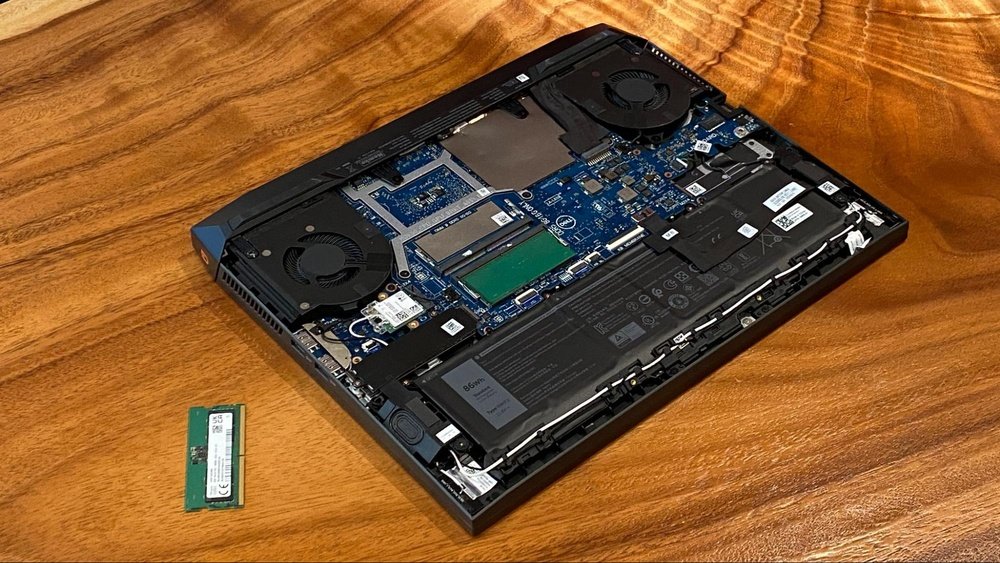
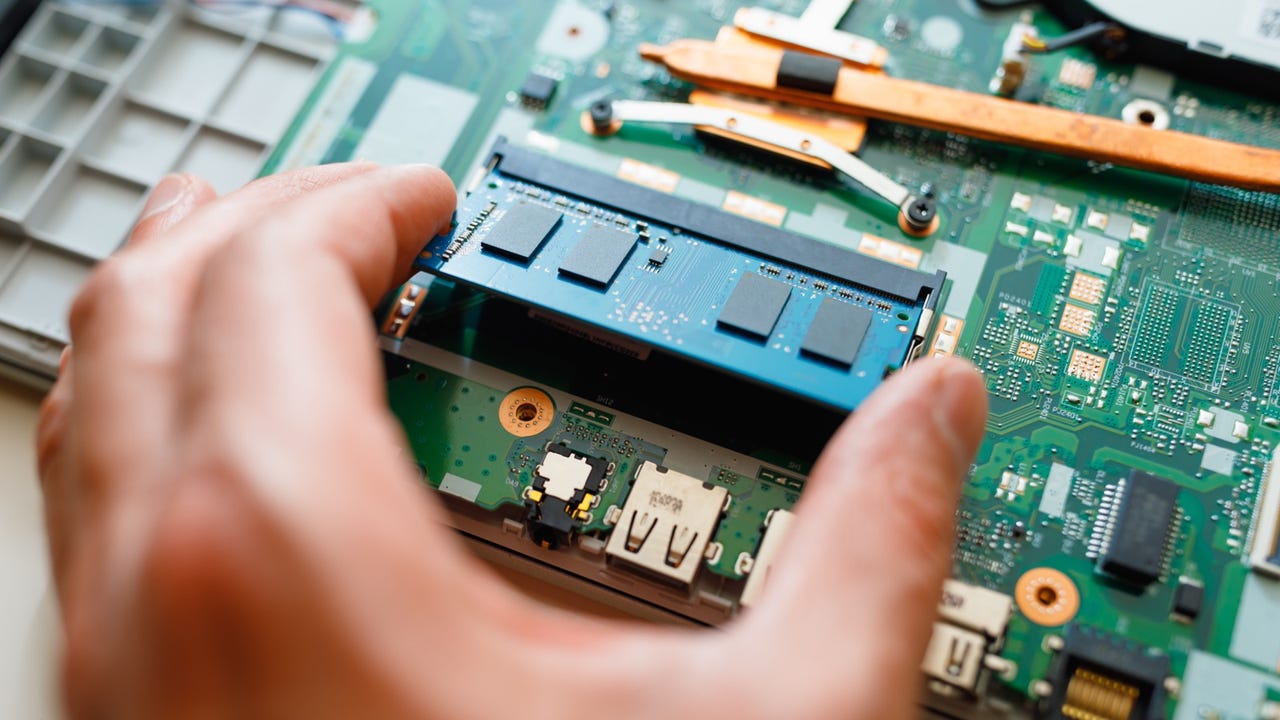
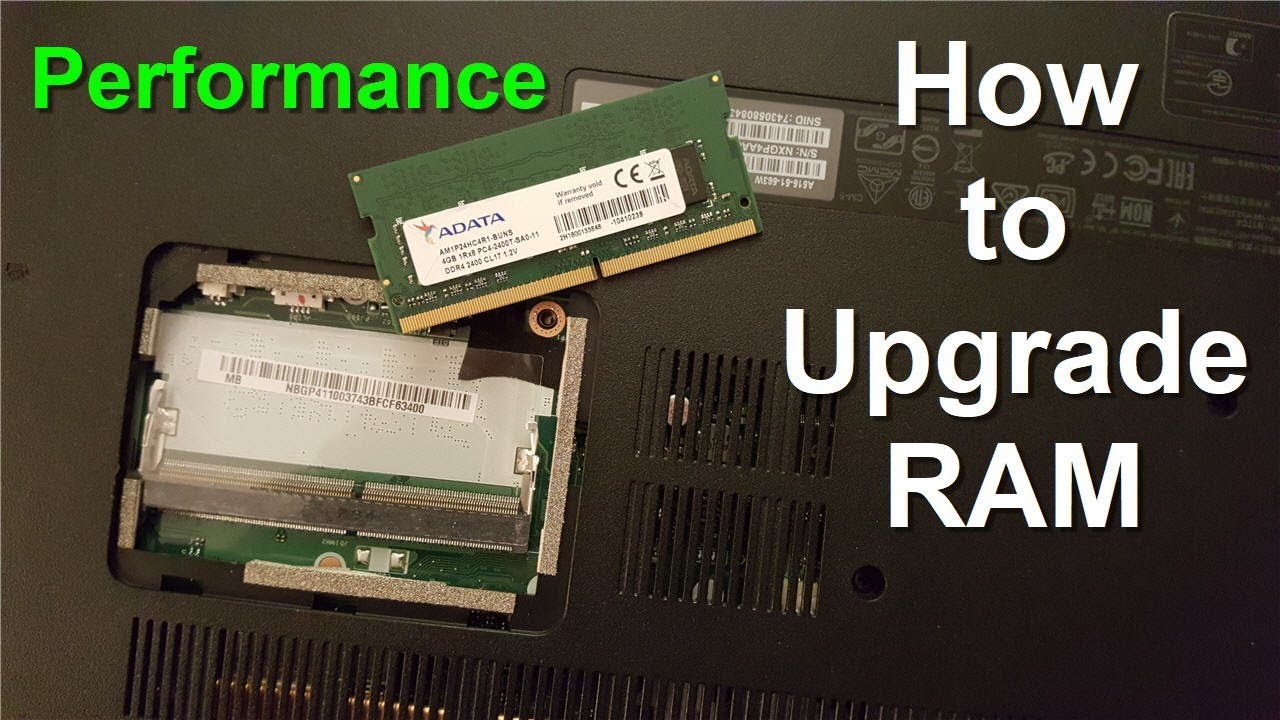
Locate the RAM modules inside the laptop. They are small, rectangular sticks held by clips. Carefully push the clips away from the RAM. The module will pop up at an angle. Pull it out slowly and avoid touching the gold connectors.
Installing New Ram Modules
Take your new RAM module out of its packaging. Hold it by the edges. Align the notch on the RAM with the slot in the laptop. Insert the module at a 30-degree angle. Press down gently until the clips snap back and hold the RAM in place.
Reassembling And Powering On
Put the back cover back on your laptop. Screw it tightly but do not over-tighten. Reconnect the power cable and any removed devices. Press the power button to turn on your laptop. Check if the system recognizes the new RAM in the settings.
Verifying Ram Upgrade Success
After upgrading your laptop’s RAM, checking if the upgrade worked is important. This step ensures your system uses the new memory. Confirming the upgrade avoids future problems and helps your laptop run smoothly.
Checking System Properties
Open the system properties to see the total RAM. On Windows, right-click “This PC” or “My Computer.” Select “Properties” to view installed memory. The displayed RAM should match the new total after the upgrade.
This quick check shows if the laptop recognizes the new memory. If the amount is lower than expected, the RAM might not be installed correctly. Restart the laptop and check again to confirm.
Using Diagnostic Software
Diagnostic tools provide detailed RAM information. Software like CPU-Z or Speccy scans the memory modules. These apps show the size, speed, and type of each RAM stick.
Run the software after installation. Compare the results with your new RAM specs. This helps verify the upgrade and detect faulty modules. Using diagnostics ensures your laptop performs well with the new memory.
Alternative Methods To Boost Speed
Increasing RAM is not the only way to make your laptop faster. Other methods can also help improve speed without extra hardware. These options focus on how your laptop uses its resources and storage. They are simple and effective for better performance.
Optimizing Software And Startup Programs
Many programs run automatically when your laptop starts. These programs use memory and slow down your system. Turn off unnecessary startup programs to save RAM and CPU power. Use your task manager or system settings to manage these programs.
Keep your software updated. Updates fix bugs and improve efficiency. Remove apps you no longer use. This frees up space and reduces background activity. Run regular virus scans to keep your system clean and fast.
Upgrading To An Ssd
Replacing a hard drive with a solid-state drive (SSD) can boost laptop speed. SSDs read and write data faster than traditional drives. This change helps programs open quicker and files load faster.
SSDs use less power, which can improve battery life. The upgrade is easy for most laptops and offers a big speed boost. Your system will feel more responsive with an SSD installed.
Troubleshooting Common Issues
Upgrading your laptop’s RAM can boost performance. Sometimes, issues appear after the upgrade. Troubleshooting these problems helps ensure your laptop runs smoothly. Understanding common issues lets you fix them quickly and easily.
Laptop Not Recognizing New Ram
New RAM may not show up in your system. This problem often happens due to loose installation. Open your laptop and check if the RAM sticks fit well. Make sure they click into place firmly.
Another cause is incompatible RAM. Your laptop supports specific types and speeds. Check the laptop manual or website for compatible RAM models. Using the wrong RAM may prevent recognition.
Sometimes, the BIOS needs an update. Visit the laptop maker’s website to download the latest BIOS version. Updating BIOS can help your system detect new RAM correctly.
System Instability After Upgrade
System crashes or freezes can follow a RAM upgrade. Faulty or mismatched RAM often causes this. Try testing each RAM stick separately to find the bad one. Replace any faulty module to restore stability.
RAM timings and voltage settings might cause issues too. Check your BIOS for these settings. Set them to default or recommended values to avoid conflicts.
Running a memory test tool helps find errors. Windows Memory Diagnostic or MemTest86 are good options. These tools scan RAM for problems and help you decide the next steps.
Credit: www.crucial.com
Frequently Asked Questions
How Much Ram Can My Laptop Support?
Check your laptop’s specifications or manual for maximum RAM capacity. Most laptops support 8GB to 32GB, depending on the model and motherboard.
Can I Increase Ram Without Opening My Laptop?
No, increasing RAM requires physically installing new memory modules inside your laptop. External solutions like virtual memory help but don’t add physical RAM.
Is Upgrading Ram Better Than Buying A New Laptop?
Upgrading RAM improves performance for multitasking and heavy apps. It’s cost-effective compared to buying a new laptop, especially if other hardware is fine.
How Do I Know If My Laptop Ram Needs Upgrading?
If your laptop runs slow during multiple apps or games, or frequently uses disk swapping, it likely needs a RAM upgrade to improve speed.
Conclusion
Upgrading your laptop’s RAM can improve speed and performance. It helps your device run programs smoothly. Check your laptop’s compatibility before buying new RAM. Installing extra memory is simple with basic tools. Small steps can make a big difference in daily use.
Keep your laptop running well by managing memory wisely. Remember, more RAM means better multitasking and less lag. Try these tips to enjoy a faster laptop today.