How to Make Windows Use Less Ram: Easy Tips to Boost Speed
Is your Windows computer feeling slow and sluggish? One common reason is that it’s using too much RAM.
When your system runs low on available memory, everything starts to lag, programs freeze, and your work gets frustrating. But what if you could fix this and make your Windows use less RAM right now? You’ll discover simple, effective ways to free up memory and speed up your PC.
Keep reading, and you’ll soon notice your computer running smoother and faster—without spending a dime.
Reduce Startup Programs
Reducing startup programs helps Windows use less RAM. Many apps run automatically when Windows starts. These apps take memory and slow down your PC. Stopping unnecessary programs from starting saves RAM. It also makes your computer faster and more responsive.
Manage Startup Apps
Open Task Manager by pressing Ctrl + Shift + Esc. Click the Startup tab to see all startup apps. Look for apps you do not need right away. Right-click the app and select Disable to stop it from running at startup. Keep only essential apps enabled to save memory. Restart your PC to apply changes and check the speed.
Disable Unnecessary Services
Press Windows + R keys and type services.msc, then hit Enter. This opens the Services window with a list of background services. Find services that are not important for your daily tasks. Right-click the service and choose Properties. Change Startup type to Manual or Disabled to stop it from running automatically. Be careful not to disable critical Windows services. This reduces RAM use and improves system performance.

Credit: superuser.com
Adjust Visual Effects
Visual effects in Windows make your screen look nice. They add animations, shadows, and smooth fonts. But these effects use memory and slow your PC. Adjusting them helps free up RAM. Your computer runs faster and smoother. You control which effects to keep or turn off. Let’s see how to adjust these settings easily.
Optimize For Best Performance
Windows offers a quick way to reduce visual effects. Choose “Optimize for best performance” in system settings. This turns off many animations and shadows. Your PC uses less RAM and CPU power. The screen looks plain but runs fast. This setting is good for old or slow computers. It improves speed without extra tools.
Customize Appearance Settings
You do not have to turn off all effects. Customize which ones stay on. Open the visual effects menu and pick “Custom.” Check effects you like and uncheck the rest. Keep simple ones like smooth edges for text. Turn off fancy animations and shadows. This way, Windows looks nice but uses less memory. You get a balance between speed and style.
Increase Virtual Memory
Increasing virtual memory helps Windows manage RAM better. Virtual memory acts like extra RAM using disk space. It supports your system during heavy tasks. Adjusting virtual memory can reduce slowdowns and crashes.
Set Custom Pagefile Size
Open the System Properties on your PC. Go to the Advanced tab and click Settings under Performance. Choose the Advanced tab again, then click Change under Virtual Memory.
Uncheck “Automatically manage paging file size.” Select your system drive, usually C:. Choose Custom size and enter new values. Set the Initial size and Maximum size in megabytes (MB). Use values 1.5 to 3 times your RAM size. Click Set, then OK to apply.
Monitor Virtual Memory Usage
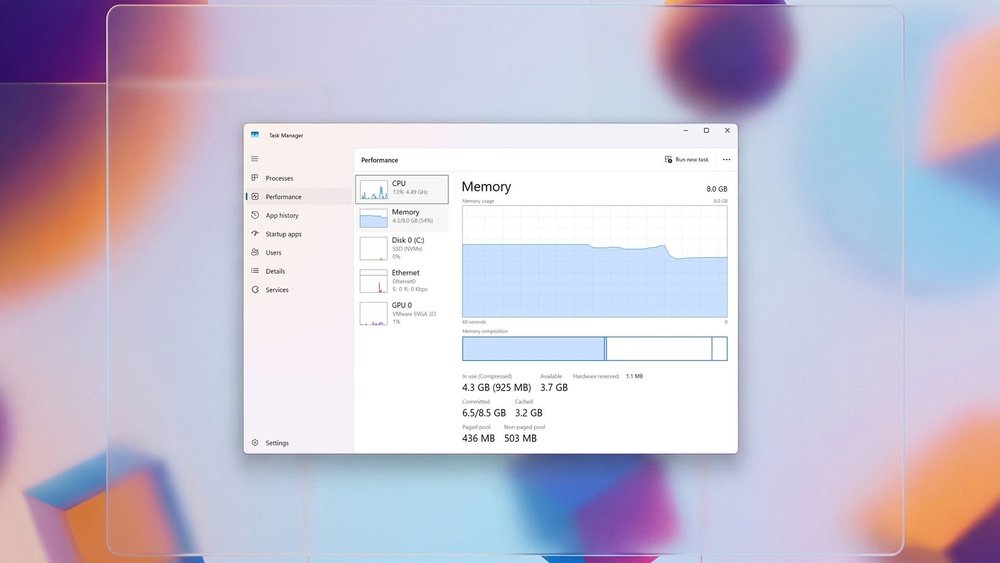
Use Task Manager to check virtual memory use. Press Ctrl + Shift + Esc to open Task Manager. Go to the Performance tab, then select Memory. Observe the Committed value and the total available virtual memory.
High Committed memory means your system needs more virtual memory. Adjust pagefile size again if needed. Regular monitoring helps keep your PC running smoothly.

Credit: www.youtube.com
Uninstall Unused Software
Uninstalling unused software helps free up RAM on your Windows PC. Programs running in the background use memory, even if you don’t open them. Removing apps you no longer need reduces this load. It also speeds up your computer and improves performance.
Identify Resource-hungry Apps
Some apps consume more RAM than others. Use Task Manager to find these programs. Press Ctrl + Shift + Esc to open it quickly. Look under the “Processes” tab to see memory use. Spot apps with high RAM usage. Decide if you really need them running.
Sometimes, apps start automatically with Windows. Disable those you don’t use at startup. It lowers RAM use right from boot. This makes your PC faster and more responsive.
Remove Bloatware
Bloatware means pre-installed apps that you never use. These apps take up memory and disk space. Many new PCs come with bloatware that slows down the system. Removing them frees resources and cleans your PC.
Go to “Settings” > “Apps” > “Apps & Features” to find bloatware. Select unwanted apps and click “Uninstall.” This is simple and boosts your PC’s memory. Less bloatware means Windows uses less RAM, making it smoother.
Manage Background Processes
Managing background processes is key to reducing RAM use on Windows. Many apps run quietly in the background. They take up memory and slow your computer. Stopping unnecessary tasks frees up RAM and speeds up your PC.
Focus on controlling what runs without your direct input. This keeps your system lean and responsive. You can do this easily with built-in tools and simple settings.
Use Task Manager Effectively
Task Manager shows all running apps and processes. Open it by pressing Ctrl + Shift + Esc. Look for programs using high memory. Select them and click “End Task” to stop them.
Check the “Startup” tab too. Disable apps that start automatically but are not needed. This prevents them from using RAM after reboot.
Limit Background Apps
Windows allows apps to run in the background even when closed. Go to Settings > Privacy > Background apps. Turn off apps you rarely use.
Limiting background apps lowers memory use. It also helps save battery on laptops. Focus on apps that are useful and close the rest.
Credit: us.norton.com
Optimize Browser Usage
Browsers often use a lot of RAM, which slows down your Windows PC. Optimizing browser usage can free up memory and make your computer faster. Simple steps can reduce the amount of RAM your browser needs.
Limit Open Tabs
Each tab in your browser uses memory. Too many open tabs can quickly eat up RAM. Keep only the tabs you need open. Close tabs you are not using. Use bookmarks to save pages for later. This keeps your browser light and your system fast.
Use Lightweight Extensions
Browser extensions can improve your experience but some use a lot of RAM. Choose extensions that are small and efficient. Remove extensions you do not use. Too many heavy extensions slow down your browser and waste memory. Use only essential extensions to keep your RAM use low.
Update Drivers And Windows
Updating drivers and Windows is a key step to reduce RAM use on your PC. Outdated software can cause slowdowns and use more memory than needed. Windows updates often fix bugs that waste RAM. Device drivers control hardware and need to be current for best performance. Keeping these updated helps your system run smoothly and save memory.
Keep System Updated
Windows updates bring important fixes and improvements. These updates can reduce memory use by closing bugs. Your PC will perform better with the latest patches. Check for updates regularly to keep your system fresh. Go to Settings, then Update & Security to see available updates. Download and install updates to keep RAM use low.
Fix Memory Leaks
Memory leaks happen when programs do not free RAM after use. This causes your system to slow down over time. Updating Windows and drivers can fix these leaks. Developers release patches to stop memory loss. Keeping everything updated helps prevent leaks from growing. This keeps your PC fast and saves memory for other tasks.
Use Lightweight Software Alternatives
Using lightweight software helps your Windows PC run faster and use less RAM. Many popular programs use a lot of memory. This can slow down your computer and make tasks harder. Choosing simpler apps saves memory and keeps your system smooth.
Choose Efficient Apps
Pick apps designed to use less memory. Many apps do the same job but with fewer resources. For example, use a basic text editor instead of a full office suite for quick notes. Simple browsers like Firefox or Edge often use less RAM than others.
Lightweight apps open faster and reduce background processes. This frees up RAM for other tasks. You get better performance without changing your work habits.
Avoid Heavy Programs
Large programs consume much RAM, even when idle. Avoid using software with many features you don’t need. These apps can slow your PC and waste memory.
Uninstall or replace heavy software with smaller alternatives. This reduces the load on your system. Your Windows will feel faster and more responsive.
Enable Readyboost
Enabling ReadyBoost can help reduce the RAM load on your Windows system. It uses a USB drive as extra memory cache. This method improves performance without upgrading physical RAM. It is a simple and cost-effective way to speed up your PC.
Use Usb Drive For Cache
Choose a fast USB drive with enough free space. At least 4GB is recommended for good results. Insert the USB drive into your PC’s port. Windows will check if the drive supports ReadyBoost. If it does, you can use it to boost memory.
Set Up Readyboost Properly
Open File Explorer and right-click the USB drive. Select Properties, then go to the ReadyBoost tab. Choose “Use this device” to enable ReadyBoost. Allocate the amount of space to use for caching. Click Apply and then OK to save settings. Your system will now use the USB drive to reduce RAM usage.
Frequently Asked Questions
How Can I Reduce Ram Usage On Windows 10?
To reduce RAM usage, close unnecessary apps and disable startup programs. Use Task Manager to identify heavy processes and uninstall unused software. Regularly update Windows for better memory management and consider adding more physical RAM if needed.
What Windows Settings Help Lower Ram Consumption?
Adjust visual effects for best performance in System Properties. Turn off background apps via Settings > Privacy > Background apps. Disable unnecessary services using the Services app. These changes free up RAM and improve system speed.
Does Disabling Startup Programs Improve Ram Usage?
Yes, disabling startup programs prevents them from running automatically. This reduces RAM usage during boot and frees memory for active tasks. Use Task Manager’s Startup tab to manage and disable non-essential programs.
Can Cleaning Temporary Files Reduce Windows Ram Usage?
Cleaning temporary files frees disk space but has minimal impact on RAM. However, it can improve overall system performance and reduce background processes that consume RAM indirectly.
Conclusion
Reducing Windows RAM use helps your computer run faster and smoother. You can close unused apps and remove unnecessary startup programs. Regularly updating your system also improves memory use. Small changes add up to big improvements. Try these tips step by step.
Watch your PC work better and use less memory. A clean, simple system makes your tasks easier and quicker. Keep your computer healthy with smart RAM management. It’s easier than you think.