How to Check the Cpu Usage: Easy Steps for Accurate Monitoring
Are you wondering why your computer feels slow or overheats? One key factor to check is your CPU usage.
Knowing how to monitor your CPU usage can help you spot problems early, improve performance, and keep your system running smoothly. You’ll learn simple, step-by-step methods to check your CPU usage quickly and easily. By the end, you’ll have the tools to take control of your computer’s health and avoid frustrating slowdowns.
Keep reading to discover how simple it is to keep your CPU in check!
What Is Cpu Usage
CPU usage shows how much work your computer’s processor does at any moment. It reflects the percentage of processing power in use out of the total available. Understanding CPU usage helps you know if your computer runs smoothly or slows down.
High CPU usage might mean your computer is busy with many tasks or heavy programs. Low usage usually means your computer is idle or doing light work. Monitoring CPU usage helps find problems or improve performance.
What Does Cpu Usage Mean?
CPU usage is the amount of power the processor uses right now. It tells how hard the CPU is working on tasks. The number shows the percentage of CPU capacity in use.
Why Check Cpu Usage?
Checking CPU usage helps spot slow performance or overheating issues. It shows if programs use too much processing power. This info helps decide when to close apps or restart.
How Cpu Usage Affects Your Computer
High CPU usage can slow down your computer. It may cause programs to lag or freeze. Low usage means the computer can handle more work easily.
Why Monitor Cpu Usage
Monitoring CPU usage is important for keeping your computer healthy. It shows how much work your processor is doing. High CPU usage can slow down your system. It can also cause programs to freeze or crash. Watching CPU usage helps you find problems early. This saves time and frustration later.
Understanding System Performance
CPU usage tells how busy your processor is. It shows if your computer runs smoothly or struggles. Low CPU usage means your computer handles tasks well. High usage means the processor works hard. This can slow down your computer and apps.
Detecting Software Issues
Some programs use too much CPU by mistake. Monitoring CPU helps spot these programs. You can close or fix them. This keeps your computer running faster and more stable.
Preventing Overheating
High CPU use causes more heat in your computer. Too much heat can damage parts. Watching CPU usage helps avoid overheating. You can take breaks or improve cooling before damage occurs.
Improving Battery Life
On laptops, high CPU use drains the battery fast. Monitoring CPU helps save power. Lower CPU usage means your battery lasts longer. You can close heavy programs to save energy.
Tools To Check Cpu Usage
Checking CPU usage helps you understand how your computer works. You can see if any program is using too much power. This can help keep your PC running smoothly. Several tools show CPU usage clearly and simply. These tools fit different needs and skill levels.
Built-in Task Manager
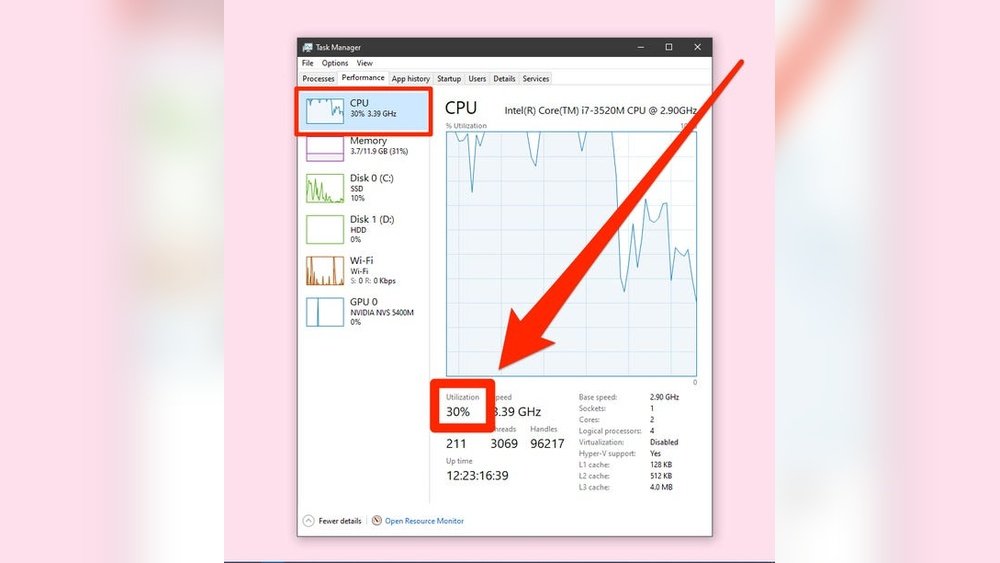
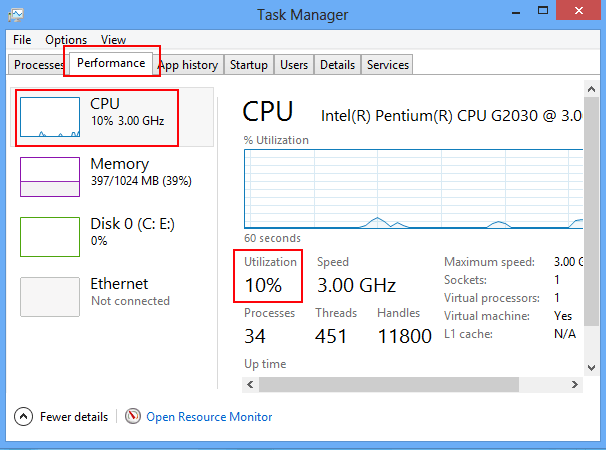
Every Windows PC has Task Manager. It shows CPU usage in real time. Open it by pressing Ctrl + Shift + Esc. The “Performance” tab displays CPU activity. You see how busy the processor is right now. Task Manager also lists running apps and their CPU use. It is easy to use and needs no extra software.
Third-party Software
Third-party apps offer more detailed views. Programs like HWMonitor and CPU-Z give extra info. They show temperature, clock speed, and core usage. These tools help if you want deeper data. Some are free and simple. Others have advanced features for experts. Choose one that matches your needs and skill level.
Command Line Utilities
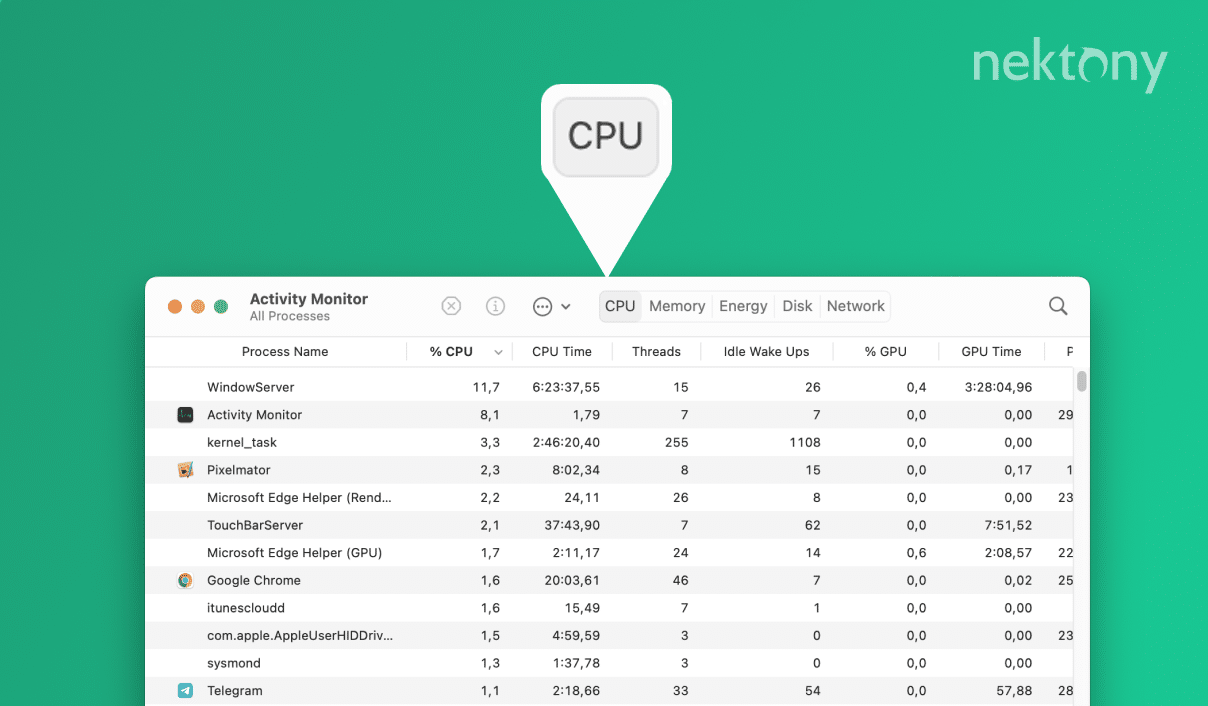
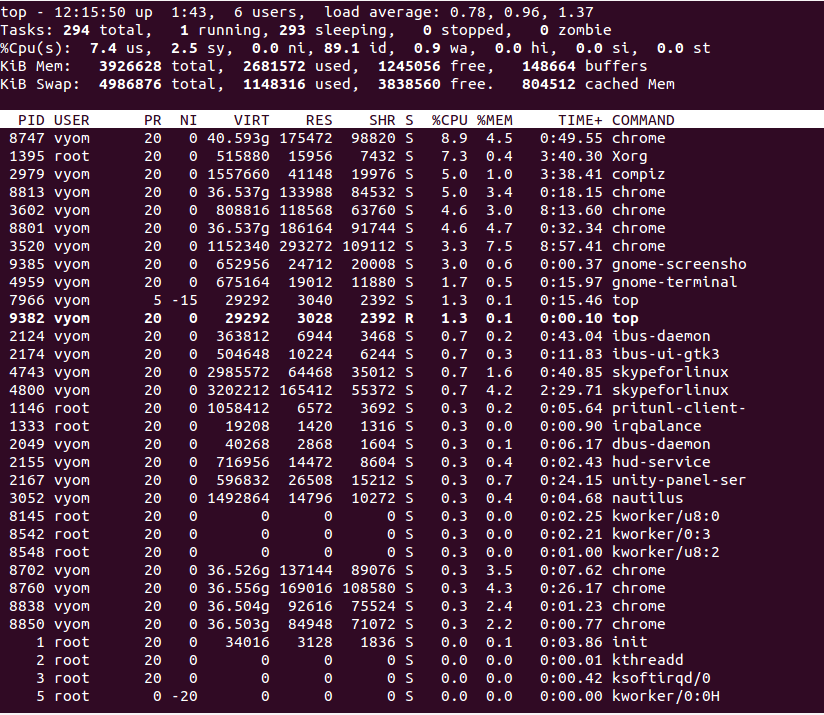
Command line tools work on many systems. Windows has “wmic” and “PowerShell” commands. They show CPU data in text form. On Mac and Linux, “top” or “htop” commands help. These tools are fast and use little memory. Good for users who prefer typing commands. They give quick snapshots of CPU load.
Credit: nektony.com
Step-by-step Guide To Monitor Cpu
Monitoring your CPU usage helps you understand your computer’s performance. It shows how much work your processor handles at any moment. This guide walks you through easy steps to check CPU usage on Windows.
Each method uses built-in Windows tools. You do not need extra software. Follow these steps to keep track of your CPU and avoid slowdowns or crashes.
Open Task Manager
Press Ctrl + Shift + Esc to open Task Manager quickly. Click the “Performance” tab to see CPU details. Here, you find real-time graphs and percentage usage. It shows how busy your CPU is right now.
Task Manager also lists processes using the most CPU. You can stop tasks that slow your computer down. This tool is simple and fast for basic CPU checks.
Use Resource Monitor
Type “Resource Monitor” in the Start menu search bar. Open the app and go to the “CPU” tab. This gives detailed info about CPU usage by each process. You see which apps use the most power.
Resource Monitor breaks down CPU activity clearly. It shows threads and handles too. This helps find programs that cause high CPU loads.
Run Performance Monitor
Search for “Performance Monitor” and open it. Click “Performance Monitor” under Monitoring Tools. Add counters by clicking the green plus icon. Choose “Processor” and “% Processor Time”.
This tool tracks CPU usage over time with graphs. It helps check trends and spot long-term issues. You can save reports for future review.
Check With Command Prompt
Open Command Prompt by typing “cmd” in Start. Enter the command: wmic cpu get loadpercentage. Press Enter to see current CPU usage percentage.
This method works fast and uses no graphics. It suits users who prefer text commands. Easy to copy and share CPU status.
Interpreting Cpu Usage Data
Understanding CPU usage data is key to keeping your computer running smoothly. This data shows how much of your processor’s power is being used. Knowing how to read this information helps you spot problems early. It also lets you manage your system better.
Normal Usage Levels
Most computers use between 1% and 15% CPU when idle. Basic tasks like browsing or typing use around 10% to 30%. Heavy tasks like video editing can push usage higher. Temporary spikes up to 50% or more are normal during big tasks. Consistent use above 80% is unusual and may signal an issue.
High Cpu Usage Causes
High CPU usage often comes from many programs running together. Background updates or antivirus scans can also raise usage. Malware or viruses may cause unexpected spikes. Faulty software or drivers might use too much CPU. Overheating or hardware issues can increase processor work too.
When To Take Action
Check your CPU usage if your computer feels slow or freezes. Persistent usage over 80% needs attention. Close unnecessary programs to reduce load. Run antivirus scans to remove malware. Update software and drivers regularly. Seek help if problems continue despite these steps.
Credit: www.atlantic.net
Tips For Accurate Monitoring
Accurate CPU usage monitoring helps keep your computer running smoothly. It reveals if your system is overloaded or working fine. Follow simple tips to get the best results. These steps help avoid wrong data and false alarms.
Close Background Applications
Background apps use CPU power without showing it. Close apps you do not use. This frees up CPU for important tasks. It gives a clearer view of CPU usage. Check your task manager or activity monitor to see running apps.
Monitor Over Time
CPU usage changes throughout the day. Check it at different times, not just once. This shows patterns and spikes in usage. A single reading might not tell the full story. Track usage for hours or days for better insight.
Use Real-time Alerts
Set alerts to notify you when CPU usage is too high. Real-time alerts help catch problems early. They save time by avoiding constant manual checks. Use software that sends notifications instantly. This keeps you informed without extra effort.
Common Issues And Fixes
High CPU usage can slow down your computer and cause frustration. Many problems can cause this issue. Knowing common issues helps you find the right fix fast.
This section explains common causes of high CPU usage. Each problem has clear solutions you can try.
High Cpu From Malware
Malware can use your CPU without your knowledge. It runs in the background and slows your system. Scan your computer with trusted antivirus software. Remove any threats found. Keep your software updated to avoid new infections.
Software Conflicts
Some programs may clash and overuse the CPU. This happens when apps try to do the same task. Close unused programs to reduce CPU load. Update all software to fix bugs. Restart your computer to clear temporary problems.
Hardware Limitations
Older or low-spec hardware can struggle with modern tasks. The CPU might be too weak for heavy work. Check your system specs against software needs. Upgrade your CPU or add more RAM if needed. Clean dust from your machine to avoid overheating.
Credit: www.isunshare.com
Frequently Asked Questions
How Can I Check Cpu Usage On Windows?
Open Task Manager by pressing Ctrl + Shift + Esc. Click the Performance tab and select CPU. You will see real-time CPU usage and detailed stats.
What Tools Show Cpu Usage On Mac?
Use Activity Monitor found in Applications > Utilities. Click the CPU tab to view current CPU usage and processes consuming resources.
Why Is High Cpu Usage A Problem?
High CPU usage can slow your computer and cause overheating. It indicates heavy processing tasks or potential software issues.
How Often Should I Monitor Cpu Usage?
Check CPU usage regularly during heavy tasks or if performance drops. Frequent monitoring helps identify and fix issues early.
Conclusion
Checking CPU usage helps you keep your computer healthy. It shows which apps use the most power. This info can help you close slow or unnecessary programs. You can also spot problems early and avoid crashes. Regular checks keep your system running smooth and fast.
Simple tools on your device make this easy. Stay aware of your CPU to improve performance every day. Small steps can make a big difference in computer speed. Try it now and see the changes yourself.