How to Boost Your Cpu Speed: Easy Tips for Maximum Performance
Is your computer feeling slow and unresponsive? You’re not alone.
When your CPU lags, it can turn simple tasks into frustrating waits. But what if you could boost your CPU speed and make your computer run smoother and faster? You’ll discover practical, easy steps to unlock your CPU’s full potential.
Whether you want to speed up gaming, improve work performance, or just enjoy a quicker PC, these tips are designed for you. Keep reading, and take control of your computer’s power today.

Credit: www.youtube.com
Optimize System Settings
Optimizing system settings helps your CPU run faster and smoother. Small changes in settings improve performance. These changes use your computer’s resources better. You get quicker responses from your system. It also reduces unnecessary slowdowns.
Adjust Power Options
Change your power plan to maximize CPU speed. Choose the high-performance mode in power settings. This setting uses more energy but boosts CPU power. It stops your computer from slowing down to save power. On laptops, plug in the charger for best results.
Manage Startup Programs
Many programs start automatically with Windows. This slows down your CPU during boot. Disable unneeded startup programs in Task Manager. This frees CPU resources for important tasks. Your computer will start faster and run better.
Update Drivers Regularly
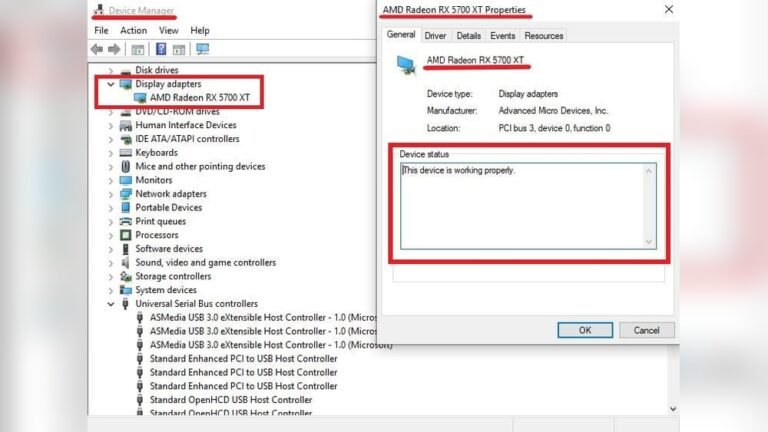
Drivers control hardware and system communication. Outdated drivers can cause slow CPU performance. Check for driver updates on the manufacturer’s website. Use automatic update tools for ease. Updated drivers improve speed and fix bugs.

Credit: softwareg.com.au
Clean And Maintain Hardware
Keeping your CPU clean and well-maintained helps it run faster and last longer. Dust and dirt can block airflow and cause the CPU to heat up. High temperatures slow down the processor and reduce performance. Regular hardware care ensures your computer stays cool and works efficiently.
Remove Dust And Debris
Dust builds up inside your computer over time. It settles on fans, vents, and the CPU itself. Use a soft brush or compressed air to clear dust. Turn off and unplug your PC before cleaning. Avoid using a vacuum cleaner as it can cause static damage. Removing dust improves airflow and cools your CPU.
Ensure Proper Cooling
Cooling keeps your CPU temperature low. Check that all fans spin freely and quietly. Replace any broken or noisy fans immediately. Make sure vents and airways inside the case are not blocked. Use a cooling pad for laptops to help air circulation. Proper cooling stops the CPU from overheating and slowing down.
Check Thermal Paste
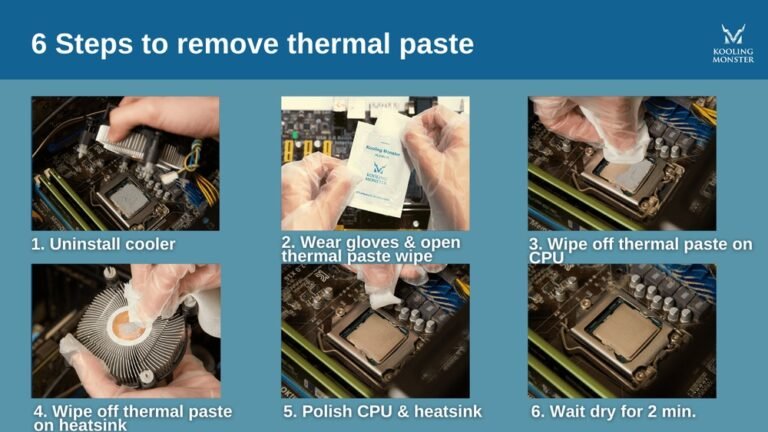
Thermal paste transfers heat from the CPU to the cooler. Over time, this paste can dry out and lose effectiveness. Remove the old paste carefully with isopropyl alcohol. Apply a new, thin layer of thermal paste before reattaching the cooler. Fresh thermal paste improves heat transfer and helps keep your CPU cool.
Upgrade Components
Upgrading your computer’s components can significantly improve CPU speed. This method helps your system run faster and handle tasks better. Small changes can make a big difference in performance.
Focus on key parts like memory, storage, and the processor itself. Each upgrade targets a specific bottleneck that slows your CPU. Choose wisely based on your current setup and needs.
Add More Ram
RAM is the memory your computer uses to run programs. More RAM means your CPU can access data faster. This reduces delays when switching between apps or working with large files. Increasing RAM helps prevent slowdowns and keeps your system responsive.
Install Faster Storage
Storage speed affects how quickly your CPU gets data. Traditional hard drives are slower than newer solid-state drives (SSD). Installing an SSD improves data access times. This upgrade helps your CPU load programs and files much faster. It creates a smoother computing experience overall.
Consider Cpu Upgrade
The CPU is the brain of your computer. A better CPU processes instructions faster. Upgrading to a newer model boosts overall speed and efficiency. Make sure your motherboard supports the new CPU. This step can give your system a noticeable performance lift.
Credit: www.avast.com
Use Performance-enhancing Software
Using performance-enhancing software is a smart way to boost your CPU speed. These programs help clean your system, fix errors, and keep your CPU running smoothly. They can find problems that slow your computer down and fix them quickly.
Many tools work quietly in the background. They free up memory and stop unnecessary tasks from running. This lets your CPU focus on what matters most. Regular use of these programs keeps your computer fast and responsive.
Run Antivirus Scans
Viruses and malware can slow down your CPU. Running antivirus scans finds harmful files that use your CPU power. Clean your system regularly to remove threats. A clean system helps your CPU work better and faster.
Use System Optimization Tools
System optimization tools clear junk files and fix errors. They also manage startup programs that use CPU resources. Using these tools improves your computer’s speed. They keep your CPU free to handle important tasks.
Monitor Cpu Usage
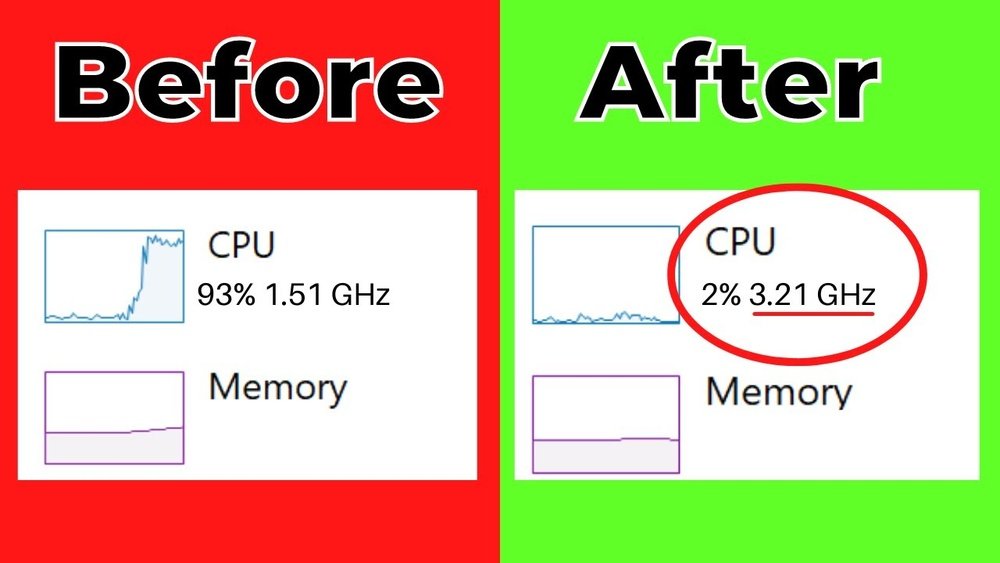
Monitoring your CPU shows how much work it is doing. You can spot programs that use too much CPU power. Stopping or adjusting these programs helps your CPU run smoother. Monitoring helps you keep control of your computer’s speed.
Overclocking Basics
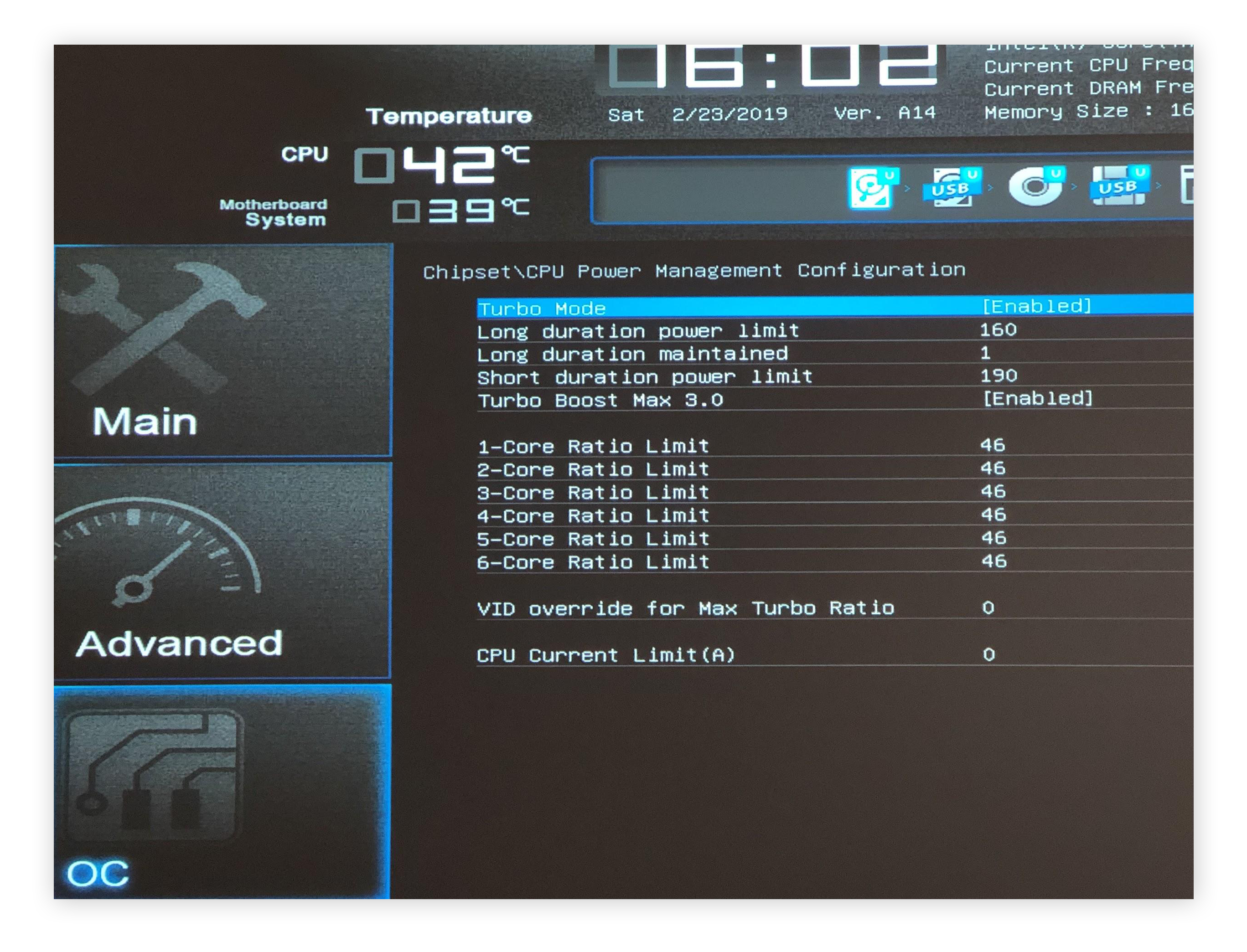
Overclocking is a way to make your CPU run faster than its default speed. It can improve your computer’s performance for tasks like gaming and video editing. Overclocking needs care and attention to avoid problems. Learn the basics before starting.
Understand Overclocking Risks
Overclocking can cause your CPU to get very hot. This heat can damage the processor if not controlled. It may also make your system unstable or crash. Overclocking can void your CPU warranty. Always know these risks before you begin.
Use Reliable Software
Choose trusted programs for overclocking your CPU. These tools let you change the CPU speed safely. Popular software includes CPU-Z, MSI Afterburner, and Intel Extreme Tuning Utility. Reliable software helps avoid mistakes and protects your hardware.
Test Stability
After overclocking, check if your CPU runs stable. Use stress test programs like Prime95 or AIDA64. Run these tests for several hours to ensure no crashes occur. If your system crashes, reduce the speed or adjust settings. Stability testing keeps your PC safe and smooth.
Manage Background Processes
Managing background processes is key to boosting your CPU speed. Many apps run unseen in the background, using valuable CPU power. Reducing these tasks helps your computer run faster and smoother.
Focus on controlling what runs behind the scenes. This lowers CPU load and improves overall performance.
Identify Resource Hogs
First, find which processes use the most CPU power. Open your task manager or system monitor. Look for apps with high CPU or memory use. These are resource hogs that slow down your computer.
Spotting them lets you decide which tasks to stop or limit.
Close Unnecessary Apps
Close apps that you do not need right now. Many programs run in the background without your knowledge. Shutting these down frees up CPU power for important tasks.
Make it a habit to check running apps and close the ones you do not use.
Schedule Intensive Tasks
Set heavy tasks to run at times when you are not using your computer. Examples include backups, updates, or virus scans. Scheduling them helps avoid CPU overload during work or play.
This keeps your system responsive and fast when you need it most.
Frequently Asked Questions
How Can I Increase My Cpu Speed Safely?
You can increase CPU speed by optimizing software and updating drivers. Avoid unsafe overclocking to prevent overheating and damage.
What Software Helps Improve Cpu Performance?
Use system optimization tools and updated drivers to enhance CPU efficiency. Regularly clean temporary files and manage startup programs.
Does Upgrading Ram Boost Cpu Speed?
Upgrading RAM improves overall system speed but doesn’t directly increase CPU clock speed. It helps the CPU run tasks more smoothly.
How Does Cooling Affect Cpu Speed?
Effective cooling prevents overheating, allowing the CPU to maintain peak speeds. Use quality fans or liquid cooling for better thermal management.
Conclusion
Boosting your CPU speed helps your computer run smoother and faster. Small changes, like cleaning your system and closing unused apps, make a big difference. Keep your software updated to avoid slowdowns. Regular maintenance prevents problems before they start. Try these tips step by step for best results.
Your computer will thank you with better performance and less frustration. Stay patient and consistent for lasting improvement. Better speed means better work and play.