How to Check Cpu Ram: Easy Steps to Boost Your PC Performance
Are you curious about how much CPU power and RAM your computer really has? Knowing these details can help you understand your device’s speed, improve its performance, and decide if it’s time for an upgrade.
But checking your CPU and RAM might seem tricky if you don’t know where to look. Don’t worry—this guide will show you simple, step-by-step ways to check your CPU and RAM quickly. By the end, you’ll have the confidence to check your system anytime and make smarter tech choices.
Keep reading to unlock the secrets behind your computer’s performance!
Check Cpu Specifications
Checking your CPU specifications helps you understand your computer’s power. It shows the processor model, speed, and other key details. This information guides decisions about upgrades or troubleshooting. You can find CPU specs using built-in Windows tools or online resources. The steps are simple and quick.
Use System Information Tool
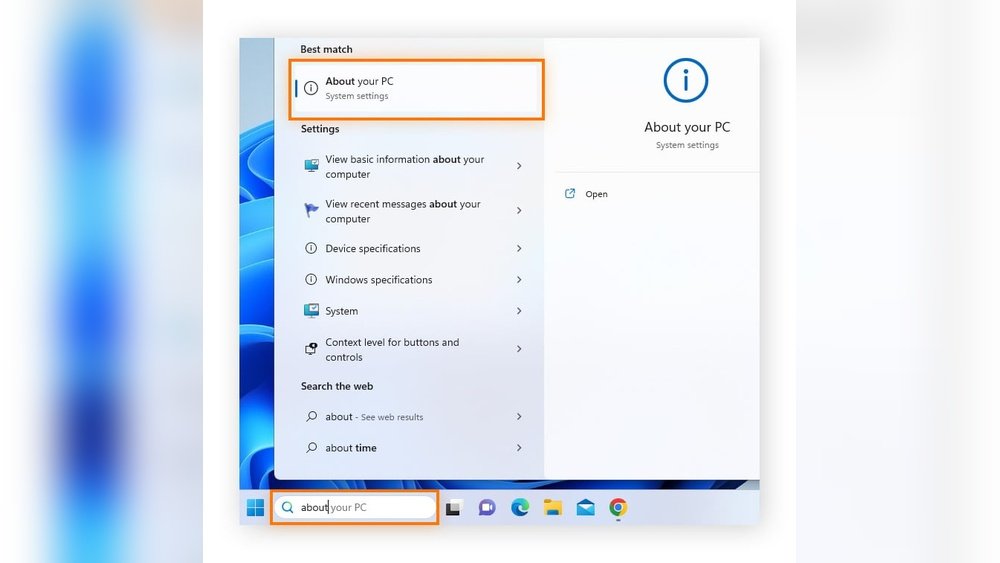
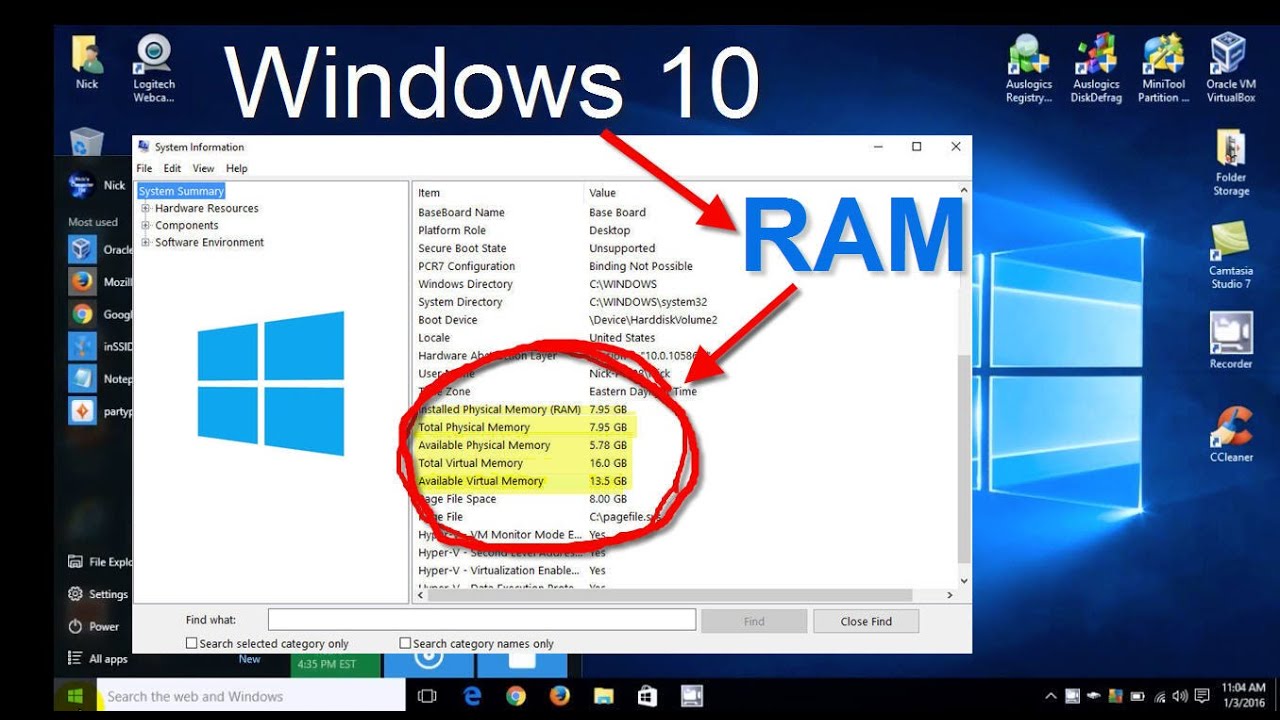
Open the Start menu and type “System Information.” Click the app to open it. Look for “Processor” in the summary. You will see the CPU name, speed, and cores. This tool gives a full overview of your hardware. It is easy to use and very reliable.
Check Task Manager Details
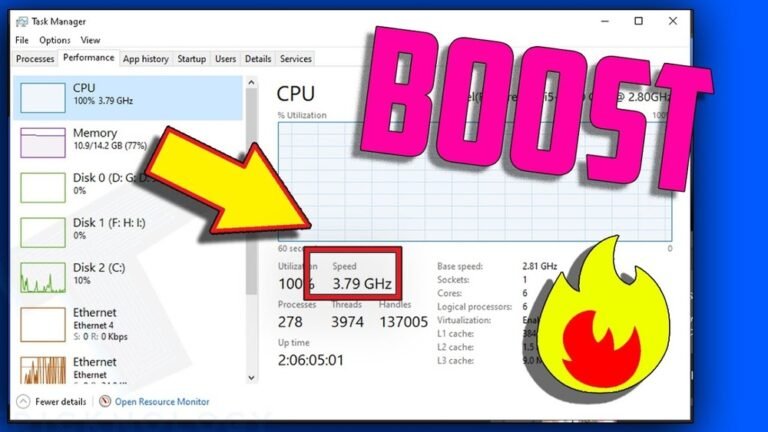
Press Ctrl + Shift + Esc to open Task Manager. Click the “Performance” tab. Select “CPU” from the left side menu. You see the CPU model and speed at the top right. It also shows real-time usage and core count. This method is quick for basic CPU info.
Identify Cpu Model Online
Note your CPU model from System Information or Task Manager. Visit the manufacturer’s website or trusted tech sites. Enter your CPU model in the search bar. You find detailed specs like generation, threads, and cache size. This helps you learn more about your processor’s capabilities.
Verify Ram Size And Type
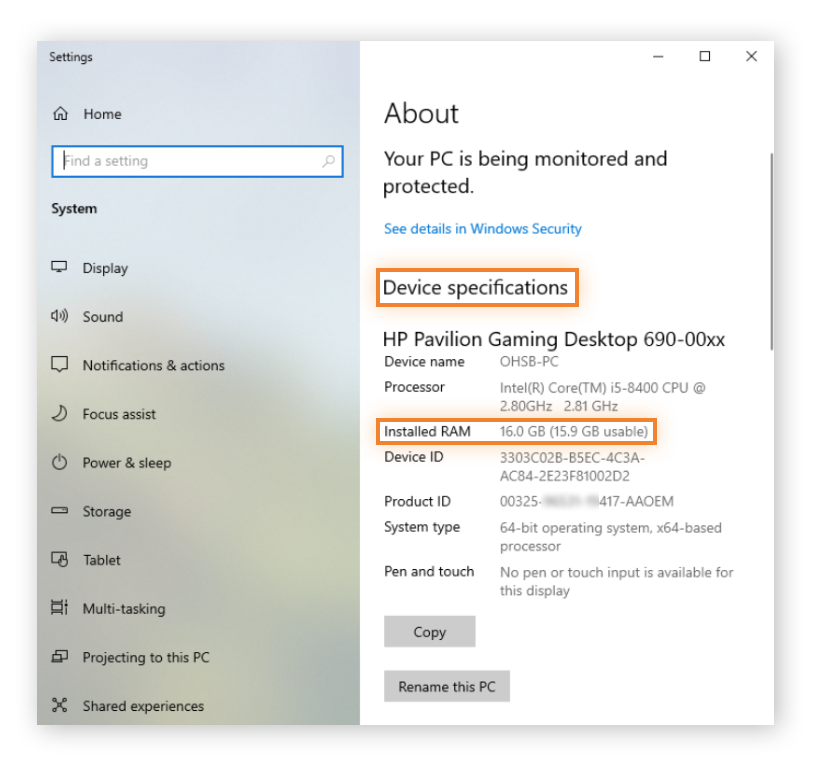
Verifying your RAM size and type helps you understand your computer’s memory capacity. It shows how much RAM is installed and the kind of RAM your system uses. This information is useful for upgrades or troubleshooting. Checking RAM is simple and can be done in several ways.
Access Ram Info Via Task Manager
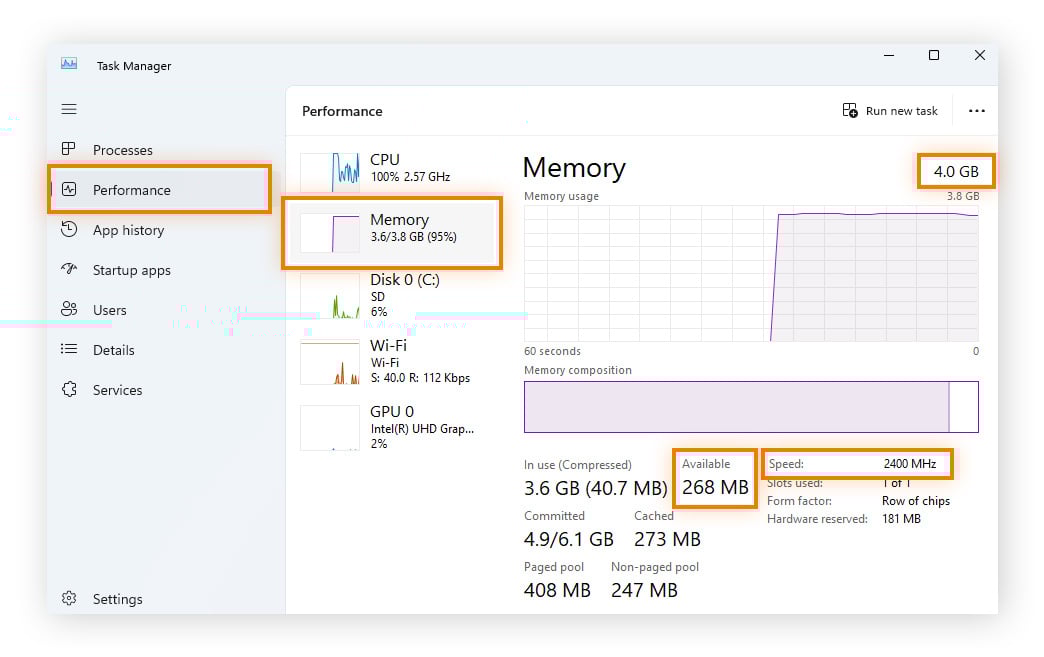
Open Task Manager by pressing Ctrl + Shift + Esc. Click the “Performance” tab. Select “Memory” to see RAM details. Here, you find total size, speed, and form factor. This method is quick and works on most Windows PCs.
Use Command Prompt Commands
Press Windows + R, type “cmd,” and press Enter. Type “wmic memorychip get capacity, speed, memorytype” and press Enter. This command shows RAM size in bytes, speed, and type code. Use the memory type codes to identify RAM type, like DDR3 or DDR4.
Inspect Physical Ram Modules
Turn off your computer and unplug it. Open the case to see RAM sticks on the motherboard. Check labels on each module for size and type. This method confirms exact RAM specs and helps if software tools give unclear info.
Monitor Cpu And Ram Usage
Monitoring CPU and RAM usage helps keep your computer running smoothly. It shows how much power your system uses. This can prevent slowdowns and crashes. Checking usage often helps find programs that use too much memory or processing power. You can fix problems before they get worse.
Track Performance In Task Manager
Task Manager is a tool built into Windows. It shows real-time CPU and RAM use. Press Ctrl + Shift + Esc to open it quickly. Click the “Performance” tab to see graphs of CPU and memory use. You can watch how your system works. It helps spot apps that use too many resources.
Use Resource Monitor
Resource Monitor gives detailed info about CPU, memory, disk, and network. Type “Resource Monitor” in the Start menu search box to open it. It shows which processes use the most CPU and RAM. You can see how much memory each app takes. This helps find hidden issues slowing down your PC.
Third-party Monitoring Apps
Third-party apps offer extra features for monitoring CPU and RAM. Some give alerts when usage is too high. Others provide detailed reports and history. Popular tools include HWMonitor and Speccy. These apps are easy to use. They help keep your system healthy and fast.
Credit: www.avast.com
Optimize Ram For Better Performance
Optimizing your RAM can improve your computer’s speed and responsiveness. Proper RAM management helps your system run smoothly without delays. Small changes can free up memory and boost performance. Focus on reducing unnecessary memory use to get better results.
Close Unnecessary Programs
Running many programs at once uses a lot of RAM. Close apps you do not need right now. This frees up memory for important tasks. Check your taskbar and system tray for hidden programs. Closing these can reduce memory use quickly.
Adjust Startup Applications
Some programs start automatically when your computer boots. This slows down your system and uses RAM. Disable programs you rarely use from starting up. Open the Task Manager and go to the Startup tab. Turn off apps that are not essential to speed up boot time.
Increase Virtual Memory
Virtual memory acts as extra RAM using your hard drive. It helps when physical RAM is full. Increase virtual memory size for better performance. Go to system settings, then advanced system properties. Find virtual memory settings and adjust the size higher. This gives your computer more breathing room during heavy tasks.
Upgrade Hardware Components
Upgrading hardware components can boost your computer’s speed and performance. It helps to handle more tasks at once. This is useful for work, study, or entertainment. Knowing how to choose the right parts is important. It saves money and avoids problems.
Focus on the CPU and RAM first. These parts control how fast your computer runs. Upgrading them correctly makes a big difference.
Choose Compatible Ram Modules
Check your computer’s motherboard for compatible RAM types. Look at the RAM speed and size limits. Use the same type of RAM as the old one. Mixing different types can cause errors. Buy RAM modules that match your system’s specifications. This ensures smooth performance and stability.
Consider Cpu Upgrade Options
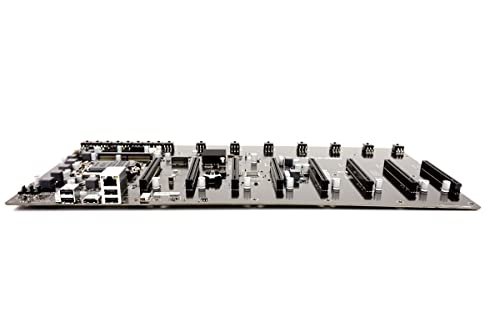
Identify the socket type on your motherboard. This limits which CPUs you can install. Choose a CPU that fits the socket and chipset. Compare the clock speed and number of cores. Higher numbers mean better performance. Check power requirements to avoid overheating.
Professional Installation Tips
Turn off and unplug your computer before opening it. Ground yourself to avoid static damage. Handle components by the edges only. Insert RAM modules firmly into slots until they click. Use a thermal paste if replacing the CPU. Test the system before closing the case. Seek help from a technician if unsure.
Credit: www.blizanovy.cz
Regular Maintenance Tips
Regular maintenance helps keep your CPU and RAM working well. It stops slowdowns and prevents errors. Simple care can make your computer last longer and run faster.
Keep Drivers Updated
Drivers help your computer parts talk to each other. Old drivers can cause problems with CPU and RAM. Check for driver updates often. Use the device manager or official websites to download the latest versions. Updated drivers improve performance and fix bugs.
Clean Hardware Internally
Dust and dirt can block air flow inside your computer. This causes the CPU to heat up and slow down. Open the case carefully and use compressed air to clean dust. Clean fans and vents too. This helps your CPU and RAM stay cool and work better.
Run System Diagnostics
System diagnostics check your CPU and RAM for issues. Use built-in tools like Windows Memory Diagnostic or third-party apps. These tests find errors early. Fixing problems fast keeps your computer stable and speeds up performance.
Credit: vixencomposites.com
Frequently Asked Questions
How Do I Check My Cpu And Ram On Windows?
Open Task Manager by pressing Ctrl+Shift+Esc. Click the Performance tab to view CPU and RAM usage details instantly.
Can I Check Cpu And Ram Without Software?
Yes, use built-in system tools like Task Manager on Windows or Activity Monitor on Mac for quick checks.
Why Is Knowing My Cpu And Ram Important?
Understanding CPU and RAM helps optimize performance and decide on upgrades for better computing efficiency.
How To Check Cpu And Ram On Mac?
Go to Apple menu > About This Mac. You’ll see CPU and memory details on the Overview tab.
Conclusion
Checking your CPU and RAM helps you understand your computer better. It shows how fast your system runs and how much memory it uses. This knowledge helps in fixing problems or deciding on upgrades. You don’t need special skills or tools to check these parts.
Just follow simple steps on your device. Regular checks keep your computer healthy and smooth. Start today and keep your system working well.