How to See Cpu Voltage: Easy Steps to Monitor Your PC Power
Want to know how to see your CPU voltage quickly and easily? Understanding your CPU voltage is key to keeping your computer running smoothly and avoiding costly damage.
Whether you’re a gamer, a tech enthusiast, or just curious about your system, knowing this simple trick can save you time and frustration. You’ll discover the easiest ways to check your CPU voltage, step by step. Ready to take control of your computer’s health?
Let’s dive in!

Credit: openhardwaremonitor.org
What Cpu Voltage Means
Cpu voltage is an important value for your computer’s processor. It controls the power the CPU gets to work properly. Knowing what cpu voltage means helps you understand how your processor runs and stays stable.
This voltage affects the speed and health of your processor. Too much or too little voltage can cause problems. It is useful to learn about cpu voltage to keep your computer safe and fast.
Basics Of Cpu Voltage
Cpu voltage is the electrical power supplied to the processor. It is measured in volts (V). This power helps the CPU perform calculations and run tasks.
Each processor has a recommended voltage range. This range ensures the CPU works correctly. Outside this range, the CPU may fail or slow down.
Impact On Performance And Stability
Voltage affects how fast the processor runs. Higher voltage can increase speed but raises heat output. Lower voltage saves energy but may reduce performance.
Too much voltage can cause overheating and damage. Too little voltage may cause crashes and errors. Finding the right voltage keeps your CPU stable and efficient.
Tools To Check Cpu Voltage
Checking CPU voltage helps you understand your computer’s health and performance. It tells you how much power your CPU uses. You can see if the voltage is stable or if it fluctuates. This information is useful for troubleshooting or overclocking your PC. Various tools exist for this task. Some are built into your system. Others require software or hardware devices. Each option offers different details and ease of use.
Using Bios And Uefi Settings
The BIOS or UEFI is the computer’s firmware interface. It shows detailed system information. You can enter BIOS by pressing a key during startup, like F2 or Delete. Inside BIOS, find the “Hardware Monitor” or “PC Health” section. Here, CPU voltage and temperatures display clearly. This method is reliable and does not need extra software. It shows real-time voltage before the operating system loads. However, BIOS interfaces differ by manufacturer. Some might hide voltage info or use different terms.
Popular Software Options
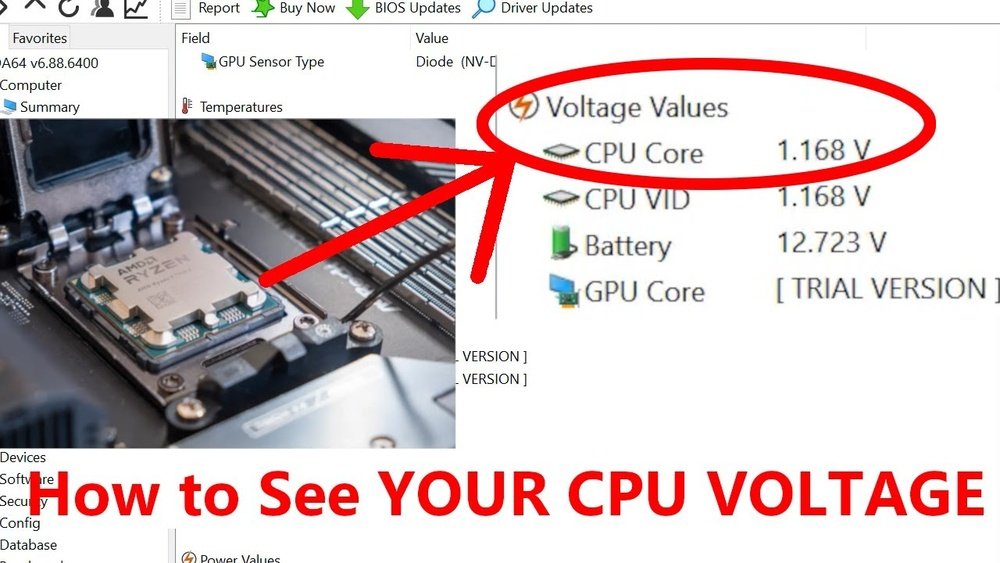
Several software programs monitor CPU voltage easily. Tools like HWMonitor, CPU-Z, and SpeedFan are common choices. They show voltage, temperature, and fan speeds in real time. These programs are free and simple to use. They work inside Windows without restarting. Some software offers graphs or logs for voltage changes over time. Keep the software updated for accurate readings. Note that software depends on your motherboard’s sensors. Sometimes, voltage readings may not be precise.
Hardware Monitoring Devices
Hardware monitors connect directly to your PC components. Devices like multimeters or external voltage sensors give exact voltage readings. These tools are useful for advanced users or technicians. They measure voltage without relying on software or BIOS data. Using hardware devices requires opening the computer case. It can be risky without proper knowledge or tools. These devices are more expensive but offer high accuracy. They are best for overclocking enthusiasts or troubleshooting complex issues.
Step-by-step Cpu Voltage Monitoring
Monitoring your CPU voltage is important for keeping your computer stable and safe. It helps you know if your CPU is running within safe limits. This guide will show you how to check CPU voltage step-by-step. Follow these simple methods to track your CPU voltage easily.
Accessing Bios For Voltage Info
Restart your computer and enter the BIOS setup. Usually, press the Del or F2 key during startup. Inside BIOS, look for the “Hardware Monitor” or “PC Health” section. Here, you will find CPU voltage listed as “Vcore” or “CPU Voltage.” Note the value shown. This method shows real-time voltage directly from the motherboard.
Using Software To Track Voltage
Download and install CPU monitoring software like HWMonitor or CPU-Z. Open the software and find the voltage section. It displays current CPU voltage and other system info. Software updates voltage readings in real time. This method is easier and does not require restarting your computer.
Interpreting Voltage Readings
Normal CPU voltage usually ranges from 1.0V to 1.4V. Values too low can cause system crashes. Values too high can damage your CPU. Check your CPU model’s recommended voltage range online. Compare your readings to these limits. Keep voltage stable for better CPU health and performance.
Credit: www.reddit.com
Tips For Safe Voltage Monitoring
Monitoring CPU voltage is important for your computer’s health. It helps prevent overheating and damage. Safe voltage monitoring protects your hardware and keeps your system stable. Follow simple tips to check your CPU voltage carefully and avoid problems.
Understanding how to watch voltage changes can save your CPU from serious harm. Stay alert and be cautious when checking or adjusting voltage settings.
Avoiding Common Mistakes
Do not guess your CPU voltage. Use trusted software tools for accurate readings. Avoid changing voltage without knowing the safe range for your CPU model. Sudden changes can cause crashes or permanent damage. Always double-check values before making adjustments. Keep your system cool to prevent false voltage spikes. Avoid running heavy programs while monitoring voltage to get clear results.
When To Adjust Cpu Voltage
Adjust voltage only if your CPU is unstable or overheating. Lower voltage if your CPU runs too hot at normal speed. Increase voltage slightly when overclocking to keep stability. Always change voltage in small steps to avoid risk. Test your system after each change to ensure it works well. Stop adjusting if your system crashes or shows errors. Remember, less voltage often means better CPU health and longer life.
Troubleshooting Voltage Issues
Troubleshooting voltage issues is key to keeping your CPU stable. Voltage problems can cause crashes, freezes, or poor performance. Detecting these problems early helps avoid hardware damage. You can track CPU voltage using software tools or BIOS settings. Understanding voltage behavior guides you in fixing issues.
Identifying Voltage Fluctuations
Voltage fluctuations happen when the CPU voltage changes too much or too fast. These changes can make your computer unstable. Use monitoring software like HWMonitor or CPU-Z to watch voltage levels. Check for sudden drops or spikes during heavy tasks. Note the normal voltage range of your CPU model. Unusual readings suggest a problem. Also, check power supply health and cable connections. Poor power delivery often causes voltage instability.
Fixing Voltage-related Problems
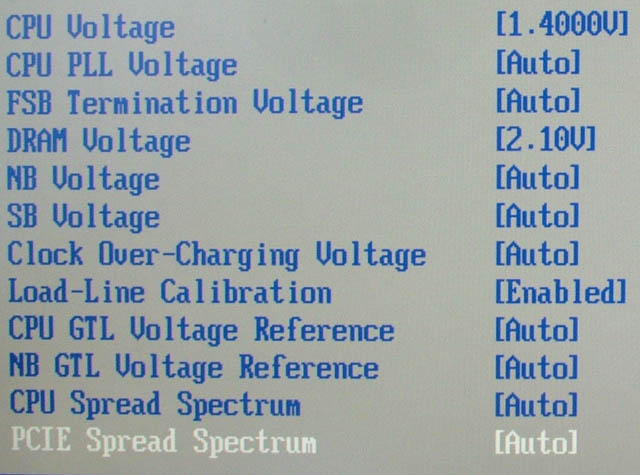
Start by updating your motherboard BIOS to ensure proper voltage control. Adjust voltage settings in BIOS carefully if needed. Increase voltage slightly if the CPU is unstable but avoid high values. Replace faulty power supply units that cause voltage drops. Clean dust from inside the PC case to improve cooling. Overheating can worsen voltage issues. Use a reliable voltage regulator module (VRM) for stable power. Regular monitoring helps catch new problems early and keeps your CPU running smooth.
Credit: www.memoryc.com
Frequently Asked Questions
How Can I Check My Cpu Voltage On Windows?
You can check CPU voltage using software like CPU-Z or HWMonitor. These tools display real-time voltage readings easily.
What Bios Setting Shows Cpu Voltage Information?
The CPU voltage is shown in the BIOS under the “Hardware Monitor” or “PC Health Status” section. Access BIOS during startup.
Why Is Monitoring Cpu Voltage Important?
Monitoring CPU voltage helps maintain system stability and prevents overheating or damage due to overvoltage or undervoltage.
Can Cpu Voltage Affect Computer Performance?
Yes, incorrect CPU voltage can cause instability, crashes, or reduced performance. Proper voltage ensures optimal CPU functioning.
Conclusion
Knowing how to see CPU voltage helps keep your computer safe. It shows if the voltage is too high or low. You can use simple tools or software for this. Watching your CPU voltage can prevent damage and improve performance.
Always check it before making changes to your system. This small step keeps your PC running smoothly and lasts longer. Stay informed and take control of your computer’s health easily.