How Many Fans Does a PC Need: Ultimate Cooling Guide 2026
Wondering how many fans your PC really needs? You’re not alone.
Too few fans can make your computer overheat, slow down, or even get damaged. But too many fans? That can mean unnecessary noise and wasted energy. Finding the right balance is key to keeping your PC cool and running smoothly.
You’ll discover exactly how many fans your setup needs—and why it matters for your performance and peace of mind. Keep reading to unlock the secret to a perfectly cooled PC.
Why Cooling Matters
Cooling is a key part of building a PC. It keeps the computer safe and working well. Without good cooling, parts can get too hot. This can cause slowdowns or damage. Knowing why cooling matters helps you choose the right fans for your PC.
Impact On Performance
Heat slows down computer parts. CPUs and GPUs reduce speed to cool down. This is called thermal throttling. It lowers your PC’s power and speed. Proper cooling keeps parts cool and fast. Your PC runs smoothly with enough airflow.
Preventing Overheating
Too much heat can cause crashes or freezes. Overheating can even shut down your PC. Fans push hot air out and bring cool air in. This stops parts from getting too hot. Good cooling protects your system from damage.
Extending Hardware Lifespan
Heat wears out parts faster. Constant high temperatures reduce the life of your hardware. Cooling fans lower heat and stress on parts. This helps your PC last longer. Proper cooling saves money by avoiding early repairs.

Credit: www.youtube.com
Types Of Pc Fans
PC fans come in different types, each with a special job. They help keep your computer cool. Cooling is very important. Without it, parts can get too hot and stop working well. Knowing the types of fans helps you choose the right number for your PC.
Case Fans
Case fans move air inside the computer box. They bring in cool air and push out hot air. Many PC cases have spots for several case fans. More fans can mean better airflow and lower temperatures. They are usually the easiest to add or change.
Cpu Coolers
CPU coolers keep the processor cool. The CPU creates a lot of heat when working hard. These coolers often have a fan attached to a heat sink. The fan blows air over the heat sink to move heat away quickly. Some CPU coolers use liquid instead of air.
Gpu Fans
GPU fans cool the graphics card. The graphics card works hard during games or video editing. It gets hot fast. Most GPUs have built-in fans or even multiple fans. These fans keep the GPU running at safe temperatures for better performance.
Liquid Cooling Pumps
Liquid cooling pumps are part of a liquid cooling system. They move coolant through tubes to carry heat away from parts. Pumps work with fans on radiators to cool the liquid. This system can be quieter and cooler than just air fans.
Factors Influencing Fan Count
Choosing the right number of fans for a PC depends on several important factors. These factors affect how well your PC stays cool and runs smoothly. Understanding these will help you decide the ideal fan setup for your system. Let’s explore the main points that influence fan count.
Case Size And Design
The size of your PC case affects how many fans you need. Larger cases need more fans to move air efficiently. Small cases may only fit one or two fans. The design also matters. Some cases have better airflow paths. Others restrict air, needing extra fans to cool parts properly.
Component Heat Output
Different PC parts create different heat levels. High-performance CPUs and GPUs produce more heat. They need extra cooling with more fans or stronger fans. Basic components run cooler and need fewer fans. Knowing your parts’ heat output helps plan your fan count.
Overclocking Considerations
Overclocking means running parts faster than usual. This raises heat output significantly. Overclocked CPUs or GPUs need better cooling to avoid damage. Adding more fans or using high-speed fans keeps temperatures safe. Without enough cooling, overclocking risks system instability.
Ambient Room Temperature
The temperature of the room impacts PC cooling. Hot rooms make it harder for fans to cool the system. Cooler rooms help fans work better. If your room is warm, consider adding more fans. Good airflow and room cooling work together to protect your PC.
Recommended Fan Setup
Setting up the right number of fans in a PC helps keep it cool and running well. Fans move air through the case, stopping heat from building up. The best fan setup depends on the type of PC and what you use it for. Here are some simple guidelines for different PC types.
Entry-level Builds
Entry-level PCs need basic cooling. One or two fans are usually enough. A front intake fan brings cool air in. A rear exhaust fan pushes hot air out. This setup keeps parts cool without extra noise or cost.
Mid-range Systems
Mid-range PCs need better airflow. Two intake fans at the front help pull in more air. One or two exhaust fans at the top and rear remove hot air. This setup balances cooling and quiet operation for most users.
High-end Gaming Pcs
High-end gaming rigs create more heat. Three or more intake fans at the front increase airflow. Two or more exhaust fans at the top and rear remove heat fast. Some gamers add side fans or liquid cooling for extra performance.
Workstations And Servers
Workstations and servers run heavy tasks for long times. They need strong cooling to avoid damage. Multiple intake and exhaust fans keep air moving well. Fans with high airflow and low noise are ideal. Proper fan setup protects the hardware and ensures stable work.
Fan Placement And Airflow
Fan placement and airflow are key to keeping your PC cool. Proper fan setup helps move hot air out and bring cool air in. This balance stops parts from overheating and running slow. Understanding how fans work together improves your PC’s performance and lifespan.
Intake Vs Exhaust Fans
Intake fans pull cool air into the case. They are usually placed at the front or bottom. Exhaust fans push hot air out. These are often found at the back or top. A good PC needs both intake and exhaust fans. This keeps air moving and stops heat from building up.
Optimizing Airflow Paths
Air should flow smoothly through the case. Cool air enters from the front and bottom. It moves over hot parts like the CPU and GPU. Then, hot air leaves from the back and top. Avoid blocking airflow with cables or parts. Clear paths help fans work better and keep the PC cooler.
Positive Vs Negative Pressure
Positive pressure means more intake fans than exhaust. This pushes air out through small gaps. It keeps dust out and cools well. Negative pressure has more exhaust fans than intake. It pulls air in through gaps and can bring dust inside. Balanced pressure is best. It keeps your PC clean and cool.

Credit: www.reddit.com
Fan Sizes And Speeds
Choosing the right fan size and speed is key for a cool and quiet PC. Fans help move hot air out and bring cool air in. Picking the right fan size and speed affects how well your PC cools and how much noise it makes. Understanding these basics helps you find the best balance for your system.
Common Fan Sizes
PC fans come in several common sizes. The most popular sizes are 80mm, 120mm, and 140mm. Larger fans move more air at lower speeds. Smaller fans spin faster but can be louder. Many cases support multiple fan sizes, so check your case before buying.
Balancing Noise And Cooling
Faster fans cool better but create more noise. Slower fans are quiet but may not cool well. Use bigger fans at lower speeds for quiet cooling. Place fans to create good airflow paths inside the case. Good airflow helps keep parts cool without loud fans.
Pwm Vs Voltage Control
Fans use two main speed controls: PWM and voltage control. PWM fans change speed using a signal, making them precise and quiet. Voltage-controlled fans change speed by adjusting power, which is less precise. Most modern motherboards support PWM fans for better speed control.
Monitoring And Adjusting Fans
Keeping your PC fans under control is important for good performance and quiet operation. Monitoring fan speeds helps spot problems early. Adjusting fan settings can improve cooling and reduce noise. You can manage fans using software, BIOS, or custom settings. Each method gives different control levels. Understanding these options helps keep your PC cool and quiet.
Using Software Tools
Many programs show fan speed and temperature. Software like SpeedFan or MSI Afterburner lets you check your fans easily. These tools show real-time data and let you change fan speeds. You can increase fan speed if the PC gets hot. Or lower speeds to reduce noise when idle. Software tools are user-friendly and work without restarting the PC.
Bios Fan Controls
The BIOS has built-in fan controls. You enter BIOS during startup by pressing a key like Delete or F2. Inside BIOS, you find fan speed settings under hardware or monitoring sections. BIOS controls work before the operating system loads. You can set fans to run at fixed speeds or use temperature-based settings. This method is reliable and works even without extra software.
Custom Fan Curves
Custom fan curves let you match fan speed to temperature. You create a graph that changes fan speed as the PC heats up. At low temperatures, fans run slow and quiet. As temperatures rise, fans speed up to cool better. Many software tools and some BIOS versions support custom curves. This gives precise control and balances cooling with noise levels.
Signs You Need More Fans
Knowing when your PC needs more fans can protect your hardware. Fans keep your components cool and working well. Without enough fans, your PC might face problems. Watch for clear signs that show your system needs better airflow.
High Component Temperatures
Check your CPU and GPU temperatures often. High temperatures can damage parts quickly. If you see temperatures rising over 80°C, your PC may need more fans. Good cooling helps keep these numbers low and safe.
Frequent Thermal Throttling
Thermal throttling means your CPU or GPU slows down. This happens to avoid overheating. If your system runs slower during heavy use, it could mean poor cooling. Adding fans improves airflow and stops throttling.
Excessive Noise From Overworked Fans
Loud fan noise can mean your current fans work too hard. Fans spin faster to cool hot parts. Constant loud noise shows your PC struggles to stay cool. More fans can share the workload and reduce noise levels.
Alternative Cooling Options
Fans are the most common way to cool a PC. Still, there are other options. These alternatives can cool your computer quietly or more effectively. They work well for different needs and setups.
Liquid Cooling Systems
Liquid cooling uses water or special fluid to carry heat away. A pump moves the liquid through tubes near hot parts. The liquid absorbs heat and moves it to a radiator. Fans on the radiator then cool the liquid. This system often cools better than fans alone. It is quieter and good for powerful PCs.
Hybrid Cooling Solutions
Hybrid cooling mixes liquid and air cooling. It uses liquid to cool the CPU or GPU. Fans help cool the radiator and case. This way, you get the best of both methods. It balances performance and noise. Hybrids suit users who want strong cooling but less noise.
Passive Cooling Techniques
Passive cooling uses no fans or pumps. It relies on heat sinks made of metal. These sinks spread heat over a large area. The heat then moves away naturally into the air. Passive cooling is silent and needs no power. It works well for low-power or small PCs.

Credit: www.youtube.com
Frequently Asked Questions
How Many Fans Does A Standard Pc Need?
A standard PC typically requires 2 to 3 fans. One intake fan brings cool air in, and one or two exhaust fans push hot air out. This setup maintains optimal airflow and keeps components at safe temperatures for better performance.
Can Too Many Pc Fans Cause Issues?
Yes, too many fans can create excess noise and disrupt airflow. Overcrowding fans may cause turbulence, reducing cooling efficiency. It’s best to balance the number of fans with your PC’s size and cooling needs to maintain quiet and effective cooling.
Does Every Pc Component Need Its Own Fan?
No, not every component requires a dedicated fan. CPUs and GPUs usually have built-in coolers. Case fans help regulate overall airflow. Additional fans are only necessary for high-performance setups or overclocked systems to prevent overheating.
How To Decide The Number Of Fans For Gaming Pcs?
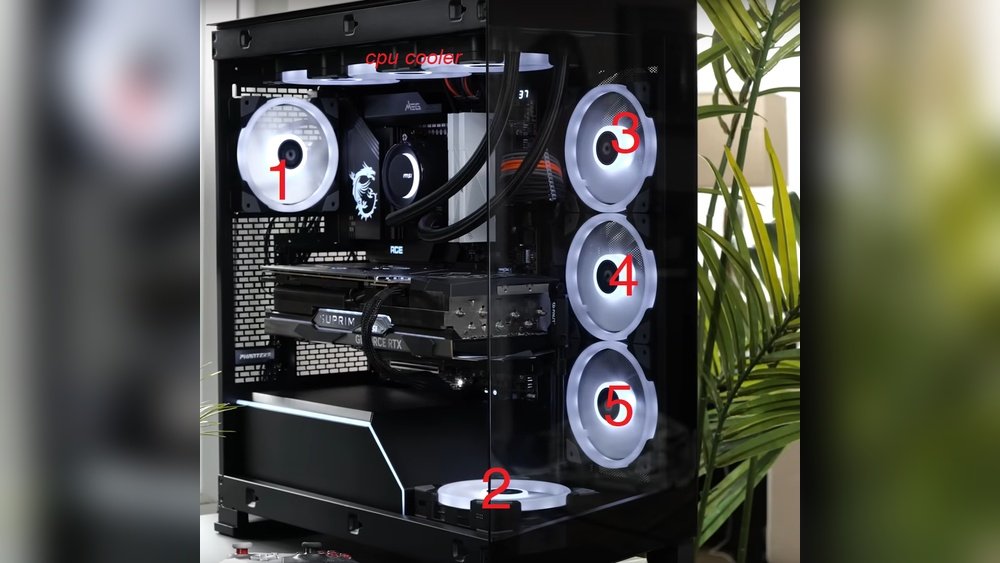
Gaming PCs benefit from 3 to 5 fans for optimal cooling. More powerful hardware generates more heat, needing better airflow. Use intake fans at the front and exhaust fans at the rear or top to ensure efficient heat dissipation.
Conclusion
Choosing the right number of fans keeps your PC cool and safe. Too few fans may cause overheating and slow performance. Too many fans can create noise and waste power. Most PCs work well with two to four fans. Consider your PC’s size, parts, and use to decide.
Good airflow helps your computer last longer. Keep fans clean and check them regularly. A balanced cooling system makes your PC run smoothly and quietly. Cooling matters, but simple choices make a big difference.