How to Choose a Cpu for Pc Build: Ultimate Guide for Perfect Performance
Choosing the right CPU for your PC build can feel overwhelming. With so many options and technical terms, it’s easy to get stuck or make a choice you might regret later.
But don’t worry—this guide is here to help you cut through the noise. By the end, you’ll know exactly what to look for in a CPU that fits your needs and budget. Ready to build a powerful, smooth-running PC? Let’s dive into how you can pick the perfect processor for your setup.

Credit: www.davestipjar.com
Cpu Basics
The CPU is the heart of any PC build. It handles instructions and processes data. Choosing the right CPU affects your computer’s speed and performance.
Understanding CPU basics helps you pick the best option for your needs. Learn what a CPU does and which specs matter most.
What A Cpu Does
The CPU processes commands from software and hardware. It performs calculations and controls tasks in your PC.
It runs your operating system and applications smoothly. The CPU manages everything from opening files to playing videos.
Think of it as the brain that drives your entire computer.
Key Cpu Specifications
Clock speed shows how fast a CPU works, measured in GHz. Higher speeds usually mean quicker task completion.
Cores are individual processing units inside the CPU. More cores help with multitasking and running complex programs.
Threads are virtual cores that improve efficiency. CPUs with more threads handle multiple tasks better.
Cache is fast memory on the CPU. It stores frequently used data for quick access.
Understanding these specs helps you match the CPU to your PC needs.

Credit: www.crucial.com
Types Of Cpus
Choosing the right CPU is key for a good PC build. The CPU acts as the brain of your computer. It processes instructions and runs programs. Different types of CPUs offer different features. Understanding these types helps you pick the best one for your needs.
Intel Vs Amd
Intel and AMD are the two main CPU makers. Intel CPUs often focus on strong single-core performance. This helps in tasks like gaming and simple apps. AMD CPUs usually have more cores and threads. They perform well in multitasking and heavy workloads. Both brands offer models for budget and high-end builds. Consider your needs and budget when choosing between them.
Desktop Vs Mobile Cpus
Desktop CPUs are designed for powerful performance. They consume more power and create more heat. This suits users who want speed and multitasking ability. Mobile CPUs are made for laptops and small devices. They use less power to save battery life. Mobile CPUs are not as fast as desktop ones. Choose desktop CPUs for a strong PC build. Mobile CPUs fit best in portable devices.
Performance Factors
Choosing the right CPU greatly affects your PC’s performance. Several factors influence how fast and smooth your system runs. Understanding these factors helps you pick the best processor for your needs. Focus on core count, clock speed, and cache size for better results.
Core Count And Threads
Core count shows how many processing units a CPU has. More cores mean the CPU can handle more tasks at once. Threads are virtual cores that improve multitasking. Processors with high thread counts perform better in heavy workloads. Choose a CPU with enough cores and threads for your daily tasks.
Clock Speed And Overclocking
Clock speed measures how fast a CPU runs in gigahertz (GHz). Higher speeds mean faster processing of instructions. Some CPUs allow overclocking, which increases clock speed beyond the factory setting. Overclocking improves performance but may increase heat and power use. Balance clock speed with your cooling system for safety.
Cache Size Impact
Cache is fast memory inside the CPU. It stores frequently used data for quick access. Larger cache size reduces delays and speeds up tasks. A bigger cache helps with gaming, editing, and software running many processes. Check cache size alongside cores and clock speed for smooth performance.
Compatibility Check
Choosing the right CPU means checking if it fits well with other parts. Compatibility is key for a smooth PC build. Parts must work together without issues. This section explains how to check compatibility before buying your CPU.
Motherboard Socket Types
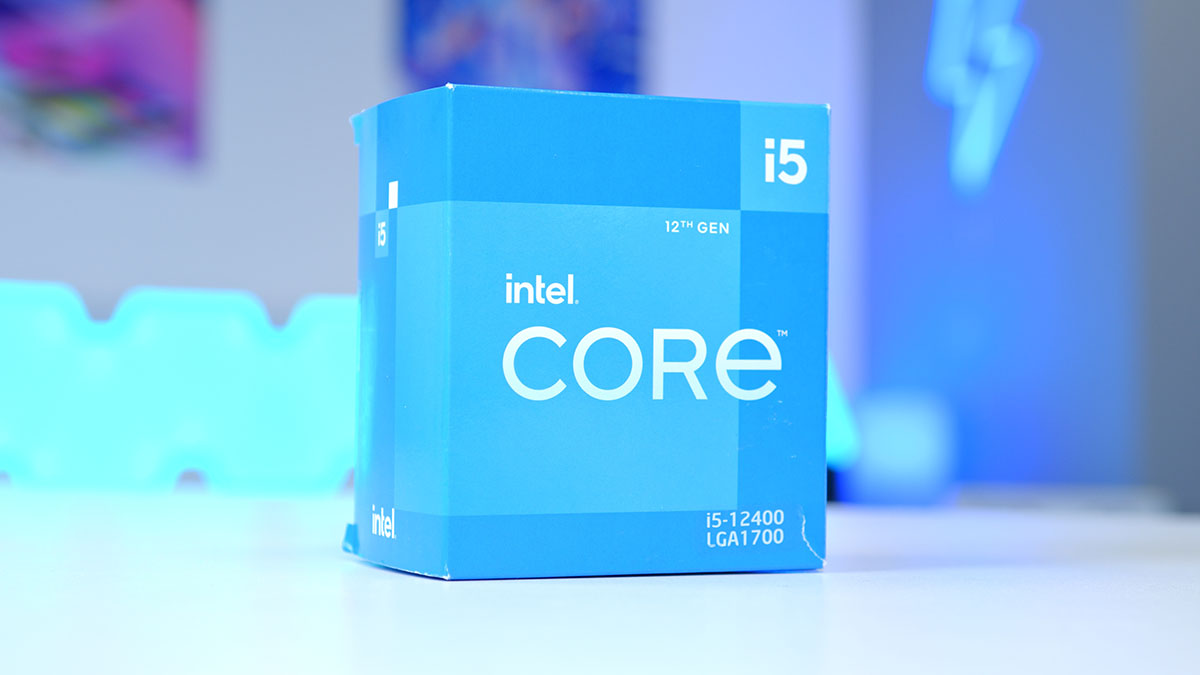
The CPU must match the motherboard socket type. Sockets are physical slots on the motherboard. Common types include Intel’s LGA and AMD’s AM4. Each CPU fits only one socket type. Check your motherboard’s socket before buying a CPU. Using the wrong socket means the CPU won’t fit or work.
Ram Compatibility
CPUs support certain types and speeds of RAM. DDR4 and DDR5 are popular RAM types today. Your CPU and motherboard must support the same RAM type. Faster RAM helps your PC run smoothly. Check the CPU’s RAM compatibility to avoid slow performance or errors.
Power Supply Requirements
CPUs need power to run. Different CPUs use different amounts of power. Check the CPU’s power needs, called TDP (Thermal Design Power). Your power supply must provide enough wattage for the CPU. Insufficient power can cause crashes or damage. Match the CPU’s power demand with a suitable power supply unit.
Choosing By Use Case
Choosing a CPU depends a lot on what you want to do with your PC. Different tasks need different CPU features. Picking the right CPU for your use case helps your computer run better and saves money. Below are common use cases to help you decide.
Gaming Builds
Gaming needs a CPU with good speed and several cores. Most games run better with a faster CPU clock. Four to six cores work well for many games. Some newer games use more cores, so having eight can help. Also, look for CPUs with strong single-core performance. This keeps gameplay smooth and reduces lag.
Content Creation
Content creators need CPUs with many cores and threads. Video editing, 3D rendering, and graphic design use many cores at once. More cores mean faster processing and less waiting. A CPU with 8 to 16 cores is ideal. Also, high cache size and good multi-threading improve performance. This helps finish projects faster and handles complex tasks.
General Productivity
For everyday tasks, a mid-range CPU works fine. Web browsing, office work, and watching videos do not need many cores. A CPU with 4 to 6 cores and moderate speed is enough. It saves money and uses less power. This type of CPU keeps your computer responsive for daily use.
Credit: geekawhat.com
Budget Considerations
Choosing a CPU is a key part of building a PC. The budget shapes many choices. Spending wisely ensures good performance without overspending. It is important to balance cost and power. This helps create a system that works well today and tomorrow.
Balancing Price And Performance
Pick a CPU that fits your budget and needs. Higher price often means better speed and more cores. But very expensive models may be too much for basic tasks. Find a CPU that handles your tasks smoothly. Check reviews and benchmarks to compare options. Avoid paying extra for features you won’t use.
Future-proofing Tips
Choose a CPU that lasts through new software updates. Pick one with enough cores and threads for coming years. Look for CPUs supporting new technologies like DDR5 RAM. Keep some budget for a good motherboard and cooling. This helps avoid early upgrades and saves money in the long run.
Cooling Solutions
Choosing the right cooling solution is vital for your CPU’s performance and lifespan. Cooling keeps the processor at a safe temperature during use. Without good cooling, the CPU may slow down or get damaged. Different cooling options suit different PC builds and budgets. Understanding these options helps pick the best fit.
Stock Vs Aftermarket Coolers
Stock coolers come with many CPUs. They offer basic cooling and are easy to install. These coolers work well for standard tasks like browsing or office work. Aftermarket coolers are sold separately. They provide better cooling, which helps with gaming and heavy work. Aftermarket coolers are usually quieter and last longer. They come in various sizes and designs. Choosing one depends on your needs and budget.
Air Cooling Vs Liquid Cooling
Air cooling uses fans and heat sinks to cool the CPU. It is simple, reliable, and affordable. Most PC builders use air cooling because of its ease. Liquid cooling uses water or coolant to move heat away. It cools more effectively, especially for high-performance CPUs. Liquid coolers can be quieter but need more care. They also cost more and require space inside the case. Both options work well but suit different setups and user preferences.
Building Tips
Building a PC starts with choosing the right CPU, but how you install and set it up matters just as much. Good building tips help avoid mistakes and boost your PC’s performance. Small steps during installation and BIOS setup make a big difference.
Focus on clear, careful actions to protect your parts and get the most from your new CPU. Here are key tips to guide you through the process.
Installation Best Practices
Handle the CPU with care. Avoid touching the pins or contacts. Use an anti-static wrist strap to stop static damage.
Open the CPU socket gently. Align the CPU correctly using the triangle marker on one corner. Do not force the CPU into place.
Apply thermal paste sparingly. A pea-sized dot is enough. This helps heat transfer to the cooler.
Secure the CPU cooler firmly but do not overtighten screws. Check for good contact between cooler and CPU.
Bios Settings For Optimal Performance
Enter the BIOS after the first boot. Update the BIOS if a new version is available for your CPU.
Enable XMP or DOCP to run your RAM at its rated speed. This improves overall system speed.
Check CPU temperatures in BIOS to ensure cooling works well. Temperatures above 80°C need better cooling.
Adjust fan curves if your BIOS supports it. This helps keep noise low while cooling efficiently.
Frequently Asked Questions
What Factors Matter Most When Choosing A Cpu?
Consider clock speed, core count, socket compatibility, and power consumption. Match these with your usage needs and budget for best results.
How Does Cpu Compatibility Affect My Pc Build?
CPU must fit the motherboard socket and support chipset features. Incompatible CPUs won’t work or limit performance and upgrade options.
Should I Prioritize Cores Or Clock Speed?
Cores boost multitasking and parallel tasks; clock speed impacts single-thread tasks. Choose based on your software’s demand and workload type.
Is Integrated Graphics Important In A Cpu?
Integrated graphics help if you lack a dedicated GPU. They suit basic tasks and troubleshooting but limit gaming and heavy graphics use.
Conclusion
Choosing the right CPU shapes your PC’s performance and tasks. Consider your budget, use, and compatibility carefully. Balance speed, cores, and power for best results. Don’t rush; research and compare models first. A good CPU supports smooth gaming, work, and everyday use.
Take time to pick one that fits your needs well. A smart choice today saves upgrades tomorrow. Ready to build your PC with confidence?